

Custom domain troubleshooting checklist for DNS and SSL issues
Use this custom domain troubleshooting checklist to diagnose DNS record issues, propagation delays, and SSL timing, with simple verification steps.
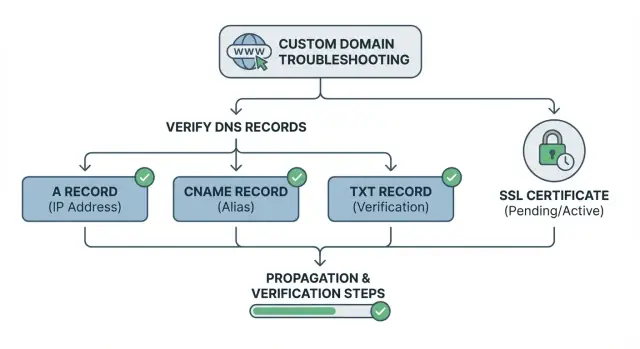
What “custom domain not working” usually means
“Custom domain not working” is a catch-all phrase for a few different failures. Your browser shows the symptom, not the cause. Before changing anything, name what you’re actually seeing.
Typical symptoms include:
- A “domain not found” page
- The domain loading the wrong website
- An “insecure” warning even though HTTPS is enabled
- Redirect loops (bouncing between http and https, or between the root domain and www)
Most of the time, only one thing is wrong:
- DNS points to the wrong place, or the needed record is missing
- The hosting target isn’t configured for that hostname (the server doesn’t recognize your domain)
- SSL hasn’t been issued yet, was issued for a different hostname, or can’t be issued because DNS doesn’t match
- Caching hides your changes (browser cache, DNS resolver cache, or old TTL values)
Before troubleshooting, make sure you have access to two places: where you edit DNS records (registrar or DNS provider) and where you attach the domain on the hosting side. For example, if you’re connecting a deployed app on Koder.ai to a custom domain, you need DNS access for the domain and the domain settings in the app’s hosting or deployment setup.
Some fixes are instant (like correcting a typo). Others take time. DNS changes can take a while to show up, and SSL usually won’t complete until DNS points correctly and the domain is reachable. The goal is to stop guessing and confirm each layer in order.
The small DNS concepts that matter (without the jargon)
Most domain issues come down to a mismatch between (1) the hostname you’re testing, (2) where DNS is managed, and (3) what the record actually points to. Once those three line up, SSL is usually the last step.
Domains have two common forms: the root domain (example.com, also called the apex) and subdomains (www.example.com, app.example.com). They’re related, but they can have different DNS records. So it’s normal for www to work while the apex fails, or the other way around.
Nameservers decide who is in charge of your DNS zone. If you bought a domain from one company but the nameservers point to another, you must edit DNS where the nameservers point. Many “I updated it but nothing changed” situations happen because the records were edited in the wrong dashboard.
DNS record types in plain English
Here’s what the main record types do:
- A: points a name to an IPv4 address (like 203.0.113.10)
- AAAA: points a name to an IPv6 address
- CNAME: points a name to another hostname (common for www)
- TXT: stores text used for verification and security (ownership checks, SPF, and similar)
TTL is the “how long to cache this” timer. Lower TTL means caches refresh faster. Higher TTL means you might need to wait longer, even after you fixed the record. Seeing the old value for a while can be normal.
Step-by-step: a simple decision tree to isolate the cause
When a custom domain fails, you can usually sort it into one of four buckets: DNS doesn’t resolve, DNS resolves to the wrong place, SSL isn’t ready, or it only fails for some people because of caching.
Use this decision tree:
- Does the domain resolve at all? If you see NXDOMAIN (or “domain not found”), the record is missing, you’re editing the wrong DNS zone, or the nameservers aren’t what you think.
- If it resolves, is it pointing to the right target? If the page loads but it’s the wrong site, a parked page, or an old server, the A/AAAA/CNAME target is wrong or a leftover record is taking priority.
- If it points correctly, is the failure only HTTPS? If HTTP works but HTTPS shows a certificate warning, SSL may still be issuing, the hostname on the certificate may not match, or the platform is waiting for DNS to settle.
- Does it work on one device or network but not another? Treat it as caching or propagation.
- Do redirects break (www vs apex)? If
wwwworks but the root domain doesn’t (or vice versa), you likely configured only one hostname, or you have conflicting redirect rules.
Move faster by writing down the exact hostname that fails (apex vs www) and the exact error message. On hosting platforms that automate domains and certificates, the difference between “cannot find host” and “certificate pending” tells you whether to fix DNS records or simply wait for SSL after DNS becomes visible.
Step 1: confirm the hostname and the expected target
Many domain failures start with a simple mismatch: you set up DNS for one hostname, but you’re testing another.
First, write down the exact hostname you want live. The root domain looks like example.com. A subdomain looks like www.example.com or app.example.com. These are separate DNS entries, so “www works” doesn’t mean the root domain will.
Next, find the expected target from your hosting platform. Some platforms give an IP address (for an A or AAAA record). Others give a target hostname (for a CNAME). If your host provides a value in a domain setup screen, treat that as the source of truth.
Before changing anything, capture what’s currently set. Keep it simple:
- Copy the current DNS records for the hostname you’re changing
- Note any existing A, AAAA, CNAME, and TXT records
- Record the TTL
Also confirm you’re editing the right DNS zone. It’s easy to update the wrong domain, the wrong environment, or the wrong provider account.
Step 2: choose the right DNS record type (A, AAAA, CNAME, TXT)
Many problems are just the wrong record type for the hostname you’re trying to connect. Start by separating two cases: the root domain (example.com) and a subdomain (www.example.com). They behave differently at many DNS providers.
An A record points a name to an IPv4 address. Many setups use an A record for the root domain because some providers don’t allow a CNAME at the apex. If your host gives you an IP, an A record is usually correct.
An AAAA record is the IPv6 version. A stray AAAA record pointing to an old destination can create confusing “works for me” behavior, because some visitors will hit IPv6 while others hit IPv4. If your host didn’t give you an IPv6 target, removing an incorrect AAAA record often fixes inconsistent failures.
A CNAME record points a subdomain to another hostname (often used for www). It’s useful when the host wants you to target a named endpoint that can change behind the scenes.
A TXT record is for verification and challenges (including some SSL checks). Common mistakes include placing the TXT on the wrong name (root vs _acme-challenge vs a subdomain), adding extra spaces, or pasting the wrong value.
Before moving on, look for conflicts. These are the ones that cause the most trouble:
- A CNAME on a name that also has other record types
- Multiple A or AAAA records for the same name when you intended only one
- Old records left behind for www or the root domain
- TXT records created on the wrong hostname
Step 3: verify nameservers so you are editing the right place
Many “custom domain not working” cases aren’t about the record value at all. They happen because the record was added at the wrong provider. If your domain uses Provider A’s nameservers, changing records in Provider B’s dashboard won’t do anything, even if the records look correct there.
Confirm the authoritative nameservers
Check which nameservers your domain is actually using. You can usually see this in your registrar’s domain settings under “Nameservers”. For a second opinion, ask DNS directly from your computer:
dig NS example.com
The nameservers returned by that command are the authoritative ones.
A quick sanity check:
- If your DNS host gives you nameservers like
ns1...andns2..., those exact values must appear at the registrar. - If you recently switched DNS providers, confirm the switch is complete before doing more record edits.
- If a platform shows “suggested DNS records,” that’s usually guidance. You still need to add the records at the authoritative DNS provider.
Why “I updated it, but nothing changed” happens
If you update records at the wrong provider, you’ll often see two dashboards that don’t match. Only the authoritative nameservers matter.
Also watch for delays after changing nameservers at the registrar. During the transition window, results can look inconsistent depending on where you test from. If nameservers are still changing, pause record edits until the nameserver set is stable, then continue.
Step 4: propagation and caching checks that actually help
“Propagation” isn’t one switch. It’s a chain of DNS caches (ISP, phone carrier, public resolvers, and your own devices) updating at different speeds. That’s why your domain can work for a coworker but fail for you.
TTL (time to live) tells caches how long they can keep an answer. If the old TTL was 1 hour, some people will keep seeing the old value for close to an hour. Lowering TTL helps only if you did it before making the change.
To separate caching delays from real mistakes, do a few quick checks:
- Test on home or office Wi-Fi, then on mobile data
- Ask someone on a different network to try
- Use a private window (to rule out cached redirects)
- Restart your device or flush local DNS cache if you know how
- Double-check the exact hostname (root vs www)
If the record is wrong anywhere you check (wrong IP, missing www, old CNAME), fix it. If records look correct in most places but one network still shows the old value, it’s usually cache delay.
Step 5: SSL timing and why “wait a bit” is sometimes correct
SSL certificates usually fail for one basic reason: the certificate provider can’t validate the domain until DNS points to the correct place consistently.
The normal sequence is simple:
- Set the correct DNS records.
- Wait until they resolve correctly from multiple places.
- Complete any required verification (often a TXT record).
- Let certificate issuance finish.
Common blockers are easy to miss. A wrong A or CNAME target sends validation checks to the wrong server. A stale AAAA record can override your working A record for some visitors, so HTTPS fails only for them. Missing a required TXT record can prevent a platform from issuing a certificate.
Use symptoms to separate “still issuing” from “misconfigured”:
- Still issuing: HTTP might work, but HTTPS shows a temporary default certificate or a “not valid yet” style message.
- Misconfigured: you see a different website, an ISP parking page, or DNS lookup fails (NXDOMAIN).
While you wait, don’t keep flipping records. Every change resets the clock and can create a split world where different networks see different answers. Set the correct records once, then re-check resolution and verification until the certificate is issued.
If you’re using a platform like Koder.ai, the safest flow is the same: confirm DNS points to the expected target, remove incorrect AAAA records if they exist, and give SSL time after DNS is stable.
How to verify each step (without guessing)
Good troubleshooting is mostly comparison: what you see versus what you expect. Don’t rely on “it loads on my phone.” Use repeatable checks.
Check DNS answers against your expected target
Use a DNS lookup tool (like nslookup or dig) and confirm the returned value matches what you intended (an IP for A or AAAA, a hostname for CNAME, a token for TXT).
# Apex (root) domain
dig example.com A

dig example.com AAAA

# www subdomain
dig www.example.com CNAME

# TXT (often used for verification)
dig example.com TXT
Check both names you might be using: the apex (example.com) and www (www.example.com). It’s common for one to be correct while the other still points somewhere old.
Check browser behavior (HTTP, HTTPS, and redirects)
Open both http:// and https:// for the apex and www. You want one clear “home” domain and one clean redirect.
- Pick one canonical domain (either apex or
www) and redirect the other to it. - Avoid ping-pong redirects (A redirects to B, then B redirects back to A).
- If HTTP works but HTTPS fails, SSL is either still issuing or DNS is still pointing somewhere unexpected.
If results differ by network, you’re likely seeing caching or propagation. Keep a tiny log: what you changed, where you changed it, the time, and what you observed.
Common mistakes that waste hours
Most DNS and SSL problems aren’t mysteries. They’re small mistakes that keep you checking the wrong thing, or changing things too quickly to get a clear read.
The most common time sink is editing DNS in two places. This often happens after switching nameservers: you update records at the registrar, but DNS is actually hosted elsewhere (or the other way around). Everything looks correct in one dashboard, yet nothing changes publicly.
Another classic mistake is trying to put a CNAME on the root domain with a provider that doesn’t support it. You may need an A record, or an ALIAS or ANAME-style record if your DNS provider offers it.
IPv6 can also cause headaches. Leaving an old AAAA record can send some visitors to the wrong server while others hit IPv4 correctly.
Be careful with “just in case” records. Multiple A records can behave like accidental load balancing if one target is wrong, especially when pointing a custom domain at a hosted app.
One final rule: stop resetting the clock.
- Don’t change records every few minutes.
- Don’t mix old and new targets at the same time.
- Wait for caches to settle before judging results.
Small, calm changes beat constant tweaking.
A realistic example: www works but the root domain does not
You launch a new app and set up both example.com and www.example.com. A few minutes later, www.example.com loads fine, but the root domain shows a DNS error, loads an old site, or HTTPS stays pending. This pattern is common, and it usually has a small cause.
Start with the boring question: are you editing DNS in the right place? If your domain is registered at one company but DNS is hosted at another, you can change records all day and nothing will happen. Check nameservers first, then open the DNS panel for the provider those nameservers point to.
Next, compare the two hostnames. www is typically a CNAME. The root domain is trickier: many providers don’t allow a CNAME at the apex, so it often needs an A record to an IP, or an ALIAS or ANAME-style record if supported.
A decision path that works in practice:
- Nameservers wrong or unexpected? Fix that first.
- Nameservers correct but
example.comhas no record (or points elsewhere)? Fix the apex record. - Records look right but behavior differs by device or network? Wait for propagation and clear caches.
- DNS resolves correctly but HTTPS is failing or stuck? SSL is waiting on consistent DNS.
The correct end state is boring: both example.com and www.example.com lead to the same app, one is canonical (the other redirects), and HTTPS is valid.
Quick checklist you can run in 5 minutes
When a domain setup fails, most fixes come from a few fast checks. Run these before changing anything else.
- Confirm you’re editing DNS in the right place (match your dashboard to the domain’s authoritative nameservers).
- Verify the hostname and target are exact (no missing subdomain, no extra dots). Compare your record type (A, AAAA, CNAME, TXT) to what your host expects.
- Remove conflicts (CNAME plus other records on the same name, or old A or AAAA records you no longer need).
- Check from two viewpoints (mobile data and Wi-Fi). If one works and the other doesn’t, it’s usually caching or propagation.
- Respect TTL. If TTL is 300 seconds, wait 5 to 10 minutes before judging. If TTL is 3600, expect closer to an hour.
After DNS is clearly correct, then check SSL. Many platforms only issue the certificate after they can resolve your domain to the right target consistently. If you check too early, you can mistake a normal delay for a real error.
If you’re adding a custom domain to a deployed app on Koder.ai, treat the domain setup screen as your reference for the expected target, then re-check the status only after DNS has had time to propagate.
Next steps: make domain setup repeatable for every launch
The fastest way to avoid repeating DNS and SSL mistakes is to keep a short “domain setup note” for each project. It’s a reusable runbook you can copy the next time you launch.
A simple domain setup note template
Keep it in your project docs and fill it in before you touch DNS:
- Domains and hostnames (root, www, and any subdomains)
- Expected record types and targets (A, CNAME, TXT) and where they come from
- Where DNS is edited (which provider) and the active nameservers
- SSL expectations (who issues it, what “ready” looks like)
- Verification steps you’ll run (tool and expected result)
During launch, make one person the DNS owner. DNS breaks most often when two people “fix” different things at the same time (for example, one changes nameservers while another edits records).
On the hosting side, plan for safe reversals. If your platform supports snapshots or rollback, take a snapshot before changing routing so you can return to the last known-good state quickly. If you build on Koder.ai, you can use Planning Mode to write down the domain steps you’ll take, apply them in order, and roll back if a change breaks production.
When to escalate (and to whom)
If you’ve confirmed DNS is correct and you still see failures, stop guessing and escalate with evidence:
- The registrar shows locked nameservers or you can’t change them
- DNS edits don’t appear anywhere after the expected TTL window
- SSL keeps failing long after DNS resolves correctly (think hours, not minutes)
- You see conflicting records you can’t remove (provider UI bug or split DNS)
When you escalate, include the hostname, expected records, current resolver results, and timestamps. It turns a slow back-and-forth into a quick fix.
FAQ
What does “custom domain not working” usually mean?
It usually means one layer of the chain is wrong: DNS isn’t resolving, DNS resolves to the wrong target, the server/host doesn’t recognize your hostname, or HTTPS/SSL hasn’t finished issuing yet. Start by writing down the exact error you see and the exact hostname you typed (apex vs www).
Why does www work but the root domain (example.com) fails?
Because example.com (the apex) and www.example.com are separate hostnames with separate DNS records. It’s common to have a correct CNAME for www while the apex has no A record, the wrong A record, or an unsupported setup at your DNS provider.
How do I know if I’m editing DNS in the right place?
Check the domain’s nameservers at your registrar and compare them to the DNS provider you’re editing. Only the provider listed in the active nameservers is authoritative; editing records anywhere else won’t change what the public internet sees.
Which DNS record type should I use (A, AAAA, CNAME, TXT)?
Use an A record when your host gives you an IPv4 address, an AAAA record only if your host gives you an IPv6 address, and a CNAME when your host gives you another hostname (most common for www). TXT records are for verification and challenges, and they must be created on the exact name your host specifies.
Can an IPv6 (AAAA) record break my domain even if the A record is correct?
A stale or wrong AAAA record can send some visitors over IPv6 to an old server while others go to the correct IPv4 address, creating “works for me” confusion. If your host didn’t provide an IPv6 target, removing an incorrect AAAA record is often the simplest fix.
What causes redirect loops between http/https or between apex/www?
Most often, you’ve configured only one hostname on the hosting side (only apex or only www), or you have competing redirect rules that bounce between HTTP and HTTPS or between apex and www. Pick one canonical hostname, configure both hostnames, and ensure only one clean redirect path exists.
If DNS is correct, can HTTPS still take time to work?
Yes, and waiting is the right move only after DNS clearly points to the correct target from multiple places. SSL issuance usually won’t complete until the domain resolves consistently to the expected destination, and flipping DNS back and forth can keep resetting the process.
How long should I wait for DNS changes, and what is TTL?
TTL is how long resolvers cache an answer, so even after you fix a record, some networks may keep serving the old value until the TTL window expires. Test from two different networks (for example, Wi‑Fi and mobile data) and avoid making new DNS changes every few minutes so you can observe propagation cleanly.
What’s the quickest way to verify DNS and browser behavior without guessing?
Use a repeatable check like dig or nslookup to confirm the A/AAAA/CNAME/TXT answers match your expected target, and then test both http:// and https:// for both apex and www. If one network shows different DNS answers than another, treat it as caching; if all networks show the wrong answers, treat it as a configuration mistake.
How should I troubleshoot a custom domain for a deployed app on Koder.ai?
On Koder.ai, treat the app’s domain setup screen as the source of truth for the expected DNS target, then make DNS match that exactly at the authoritative provider. After changing DNS, give it time to settle before re-checking SSL, and use snapshots/rollback if you’re adjusting routing on a live project so you can return to a known-good state quickly.