

Demo environment setup that stays stable in live sales demos
Demo environment setup tips for sales teams: seed realistic data, add a reset button, and isolate integrations so demos stay reliable.
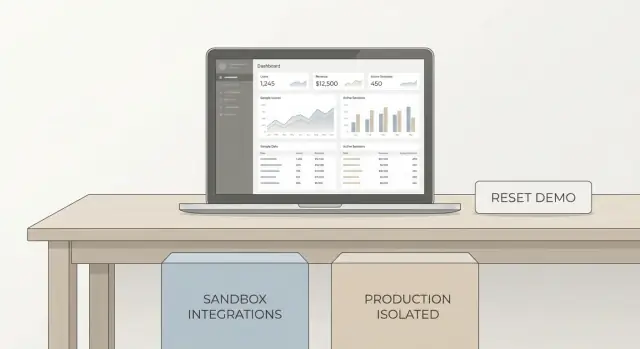
Why live demos break (and why it’s usually preventable)
Live demos usually fail for boring reasons, not because the product is “unstable.” Most teams are demoing an environment that has quietly drifted over time.
The most common cause is stale or messy data. Someone deletes a key record, a trial account expires, or last week’s testing leaves half-finished objects everywhere. When the story depends on “open the Acme account and click Orders,” missing data turns a confident flow into awkward searching.
The next big cause is integrations. Any demo that depends on real email delivery, real payment providers, or a third-party API can break at the worst time: rate limits, network hiccups, expired tokens, or a sandbox outage. Even worse, it can send real messages to real people.
Permissions are the silent killer. The admin account works, but the “manager” role suddenly can’t see the page you planned to show, or a feature flag is off. You end up narrating what should happen instead of showing what does happen.
A bad demo costs more than a few minutes. It burns trust. Prospects start to wonder what else will be flaky after they buy, and your team loses momentum trying to recover mid-call.
A good demo environment should be repeatable, predictable, and safe to click around. If someone hits the wrong button, recovery should be quick.
That starts with scope. Some things must look real: names, dates, totals, roles, and a believable workload. Other things should be simplified on purpose: fake email sending, mocked payment success, sample analytics.
A simple way to draw the line:
- Keep real: core workflow screens, realistic records, role-based access
- Simplify: external integrations, long-running jobs, edge-case settings
- Protect: anything that could change data in a way you can’t undo quickly
If you’re demoing a B2B app, you can show real-looking invoices and activity history, but “Send invoice email” should write to a demo outbox instead of sending.
If you use a platform that supports snapshots and rollback, treat your demo as something you can reset on demand. For example, Koder.ai includes snapshots and rollback, which makes it easier to return to a known state after someone clicks around in an unexpected way.
Define what “realistic data” means for your product
Realistic data isn’t “lots of rows.” It’s the smallest set of records that makes the product feel alive and matches what a buyer expects to click through.
Most buyers look for a few signals that this is a real workflow: familiar names (not User 1, User 2), dates that make sense, statuses that change the UI, and activity history that explains why things look the way they do. They also notice when numbers don’t add up, like totals that don’t match a rollup or a chart that looks empty.
Next, pick 2-3 storylines and shape the dataset around them. For a B2B product, that’s often onboarding (first project created), reporting (a dashboard with trends), and approvals (a request moving across roles). Each storyline should be finishable in 2-4 minutes, with no dead ends.
Decide what must stay consistent across resets. If your UI shows “Account ID,” emails, or monthly totals, keep them stable so screenshots, scripts, and talk tracks don’t drift. Consistency also makes it easier to verify that the environment is back to the expected state.
Finally, set red lines. Never use real customer data, real payment details, or anything that could be mistaken for PII. Use obviously fake domains, generated names, and test card numbers only.
If you’re building your demo app on Koder.ai, it can help to treat seed data as part of the app spec: define the storylines first, then generate data and screens to match them.
Plan your demo dataset so it tells a clear story
A good demo dataset is small, complete, and predictable. The goal isn’t to show every feature. It’s to guide someone through a simple story where each screen has something meaningful to look at.
Start by picking the smallest “full” model of your product. That usually means one account with a few core objects that touch most screens (for example: users, customers, projects, invoices, messages). This keeps the demo coherent even when you jump around.
Give the data a cast of characters. Create a few believable companies and personas, then connect them the way real customers would.
A practical example:
- Two companies: a paying customer and a trial customer
- Three roles: Admin (settings), Manager (reports), Rep (daily work)
- A handful of active records: 3 projects, 12 tasks, 8 conversations, 4 invoices
- One integration-related record that looks real but is safe (like a “last sync” log)
Make the timeline feel current. People instantly notice when everything happened “6 months ago.” Use time-based data that always looks recent: activity in the last 24 hours, signups in the last 7 days, and trends over the last 30 days. Instead of hard-coding dates, store relative timestamps (like “now minus 3 days”) during seeding.
Keep a few edge cases on purpose, but limit them to one per theme. An overdue invoice shows how alerts work. A failed sync shows how errors are handled. An empty state (like “no saved filters yet”) proves the product is clean when starting fresh.
Step by step: seed realistic data without risking production
A safe demo environment starts with one rule: your demo data must never share a database, API keys, or admin access with production. Treat the demo like a separate product with its own boundaries.
A simple seeding flow that stays repeatable
Begin from a known starting point. That can be an empty database or a saved snapshot you trust, but it must always be the same baseline.
Then build the dataset in layers so relationships make sense. A practical order is:
- Create a few companies or workspaces first (with plans, regions, and settings)
- Add users and roles tied to those orgs
- Add the core objects your product sells (projects, tickets, invoices, leads, whatever matters)
- Add activity (comments, status changes, logins, email events) so screens look alive
- Add a small set of edge cases (overdue item, cancelled subscription, one empty state)
When you generate “realistic” values, aim for believable patterns, not randomness. Use fake names and domains, keep numbers in a normal range, and set timestamps that tell a story. This prevents awkward moments like a dashboard showing 0% conversion or a report with dates in the future.
Validate what the seed created
Do a quick pass on the handful of screens you will actually show live. Check that totals match, charts have enough points to be interesting, and any “top 5” widgets have exactly five items.
Store the seeding process so anyone can rerun it. Keep the script, config, and expected outcomes together (for example, “Org A should have 12 tickets, 3 overdue”). If you rely on snapshots and rollback (including on Koder.ai), you can return to a baseline before reseeding, so you can repeat the same demo tomorrow without surprises.
Design a “Reset demo” button people can trust
A reset button isn’t “delete some rows.” In a live sales demo, reset should put the product back into a known-good story: the same accounts, the same sample activity, the same permissions, and the same screen state the presenter expects.
Start by writing down what “clean” means for your demo. Usually it includes data (records), sessions (who is logged in), and UI state (selected workspace, onboarding banners, filters, tours). If any one of these stays dirty, the next demo can look random or broken.
Two reset patterns that work
Most teams need both of these, depending on who is presenting and how much time they have:
- Full reset: wipes and recreates the entire demo tenant, re-seeds data, clears sessions, empties queues.
- Soft reset: restores only the current account or workspace to a baseline, keeping the rest of the environment untouched.
Soft reset is great when multiple reps share the same demo environment. Full reset is best before a high-stakes call.
Make reset obvious, but guarded. Put the button where the presenter can find it fast, then protect it with a confirmation step, a role check (for example, “Demo Admin” only), and a simple audit note like “Reset triggered by Sam at 10:14.” That audit trail saves time when someone asks, “Who reset my session?”
Set a time target and work backward. Aim for under 60 seconds. To get there, keep seed data small but meaningful, and avoid anything that forces long waits.
Don’t forget non-data leftovers. Reset should clear file uploads, notifications, background jobs, and scheduled emails. If your demo shows “invoice PDFs,” make sure old uploads disappear and don’t leak into the next call.
Isolate integrations so demos don’t depend on the outside world
A demo can look perfect and still fail because something outside your control changes: a webhook slows down, an email provider blocks a send, or a payment sandbox is down. A stable demo treats every integration as optional, even if your real product depends on it.
Use sandbox accounts for anything that can send or charge: email, SMS, payments, maps, AI providers. Keep sandbox keys separate from production and label them clearly so nobody copies the wrong token during a rush.
Make “demo mode” a real switch
Add a demo-mode toggle (feature flag) with safe defaults. Make it easy to spot in the UI and in logs so you can explain behavior during a call.
In demo mode, defaults usually look like this:
- Block external sends (email/SMS/push) and show a “would have sent” preview
- Disable destructive actions (delete, cancel subscription, refund) or require a confirm code
- Use stubbed webhooks that return instantly with predictable sample payloads
- Prevent provider throttling from being triggered by a busy day of demos
For fragile dependencies, stub or mock instead of hoping a vendor stays up. If your app normally waits for a webhook to confirm a payment, let demo mode accept a simulated “paid” event immediately, while still showing the same screens.
Log every integration call with a plain-English outcome: “SMS blocked (demo mode)” or “Payment simulated.”
Example scenario: a B2B account demo with multiple roles
Picture a mid-size company called Northwind Tools evaluating your app. You start the demo in a single account that already feels active: real customer names (not “Test 1”), a few open tasks, last week’s activity, and one small issue that needs attention.
Three roles, three different views
Start as an Admin. The Admin sees billing, user management, and an audit log with believable events like “API key rotated” and “Quarterly report exported.” Include 8-12 users with mixed statuses: one recently invited user, one deactivated user, and two teams with different access rules.
Switch to a Manager. The Manager lands on a dashboard that shows work in progress: a pipeline with 6 deals, 2 overdue follow-ups, and one big renewal that makes the demo feel real. They can edit, assign, and approve.
Finally, switch to a Viewer. The Viewer can only read. They can open records and comments, but actions like “Delete,” “Change plan,” or “Export all” are disabled. This role helps you show that the product is safe by default.
A planned problem you can recover from
Halfway through, trigger a known error state on purpose: the Manager tries to sync a record and gets “External sync is temporarily unavailable.” This shouldn’t be a surprise failure. It’s a scripted moment that shows resilience.
Then show what matters: the UI explains the issue clearly, the demo avoids real damage (no duplicate records, no partial writes), the Admin can retry safely, and a one-click reset returns everything to the starting point.
Demo-mode integrations: sandbox or stub
Payments run in a sandbox. Email and SMS are stubbed, so you can show “Sent” messages inside the app without contacting anyone. Webhooks are captured to a demo inbox.
Make the demo environment safe for multiple people and sessions
A demo gets risky when it becomes a shared playground. If two reps (or two prospects) use the same account, one click can change the story for everyone else. The simplest fix is to treat each demo as its own tenant with its own data, settings, and users.
Give every rep a dedicated demo tenant (or one per active deal). If you need to run several demos in a day, keep a small pool like Demo-01, Demo-02, Demo-03 and assign them in a calendar. When a demo ends, reset that tenant back to a known state.
Credentials should be easy to type on a call, but not careless. Avoid shared passwords that never change. Use short-lived access (expiring sessions), rotate demo passwords on a schedule, and keep a separate viewer login for prospects.
Reduce surprises with pre-made roles
Permission puzzles kill momentum. Create the exact roles you plan to show, with names that match your script (Admin, Manager, Read-only). Make sure each role lands on a clean dashboard with the right saved filters and sample records.
Before you go live, test concurrency: what happens if two people click Approve at the same time, or both edit the same record? For demos, it’s often better to block destructive actions or make them copy-on-write (the action creates a new sample item instead of changing a shared one).
A practical setup:
- One tenant per rep (plus one shared sandbox for practice)
- Three demo users: Admin, Standard, Viewer (pre-configured)
- Expiring demo sessions and weekly password rotation
- A safe mode where deletes and irreversible changes are blocked
- One fallback tenant that’s always clean and ready
Keep it stable over time with snapshots, rollbacks, and checks
Demo environments fail most often because they slowly drift. Someone edits a record, a background job gets stuck, a new build changes a workflow, and the “known good” story is gone.
Keep a known-good baseline you can restore fast
Treat your best demo state like a golden image. After you seed data and verify the full click path, take a snapshot you can restore quickly.
To prevent drift, schedule automatic resets. Nightly resets work for most teams, but hourly resets can be better when many people demo from the same environment.
A simple rule helps: if a reset takes longer than a coffee break, it isn’t demo-safe.
Add lightweight checks that catch problems early
You don’t need complex monitoring to protect a demo. Add a few basic checks and run them before demos, and also on a schedule:
- Database reachable and migrations applied
- Background jobs running
- Key pages load (login, dashboard, one core workflow)
- One “create then view” action works end to end
- External calls are disabled or stubbed
Keep your demo data seeds and demo script under version control, the same way you track product changes. When a product change lands, update the seed and script in the same pull request so they stay aligned.
Also consider separating your demo release cadence from fast-moving development builds. Promote a demo-safe build on a predictable schedule, after it passes the checks, even if daily builds continue elsewhere. That avoids the worst kind of demo surprise: a new feature that quietly breaks the path your sales team relies on.
Common mistakes that make sales demos flaky
Most demo failures aren’t bad luck. They happen because the demo environment behaves like a half-test, half-production system, with hidden state and dependencies. A solid setup removes surprises by making the demo repeatable.
The risky shortcuts people take
One of the fastest ways to get embarrassed is using real customer data “just for the demo.” It can expose private details and create edge cases you don’t understand. A safer approach is synthetic data that looks real enough: believable names, realistic dates, and the same patterns your product expects.
Another common trap is hard-coding demo IDs. A sales script relies on “Account #123” or “Project ABC,” then seeding changes, a reset runs, or a migration renumbers records. Suddenly your button opens an empty page. If your demo flow needs a specific record, reference it by something stable (like a unique key or tag), not by a database ID.
Integrations are also a quiet source of chaos. If your demo calls live email, payments, or CRM APIs, anything can happen: rate limits, expired tokens, a real message going out, or an unexpected webhook that changes data mid-demo.
Resets that aren’t real resets
Many “Reset demo” features only wipe tables but leave behind state that still affects the UI. That’s why the demo looks reset, yet behaves wrong.
Common failures buyers will see:
- Data resets, but cached UI state, background queues, or uploaded files remain
- One giant demo account has every feature enabled, so screens are crowded and slow
- Live integrations fire and create side effects you can’t predict
- Hard-coded IDs point to records that no longer exist
- Real customer data sneaks in and later shows up in screenshots or exports
Example: you reset the “demo company” and the dashboard looks clean, but a background job queue still sends old notifications. A buyer asks why they got five alerts instantly. If you’re using snapshots and rollback (including on Koder.ai), treat reset as “return to snapshot”: data, files, and jobs go back to a known state.
Quick pre-demo checklist (5 minutes)
A stable demo isn’t about perfection. It’s about starting from the same clean place every time, so you can focus on the conversation.
Do this 5 minutes before the call, not while people are watching. Open the demo in a private window (or a separate browser profile) so cached sessions and old logins don’t surprise you.
- Open the demo fresh and confirm the start state looks right (home screen, sample account name, a few key numbers that should be “normal”).
- Run 2-3 key clicks end to end, exactly in the order you’ll tell the story.
- Click reset and time it. If it takes longer than you can comfortably fill with small talk, plan a backup path.
- Confirm integrations are sandboxed or stubbed (payments, email, SMS, calendar, imports). If any integration can’t be isolated, remove it from the live story.
- Verify the user role and permissions match the persona you’ll present. Check one restricted page to confirm you’re not accidentally showing too much.
If anything fails, don’t hope it’ll be fine. Switch to the backup path right away. If email sending is flaky today, show the queued message and the timeline entry instead of clicking Send live.
One more tip: keep a single known-good demo account name written down (and stick to it). Under pressure, consistency beats creativity.
Next steps: standardize the demo so it runs the same every time
A demo stays stable when it’s built around a small set of repeatable stories. Pick the minimum stories you must show to close a deal, and design everything around those moments. If something isn’t needed for those stories, remove it from the demo environment.
Write your stories as short scripts with a clear start and end state. Example: “Log in as an admin, invite a teammate, create one project, run one report, then switch to the teammate view and approve it.” That gives you a concrete dataset to seed and a clear reset point.
Automate the parts that people forget. When one teammate runs a demo differently, the environment drifts, and the next demo gets awkward.
A simple standard that works for most teams
Keep one owner document (even a single page) and keep it tight:
- 3-5 demo stories with expected screens and outcomes
- One command or button to seed data and one to reset
- A rule for integrations: real, mocked, or disabled for demo
- A 2-minute rehearsal after any demo-related change
- One named “golden” demo account with known credentials
Set a change rule and stick to it: if a change affects the demo path, it needs a quick rehearsal in the demo environment before it ships. This avoids surprises like a renamed field, a missing permission, or a new onboarding step.
If you’re building a fresh demo app quickly, a chat-based builder like Koder.ai can be a practical fit: you can create web, backend, or mobile apps from prompts, export source code, and use planning mode plus snapshots/rollback to keep the demo consistent across runs.
The goal isn’t a perfect environment. The goal is one that starts the same, tells the same story, and ends the same - every single time. "
FAQ
Why do live demos break even when the product is stable?
Most live demos fail because the demo environment drifts over time. Data gets edited or deleted, tokens expire, integrations hiccup, or permissions change, and the exact click-path you planned no longer matches what’s on screen.
What counts as “realistic data” for a demo?
Aim for the smallest dataset that makes the workflow feel real. Use believable names, recent activity, and statuses that change what the UI shows, and make sure totals and rollups match so nothing looks “off” during the call.
How do I design demo data so it tells a clear story?
Pick 2–3 short storylines you want to show, then seed only the records needed to complete each storyline without dead ends. Keep key identifiers and the main account names consistent across resets so your talk track and screenshots don’t drift.
What’s the safest way to seed demo data without touching production?
Never share the production database, API keys, or admin access. Create a separate demo environment, generate synthetic data with fake names and domains, and store the seeding process so anyone can recreate the exact same starting state.
How can I quickly verify the seed data won’t embarrass me during the demo?
Start with a known baseline, then validate only the few screens you will show live. Confirm key widgets have meaningful values, charts have enough points, and role-based views behave the way your script expects before you consider the environment “demo-ready.”
What should a real “Reset demo” button actually reset?
A trustworthy reset restores the entire demo story, not just a few tables. It should return data, sessions, and UI state to the same known-good starting point so the next demo begins exactly the same way.
When should I use a soft reset vs a full reset?
Use a soft reset when multiple people share the same environment and you only need to restore one workspace or account. Use a full reset before high-stakes calls so you know everything is clean, consistent, and predictable.
How do I keep integrations from breaking a live demo?
Treat integrations as optional in demos. Use sandbox accounts for anything that can send or charge, stub fragile webhooks, and block external messages while showing a clear “would have sent” preview so you can still demonstrate the workflow safely.
How do I prevent multiple reps or prospects from interfering with each other?
Give each rep their own demo tenant or a small pool of tenants you can assign and reset after each call. Keep demo logins simple but controlled with expiring sessions and separate roles, so one person’s clicks don’t ruin another person’s demo.
How do snapshots and rollback help keep demos stable over time?
Take a snapshot of a verified “golden” demo state and restore it on a schedule to prevent drift. Platforms like Koder.ai support snapshots and rollback, which makes it easier to return to a known state quickly after unexpected clicks or changes.