

Device compatibility filters for electronics accessories stores
Learn how device compatibility filters help electronics accessory stores model phone generations and build search that prevents wrong purchases at scale.
What “compatibility” really means in accessories
“Compatibility” is not a single yes or no. In an accessories store, it means a product matches the customer’s exact device shape, connectors, and features well enough to work as expected.
For physical-fit items, a tiny difference can break the fit. A phone case or screen protector depends on the precise body size, corner radius, camera bump layout, button placement, and even speaker or microphone cutouts. A mount depends on where the device can be clamped safely and whether the camera needs clearance.
For power and connectivity, “works” has levels. A charger might power the phone but not at the advertised speed. A cable might charge but not carry data, or it might not support fast charging standards. Wireless charging adds another layer: coil placement, case thickness, and magnet alignment can all matter.
Here’s how compatibility usually differs by accessory type:
- Cases and protectors: exact model and sometimes exact generation
- Chargers: port type plus charging standard and wattage expectations
- Cables: connector types on both ends plus speed and power rating
- Mounts: device dimensions plus clearance for cameras and buttons
- Wireless accessories: coil alignment and magnet support, not just “wireless charging”
Wrong purchases happen because device names are messy. Customers mix up “Plus” vs “Pro”, confuse generations with the same name, or assume one accessory fits a whole family. Regional variants and carrier models can also change dimensions or bands, and small changes like a redesigned camera bump can make an older case useless.
The goal of device compatibility filters is simple: fewer returns, fewer support tickets, and more confident shoppers who can buy quickly without second-guessing.
Start with phones first. They drive the most volume and the most near-misses. Once the approach is stable, extend the same logic to tablets, laptops, and wearables, where the same naming and generation problems show up again.
Compatibility signals you must capture (and what to ignore)
Good device compatibility filters start with one rule: capture the facts that decide whether the accessory fits and works, not the marketing names people use.
For most accessories, the “must-have” compatibility signals are:
- Device family and model: e.g., iPhone 15 vs iPhone 15 Pro, Galaxy S24 vs S24 Ultra.
- Generation/year: the same name can change shape across years (and older “SE” style models are a common trap).
- Physical size and form: screen size, body dimensions, and case thickness limits when relevant.
- Connector/port standard: USB-C vs Lightning, 3.5 mm, MagSafe/Qi version.
- Layout constraints: camera bump shape, button placement, speaker/mic cutouts.
Tricky cases are usually naming problems, not data problems. “Plus/Pro/Max/Ultra” are different devices. Regional names and carrier editions can also differ, even when the headline name looks the same. Treat these as aliases that point to a single clean device record, not separate “almost the same” entries.
Also separate fitment from feature compatibility. “Fits” means it physically lines up and doesn’t block anything. “Works” might mean it supports fast charging, data transfer speed, or a special feature (like magnetic alignment). A cable can “work” but not “fast charge” a specific phone, and a case can “fit” but block a camera control button.
Decide what you will and will not promise on the product page. If you cannot verify fast-charging wattage, say “charges” not “fast charges.” If you only tested certain models, say “confirmed on” and keep the rest as “reported compatible” or leave it out. This clarity prevents returns and angry reviews.
A data model that scales beyond a spreadsheet
Spreadsheets break when you have thousands of SKUs and hundreds of devices, because one messy name (like “Galaxy S21”) can mean multiple generations, regions, and sizes. A scalable model starts by separating “what the device is” from “what the accessory supports”.
Think in clean, small tables that each do one job:
- DeviceBrand (Apple, Samsung)
- DeviceFamily (iPhone, Galaxy S)
- DeviceModel (iPhone 14, Galaxy S21)
- DeviceVariant (iPhone 14 Pro, iPhone 14 Pro Max, region/carrier variants if it matters)
- AccessoryProduct (the thing you sell) plus SKU-level details when needed
Then add a dedicated mapping layer, often called CompatibilityRule (or CompatibilityMap). Each row links one accessory SKU to one supported DeviceVariant. This gives you precise filters, fast QA, and a reliable “will this fit?” answer.
To keep data consistent, store structured versioning instead of free text: fields like generation, release_year, and size_class beat “14 series” every time. If two devices share a name across years, release_year prevents silent mismatches.
Finally, store a short “reason” on each rule so support and merch teams can explain decisions and spot errors. For example: connector type (USB-C vs Lightning), dimensions, camera cutout shape, or button layout.
A simple scenario: a case that fits “iPhone 14 Pro” but not “iPhone 14”. With DeviceVariant + CompatibilityRule, your filter can allow only the Pro variant, and your support team can see the reason: different camera module size.
Two approaches: explicit lists vs rules (and when to mix)
There are two common ways to model compatibility for accessories: explicit mapping and rule-based mapping. Most stores end up using both, because real product lines are never perfectly consistent.
Explicit mapping means each SKU has a list of supported devices (and sometimes a list of not-supported devices). It is simple to understand and great for products with tricky fitment, like wallet cases, rugged cases, camera lens protectors, or chargers with odd port layouts. The downside is upkeep: every new phone release adds more rows to maintain.
Rule-based mapping uses shared “families” or attributes, like “iPhone 13 family” or “Galaxy S24 family,” and attaches compatibility to the family instead of each model. This works best when the physical shape and cutouts are truly shared across models, such as many screen protectors across close variants, or accessories based on connector type (USB-C) and charging standard.
A practical mix looks like this:
- Use rules for the default fit (family, generation, size, connector).
- Add explicit overrides for exceptions (works for X but not Y).
- Keep overrides small and visible, so the rule stays readable.
- Prefer “deny” overrides for known breaks (camera bump change, button move).
- Version rules when a mid-cycle revision changes dimensions.
Bundles need separate checks. A “case + screen protector” bundle should only be shown as compatible if both items are compatible with the same chosen device. If either fails, the bundle fails. This prevents the common situation where the case fits but the protector is for a different generation.
When you build device compatibility filters on top of this, rules keep the catalog tidy, and explicit overrides prevent the rare but costly wrong purchases.
Naming, aliases, and keeping device data clean
Compatibility falls apart when the same device has five names in your catalog. Start by treating each device as a record with a stable internal ID, one canonical display name, and a set of aliases customers actually type. Your device compatibility filters will only be as reliable as this layer.
A practical pattern is: canonical name for clarity (what you show in filters), and aliases for matching (what you accept in search and imports). For example, store one canonical value like “iPhone 13 Pro Max”, but accept aliases such as “13 Pro Max”, “iPhone13 ProMax”, “A2644”, or carrier variants people copy from listings.
Keep names consistent across generations and regions. Decide how you write storage size, connectivity, and region codes, and then stick to it. If storage does not affect case fit, do not encode it in the device name. Put it in a separate attribute so it does not multiply your device list.
An ingestion workflow that does not rot
New devices should enter your system through a small, repeatable process. Assign an owner (often merch ops or catalog ops), set a cadence (release day plus a weekly review), and require a short checklist before anything becomes selectable in filters.
Before publishing a new device, run checks like:
- Canonical name uniqueness and a required brand + family + generation structure
- Alias conflicts (an alias cannot point to two devices)
- Parent relationships (family and generation are present and valid)
- Rule evaluation smoke test (existing compatibility rules still return results)
- Top SKU spot check (best-selling cases or chargers still match correctly)
If you build with Koder.ai, you can implement these validations as simple admin forms plus automated checks, then roll back safely using snapshots if a bad import slips through.
Designing filters that steer shoppers to the right fit
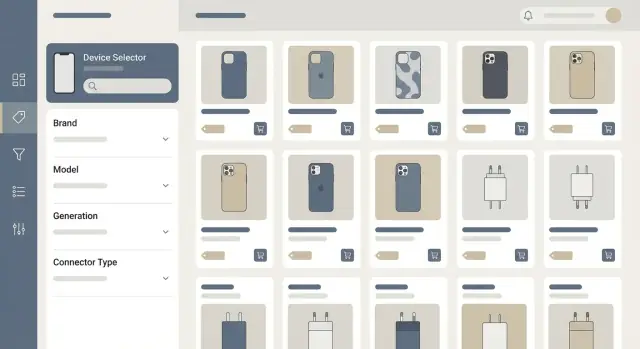
The fastest way to cut wrong purchases is to ask for the shopper’s device before you ask them to pick a product. For cases like phone cases, screen protectors, and camera lens protectors, a simple “Select your device” step sets context and prevents people from shopping blind.
Once a device is chosen, your filters should behave like a guided path, not a long checklist. A good pattern is a hierarchy where each choice narrows the next set of options to only valid ones: brand, then family (series), then model, then generation or size. If someone picks “Galaxy S”, they should not see iPhone-only families. If they pick “iPhone 15”, they should not see “iPhone 15 Pro Max” sizes.
Here are practical rules that make device compatibility filters feel safe:
- Hide impossible options, don’t just disable them. Fewer choices reduces mistakes.
- Keep labels shopper-friendly (common names), but store the exact internal IDs behind the scenes.
- After a device is selected, add a clear toggle like “show compatible only” and default it on.
- Keep the selected device visible as a sticky chip (changeable in one click).
- Allow a quick “I don’t know my model” escape that routes to simple prompts (screen size, year, camera layout).
Empty states matter because they are where confusion turns into returns. If nothing fits, don’t show a dead-end “0 results”. Explain why and offer a next action: “No cases match iPhone 14 Pro (6.1). Try iPhone 14 (6.1) or clear your device selection.” If your catalog is missing coverage, say so plainly and offer an “notify me” or “check later” path.
Example: a shopper searches “iPhone 14 case” but actually owns an iPhone 14 Pro. After they select “Apple > iPhone > iPhone 14 Pro”, the list instantly removes iPhone 14-only cases, and the “compatible only” toggle keeps them from accidentally adding a mismatched item. That is the core job of device compatibility filters: guide choices so the wrong items never look like a good idea.
Search that understands device intent
Shoppers do not think in SKUs. They type what they want: “charger for Pixel 8” or “case iPhone 15 Pro Max”. Good search should understand both parts: the device and the accessory intent, then only return items that fit.
To make that fast, index two things in your search engine: product attributes (category, connector type, wattage, color) and compatibility relationships (which devices each product fits). Treat compatibility like its own searchable field, not something you compute after the fact. That is what makes device compatibility filters feel instant.
A practical approach is to store a normalized compatibility map in your database, then publish a flattened “device tokens” field into the search index for each product. Include the common names people type (brand, model, generation, size) so “Pixel 8”, “Google Pixel 8”, and “G9BQD” all hit the same device.
When there are many device variants, avoid querying deep joins at search time. Precompute what you can:
- Create a stable device ID and map all aliases to it
- Pre-expand rule-based compatibility into explicit device IDs during indexing
- Keep the search index document self-contained (no runtime joins)
- Update only changed products when a new device or alias is added
For unknown devices, do not return a guess that causes wrong purchases. Switch to a guided fallback: ask for the connector (USB-C, Lightning), key dimensions (screen size, case height), or a photo of the port label if your support flow allows it. Then show a small set of “likely matches” with clear warnings and a prompt to confirm the device before checkout.
Product pages and carts: making compatibility hard to miss
Most wrong purchases happen after a shopper has already “found” a product. The product page and cart are your last line of defense, so treat compatibility as a primary fact, not a footnote.
Show a clear status near the price and Add to cart button: Compatible, Not compatible, or Unknown. “Unknown” is better than guessing, but it should come with a next step, like asking the shopper to pick their device.
Make the “why” obvious in plain language
Don’t just say it fits. Say why it fits using everyday terms: “USB-C connector,” “fits iPhone 14 (6.1-inch),” “works with MagSafe,” or “requires a 3.5 mm headphone jack.” This is also where your device compatibility filters pay off: the same data that powers filters should generate a short, human explanation.
A simple pattern that works:
- Compatible: show 1 to 2 reasons (connector, size, generation).
- Not compatible: show the mismatch (Lightning vs USB-C, different case size).
- Unknown: explain what’s missing (device not selected, or accessory fitment not verified).
- Confidence cues: “Tested on iPhone 14 and 14 Pro cases” (only if true).
Let shoppers switch devices without losing progress
Add a small “Check another device” control on the product page and in the cart. When they change the device, keep the cart items, but re-check compatibility and flag anything that no longer fits.
In the cart, don’t hide problems behind tiny warnings. If an item is Not compatible, block checkout until it’s removed or the device selection changes. If it’s Unknown, allow checkout only if the shopper confirms (a simple checkbox) and you clearly state the risk.
Finally, handle cross-sells carefully. If the shopper has selected “iPhone 14,” only recommend items that match that exact selection. A “Customers also bought” widget that ignores device context quietly creates returns.
Common traps that cause wrong purchases
Most wrong purchases are not caused by shoppers. They happen when compatibility data is vague, or when your store UI invites a “close enough” choice.
One common mistake is relying on marketing names only. “iPad Air” or “Galaxy S” is not a unique device. You need stable fields like generation, release year, and screen size. Without them, your store will quietly mix products that look identical in a dropdown but fit differently.
A related trap is collapsing variants that share a name. The same family can have multiple sizes, camera bumps, button layouts, or connector changes. If your data model cannot express variants, customers will see a case that “fits the phone” but not their exact phone.
Filters can also mislead when they offer choices that lead to zero results. Shoppers interpret an empty page as “the site is broken” and start broadening filters until they find something, even if it is wrong. Good device compatibility filters hide impossible combinations and guide people to valid matches.
Compatibility is rarely a simple yes/no. “Works with iPhone” is not enough when the real decision is about fast charging wattage, USB-C Power Delivery profiles, MagSafe alignment strength, or whether a cable supports data and video. Treating these as optional notes instead of structured attributes causes returns.
Finally, teams get burned by silent changes. If someone edits a compatibility rule and there is no audit trail, you cannot explain why a spike in returns started last Tuesday.
A quick way to spot these issues is to check for:
- Device records without generation/year/screen size
- Families that lack explicit variants (size, connector, camera layout)
- Filter options that often return empty results
- “Works” claims that ignore PD, MagSafe, or charging tiers
- Compatibility edits without “who/when/why” recorded
Example: a shopper selects “iPad Air” and buys a case. If your selector does not ask for generation, they may get a case for the 10.9-inch model when they own the older 10.5-inch version. A simple generation step prevents the mismatch before it reaches the cart.
Quick compatibility checklist (release day and daily ops)
When a new phone launches, your goal is simple: shoppers should be able to pick their exact device in seconds, and never see accessories that do not fit. A small routine, done every time, keeps device compatibility filters accurate as your catalog grows.
Release day checklist (new phone models)
- Add every model and generation as separate entries (including Plus/Pro/Max/Ultra variants).
- Add naming aliases people actually type: marketing name, shortened name, and common misspellings.
- Capture the few physical facts that change fit: connector type, camera bump layout, and button placement.
- Record regional differences that affect accessories (for example, SIM tray location or model codes) when they change the body.
- Link “near matches” so you can warn shoppers (e.g., “iPhone 15 case does not fit iPhone 15 Pro”).
New accessories need the same discipline. The mistake is treating compatibility as an afterthought and fixing it after returns show up.
New accessory checklist (each SKU)
- Pick your mapping type: explicit device list (best for cases) or rules (best for chargers and cables).
- Add exceptions up front (works with most models, except X and Y).
- Verify fit on a real device list, not just the packaging claim.
- Set what to show when device is unknown (hide, or show with a clear “check your model” note).
- Add one “test device” per major brand to spot bad mappings early.
For quick QA, run a few sample searches (“iPhone 15 Pro case”, “Galaxy S24 cable”), click two filter paths per brand, and add a compatible and incompatible item to the cart to confirm warnings appear. Watch for sudden spikes in searches like “does this fit” or returns tagged “wrong model” - they usually mean a missing alias or a bad rule.
Support should ask for the exact model name, region/model code when relevant, storage size only if it changes hardware, and whether the customer uses a bulky protective case (which can affect wireless charging and some mounts). A 20 second confirmation beats a return every time.
Example: preventing a wrong purchase in a real shopping flow
A shopper types “case for iPhone 13” into search. Your store shows a neat grid of cases, but the first safety net should appear before they add anything: a small device picker near the results that says “Choose your exact model”.
They select “iPhone 13 Pro” from suggestions. Instantly, the results update and a short note appears on items that no longer match: “Does not fit iPhone 13 Pro (camera cutout difference)”. If they click a non-matching case anyway, the product page blocks the main “Add to cart” button until they confirm a compatible device. That one step prevents the most common mistake: confusing a base model with a Pro model.
Now a second shopper is buying a charger. The charger technically works with many phones, but they want fast charge. On the product page, compatibility is split into two clear lines: “Works with” and “Fast charges”. When they choose “Galaxy S22” in the device picker, the page shows “Works with: Yes” and “Fast charge: No (limited to 10W on this device)”. The cart repeats the same labels, so the shopper does not assume fast charging just because the plug fits.
A week later, a new phone generation launches. Instead of manually adding the new model to hundreds of products, your system uses a rule: “USB-C PD chargers fast charge any device that supports PD 3.0 at 20W+”. When “iPhone 16” is added, it inherits the right charger behavior from its capabilities, and only exceptions need manual review. This is where device compatibility filters and rule-based mapping save real time.
What data made these guardrails possible:
- A clean device catalog (brand, model, variant like Pro/Max, generation, region names)
- A compatibility layer that supports both fit (case/cutouts) and function (wattage, PD/QC versions)
- Product attributes that are measurable (connector type, dimensions, supported charging standards)
- UX hooks (device picker in search, product page validation, cart re-check)
- Clear labels for “works” vs “works best”, with plain reasons
The mistake was prevented at four points: device selection in search, filtered results, add-to-cart validation, and a final cart check that flags mismatches before checkout.
Next steps: roll out in phases and keep it maintainable
Rollout works best when you treat compatibility as a product feature, not a one-time data import. Start small, prove it reduces wrong purchases, then expand with a repeatable process.
A practical phase plan:
- Phase 1 (2-4 weeks): cover your top 50 devices and your top 3-5 accessory categories (cases, screen protectors, chargers, cables, mounts). Use explicit compatibility where mistakes are costly (cases) and simple rules where it is safe (USB-C cables).
- Phase 2: expand device coverage using sales and search demand (top 80% of sessions). Add aliases and cleanup for the most common device name variants.
- Phase 3: add long-tail devices, regional models, and edge cases (carrier versions, generations, Mini/Plus/Pro lines). Tighten rules and add exceptions when you see repeat failures.
Watch a short set of metrics so you know if the work is paying off. The goal is fewer avoidable returns and fewer "will this fit?" moments.
Track these signals weekly:
- Return reasons tagged as "did not fit" or "wrong model"
- Compatibility-related support tickets and chat volume
- Conversion rate after device selection (and drop-off during selection)
- Search refinements: how often people add a device name after seeing results
Maintenance is where most teams fall behind. Set a weekly routine: ingest vendor updates, compare against your device catalog, and review new exceptions (for example, a case that fits iPhone 15 but not iPhone 15 Pro, even though names look close). Keep a small "quarantine" list for unclear SKUs until verified.
If you want to move fast, Koder.ai can help you prototype the compatibility data model and build filters and device-aware search by chatting through the requirements in planning mode. When you are ready, you can export the source code and own the implementation.
FAQ
What does accessory compatibility actually mean?
Compatibility means more than a product connecting to a device. A case must match the exact model and camera layout, while a charger or cable must also meet the device's port, power, and feature requirements.
What device details should a store collect?
Ask for the exact model, not only the brand or product family. Include variants such as Pro, Plus, Max, Ultra, generation, and size when those details affect fit.
Which accessories need an exact model match?
Cases, screen protectors, and lens covers usually need an exact device variant because millimeters, buttons, and camera cutouts differ. Chargers and cables need connector, wattage, and charging-standard data too.
Does a cable that charges my phone support every feature?
No. A cable may charge a phone but fail to support fast charging, data transfer, or video output. Show these capabilities separately so shoppers know what they will get.
How should stores handle different names for the same device?
Use a stable internal device ID, one clear display name, and aliases for common spellings, model codes, and regional names. Keep storage size separate unless it changes the hardware fit.
Should compatibility use lists or rules?
Use explicit SKU-to-device mappings for products with sensitive physical fit, such as cases. Use shared rules for products that rely on measurable traits, such as USB-C PD chargers, then add visible exceptions for known mismatches.
How should compatibility filters work on a store?
Ask shoppers to select their device early, then only show valid families, models, and accessories. Keep the chosen device visible and turn on a compatible-only view by default.
How can search understand queries like “case for iPhone 15 Pro”?
Treat compatibility as searchable product data. Match device aliases to a normalized device ID, index supported devices with each product, and return only items that match the shopper's device and accessory intent.
What should a product page show about compatibility?
Show Compatible, Not compatible, or Unknown near the price and add-to-cart control. State the reason in plain language, such as a different camera cutout or Lightning versus USB-C.
What should happen if a cart item does not fit the selected device?
Recheck every cart item when the shopper changes their selected device. Block checkout for confirmed mismatches, and require a clear confirmation when compatibility remains unknown.