

Why Docker Matters for Running Apps Reliably in the Cloud
Learn why Docker helps teams run the same app consistently from laptop to cloud, simplify deployments, improve portability, and reduce environment issues.
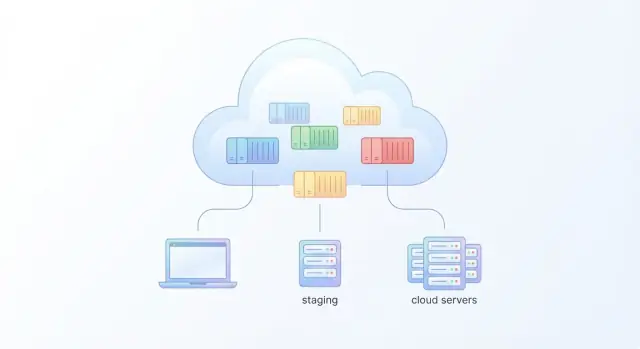
Why Docker is so helpful for cloud deployments
Most cloud deployment pain starts with a familiar surprise: the app works on a laptop, then fails once it hits a cloud server. Maybe the server has a different version of Python or Node, a missing system library, a slightly different configuration file, or a background service that isn’t running. Those small differences add up, and teams end up debugging the environment instead of improving the product.
Docker, explained simply
Docker helps by packaging your application together with the runtime and dependencies it needs to run. Instead of shipping a list of steps like “install version X, then add library Y, then set this config,” you ship a container image that already includes those pieces.
A useful mental model is:
- Image = the packaged app (a snapshot with everything needed to run)
- Container = a running instance of that image
When you run the same image in the cloud that you tested locally, you dramatically reduce “but my server is different” problems.
Who benefits (hint: it’s not just developers)
Docker helps different roles for different reasons:
- Developers get a predictable environment and faster onboarding (“run this container” beats multi-page setup docs).
- Ops and platform teams get more consistent deployments and clearer boundaries between apps and servers.
- Small teams get a repeatable path to production without inventing custom deployment scripts for every project.
- Enterprises get standardization: the same packaging format across many teams and services.
A realistic expectation
Docker is extremely helpful, but it isn’t the only tool you’ll need. You still have to manage configuration, secrets, data storage, networking, monitoring, and scaling. For many teams, Docker is a building block that works alongside tools like Docker Compose for local workflows and orchestration platforms in production.
Think of Docker as the shipping container for your app: it makes delivery predictable. What happens at the port (the cloud setup and runtime) still matters—but it gets a lot easier when every shipment is packed the same way.
Docker basics: containers, images, and registries
Docker can feel like a lot of new vocabulary, but the core idea is straightforward: package your app so it runs the same way anywhere.
Container vs. virtual machine (VM)
A virtual machine bundles a full guest operating system plus your app. That’s flexible, but heavier to run and slower to start.
A container bundles your app and its dependencies, but shares the host machine’s OS kernel instead of shipping a full OS. Because of that, containers are typically lighter, start in seconds, and you can run many more of them on the same server.
Key terms you’ll see everywhere
Image: A read-only template for your app. Think of it as a packaged artifact that includes your code, runtime, system libraries, and default settings.
Container: A running instance of an image. If an image is a blueprint, the container is the house you’re currently living in.
Dockerfile: The step-by-step instructions Docker uses to build an image (install dependencies, copy files, set the startup command).
Registry: A storage and distribution service for images. You “push” images to a registry and “pull” them from servers later (public registries or private ones inside your company).
Why standardization matters
Once your app is defined as an image built from a Dockerfile, you gain a standardized unit of delivery. That standardization makes releases repeatable: the same image you tested is the one you deploy.
It also simplifies handoffs. Instead of “it works on my machine,” you can point to a specific image version in a registry and say: run this container, with these environment variables, on this port. That’s the foundation for consistent development and production environments.
Consistency from laptop to cloud: the core benefit
The biggest reason Docker matters in cloud deployments is consistency. Instead of relying on whatever happens to be installed on a laptop, a CI runner, or a cloud VM, you define the environment once (in a Dockerfile) and reuse it across stages.
What “consistent” actually means
In practice, consistency shows up as:
- Same runtime versions across dev, test, and production (for example, the same Node/Python/JVM and OS packages)
- Fewer dependency drift issues (libraries, OS packages)
- Easier rollbacks by redeploying a previous image tag
- Clearer debugging because environments match
That consistency pays off quickly. A bug that appears in production can be reproduced locally by running the same image tag. A deploy that fails due to a missing library becomes unlikely because the library would have been missing in your test container too.
Why this is different from “just install the same stuff”
Teams often try to standardize with setup docs or scripts that configure servers. The problem is drift: machines change over time as patches and package updates land, and differences slowly accumulate.
With Docker, the environment is treated as an artifact. If you need to update it, you rebuild a new image and deploy that—making changes explicit and reviewable. If the update causes issues, rollback is often as simple as deploying the previous known-good tag.
Portability across clouds and servers
Docker’s other major win is portability. A container image turns your application into a portable artifact: build it once, then run it anywhere a compatible container runtime exists.
The same image, different homes
A Docker image bundles your app code plus its runtime dependencies (for example, Node.js, Python packages, system libraries). That means an image you run on your laptop can also run on:
- A VM in AWS, Azure, or Google Cloud
- Your own servers in a data center
- Managed container platforms (like Kubernetes-based services)
This reduces vendor lock-in at the application runtime level. You can still use cloud-native services (databases, queues, storage), but your core app doesn’t have to be rebuilt just because you changed hosts.
Where registries fit in
Portability works best when images are stored and versioned in a registry—public or private. A typical workflow looks like:
- Build an image once (e.g.,
myapp:1.4.2). - Push it to a registry.
- Pull and run that exact image in each environment.
Registries also make it easier to reproduce and audit deployments: if production is running 1.4.2, you can pull the same artifact later and get identical bits.
Practical scenarios
Migrating hosts: If you move from one VM provider to another, you don’t re-install the stack. You point the new server at the registry, pull the image, and start the container with the same config.
Scaling out: Need more capacity? Start additional containers from the same image on more servers. Because each instance is identical, scaling becomes a repeatable operation rather than a manual setup task.
Building images that are small, repeatable, and maintainable
A good Docker image isn’t just “something that runs.” It’s a packaged, versioned artifact you can rebuild later and still trust. That’s what makes cloud deployments predictable.
The Dockerfile: your build recipe
A Dockerfile describes how to assemble your app image step by step—like a recipe with exact ingredients and instructions. Each line creates a layer, and together they define:
- the starting point (base image)
- what dependencies to install
- how to copy your code
- what command starts the app
Keeping this file clear and intentional makes the image easier to debug, review, and maintain.
Best practices that keep images lean and repeatable
Small images pull faster, start faster, and have less “stuff” that can break or contain vulnerabilities.
- Choose a small base image (for example,
alpineor slim variants) when it’s compatible with your app. - Pin versions for base images and key packages. “Floating” versions can change under you and produce different builds.
- Minimize layers and files: combine related commands and clean up package caches so you don’t ship temporary build junk.
Multi-stage builds: build big, ship small
Many apps need compilers and build tools to compile, but not to run. Multi-stage builds let you use one stage to build and a second, minimal stage for production.
# build stage
FROM node:20 AS build
WORKDIR /app
COPY package*.json ./
RUN npm ci
COPY . .
RUN npm run build

# runtime stage
FROM nginx:1.27-alpine
COPY --from=build /app/dist /usr/share/nginx/html
The result is a smaller production image with fewer dependencies to patch.
Tagging strategy: make deployments traceable
Tags are how you identify exactly what you deployed.
- Avoid relying on
latestin production; it’s ambiguous. - Use semantic versions (e.g.,
1.4.2) for releases. - Add a commit SHA tag (e.g.,
1.4.2-<sha>or just<sha>) so you can always trace an image back to the code that produced it.
This supports clean rollbacks and clear audits when something changes in the cloud.
Running real apps: networking, config, and data
A “real” cloud app usually isn’t a single process. It’s a small system: a web frontend, an API, maybe a background worker, plus a database or cache. Docker supports both simple and multi-service setups—you just need to understand how containers talk to each other, where configuration lives, and how data survives restarts.
Single-container vs. multi-service apps
A single-container app might be a static site or one API that doesn’t depend on anything else. You expose one port (for example, 8080) and run it.
Multi-service apps are more common: web depends on api, api depends on db, and a worker consumes jobs from a queue. Instead of hard-coding IP addresses, containers typically communicate by service name on a shared network (for example, db:5432).
Docker Compose for dev and staging
Docker Compose is a practical choice for local development and staging because it lets you start the whole stack with one command. It also documents your app’s “shape” (services, ports, dependencies) in a file the whole team can share.
A typical progression is:
- Compose locally (fast feedback)
- Compose in a staging VM (close to prod behavior)
- A cloud runtime/orchestrator in production
Configuration: what should stay out of images
Images should be reusable and safe to share. Keep environment-specific settings outside the image:
- Secrets (API keys, DB passwords)
- URLs that differ between staging and prod
- Feature flags
Pass these in via environment variables, an .env file (careful: don’t commit it), or your cloud’s secrets manager.
Persisting data with volumes
Containers are disposable; your data shouldn’t be. Use volumes for anything that must survive a restart:
- Databases (Postgres, MySQL)
- User uploads
- Generated files you can’t easily recreate
In cloud deployments, the equivalent is managed storage (managed databases, network disks, object storage). The key idea stays the same: containers run the app; persistent storage keeps the state.
Deployment workflows: from build to running in the cloud
A healthy Docker deployment workflow is intentionally simple: build an image once, then run that exact image everywhere. Instead of copying files to servers or re-running installers, you turn deployment into a repeatable routine: pull image, run container.
The basic flow: build → push → run
Most teams follow a pipeline like this:
- Build a versioned image (for example,
myapp:1.8.3). - Push it to a registry (Docker Hub, a cloud registry, or a private one).
- Deploy by pulling that image on the cloud environment and starting containers.
That last step is what makes Docker feel “boring” in a good way:
# build locally or in CI
docker build -t registry.example.com/myapp:1.8.3 .

docker push registry.example.com/myapp:1.8.3

# on the server / cloud runner
docker pull registry.example.com/myapp:1.8.3

docker run -d --name myapp -p 80:8080 registry.example.com/myapp:1.8.3
Common cloud patterns
Two common ways to run Dockerized apps in the cloud:
- VM + Docker: you manage a virtual machine, install Docker, and run containers yourself. It’s straightforward and great for smaller setups.
- Managed container services: the cloud provider runs the container hosts for you. You still deploy the same image, but scaling, restarts, and networking are more automated.
Zero-downtime basics
To reduce outages during releases, production deployments usually add three building blocks:
- Health checks to confirm a container is actually ready (not just “started”).
- Rolling updates to replace containers gradually, not all at once.
- Load balancers to route traffic only to healthy containers and spread load.
Registries and promoting images between environments
A registry is more than storage—it’s how you keep environments consistent. A common practice is to promote the same image from dev → staging → prod (often by re-tagging), rather than rebuilding each time. That way, production runs the exact artifact you already tested, which cuts down “it worked in staging” surprises.
CI/CD with Docker: faster, cleaner releases
CI/CD (Continuous Integration and Continuous Delivery) is essentially the assembly line for shipping software. Docker makes that assembly line more predictable because every step runs against a known environment.
Where Docker fits in the pipeline
A Docker-friendly pipeline usually has three stages:
- Build: create a versioned Docker image from your code (for example,
myapp:1.8.3). - Test: run automated tests inside containers so the tooling and dependencies match what you’ll run later.
- Publish: push the image to a registry (private or public) so other environments can pull the exact same artifact.
This flow is also easy to explain to non-technical stakeholders: “We build one sealed box, test the box, then ship the same box to each environment.”
Testing inside containers (so prod isn’t a surprise)
Tests often pass locally and fail in production because of mismatched runtimes, missing system libraries, or different environment variables. Running tests in a container reduces these gaps. Your CI runner doesn’t need a carefully tuned machine—just Docker.
Artifact promotion: dev → staging → production
Docker supports “promote, don’t rebuild.” Instead of rebuilding for each environment, you:
- Build and test
myapp:1.8.3once. - Deploy that same image to dev.
- If it looks good, deploy the same image to staging.
- Finally, deploy the same image to production.
Only configuration changes between environments (like URLs or credentials), not the application artifact. That reduces release-day uncertainty and makes rollbacks straightforward: redeploy the previous image tag.
Where Koder.ai can help
If you’re moving fast and want the benefits of Docker without spending days on scaffolding, Koder.ai can help you generate a production-shaped app from a chat-driven workflow and then containerize it cleanly.
For example, teams often use Koder.ai to:
- create a React frontend plus a Go backend with PostgreSQL,
- add a Dockerfile and
docker-compose.ymlearly (so dev and prod behavior stays aligned), - export the full source code and plug it into a standard build → push → run pipeline,
- use snapshots and rollback during iteration so deployment changes stay controlled.
The key advantage is that Docker remains the deployment primitive, while Koder.ai accelerates the path from idea to a container-ready codebase.
Scaling beyond one server: Docker and orchestration
Docker makes it easy to package and run a service on one machine. But once you have multiple services, multiple copies of each service, and multiple servers, you need a system to keep everything coordinated. That’s what orchestration is: software that decides where containers run, keeps them healthy, and adjusts capacity as demand changes.
Why orchestration matters with many containers
With just a handful of containers, you can manually start them and restart them when something breaks. At larger scale, that falls apart quickly:
- A server can fail, taking several containers with it.
- You may need 2, 10, or 100 copies of a web service depending on traffic.
- Updates must roll out without taking the app offline.
- Services need a consistent way to find each other (service discovery) and share configuration.
Kubernetes, explained without the heavy jargon
Kubernetes (often “K8s”) is the most common orchestrator. A simple mental model:
- Nodes: the machines (VMs or servers) that run your containers.
- Pods: the smallest unit Kubernetes runs (usually one container, sometimes a couple that must live together).
- Deployments: “run N copies of this pod and keep it that way,” including rolling updates.
- Services: stable networking so other parts of your app can reach those pods reliably.
How Docker images fit into Kubernetes
Kubernetes doesn’t build containers; it runs them. You still build a Docker image, push it to a registry, then Kubernetes pulls that image onto nodes and starts containers from it. Your image remains the portable, versioned app artifact used everywhere.
When a simpler option is enough
If you’re on one server with a few services, Docker Compose may be plenty. Orchestration starts paying off when you need high availability, frequent deployments, auto-scaling, or multiple servers for capacity and resilience.
Security and compliance basics for containers
Containers don’t magically make an app secure—they mostly make it easier to standardize and automate the security work you should already be doing. The upside is that Docker gives you clear, repeatable points to add controls that auditors and security teams care about.
Image scanning (and why it matters)
A container image is a bundle of your app plus its dependencies, so vulnerabilities often come from base images or system packages you didn’t write. Image scanning checks for known CVEs before you deploy.
Make scanning a gate in your pipeline: if a critical vulnerability is found, fail the build and rebuild with a patched base image. Keep scan results as artifacts so you can show what you shipped for compliance reviews.
Least privilege by default
Run as a non-root user whenever possible. Many attacks rely on root access inside the container to break out or tamper with the filesystem.
Also consider a read-only filesystem for the container and only mount specific writable paths (for logs or uploads). This reduces what an attacker can change if they get in.
Secrets handling: don’t bake secrets into images
Never copy API keys, passwords, or private certificates into your Docker image or commit them into Git. Images get cached, shared, and pushed to registries—secrets can leak widely.
Instead, inject secrets at runtime using your platform’s secret store (for example, Kubernetes Secrets or your cloud provider’s secrets manager), and restrict access to only the services that need them.
Updates and patching: rebuild regularly
Unlike traditional servers, containers don’t patch themselves while running. The standard approach is: rebuild the image with updated dependencies, then redeploy.
Set a cadence (weekly or monthly) for rebuilding even when your app code hasn’t changed, and rebuild immediately when high-severity CVEs affect your base image. This habit keeps your deployments easier to audit and less risky over time.
Common mistakes and how to avoid them
Even teams that “use Docker” can still ship unreliable cloud deployments if a few habits sneak in. Here are the mistakes that cause the most pain—and practical ways to prevent them.
1) Treating containers like pets (manual changes in prod)
A common anti-pattern is “SSH into the server and tweak something,” or exec’ing into a running container to hot-fix a config. It works once, then breaks later because nobody can recreate the exact state.
Instead, treat containers like cattle: disposable and replaceable. Make every change through the image build and deployment pipeline. If you need to debug, do it in a temporary environment and then codify the fix in your Dockerfile, config, or infrastructure settings.
2) Oversized images and slow builds from a messy Dockerfile
Huge images slow down CI/CD, increase storage costs, and expand the security surface area.
Avoid this by tightening your Dockerfile structure:
- Use a smaller base image where reasonable.
- Copy dependency files first (so builds can cache installs), then copy app code.
- Use multi-stage builds for compiled apps so the final image contains only what it needs to run.
- Add a
.dockerignoreso you don’t shipnode_modules, build artifacts, or local secrets.
The goal is a build that’s repeatable and fast—even on a clean machine.
3) Ignoring logs and metrics (observability still matters)
Containers don’t remove the need to understand what your app is doing. Without logs, metrics, and traces, you’ll only notice issues when users complain.
At minimum, make sure your app writes logs to stdout/stderr (not to local files), has basic health endpoints, and emits a few key metrics (error rate, latency, queue depth). Then connect those signals to whatever monitoring your cloud stack uses.
4) Not planning for stateful services early (databases, queues, files)
Stateless containers are easy to replace; stateful data is not. Teams often discover too late that a database in a container “worked fine” until a restart wiped data.
Decide early where state lives:
- Use managed databases/queues when possible.
- If you must run stateful services yourself, design storage, backups, and upgrades from day one.
Docker is excellent for packaging apps—but reliability comes from being deliberate about how those containers are built, observed, and connected to persistent data.
A practical getting-started checklist
If you’re new to Docker, the fastest way to get value is to containerize one real service end-to-end: build, run locally, push to a registry, and deploy. Use this checklist to keep the scope small and the results usable.
1) Start with one service (end-to-end)
Pick a single, stateless service first (an API, a worker, or a simple web app). Define what it needs to start: the port it listens on, required environment variables, and any external dependencies (like a database you can run separately).
Keep the goal clear: “I can run the same app locally and in the cloud from the same image.”
2) Create a minimal Dockerfile + Compose for local use
Write the smallest Dockerfile that can build and run your app reliably. Prefer:
- A small base image
- Copying only what’s needed
- A clear start command
Then add a docker-compose.yml for local development that wires up environment variables and dependencies (like a database) without installing anything on your laptop besides Docker.
If you want a deeper local setup later, you can extend it—start simple.
3) Choose a registry and a tagging convention
Decide where images will live (Docker Hub, GHCR, ECR, GCR, etc.). Then adopt tags that make deployments predictable:
:devfor local testing (optional):git-sha(immutable, best for deployments):v1.2.3for releases
Avoid relying on :latest for production.
4) Add CI to build + publish automatically
Set up CI so every merge to your main branch builds the image and pushes it to your registry. Your pipeline should:
- Build the image
- Run a basic check (tests or a smoke run)
- Push with the agreed tags
Once this works, you’re ready to connect the published image to your cloud deploy step and iterate from there.
FAQ
Why does Docker make cloud deployments more reliable?
Docker reduces “works on my machine” problems by packaging your app with its runtime and dependencies into an image. You then run that same image locally, in CI, and in the cloud, so differences in OS packages, language versions, and installed libraries don’t silently change behavior.
What’s the difference between a Docker image and a container?
- Image: a read-only, versioned package of your app + runtime + dependencies.
- Container: a running instance of that image.
You typically build an image once (e.g., myapp:1.8.3) and run many containers from it across environments.
How is a container different from a virtual machine (VM)?
A VM includes a full guest operating system, so it’s heavier and usually slower to start. A container shares the host’s kernel and ships only what the app needs (runtime + libraries), so it’s typically:
- faster to start
- lighter on CPU/RAM/disk
- easier to run many copies on one server
What is a Docker registry, and why do I need one?
A registry is where images are stored and versioned so other machines can pull them.
A common workflow is:
docker build -t myapp:1.8.3 .docker push <registry>/myapp:1.8.3- Cloud pulls and runs that exact tag
This also makes rollbacks easier: redeploy a previous tag.
What’s a good image tagging strategy for production?
Use immutable, traceable tags so you can always identify what’s running.
Practical approach:
- release tags:
:1.8.3 - build identifiers:
:<git-sha> - avoid
:latestin production (it’s ambiguous)
This supports clean rollbacks and audits.
How should I handle secrets and configuration with Docker?
Keep environment-specific configuration out of the image. Don’t bake API keys, passwords, or private certs into Dockerfiles.
Instead:
- pass config via environment variables
- use a secrets manager (cloud or orchestration platform)
- ensure
.envfiles aren’t committed to Git
This keeps images reusable and reduces accidental leakage.
How do I persist data if containers can be restarted or replaced?
Containers are disposable; their filesystem can be replaced on restart or redeploy. Use:
- volumes for data that must persist (databases, uploads)
- managed cloud services (managed DB/object storage) when possible
Rule of thumb: run apps in containers, keep state in purpose-built storage.
When should I use Docker Compose versus Kubernetes?
Compose is great when you want a simple, shared definition of multiple services for local dev or a single host:
- one command to start a whole stack
- easy networking by service name (e.g.,
db:5432) - consistent onboarding for new developers
For multi-server production with high availability and autoscaling, you typically add an orchestrator (often Kubernetes).
What does a simple CI/CD workflow with Docker look like?
A practical pipeline is build → test → publish → deploy:
- build a versioned image in CI
- run tests inside containers (closer to production)
- push the image to a registry
- deploy by pulling and running the same image in each environment
Prefer “promote, don’t rebuild” (dev → staging → prod) so the artifact stays identical.
What are the most common reasons a container works locally but fails in the cloud?
Common culprits are:
- Wrong port exposure: ensure the app listens on the container port you publish (e.g.,
-p 80:8080). - Missing environment variables: reproduce production config locally with the same env vars.
- Dependency drift: rebuild images with pinned versions and avoid relying on host-installed packages.
- No health checks: add readiness/health endpoints so rollouts don’t send traffic too early.
To debug, run the exact production tag locally and compare config first.