

Domain + Business Email Setup: A Simple Non-Technical Guide
Step-by-step guide to buying a domain, connecting DNS, and setting up business email (MX, SPF, DKIM, DMARC). Clear checks, common fixes, and security tips.
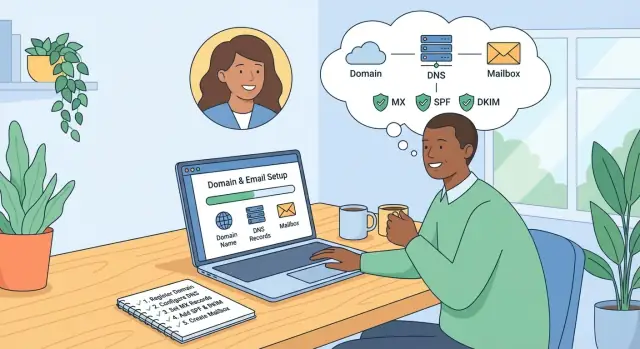
What You’re Setting Up (and Why It Matters)
You’re setting up two things that work together: a domain name (like yourcompany.com) and business email addresses that use that domain (like [email protected]). Once they’re connected properly, you can send and receive email reliably—and people see your brand every time you hit “send.”
What you’ll set up
- Your domain: purchased through a registrar (the place you “buy” and manage the domain).
- Your email service: where your mailboxes live (common options include Google Workspace or Microsoft 365).
- Professional email addresses: individual inboxes (e.g.,
[email protected]) and team addresses (e.g.,[email protected]).
The connection between your domain and your email provider is made through DNS settings (a few records you add in your domain manager). Those settings tell the internet where to deliver mail for your domain and how to verify it’s legitimate.
Who this guide is for
This guide is for non-technical people—solo founders, freelancers, and small teams—who want business email working without needing to understand networking or servers.
What you’ll need before you start
- Login access to your domain registrar account (where you can edit DNS).
- Login access to your email provider admin account (where you’ll create mailboxes and get DNS instructions).
- A short list of addresses you want to create (for example: one per person, plus
info@,billing@,support@).
Time estimate (and what can slow things down)
Most setups take 30–90 minutes of hands-on work.
The main wildcard is DNS propagation: after you update DNS records, it can take anywhere from a few minutes to 24–48 hours for changes to be recognized everywhere. During that window, email may work for some people but not others—or it may start working gradually.
Once everything is connected, you’ll have a cleaner, more trustworthy email presence—and a foundation you can grow with (new teammates, new addresses, and better deliverability over time).
Key Terms in Plain English
Before you click around in settings, it helps to know which company does what. Most email setup confusion happens because three different “places” are involved.
The three roles (who’s responsible for what)
Domain registrar: The company where you buy your domain name (like yourcompany.com). They manage ownership, renewals, and basic domain controls.
DNS host (DNS provider): The place where your domain’s “address book” lives. DNS is a set of records that tell the internet where different services are for your domain (website, email, etc.). Sometimes your registrar is also your DNS host, but not always.
Email provider: The service that actually runs your inboxes and sends/receives mail (for example, Google Workspace or Microsoft 365). They give you mailboxes like [email protected].
How they connect (domain → DNS → email)
Think of it like this:
- Your domain is your public name.
- Your DNS is the instructions tied to that name.
- Your email provider is the mailbox building.
So you buy the domain at the registrar, then you edit DNS records (wherever DNS is hosted) to tell the world, “Email for @yourcompany.com should be delivered to this provider.”
If you want a simple diagram for the article, use:
Domain (registrar) → DNS (records) → Email provider (inboxes)
What “propagation” means
When you change DNS (like MX, SPF, DKIM), the update doesn’t appear everywhere instantly. Propagation is the time it takes for DNS changes to spread across the internet as different networks refresh their cached information.
In practice, that means you might save a DNS change and still see old behavior for a while—especially during the first hour or two.
Choosing and Buying Your Domain
Your domain is the foundation for your website and your email address (like [email protected]). It’s also something you’ll keep for years, so a little care up front saves headaches later.
Picking a domain name that won’t trip people up
Aim for something short, clear, and easy to spell after hearing it once.
A few practical rules:
- Prefer one or two words you can say out loud without explaining.
- Avoid hyphens, doubled letters (like “ss” in the middle), and clever spellings.
- If your business name is long, consider a shorter branded version you can still own.
- Say it, type it, and share it with a friend—if they misspell it, simplify.
TLD choices: .com vs alternatives
- .com is still the easiest for people to remember and trust. If it’s available at a reasonable price, it’s usually the best pick.
- .co can work when .com is taken, but some people will accidentally type “.com” anyway.
- Country domains (like .uk, .ca, .de) are great if you serve a specific region, but can feel limiting if you later expand.
- Newer options (like .studio, .agency) can be memorable, but may require more “teaching” when you share your email address.
If possible, buy the most important variations (like the .com plus your local domain) to protect your brand, then choose one “primary” domain for email.
Where to buy (and what to compare)
When choosing a registrar (the company you buy the domain from), compare:
- Intro price vs renewal price (renewals can be much higher)
- WHOIS privacy (often free, sometimes extra)
- Easy DNS access (you’ll need to edit DNS for email)
- Support quality (live chat helps when you’re stuck)
- Add-on pressure (some checkout flows push extras you don’t need)
Ownership and privacy basics
Make sure the domain is registered in your business name (or a trusted owner) and that you control the login, recovery email, and any two-factor authentication. Keep registrar access in one place—shared safely—so the domain doesn’t walk away with a departing employee or contractor.
Turn on WHOIS privacy unless you have a specific reason not to. It helps reduce spam and protects personal contact details from being publicly listed.
Picking a Business Email Provider
Choosing an email provider is mostly about deciding where the mail service lives. Your domain (the name) can stay with one company, while your email can run on another.
Two common setups
1) Email with your domain registrar
Many registrars sell email bundles alongside domains. This can be convenient because billing and support are in one place. The trade-off is that features can be basic (fewer collaboration tools, simpler admin controls), and migrating later may take extra steps.
2) Email with a separate email provider
This is the typical choice for growing teams. Providers like Google Workspace or Microsoft 365 focus heavily on deliverability, security, and productivity apps. Your domain can remain with your registrar—you just connect email using DNS records.
What to look for (so you don’t overpay)
Focus on what you’ll actually use:
- Number of mailboxes: Do you need a mailbox for every person, or just a few plus aliases?
- Storage per user: Important if you keep large attachments or long email history.
- Aliases and group/team addresses: Things like hello@, support@, billing@. Some plans include these; others charge per mailbox.
- Shared inbox options: Useful for support@ or info@ so multiple people can reply with continuity.
Admin features that matter
Non-technical admins usually feel the difference here:
- Simple user management (add/remove staff quickly)
- 2-factor authentication (2FA) to protect accounts
- Account recovery options (backup email/phone, admin resets)
- Audit/logging basics (who changed what, and when)
Budget expectations
Expect pricing per user per month for full-featured providers; registrar email is often cheaper but lighter on features. Before you commit, check what’s included at each tier (mailboxes vs aliases, storage, shared inboxes) and compare plans on pages like /pricing.
If you’re unsure, pick a provider that supports easy exports and migration tools—future you will appreciate it.
Creating Mailboxes, Aliases, and Team Addresses
This is where your custom-domain email starts feeling real: you’ll create the inboxes people use every day, plus the extra addresses that make your business look organized.
Start with the main mailbox
Create the primary address first—usually one of these:
- [email protected] (best for personal accountability and logins)
- [email protected] (friendly front door for a small team)
- [email protected] (common, but can attract more spam)
If you’re a solo business, you can use you@ as the real mailbox and add hello@ as an alias that delivers to it.
Add team members and role-based addresses
Next, create mailboxes for real people (e.g., sara@, mike@). Then add “role” addresses that match how customers contact you:
For role addresses, decide who should receive messages. Options usually include: delivering to one person, delivering to multiple people, or a shared inbox (more on that later).
Alias vs. separate mailbox: how to choose
Use an alias when:
- It’s just another name for the same person (e.g., firstname@ and you@)
- You want multiple entry points, but one inbox
Create a separate mailbox when:
- Multiple people need access
- You need its own password, rules, or history (e.g., support@)
Set a naming standard now (save future headaches)
Pick a simple rule and stick to it:
- People: first@ or first.last@
- Teams: support@, sales@, billing@
Avoid random variations (like support-team@ vs help@)—consistency makes onboarding, security, and troubleshooting much easier later.
Finding Your DNS Settings Without Getting Lost
DNS is the settings page for your domain. It’s where you tell the internet where your website lives and, for email, which service should receive messages for addresses like [email protected].
The good news: you usually only need to edit a few items for business email—mainly MX records, plus a couple of TXT records (for SPF, DKIM, and DMARC later). The hard part is simply finding the right screen.
Where DNS lives (two common places)
Most people manage DNS in one of these:
- Your domain registrar (where you bought the domain): GoDaddy, Namecheap, Google Domains/Squarespace Domains, etc.
- An external DNS host (if your DNS was moved): Cloudflare, your web host, or a managed DNS provider.
A quick clue: if your domain uses custom nameservers (often something like ns1.cloudflare.com), DNS is probably not managed at the registrar—even if you bought the domain there.
How to find the right DNS screen
Look for menu items like:
- DNS
- DNS Settings / Manage DNS
- Zone Editor
- Domain Settings → DNS Records
Once you’re in the right place, you should see a table with columns like Type, Name/Host, Value/Content, Priority, and TTL.
Before you change anything
Take 2 minutes to protect yourself from easy mistakes:
- Take screenshots of your current DNS records (or export them if there’s an option).
- If you manage multiple domains, double-check you’re editing the correct domain.
- If you’re unsure whether DNS is at the registrar or elsewhere, check the domain’s nameservers first.
What you’ll edit for email (and what to ignore)
For business email with a custom domain, you’ll typically add or replace:
- MX records: tell the internet where to deliver incoming email.
- TXT records: used for verification and email security settings.
You can usually leave website-related records (like A, AAAA, and CNAME) alone unless your provider specifically tells you otherwise.
Common DNS mistakes to avoid
These are the ones that cause the most “email not working” situations:
- Wrong domain level: adding records to a subdomain (or the root) by accident.
- Extra spaces in values (especially in TXT records).
- Missing dots or adding extra ones: some systems want
mail.example.comwhile others auto-add the domain. - Duplicate records: old MX records left behind alongside the new ones.
If you stay organized—find the correct DNS host, save what’s there, then make only the changes your email provider lists—you’ll be in great shape for the next step: setting up MX records.
Connecting Email Delivery with MX Records
MX records are the mail routing signs for your domain. When someone emails you at [email protected], their email service checks your domain’s DNS and looks for MX records to learn which provider (Google Workspace, Microsoft 365, etc.) should receive that message.
What MX records do
MX (Mail Exchange) records tell the world where to deliver your email. If they point to the wrong place—or you have a conflicting mix—messages can bounce, disappear, or land at an old inbox you’ve forgotten about.
How to add or replace MX records safely
In your domain’s DNS settings, your email provider will give you a specific list of MX entries (host/name, value/target, and priority). Add them exactly as shown.
If you’re switching providers, you’ll usually need to remove old MX records that point to the previous service. Many providers explicitly say “delete any existing MX records.” Follow that instruction carefully—leaving old MX records can split delivery between systems.
Tip: before changing anything, copy the current MX records into a note so you can restore them if needed.
Priority numbers (what they mean)
MX priority is a ranking: lower numbers are tried first. Example: priority 1 is preferred over priority 5.
Most setups work as long as you:
- Keep the priorities exactly as your provider lists them
- Don’t invent extra MX records
- Don’t swap numbers unless your provider tells you to
How to verify MX works
First, use your provider’s admin/check tool (most have a “Verify domain/DNS” step) to confirm the MX records are detected.
Then do a real-world test: send a message from a personal address (like Gmail) to your new business address and confirm it arrives. Reply back to confirm outbound email is working too (MX affects incoming mail; outbound is handled by your provider).
Adding SPF, DKIM, and DMARC (Simple and Safe)
SPF, DKIM, and DMARC are three DNS records that help other mail systems trust messages sent from your domain. Their job is simple: reduce spoofing (someone pretending to email “from” you) and improve deliverability by lowering the chance your real mail gets treated like spam.
SPF: tell the world who can send for your domain
SPF is a single TXT record that lists which services are allowed to send email using your domain.
Two practical rules:
- You should have only one SPF record per domain. If you see multiple, combine them.
- Use what your provider gives you (Google Workspace, Microsoft 365, your email host, etc.).
Example SPF TXT value (example only):
v=spf1 include:_spf.google.com include:servers.mcsv.net -all
“include:” lines authorize senders. The ending -all means “anything else is not allowed.” If you’re unsure while testing, some teams start with ~all (softer), then later switch to -all.
DKIM: add a signature to prove a message wasn’t altered
DKIM lets your email provider sign outgoing messages. You’ll add a DNS record, then turn on signing in your provider.
Most providers give you:
- a selector (a short name like
googleors1) - a DNS record to add (often a TXT record; sometimes a CNAME)
It might look like selector._domainkey.yourdomain.com. After adding it, go back to your email admin panel and enable DKIM/signing.
DMARC: start in monitoring mode (safe)
DMARC tells receivers what to do if SPF/DKIM checks fail. Start with a monitoring policy so you don’t accidentally block good mail.
A common starter DMARC record:
v=DMARC1; p=none; rua=mailto:[email protected]; adkim=s; aspf=s
With p=none, you’re only collecting reports. Later, after you’ve confirmed everything legitimate is passing, you can tighten it to quarantine or reject.
Setting Up Email on Computers and Phones
Once your domain email is created and DNS is connected, the last mile is getting it working everywhere you read and send mail: laptop, phone, and sometimes a tablet.
Webmail vs. email apps (which should you use?)
Webmail is the inbox you open in a browser (for example: Gmail in Chrome, Outlook on the web, or your provider’s web portal). It’s the easiest place to confirm your account works because there’s nothing to “configure.” If you can send/receive in webmail, your mailbox is fine.
Email apps are programs like the Gmail or Outlook mobile apps, Apple Mail, or desktop Outlook. They’re convenient (notifications, offline access), but they rely on correct sign-in and server settings.
Tip: If setup in an app fails, first sign in to webmail. That separates “account issue” from “device setup issue.”
IMAP vs. Exchange/ActiveSync (choose the right connection)
Some providers offer multiple ways to connect:
- Exchange / ActiveSync (often with Microsoft 365, sometimes others): best plug-and-play experience, especially on phones. It syncs mail plus contacts and calendars, and tends to be more reliable for shared features.
- IMAP (common everywhere): good basic email sync across devices. Contacts/calendars may require separate setup.
If you have the option and your plan includes it, choose Exchange/ActiveSync for simplicity. Use IMAP when Exchange isn’t available or you want a more universal setup.
2FA and app passwords: why logins fail
If your account has two-factor authentication (2FA) enabled, some older apps (or certain desktop clients) can’t handle the second step.
Common fixes:
- Use the provider’s “Sign in with Google/Microsoft” flow if offered.
- Generate an app password (a special one-time password used only by that device/app).
- Double-check you’re entering the full email address (
[email protected]), not just the username.
Quick setup checklist (use this for any device)
When an app asks for “Manual settings,” you’ll typically need:
- Email address (username):
[email protected] - Password: your mailbox password (or app password if 2FA requires it)
- Incoming server: IMAP or Exchange server name (from your provider)
- Incoming port: commonly 993 (IMAP)
- Encryption/SSL: ON (look for “SSL/TLS”)
- Outgoing server (SMTP): server name (from your provider)
- Outgoing port: commonly 465 (SSL) or 587 (TLS/STARTTLS)
- SMTP authentication: ON (use the same username/password)
If you don’t know the server names, get them from your email provider’s help page—search their support for “IMAP settings” or “Exchange settings” and copy exactly.
After setup, send a test email to a personal address and reply back to confirm both outgoing and incoming mail work.
Forwarding, Catch-All, and Shared Inboxes
Once your team has real mailboxes, you’ll likely want a few convenience setups: forwarding, aliases, catch-all, or a shared inbox for group work. They sound similar, but they behave very differently.
Forwarding vs. aliases vs. shared inboxes (quick comparison)
- Forwarding: Email sent to Address A is automatically sent to Address B. (Example:
info@→sarah@) - Alias: An extra address that delivers into the same mailbox. (Example:
sarah@also receivesinvoices@) - Shared inbox: A mailbox multiple people can access (often with permissions), usually for team-managed addresses like
support@.
A simple rule: use aliases for “more addresses for one person,” and shared inboxes for “many people, one address.”
When forwarding is okay (temporary) — and when it causes problems
Forwarding is fine for:
- Short transitions (e.g., you just changed providers and don’t want to miss messages).
- One-off routing (e.g., webform notifications going to a specific person).
Forwarding can cause issues when used long-term:
- Replies can look messy (people reply from the wrong address).
- Deliverability can suffer (some forwarded mail fails SPF checks, depending on how it’s forwarded).
- No accountability (it’s harder to track who responded and when).
If a team address matters (sales@, support@), a shared inbox or helpdesk-style setup is usually cleaner.
Catch-all addresses: pros, cons, and spam risk
A catch-all means [email protected] will be accepted and delivered (even typos like suupport@).
Pros:
- You won’t miss email sent to a wrong/old address.
Cons:
- Spam magnet: spammers guess random addresses at your domain.
- Makes it harder to spot typos, because errors don’t bounce back.
If you enable catch-all, consider routing it to a monitored shared inbox and setting firm spam filtering.
Simple rules and filters to keep team email organized
Most providers let you create inbox rules like:
- Auto-label or folder messages sent to billing@ vs support@.
- Auto-forward only specific subjects (e.g., “New lead”) instead of everything.
- Auto-reply templates for shared inboxes (“We received your request…”) with clear expectations.
These small touches keep mail from becoming a group chat nobody owns.
Migrating from an Old Email Address
Switching to a new business email address doesn’t have to mean losing old messages or scrambling to find contacts. The key is deciding what you’re moving and using a simple “run both for a bit” approach.
Decide what you’re moving
Start by choosing the scope:
- Email only: fastest and often enough for small teams.
- Email + contacts + calendar: worth doing if you’ve relied on shared calendars, meeting invites, or stored customer info in contacts.
If you’re not sure, move email first, then bring contacts/calendar over once mail is stable.
Pick a migration method
Most providers give you three practical options:
1) Built-in importer (easiest)
Google Workspace and Microsoft 365 both offer migration tools that copy mail (and sometimes contacts/calendar) from another provider. This is usually the least error-prone option for non-technical setups.
2) IMAP move (works with many providers)
If your old email supports IMAP (many do), a migration tool can copy folders and messages across. This typically moves mail reliably, but it may not bring over calendar/contacts unless you export those separately.
3) Manual export/import (most hands-on)
Use this when an automated tool isn’t available. Export from the old service (often as PST/mbox/CSV), then import into the new one. It’s doable, but you’ll want extra time for cleanup.
Avoid lost email during the switch
Don’t shut down the old account right away. Keep it active until you’ve verified:
- New inboxes send and receive correctly
- Old mail has been copied (spot-check key folders and search a few important senders)
- New replies are going out from the new address
Also consider setting an auto-reply on the old address: “We’ve moved to [email protected]” (with a short date window).
A simple cutover plan
Choose a quiet time (early morning or end of week), then:
- Tell your team what’s changing and when.
- Test with a few real messages (external Gmail/Outlook accounts are great for testing).
- Move one mailbox first (often the admin/owner), confirm it’s working, then migrate the rest.
Once everything checks out, update sign-ups, invoices, and logins that used the old address—then keep the old inbox around for a short safety period before canceling it.
Troubleshooting Checklist (Common Problems and Fixes)
Most business email issues boil down to three areas: DNS records (your domain settings), authentication (SPF/DKIM/DMARC), or sign-in/setup (passwords, 2FA, app settings). Use this checklist to narrow it down quickly.
Emails aren’t arriving
Start with your MX records.
- Confirm the MX records match your provider’s instructions exactly (host/name, priority, value).
- Watch for typos and a common mistake: adding records at the wrong level (e.g., “@” vs your domain name).
- Remove duplicates or old MX records from a previous provider—having both often breaks delivery.
- Give changes time: DNS can take minutes to a few hours to update (propagation). If you changed records recently, waiting can be a valid step.
Emails go to spam
This is usually an authentication or identity mismatch issue.
- Check SPF, DKIM, and DMARC are published and show as “pass” in your provider’s admin tools.
- Make sure the address in the From: field matches your domain (avoid sending “from” one domain while using another service without proper setup).
- If you use a third-party sender (newsletter tool, CRM, transactional email), add it to SPF and/or set up DKIM for that tool.
Can’t log in or connect a device
- Verify the correct username format (some providers require the full address like
[email protected]). - If 2FA is enabled, you may need an app password for older mail apps.
- Double-check IMAP/SMTP settings if you’re not using auto-setup.
Gather support-ready info (saves time)
When contacting support, include:
- Screenshots of your DNS records (MX/SPF/DKIM/DMARC)
- Exact error messages (copy/paste)
- A sample email’s full headers (shows SPF/DKIM/DMARC results)
- The affected address, time sent, and recipient domain (e.g., Gmail, Outlook)
If you’re setting up email alongside a new product or internal tool, it helps to align your “from” addresses early (for example, support@ for customer replies, billing@ for invoices, and a dedicated sender for app notifications). Teams building apps on Koder.ai often do this upfront so transactional and support email stays consistent as the app evolves, without revisiting DNS and deliverability basics later.
FAQ
What do I need before I start setting up domain email?
You need access to two accounts:
- Your domain registrar/DNS account (to edit DNS records)
- Your email provider admin account (to create mailboxes and get the exact DNS values)
Also prepare a short list of addresses you want (e.g., you@, hello@, support@) so you can create everything in one pass.
How long does it take for business email to start working after DNS changes?
Usually 30–90 minutes of hands-on setup, plus DNS propagation time.
Propagation can take minutes to 24–48 hours, so it’s normal if email starts working gradually (works for some senders before others).
What’s the difference between my registrar, DNS host, and email provider?
They’re different roles:
- Registrar: where you bought/renew the domain
- DNS host: where your DNS records actually live (sometimes the registrar, sometimes not)
- Email provider: where the mailboxes and sending/receiving happen
If your domain uses custom nameservers (e.g., Cloudflare), you must edit DNS there, not at the registrar.
What are MX records, and why do they matter for receiving email?
MX records tell the internet where to deliver incoming email for @yourdomain.com.
To set them up safely:
- Copy your current MX records into a note first
- Add the MX records exactly as your email provider lists (host/value/priority)
- If you’re switching providers, remove old/conflicting MX records so delivery doesn’t split
How can I quickly verify my domain email is working?
Start with your provider’s verification tool, then do real tests:
- Send an email from a personal account (Gmail/Outlook) to your new address
- Reply back to confirm outbound sending works
- If it fails right after you updated DNS, wait a bit—propagation may still be in progress
Do I really need SPF, DKIM, and DMARC, and what do they do?
They’re DNS-based trust signals that improve deliverability and reduce spoofing:
- SPF: lists who is allowed to send for your domain (keep one SPF record)
- DKIM: adds a cryptographic signature to outgoing mail (enable it in your provider after adding the DNS record)
- DMARC: tells receivers what to do if checks fail—start with monitoring (
p=none) and tighten later
Should I create aliases or separate mailboxes for team addresses like support@?
Use an alias when one person should receive mail sent to multiple addresses (e.g., hello@ → your main inbox).
Use a separate mailbox/shared inbox when:
- Multiple people need access
- You need shared history, ownership, and consistent replies (common for
support@orsales@)
Is a catch-all email address a good idea?
A catch-all accepts mail sent to [email protected], including typos.
Pros:
- Fewer missed emails due to wrong addresses
Cons:
- Attracts more spam (spammers guess random addresses)
- Typos don’t bounce, so mistakes are harder to notice
If you enable it, route it to a monitored inbox and set strong spam filtering.
How do I switch from an old email address without losing messages?
Best practice is to stabilize the new setup first, then migrate:
- Keep the old inbox active during the transition
- Use your provider’s migration tool or IMAP migration to copy mail
- Set a temporary auto-reply on the old address with your new address
- Update key logins/invoices/sign-ups before you cancel the old service
What are the most common reasons domain email “doesn’t work,” and how do I troubleshoot?
Work top-down:
- No incoming mail: MX records are wrong/duplicated, or propagation isn’t finished
- Mail goes to spam: SPF/DKIM/DMARC not set or failing; third-party senders not authorized
- Can’t add to an app: wrong username format, 2FA needs an app password, or incorrect IMAP/SMTP/Exchange settings
When asking support for help, include DNS screenshots and a sample message’s full headers (shows SPF/DKIM/DMARC results).