

Flutter release readiness checklist for a smooth first submission
Use this Flutter release readiness checklist to prep signing, flavors, crash reporting, permissions text, and store assets so your first submission is calm and complete.
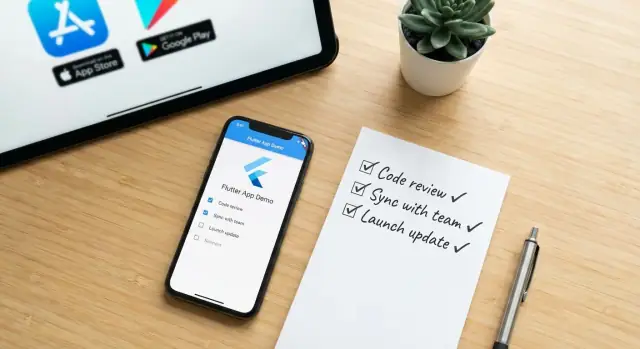
What “release-ready” actually means
“Release-ready” isn’t “the app runs on my phone.” It means you can generate a production build, install it on a clean device, and submit it to the store without last-minute surprises.
What breaks right before a first submission is usually boring but painful: missing signing keys, a debug build uploaded by accident, crashes with no useful logs, permission prompts that feel suspicious, or store assets that don’t match the app (wrong icons, old screenshots, missing privacy text).
For a first Flutter submission, “release-ready” boils down to four outcomes:
- You can create a repeatable production build and confidently identify the artifact you’re submitting.
- Your signing credentials are owned, backed up, and not trapped on one person’s laptop.
- If the app crashes in the wild, you’ll see it quickly with enough detail to fix it.
- Your store listing is complete: text, icons, screenshots, and required declarations.
This focuses on first-submission essentials: signing, flavors, crash reporting, permission copy and timing, and store assets. It’s not a full QA plan, performance audit, or legal review.
Plan at least a few focused sessions. A solo developer can often cover this in 1-2 days. On a team, assign clear owners (signing/builds, crash reporting, store listing and copy) so nothing lands in the final hour.
Pre-flight decisions to lock in before you build
Most “last minute” release problems are early decisions you didn’t make. Lock down a few basics now, and everything downstream gets simpler.
Start with identity: the exact app name users see and the internal IDs stores use (package name on Android, bundle identifier on iOS). Changing these late can break updates, deep links, and analytics history. Decide how you’ll version releases, too, so every build has a clear number and you never have to guess what’s live.
Then set platform boundaries: Android, iOS, or both for day one, and minimum OS versions that match your users. Raising minimums late can force design changes or drop devices you assumed you supported.
Write down these decisions somewhere your team can find:
- App name, package/bundle ID, and a simple versioning rule
- Supported platforms and minimum OS versions
- Environments (dev, staging, production) and what differs between them
- Who owns the final “ship” or “hold” call
- Store account access: logins, roles, and 2FA recovery methods
Finally, confirm your store accounts exist and you can publish. Nothing stalls a launch like waiting for account approval, missing tax forms, or lacking upload permission. If you’re generating the app with a tool like Koder.ai or coding by hand, these decisions still apply.
App signing: keys, ownership, and safe storage
App signing is the proof that an app update really comes from you. If signing is misconfigured, the store can reject the upload, or you can end up unable to ship updates.
On Android, signing usually means an upload key stored in a keystore file (plus passwords). On iOS, it means certificates and provisioning profiles tied to an Apple Developer account. Even if you build with Koder.ai and export the source code, you still need clear ownership of store accounts and signing assets before the first submission.
Decide ownership and access
Pick a system-of-record owner for each platform, ideally a company account rather than a personal one. Set access rules so you’re not dependent on one laptop or one person.
Keep a short record that answers:
- Which accounts own the signing keys (Google Play, Apple Developer)
- Where the keystore and iOS signing files live (vault, encrypted storage)
- Who can cut releases and who can rotate credentials
- How to recover access (2FA recovery codes, admin roles)
Backups and the “lost key” plan
A lost Android key can block future updates to the same app package. Make an encrypted backup in a separate location and test restoring it. For iOS, losing access usually turns into account recovery pain, so keep multiple trusted admins and document who they are.
Verify signing on a clean machine (fresh checkout, new CI runner, or a teammate’s laptop). If it only works on one computer, it’s not ready.
Build flavors: keep dev and production separate
Flavors prevent “works on my phone” from turning into “we shipped the test server.” In plain terms, a flavor is a named build that uses different config without you editing files before every release.
Most teams should start with two flavors: dev (for testing) and prod (what you submit). If your team says “staging,” use that word. Confusing names lead to the wrong build being shared or uploaded.
Lock down what differs between flavors. The most common differences are app identity (name and bundle ID), icons, API endpoints, feature flags, analytics/crash reporting settings, and logging level.
Keep sensitive values out of the repo when you can. Use environment files, CI secrets, or injected build-time variables so keys don’t end up in commits.
Before you call it done, build every flavor you intend to use, including a clean release build. Missing configs show up here, not on launch day.
Crash reporting and release logging
You can ship a clean build and still miss real-world problems: odd devices, spotty networks, and edge-case flows. Crash reporting turns those surprises into an actionable list.
Pick one crash reporting tool and wire it in early. The brand matters less than making sure every release sends useful reports.
Make symbols and mapping part of the release
Many “can’t reproduce” situations come from missing symbols. Make it a release step to upload:
- iOS dSYM files (so stack traces are readable)
- Android obfuscation mapping (if you shrink/obfuscate)
- The exact build number and git commit (or build tag) tied to the upload
If this is manual, it will get skipped during a busy week.
Log what helps you fix problems
Decide what you need on day one: app version/build, device model, OS version, locale, and the last screen or action. If you have accounts, add a stable anonymous user ID and a “logged in/logged out” flag. Avoid personal data in logs.
Also capture non-fatal errors. In Flutter, plenty of issues show up as exceptions that don’t crash the app (parse errors, timeouts, unexpected nulls). Send these as non-fatal events with a short message and a few key-value fields.
Test this before release: make a staging build, trigger a forced crash (behind a debug menu or secret gesture), and confirm you see a readable stack trace with the right version and context.
Permissions: user-friendly copy and good timing
Permissions are a fast way to lose trust on first launch. Before release, list every permission your app might request, the feature that needs it, and what the user gets in return. If you can’t explain it in one short sentence, you probably shouldn’t request it.
Keep the copy plain and specific. “We need access to your photos” is weaker than “Allow photos so you can attach a receipt to your expense.” Avoid technical words like “storage” unless you explain what it means in the moment.
Ask only when the user triggers the related action. Don’t ask for Photos permission on app start. Ask when they tap “Add photo,” after a short pre-permission screen that explains why.
When a user says no, the app should still feel usable. Plan the fallback upfront: keep the feature visible, explain what’s blocked, offer an alternative when possible, and save progress so they don’t lose work. If they choose “Don’t ask again,” guide them to Settings without nagging.
Double-check platform-specific text. iOS needs clear usage descriptions in Info.plist. Android needs correct manifest entries, and sometimes a short in-app explanation. Missing or vague text can cause review delays or user drop-off.
A practical release testing pass (not a full test plan)
This is a lightweight pass meant to catch issues that only show up in a real release build. Keep it to something you can run in under an hour.
Write a simple script anyone can follow, even without developer tools. The rule: test what users do, not what developers can inspect.
A quick release QA script
Run it on at least one small phone and one larger device (and ideally one older OS version):
- Install the release build (not debug) and confirm it behaves like a store app (no debug banner, no dev menus).
- Complete onboarding and login from scratch (including password reset or magic link if you have it).
- Trigger your most important “money” flow (subscription, in-app purchase, checkout, or paywall) using real test accounts.
- Check notifications end-to-end: permission prompt, receiving a message, and tapping it to open the right screen.
- Test offline and poor network: open the app with airplane mode on, then recover when the connection returns.
After the run, force-close and relaunch to confirm the app starts cleanly and doesn’t rely on a warm state.
If something fails, note the exact screen, the last action, and whether it only happens on one device size. That’s often enough for a fast fix.
Store listing assets: prepare them before you need them
A lot of launch stress comes from store pages, not code. Treat the listing like part of the release work and you avoid last-minute design requests, missing privacy answers, and screenshot chaos.
Collect what you’ll almost certainly need: app icon, screenshots, a short subtitle, a longer description, and whatever platform-specific graphics are required. Promo video is optional and only worth doing if you can keep it current.
For screenshots, pick your device sizes early and stick to them. Keep a consistent order (onboarding, core screen, key feature, settings, upgrade) so updates don’t turn into a scramble.
Write the description like a human: one clear sentence about what the app does, then a few short benefit lines, then a plain note about subscriptions or accounts if you have them. Don’t promise what you can’t support.
Also gather your privacy and data usage answers now. You’ll be asked about tracking, data types collected, and permissions. If your app requests location, contacts, or photos, explain why in simple words.
If you keep assets organized, updates become routine. A simple structure is enough (icon, screenshots by device type, copy, privacy notes, and release notes).
Dry-run the submission so there are no surprises
A dry-run is going through the store submission flow like you’re about to launch, but stopping before you hit Publish. It turns guesses into real answers.
Pick a build you’re willing to submit (even if you won’t ship it). Upload it, fill out the forms, and save everything as a draft. You want to find missing info while you still have time.
Verify:
- Version and build number match what you expect, and release notes are ready.
- Compliance questions are answered consistently (data collection, ads, encryption, login requirements, sensitive permissions).
- Supported countries, pricing (if any), and age rating choices are correct.
- Contact details are ready: support email, privacy policy text location, and any review notes.
- Review info is complete: demo account (if needed) and clear steps to reach key features.
Plan for “what if the first release is bad.” Decide how you’ll roll back (keep the previous signed artifact), how you’ll ship a hotfix, and what triggers a pause in rollout (crash spikes, login failures).
Also decide how you’ll collect early feedback in the first 48 hours. A small group channel, a support inbox you actually monitor, and an in-app “Send feedback” option can catch obvious issues before they turn into one-star reviews.
Common traps that waste days right before launch
Most delays happen because the build you tested isn’t the build you ship. A debug or profile build can look perfect, then the release build fails on a real device because of minification, different config values, or missing runtime permissions.
Another time sink is mixing development and production settings: shipping the staging API URL, the wrong analytics key, or test payment settings. Treat production as its own environment and verify it on the exact release artifact.
These traps repeatedly burn teams:
- Testing “close to release” instead of the exact signed artifact you’ll upload.
- Shipping the wrong endpoints or feature flags because configs aren’t clearly separated.
- Review rejections because permission prompts are vague or missing.
- Crash reports you can’t act on because symbols/mapping weren’t uploaded.
- Signing keys and the only working setup living on one person’s laptop.
Picture a Friday upload: a reviewer opens the app, taps a feature that requests access, and the text is vague. You fix the copy, but the signing key is on a colleague’s machine who’s offline. That’s two preventable days.
Quick release readiness checklist (printable)
Use this the day before you cut your first store build. It’s short on purpose. If any item is a “maybe,” stop and fix it before you spend time on store forms.
- Signing works on a clean machine. A fresh checkout can build a signed release without hunting for files. Keys/certs are backed up, access is limited, and ownership is clear.
- All build flavors succeed. Dev, staging (if used), and production build without manual tweaks. Production config is confirmed (bundle id/applicationId, app name, icons, API endpoints, analytics keys).
- Crash reporting works in a release build. A test crash or event from a release build arrives with symbols/mapping so stack traces are readable.
- Permissions are justified and readable. Every permission has clear, human copy and the app still works in a limited way if the user denies it. Timing is in-context.
- Store listing assets are done. Icons, screenshots, required graphics, short/long descriptions, support email, privacy labels, and age rating info are drafted and reviewed.
If you’re building with a platform that can export source code, such as Koder.ai (koder.ai), add one more check: confirm the exported project produces the same signed release build you intend to upload.
Example: first submission week without the panic
A small team of three is getting their first Flutter app into the stores: one developer, one designer, and a part-time PM. They treat the first submission like a rehearsal.
On Monday, the developer generates the release build and realizes the signing key is sitting on a laptop about to be wiped. They fix it that day: move the key to a shared, access-controlled vault, document ownership, and confirm the CI machine can sign builds.
On Tuesday, the PM reads every permission prompt out loud. One stands out: the photo permission text says “required,” but the app only needs it for optional profile pictures. They rewrite the copy to explain the benefit and move the ask to the moment the user taps “Add photo.”
On Thursday, they do a full dry-run submission with final screenshots, release notes, and the production build. The store flags a mismatch between the description and an in-app subscription label. Because it’s a dry-run, they adjust the wording and resubmit before launch day.
They keep a simple timeline for next time:
- Mon: Freeze features, verify signing and production build
- Tue: Review permissions and in-app copy
- Wed: Smoke test on real devices, confirm analytics and crash reporting
- Thu: Dry-run store submission
- Fri: Submit for review and keep buffer for fixes
Next steps: make your next release easier than the first
The first launch teaches you what “ready” actually looks like. Capture it while it’s fresh.
Assign clear owners. Even on a small team, “everyone” usually means “no one,” and key tasks slip:
- Signing and key storage
- Final device checks and go/no-go
- Store listing assets and copy
- Submission steps and reviewer follow-up
Turn what you just did into a repeatable checklist and release note template: the commands you ran, the approvals you needed, and the files you uploaded. Add the gotchas, too, like which flavor is production and which permission text reviewers questioned.
Schedule a 20-minute post-release review within a week. Focus on fixes, not blame:
- What surprised us during submission or review?
- What took longer than expected, and why?
- What can we prepare earlier next time (assets, copy, support inbox)?
If you build with Koder.ai, Planning Mode can help you track release tasks in one place, and snapshots can give you a known-good state before last-minute changes.
FAQ
What does “release-ready” mean for a first Flutter app submission?
Release-ready means you can produce a signed production (release) build that installs on a clean device and can be submitted without last-minute fixes.
A practical baseline is:
- You can reliably generate the exact artifact you’ll upload.
- Signing keys/certs are owned, backed up, and recoverable.
- Crash reporting gives readable stack traces for that build.
- Store listing info and required declarations are complete.
How can I confirm I’m testing the same build I’ll actually submit?
Create a release build, then install it on a device that has never had your app installed.
Check:
- No debug banner or dev-only menus.
- App starts clean after force-close.
- Core flow works on real network conditions.
If you only tested debug/profile, assume you haven’t really tested what you’re shipping.
What’s the safest way to handle Android signing keys so we don’t lose updates?
Treat signing assets as production credentials:
- Assign an owner (preferably a company account, not one person).
- Store the Android keystore and passwords in encrypted storage with restricted access.
- Keep at least one tested backup in a separate location.
If the key only exists on one laptop, you’re one accident away from being blocked from updates.
What should we set up for iOS signing so release day doesn’t stall?
Keep signing tied to the Apple Developer account with clear admin access.
Do this early:
- Ensure at least two trusted admins can manage certificates/profiles.
- Document who can ship releases and how 2FA recovery works.
- Build a signed release from a clean machine/CI to prove it’s not “works on my Mac only.”
Do we really need build flavors, and what should differ between dev and prod?
Start with two flavors: dev and prod.
Typical differences:
- App name and bundle/package ID
- API endpoints and feature flags
- Icons (optional but helpful)
- Analytics/crash reporting config
- Logging level
The goal is to avoid manual file edits right before release.
How do we keep sensitive config (API keys, endpoints) out of the repo while still building reliably?
Use secrets injection instead of committing them.
Good defaults:
- Keep API keys out of the repo.
- Use environment files not checked in, CI secrets, or build-time variables.
- Make the build fail if a production secret is missing (better than silently using dev values).
This prevents accidentally shipping staging endpoints or test payment settings.
What’s the minimum crash reporting setup that actually helps after launch?
Pick one crash reporting tool and make it part of the release process.
Minimum setup:
- Ensure each report includes app version/build and device/OS.
- Upload iOS dSYM files so stack traces are readable.
- Upload Android obfuscation mapping if you shrink/obfuscate.
Then test it with a forced crash in a staging/release build and confirm the report looks usable.
When should we ask for permissions, and how do we avoid scaring users on first launch?
Ask only when the user triggers the feature.
A good pattern:
- Show a short pre-permission explanation (“Allow photos so you can attach a receipt”).
- Trigger the system permission prompt only after intent (tap “Add photo”).
- If denied, keep the app usable and explain what’s limited.
Vague prompts and early permission spam are common causes of distrust and review delays.
What’s a practical release testing pass we can do in under an hour?
Run a fast “release build smoke test” that anyone can follow:
- Install the signed release build on a clean device.
- Complete onboarding/login from scratch.
- Run the main “money” flow (paywall, purchase, checkout) with test accounts.
- Test offline/poor network and recovery.
- Force-close and relaunch.
Keep notes: last action, screen, device model, and whether it reproduces.
What should be included in a store submission dry-run so we don’t get surprised?
Do a dry-run submission and save it as a draft.
Verify you have ready:
- Correct version/build number and release notes
- Icons, screenshots, short/long descriptions
- Privacy/data declarations and permission explanations
- Support contact details and any review notes/demo accounts
Also decide your rollback/hotfix plan before you press Publish.