

Generated admin panel gaps to fix before real users ask
A generated admin panel can look finished in a demo but still miss bulk actions, useful filters, exports, and audit history. Plan these early.
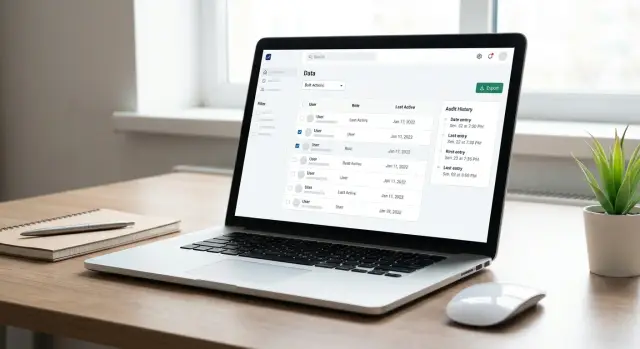
Why the demo feels finished too soon
A generated admin panel can look done long before it's ready for real work.
In a demo, someone opens one record, changes one field, clicks save, and everything looks smooth. Real teams do not work like that. They fix 20 records at once, reassign a queue before lunch, export a report for finance, and check who changed a customer status yesterday.
That is where the gap shows up. A screen can be functional without supporting the actual job.
The problem is not bad design. It is that demos reward visible progress, while daily work depends on repetition, speed, and trust. Users care less about whether a table loads and more about whether they can finish routine tasks without extra clicks, side notes, or help from engineering.
Small missing features create bigger costs than teams expect. If staff cannot update many items at once, they do the work manually. If filters are weak, they waste time hunting through tables. If exports are messy, someone cleans spreadsheets every week. If there is no history, every mistake turns into an investigation.
This happens often in fast-built tools, including admin panels created on platforms like Koder.ai. Speed is a real advantage, but it can make the happy path look more complete than it is. A working screen is not the same as a working process.
The first four gaps users notice
Most complaints after launch point to the same missing pieces.
Users do not manage one record at a time for long. They work in batches, return to the same queues every day, share data with other teams, and need proof of what changed. That is why the first requests are usually about four things: bulk actions, filters, exports, and audit history.
Bulk actions
The first question is often simple: can I update all of these at once?
That might mean changing status, assigning an owner, tagging records, or archiving old entries. Without bulk actions, work that should take seconds turns into repetitive clicking. It is slow, dull, and easy to get wrong.
Filters and saved views
A large table is only useful if people can narrow it down fast. Teams need filters such as status, owner, date range, region, or priority. They also need to return to the same setup each day. A saved view like "needs reply today" or "pending orders for this week" saves more time than another dashboard widget.
Exports
Even when data lives in the system, people still need to move it. Finance wants a CSV. Support sends reports to clients. Operations reviews records in a spreadsheet. When exports are missing or messy, users start copying and pasting by hand.
Audit history
As soon as something looks wrong, people ask two questions: who changed this, and when?
Audit history builds trust. It also helps teams undo mistakes, explain decisions, and answer support questions without calling a developer.
These four gaps matter because they reflect real work, not demo work. A clean table and a working edit form are only the beginning.
Plan the work before the screen
The safest way to plan an admin panel is to ignore the interface for a moment and look at the job behind it.
What do people actually do every day? What slows them down now? Which actions happen once in a while, and which happen every morning without fail?
Start with concrete tasks, not vague goals. "Approve refund requests" is useful. "Manage data" is not. "Export a weekly report for finance" is useful. "Improve operations" is not.
Then split those tasks into two groups: one-by-one work and batch work. If someone updates ten records every morning, they do not need ten separate edits. They need bulk actions. If another task is rare and sensitive, a single-record flow may be enough.
After that, decide what people need to find quickly. Most admin pain comes from weak search and missing filters. Ask which fields users search by, which statuses they care about, what date ranges they use, and which views they repeat.
A short planning check helps:
- What are the most common admin tasks each week?
- Which of them happen in batches?
- What data must users search, filter, and export?
- Which actions need a visible change history?
Audit history should not be treated as a bonus feature. If an action affects money, access, customer status, or published content, people need a clear trail from day one.
One more step matters a lot: review the task list with someone who does the work. Not a manager guessing from memory. Not a founder who knows every shortcut. The operator who spends hours in the panel will see the missing step that the demo hides.
Bulk actions should match real habits
A good bulk action is not just a feature on a checklist. It should reflect something the team already does in real life.
Support teams reassign tickets in batches. Operations closes stale requests every Friday. Sales ops updates owner fields after territory changes. If the panel supports those exact flows, it starts feeling useful very quickly.
The most common bulk actions are usually enough:
- assign selected records to a teammate
- change status for many items
- archive records that are no longer active
- delete only with clear confirmation
That last point matters. Bulk changes can make users nervous, especially when the result is hard to reverse. Risky actions should show how many rows are selected and exactly what will change. "Archive 48 orders" is clearer than a button labeled "Update."
If the action is destructive, add a confirmation step. If possible, offer a short undo window or a softer option such as archive instead of permanent delete.
The goal is not to support every possible mass edit. The goal is to cover the few repeated tasks that save the most time while making mistakes easy to spot and fix.
If you are building quickly in Koder.ai, define those workflows early while planning the app. It is much easier to shape the process before people get used to a slow version.
Filters, search, and saved views do most of the daily work
Many admin panels fail on the list page.
The data is there, but users still cannot answer simple questions quickly. Show me overdue tasks owned by Alex. Find orders created last Friday. Open the items I review every morning. If the page cannot support those requests in a few clicks, it will feel unfinished no matter how clean it looks.
Start with the filters people use most. In many teams, that means status, owner, date range, and priority. These should be visible and easy to reset. People should not have to dig through menus just to narrow a table.
Search matters just as much. Keep it obvious, make it wide enough to use comfortably, and be clear about what it searches. A simple search that works on names, IDs, email addresses, or titles is usually more valuable than a complicated search panel full of options nobody remembers.
Saved views make repeat work much easier. A support lead may want "high priority tickets this week." An operations manager may need "pending orders assigned to Sam." If users can save that once and return to it in one click, the admin panel starts supporting habits instead of forcing people to rebuild the same filters every day.
Saved views usually work best when they remember a few basics:
- selected filters
- sort order
- visible columns
- date range
Just as important, the screen should show active filters clearly. Users should never wonder why they are seeing 12 results instead of 200. A short summary, visible filter chips, and a clear reset action prevent a lot of confusion.
Exports should work outside the app
Exports often look fine in a demo and disappoint people the moment they open the file.
The problem is rarely that export is missing entirely. It is that the file is hard to use. Column names are vague. Dates are inconsistent. Statuses use internal labels. Important fields are missing. The result is a CSV that still needs manual cleanup before anyone can do real work.
A good export should make sense even if the reader never opens the admin panel. Use clear column names, readable dates, plain labels, and the fields people actually need. Finance, support, and operations may all use the same source table, but they often need different export outputs.
A simple test works well: open the file and ask, could someone understand this without extra context? If not, the export still needs work.
Focus on the fields that answer real questions. Include the columns teams compare most often. Keep names, emails, totals, and statuses easy to scan. Make sure filters carry into the export so people are not forced to clean the file by hand.
If users ask for exports right after launch, they are not asking for a luxury feature. They are telling you where the product stops being useful.
Audit history keeps support and operations sane
When something changes unexpectedly, teams need an answer fast.
A useful audit history shows who made the change, when it happened, what changed, and what the previous value was. That should not require database access, guesswork, or asking around in chat.
The history should be easy to scan. Show the actor, timestamp, action, and before-and-after values for important fields. If someone changed a subscription from active to paused or edited a shipping address, that should take one glance to confirm.
It also needs restraint. Logging everything creates noise. If the page is full of background events that do not matter, the important changes disappear. Focus on meaningful edits, especially the ones tied to support, billing, permissions, or published content.
Small teams feel this gap first. A customer says, "My order status changed yesterday." A support teammate should be able to open the record and answer in seconds. Without that history, the team starts guessing.
A simple example from a small team
Imagine a small company launching a customer portal with a basic support dashboard.
The demo looks good. You can open a ticket, change its status, and search by name. That feels complete until the first busy week starts.
On Monday, the support lead finds 40 open tickets still assigned to a teammate who is out sick. Reassigning them one by one is slow and easy to mess up. What they need is simple: filter the right queue, select the records, and move them in one step.
Later that week, finance asks for a month-end export of refunded orders. They do not want every order in the system, and they do not want a raw database dump. They need a clean file filtered by date range, payment status, and region.
Then a manager notices that one customer was marked inactive even though the account should still be open. The next question is obvious: who changed it, and when?
Without these basics, people start working around the product instead of inside it. They keep side spreadsheets, ask developers for one-off exports, and rely on chat messages to explain changes. The system still exists, but trust in it starts to drop.
None of this looks dramatic in a demo. For a small team, though, these are not edge cases. They are normal work.
Common mistakes that lead to rework
Most admin panel rebuilds start with a few predictable mistakes.
The first is stopping at create and edit screens. That is enough for a walkthrough, but not for a workday. Daily users often need to approve many records, assign owners in batches, archive old entries, and revisit the same filtered queues.
Another mistake is hiding filters behind too many clicks. Admin tools should help people answer questions fast. If they cannot quickly filter by date, status, owner, or customer, the panel feels slow even when the system itself is fast.
Exports cause rework when teams treat them as raw data dumps. A file full of unclear columns and machine-friendly values is not really done. Someone still has to clean it every week.
Missing audit history creates another kind of waste. Small mistakes turn into long investigations because nobody can see what changed.
Testing is often weak too. Founders and product managers usually know the system too well. They can work around awkward flows without noticing them. The better testers are the people who will use the panel every day.
If you are building quickly with Koder.ai, this is where planning mode can help. Use it to define the real admin tasks first, then generate around those workflows instead of around a generic CRUD setup.
Quick checks before launch
Before launch, test the boring tasks.
Ask someone to do a real batch job with a timer running. If selecting records, changing status, assigning ownership, or archiving items takes too long, the flow needs work.
Check how quickly a person can narrow a long table to the few rows they need. Good filters should feel obvious, and search should handle the words people actually use.
Download an export and open it outside the app. If the file needs cleanup before it can be shared, it is only half finished.
Then test one support question: can someone trace a bad change in seconds? They should be able to answer what changed, who changed it, when it changed, and what the old value was.
One more test is worth doing with a new teammate. Give them the screen without a guided tour and watch what happens. They should understand what the table shows, which actions matter most, and which changes are risky.
A short pre-launch checklist is usually enough:
- complete one common batch task quickly
- narrow a long list in a few clicks
- export data that works as-is
- trace a bad change without engineering help
- understand the page on first use
If even one of these checks fails, users will find the gap quickly.
What to do next
An admin panel is not done when the screens look complete. It is done when the people who use it every day can finish their work without hacks, extra spreadsheets, or repeated help from someone else.
The next step is simple: turn the missing tasks into clear requirements. Do not write "better usability." Write the actual job. Archive 50 records at once. Filter by status and date. Export a clean CSV for finance. Check who changed a price and when.
If a task happens every day, fix that before adding more pages. One strong bulk action can save more time than several new screens. The same goes for filters, saved views, exports, and audit history.
It also helps to test in small rounds. In Koder.ai, planning mode is useful for defining these admin flows in plain language before generating the next version. Snapshots and rollback can make iteration safer when you are adjusting a live workflow.
If you only do one thing this week, make the daily admin work easy, repeatable, and easy to verify. Users will forgive a simple interface. They will not forgive extra clicks on work they do all day.
FAQ
Which admin panel features should I add before launch?
Fix bulk actions, filters, clean exports, and audit history before launch. These features support the repeated tasks that make up most admin work.
Why does a working demo still feel unfinished to users?
A demo usually follows one happy path with one record. Real users manage queues, update many records, share reports, and investigate changes, so they find gaps much faster.
What bulk actions do users need most?
Add bulk actions for repeated work such as changing status, assigning owners, tagging records, or archiving old items. Start with the batch tasks your team already does every week.
How can I make bulk changes safer?
Show the number of selected records and state the exact result before the user confirms. For destructive changes, use a confirmation step and prefer archiving over permanent deletion when possible.
Which filters should an admin table include?
Begin with status, owner, date range, and priority if those fields match the team's work. Keep active filters visible and give users a clear way to reset them.
What are saved views, and why do they matter?
A saved view stores a useful table setup, such as filters, sort order, visible columns, and sometimes a date range. It saves users from rebuilding the same queue every day.
What makes a CSV export useful?
Export the fields people actually use, with clear column names, readable dates, and plain status labels. The exported file should make sense to someone who never opened the admin panel.
What should audit history record?
Audit history should show who changed a record, when they changed it, what they changed, and the previous value for important fields. Focus on actions tied to money, access, customer status, or published content.
Who should test an admin panel before launch?
Ask the person who does the job daily to test real tasks, not a scripted walkthrough. Have them reassign a queue, find a small set of records, export a report, and trace a change.
How can I plan these workflows in Koder.ai?
Define the daily workflows in plain language before generating the next version. In Koder.ai, planning mode can help turn tasks such as batch reassignment, filtered exports, and change tracking into app requirements.