

Haircut Preference Card App for Repeat Clients in Barbershops
A practical guide to using a haircut preference card app to save photos, guard numbers, and notes so any barber can match a client’s last cut.
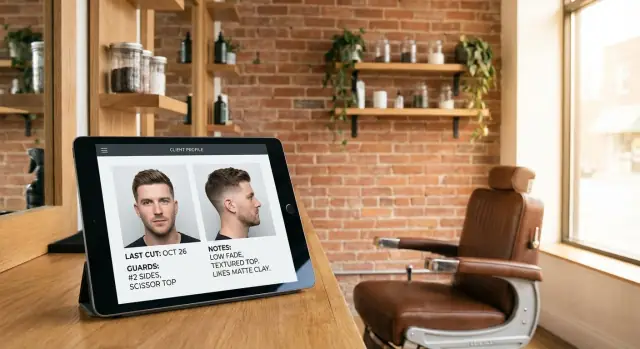
Why repeat clients still get different haircuts
A repeat client expects the same cut they liked last time. But memory is fuzzy, and “same as usual” can mean different things depending on who hears it. Small details like taper height, neckline shape, or how tight the blend was often live in one barber’s head, not in a place the whole shop can use.
It gets worse during busy hours. When the waiting area is full, it’s easy to shorten the consultation or skip the one question that matters: what did they like (or hate) about the last cut? Even if you remember, you may not have time to explain every detail to a coworker who’s jumping in to help.
Staff changes break consistency too. Someone calls out sick, a new barber joins, or the client books whoever is available. Without shared notes, the next barber is guessing from a quick glance and a short description. A “number 2 on the sides” might miss that it was a 2 closed, not a 2 open, or that the fade started low.
The cost shows up fast: rework at the end of the cut (or the next day), discounts or free touch-ups, lower tips because the client feels unheard, and eventually lost trust.
A haircut preference card app aims for one simple goal: repeatable cuts. When a client comes back, any barber can match the last result using the same guard numbers, short notes, and reference photos.
What a haircut preference card is (and is not)
A haircut preference card is a simple record of how a specific client likes their hair cut, written so any barber in the shop can follow it. It captures what happened last time so the next visit starts from something real instead of guesses.
A useful card usually includes:
- Reference photos (right after the cut, plus side and back views)
- Clipper guard numbers and key settings (like open/closed lever)
- Quick notes (blend style, neckline, beard shape, cowlicks)
- Date of the cut and who did it
- Clear preferences (no razor on neck, keep the corners, low vs high taper)
What it’s not: it’s not a full booking system. Booking tools handle appointments, reminders, payments, and calendars. Preference cards are about the result, not the schedule.
It also won’t read minds. Clients change their mind, bring new inspiration photos, or show up after a rough home trim. The card helps you match the last cut when they say “same as usual,” and it gives a solid starting point when they say “almost the same, but shorter on the sides.”
Used well, it makes consistency normal, even when a different barber is on the chair that day.
What to save on each client card
A good client card is short, clear, and repeatable. The goal is simple: any barber should be able to recreate the last cut without guessing.
Start with photos, because they capture what words miss. Take them right after the cut, in the same spot and lighting when you can. Save a few angles that show the shape and the blend: front, both sides, and back. If the crown or a cowlick is tricky, add a top-down shot.
Then add the numbers and the “how.” Guard numbers alone aren’t enough, so note where they start, where they stop, and how the blend was done.
Keep notes to one line each and focus on instructions:
- Sides and back: guard numbers, fade level (low/mid/high), where the transition sits
- Blending and finish: clipper over comb vs guards, hard lines to avoid, how tight the neck was finished
- Top: length left (in inches or fingers), texture approach, part/fringe direction
- Beard (if you touched it): guard number, cheek line style, neckline height, sharp vs soft
- Preferences and constraints: cowlick spots, sensitive skin areas, “don’t take the corners,” product habits
A concrete example:
“0.5 to 2 mid fade, keep weight at parietal ridge, scissor top 2.5 inches, fringe forward, beard #3 with soft cheek line, cowlick at right crown leave slightly longer.”
A workflow that fits a busy shop
A preference card only works if it doesn’t slow the chair. The goal: open the client, confirm the last cut in about 10 seconds, then add one quick update before they walk out.
Set permissions that match the shop. Many teams do well with “everyone can view, only barbers can edit.” If you have a receptionist, they can create new client profiles and attach the first photo, while haircut details stay editable by the person doing the cut.
A simple flow that matches how barbers already work:
- Check-in: pull up the client card before they sit. Confirm the last visit.
- Walk-in: create a new card with phone number or a short ID. Add one starting photo if the client agrees.
- Consult: show the last reference photo and ask, “Same as last time?” Record any change in one line.
- During the cut: glance at key fields (guard numbers, taper level, line-up style). Don’t write mid-cut unless it’s a quick tap or voice note.
- Checkout: take a couple quick photos, then save only what changed (example: “moved from #1 to #0.5 on sides”).
To keep updates fast, limit the card to a few required fields and make everything else optional. If an update takes longer than 20 seconds, the fix is usually better templates (preset fades, neckline options), not more typing.
Privacy basics for storing photos and notes
A preference card app only works if clients feel safe using it. The basics are simple and take seconds.
Start with clear consent. Ask before you take photos and explain why in plain words: “Mind if I take two quick photos for your client card so any barber here can match this cut next time?” If they say no, save the text notes and skip the photos. For minors, get a parent or guardian’s OK.
Keep the card focused on the haircut, not the person. Avoid storing anything you don’t need, like birthdays, home addresses, health details, or social media handles. A first name plus phone number (or whatever you already use for booking) is usually enough.
Photos can accidentally capture private info. Shoot against a blank wall when possible. Watch for paperwork, screens, name badges, other clients, or uniforms with company names.
Set a retention rule so you don’t keep data forever. A simple approach: keep only what helps the haircut, and delete cards for clients who haven’t visited in a set period (for example, 12 to 24 months), unless they ask you to keep it.
Access matters as much as storage:
- Keep cards staff-only (not friends or family using the shop tablet)
- Use unique logins when possible so edits are traceable
- Turn on screen lock and auto log-out
- Don’t save client photos to the general camera roll
- Have a simple way to remove a card if a client requests it
If you’re building your own system, bake these rules into the flow: a consent toggle, a “delete client” button, and simple roles like barber vs manager.
Step by step: set up and use preference cards
The standard has to be easy enough that everyone follows it, even on Saturdays.
The 5-step routine
Step 1: Create the client profile. Add name and phone, plus a few optional tags that help later (for example: “skin fade,” “beard,” “scissor cut,” “sensitive scalp”). Keep tags limited so staff actually uses them.
Step 2: Take the same photos every time. Right after the cut, take reference shots in consistent lighting: front, one side, and back. Ask the client to face straight, then turn. If they always style it a certain way, capture that.
Step 3: Capture the numbers and the few details that matter. Record guard numbers and key choices while they’re fresh: taper height, blend approach, neckline shape, and how the top connects.
Step 4: Confirm in 10 seconds. Repeat the essentials back to the client: “0.5 closed to a 2, low taper, square neckline, 1 inch off the top, textured.” Fix anything they correct.
Step 5: Use it next visit, then update. Pull up the card as soon as they sit down, show the photos, ask one question (“Same as last time or any changes?”), and record changes right after the cut.
How to take useful photos and write notes fast
Preference cards live or die on speed. If it takes more than a few seconds, it won’t happen during a busy day.
For photos, consistency beats quality. Use the same spot when you can: similar lighting, a plain background, and the client sitting at the same height. Avoid harsh overhead glare that hides blend lines, and don’t shoot into a mirror (it flips the view and makes comparisons harder).
Stick to the same angles every time: front, left, right, and back. Add a top shot only when it helps (crown patterns, cowlicks, thinning).
Notes should read like a label, not a story. Aim for numbers, shapes, and one or two “avoid” items. Examples:
- “Mid fade, 0.5 to 2, keep weight at parietal ridge.”
- “Natural neckline.”
- “Scissor top 1.5 inches, texture.”
- “Don’t take crown too tight.”
If you’re short on time, one photo set plus three quick tags is usually enough to repeat the cut with confidence.
Making it work when a different barber does the cut
The real test is simple: can someone who has never cut this client still match the last result without guessing?
Make the top of the card impossible to miss with a “last cut summary.” Put the basics first so it can be read in five seconds while the client is sitting down: overall shape, guard numbers, and one or two key notes (like “keep the right temple fuller” or “leave weight at the crown”).
Then keep the consult lightweight. A good consult screen answers what stayed the same, what changed, and what the client wants today.
A practical flow:
- Confirm: “Same as last time?” yes/no
- If no: “What changed?” (length, fade height, neckline, beard)
- Show last reference photos (front, side, back)
- Note any recurring issues (cowlick, swirl, sensitive areas)
- Save today’s update in one sentence
If you have multiple locations, the card needs to travel with the client, not the barber. One shared record across the shop matters more than a long history.
Plan for Wi-Fi failures too. Keep a “most recent cut” view that loads fast, so even if the full history won’t load, the barber can still see the last summary, guard numbers, and the most recent photos.
Common mistakes that make preference cards useless
Preference cards fail when they add work but don’t remove guesswork.
The biggest trap is saving everything. If a card turns into paragraphs of text, the important line gets buried. Keep it tight: what matters for repeating the cut.
Vague notes are another deal-breaker. “Short on the sides” and “take a little off” mean different things to every barber. A card helps only when it captures numbers and clear targets, like guard size, taper type, and where the blend starts.
Photos can mislead too. Wrong angles, harsh lighting, or photos taken before the finish can make a cut look uneven or longer than it was.
Finally, cards get stale fast. If the client changed beard shape or asked for a lower fade last time, but the card never gets updated, the next barber is copying an old idea.
If you can’t fill or update the card in under 30 seconds, simplify the template.
Quick checklist for a good client card
A good card saves time while the client is in the chair. If you need to scroll forever, or if the notes are vague, it will get ignored.
Use this quick check after each visit:
- Can you open the card and find the last cut in under 10 seconds?
- Do you have at least 3 clear photos (front, side, back) in similar lighting?
- Are guard numbers recorded for sides and back, plus beard if you touched it?
- Is there a one-line “do this again” summary at the top?
- Is there a specific “do not do” note if the client hates a detail?
Keep the “do not do” line calm and specific. “Don’t square the corners at the temple” helps. “Don’t mess it up” doesn’t.
Example: matching last month’s cut with a new barber
Marcus walks in on a Saturday. He’s a regular, but his usual barber is off. He says, “Same as last time,” and sits down. The new barber pulls up Marcus’s client card and sees three things that remove guesswork: last cut photos, guard numbers, and a few short notes.
The photos show a low taper that stays behind the ear, a natural line-up, and a longer top brushed forward. The notes confirm: “Sides: #1.5 open to #2, low taper. Top: scissors, leave weight at the front. Beard: #2, soft cheek line.” Before touching clippers, the barber does a quick confirm using the card.
A 30-second consult script:
- “I’ve got your last cut here. Want the taper the same height as this photo?”
- “For the sides, it was #1.5 open fading to #2. Still good?”
- “Top was scissor work with extra length in front. Same, or shorter today?”
- “Beard was #2 with a soft cheek line. Keep it?”
- “Any changes since last time, like sensitive spots or a new preference?”
After the cut, the barber updates the card for next time. If Marcus wanted a slightly higher taper or a tighter neckline, that change gets written in one line and the latest photos are saved.
Next steps: choose a tool or build your own
If you want repeat-client consistency, you have two paths: pick an existing preference card app, or build a simple one that matches how your shop actually works. The right choice depends on how specific your workflow is and how much time you can spend setting it up.
Off-the-shelf tools are usually best if you want to start this week and you don’t need custom fields. A custom app is worth it if your team has a specific way of noting fades, beard work, or product instructions, or if you want the card to match your in-shop language.
Before you choose anything, write down the minimum screens you need:
- Client search (name, phone, maybe a couple tags)
- Card view (last cut summary, guard numbers, notes, photos)
- Add visit (quick update after the cut)
- Photo capture (fast, consistent angles)
- Barber access (simple sign-in)
Start small so it sticks. Try one shop, one device, and one process for two weeks. For example: the front desk pulls the card, the barber adds one photo set and three short notes.
If you decide to build, Koder.ai (koder.ai) is a chat-based vibe-coding platform that can help you create a simple web or mobile app, then deploy and host it when you’re ready. It also supports custom domains, snapshots and rollback, and source code export if you later want a developer to take over.
Pick a start date, assign one person to own the process, and track one thing that matters, like how often you matched the last cut without a second round of questions. "}
FAQ
Why do regular clients still end up with different haircuts?
A repeat client often says “same as usual,” but the details that made the cut work last time usually aren’t written down. Small differences like fade height, lever position, neckline shape, and how the top connects can change the result, especially when a different barber steps in or the shop is busy.
What is a haircut preference card, in plain terms?
A haircut preference card is a shared record of a client’s last cut that any barber can follow. It usually includes a few reference photos, the key guard numbers and settings, and short notes about the finish and the client’s preferences.
What should I record on each client card to make it truly repeatable?
Save the minimum that removes guesswork: recent photos taken after the cut, the guard numbers for sides and back, any lever notes like open or closed, and one or two lines about taper height, neckline shape, and how the top was left. Add beard details only if you actually worked on it.
How do we use preference cards without slowing down a busy shop?
Treat it like a 10-second check-in: pull up the last cut summary before they sit, show the photo, and ask if they want the same result or a change. After the cut, update only what changed while it’s still fresh so you’re not writing a long report.
How do I ask for photo consent without making it awkward?
Ask clearly and briefly before taking photos, and explain that it’s only to match the cut next time. If they say no, keep text notes only and move on; the card can still be useful without photos.
What makes haircut reference photos actually useful?
Use the same spot and lighting when possible and take simple angles that show shape and blend. Photos taken before the finish, under harsh glare, or in a mirror tend to mislead and make the next barber copy the wrong thing.
How do I write notes that another barber can follow?
A good note reads like an instruction label, not a story. Stick to numbers and clear targets, such as where the fade starts, what to leave heavy, and what the client dislikes, so another barber can act on it immediately.
How do preference cards help when a different barber does the cut?
Put a “last cut summary” at the top so it can be read while the client is settling in. Then the new barber only needs to confirm the summary against the photos and ask one question about changes, rather than starting the consultation from scratch.
What privacy basics should we follow for storing photos and notes?
Keep access staff-only, use individual logins if possible, and avoid storing extra personal details you don’t need for the haircut. Set a simple deletion routine for inactive clients and make it easy to remove a card if someone asks.
Should we buy a preference card tool or build our own app?
Buying is usually best if you want to start quickly with standard fields, while building makes sense if you need a template that matches your shop’s exact language and workflow. If you build, keep the first version small and fast, and tools like Koder.ai can help you create and deploy a simple app from chat without starting from scratch.