

How People Build Sites, Dashboards, and Forms Without Setup
Explore how teams create websites, dashboards, and forms with no servers or code—common tools, workflows, limits, and practical best practices.
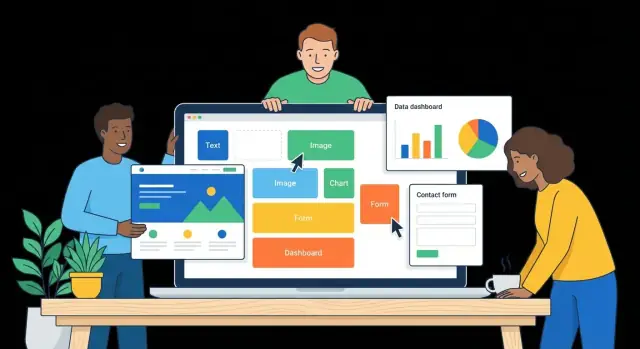
What “No Technical Setup” Means in Practice
When people say they built a site, dashboard, or form “with no technical setup,” they usually mean they didn’t have to prepare the infrastructure that normally sits behind it.
In practice, “setup-free” doesn’t mean “no technical thinking.” It means the tool hides (or automates) the parts that typically slow teams down: provisioning, deployments, auth wiring, and database maintenance.
What’s handled for you
Most no-setup tools bundle the hard-to-start parts into the product:
- Hosting and publishing: your pages and apps are served from the vendor’s platform, so you don’t rent servers, configure DNS, or manage deployments.
- Logins and permissions: user accounts, password resets, and basic access control are built in, often with simple toggles like “public,” “team-only,” or “invite-only.”
- Storage and databases: data is saved in the tool’s own tables or connected through guided integrations, instead of you installing and maintaining a database.
- Backups, updates, and uptime: the vendor maintains the system, applies updates, and monitors availability.
That “setup-free” experience is popular with small teams and busy departments because it reduces handoffs. Marketing can publish a landing page without waiting for IT. Operations can track KPIs without a data engineering ticket. HR can launch an internal request form in an afternoon.
What it looks like in real life
A few common examples:
- A simple marketing site: choose a template, edit sections with drag-and-drop, connect a custom domain if needed, and hit publish.
- A KPI dashboard: connect to a spreadsheet or analytics source, pick metrics, and share a link with role-based access.
- A request form: build fields, add basic rules (required/conditional questions), route submissions to email, a sheet, or a workflow.
What this post will and won’t cover
This post explains the patterns behind no-setup building—how people plan, connect data, design, and publish.
It won’t promise that any one tool can do everything, or that you’ll never need technical help when requirements get complex.
Who Builds These Tools (and Why)
Most “no technical setup” products aren’t built by hobbyists—they’re built by teams who’ve felt the pain of waiting weeks for a small change.
The makers are usually a mix of product engineers, designers, and growth teams who want to remove friction for everyday work, not replace developers.
The builders behind no-setup platforms
SaaS companies build many of the popular tools you’d recognize as a no-code website builder, an online form builder, or a way to build dashboards without code. Their goal is simple: make publishing, collecting data, and sharing insights possible without servers, deployment pipelines, or a specialist on standby.
Internal platform teams at larger companies also create “self-serve” kits—approved templates, components, and data connectors—so employees can safely build what they need. This is often framed as citizen development: enabling non-engineers to ship small, valuable tools quickly.
Why they build them (beyond “ease of use”)
The strongest motivator is speed with consistency. Teams want anyone to assemble a page or workflow, but still keep brand, permissions, and data rules intact.
Common use cases push tool design in very specific directions:
- Marketers launching landing pages and content hubs
- Ops and HR teams collecting requests and approvals
- Sales teams building lead capture and account views
- Customer support creating intake forms and internal dashboards
- Founders validating ideas fast
Another major driver is cost and ownership: teams want to publish without servers and reduce handoffs. If a campaign form needs a new field, the marketing team can change it today—without filing a ticket.
If you’re mapping your own needs, it helps to start from the job-to-be-done (page, dashboard, or form), then evaluate tools by who can maintain them day-to-day. A quick checklist can live alongside your templates at /blog/tool-selection-checklist.
The Main Tool Categories People Use
Most “no technical setup” projects fall into a few tool families. They often overlap, but each is optimized for a different job—publishing pages, collecting inputs, or turning data into decisions.
Website builders
A no-code website builder focuses on pages and publishing. You start with templates, drag-and-drop sections, and a style panel for fonts and colors.
The practical features people rely on are basics like navigation, mobile-friendly layouts, simple SEO settings (titles, descriptions, and clean URLs), and built-in hosting so you can hit “Publish” without touching servers.
Form builders
An online form builder is about capturing structured information with minimal friction. The essentials are conditional logic (show/hide questions based on answers), validations, file uploads, and notifications (email/Slack) when someone submits.
Many also support “post-submit” actions like creating a task, adding a row to a spreadsheet, or triggering an approval step.
Dashboard / BI tools
If you want to build dashboards without code, BI-style tools specialize in charts, filters, and sharing. Typical workflows include connecting to a data source, choosing metrics, adding interactive filters (date ranges, segments), and publishing a view for teammates.
Permissions matter here: executives might see summaries, while operators see row-level details.
Vibe-coding platforms (a modern “escape hatch”)
There’s also a newer category that sits between classic no-code and fully custom development: vibe-coding platforms.
For example, Koder.ai lets you describe what you want in a chat interface and generate a real application (web, backend, or mobile) with code under the hood. This is useful when drag-and-drop tools hit limits, but you still want to avoid standing up infrastructure from scratch.
Practically, this category can help if you want:
- a faster path to a custom UI than a template-heavy builder,
- a more structured backend (e.g., PostgreSQL) than “tables in a tool,”
- or the option to export source code if you outgrow the platform.
All-in-one vs best-of-breed
All-in-one platforms bundle pages, forms, and dashboards in one place—faster setup, fewer integrations, and a consistent login. Best-of-breed stacks let you pick the strongest tool for each job (site builder + form tool + BI), which can be more flexible but requires more connectors and governance.
Speed vs customization is the recurring trade-off: the quicker the tool is to start, the more you may adapt your process to fit its constraints.
A Simple Planning Workflow That Prevents Rework
No-setup tools feel instant—until you rebuild the same page three times because the goal wasn’t clear.
A little planning upfront keeps your website, dashboard, or form simple enough to ship, and structured enough to grow.
1) Start with the smallest usable version
Write one sentence that defines the outcome: “Collect qualified leads,” “Track weekly revenue vs target,” or “Let staff request PTO.” Then define the smallest version you can publish that still delivers that outcome.
A useful rule: if you can’t launch it in a day, it’s probably not the smallest version.
2) List the exact inputs and outputs
Rework usually comes from missing fields or unclear audiences. Make a quick inventory:
- Inputs (what you collect): fields, file uploads, categories, required vs optional
- Outputs (what you show): metrics, charts, tables, confirmation messages, email notifications
- Audiences: who submits, who reviews, who approves
Be specific: “Company size (1–10, 11–50, 51–200, 200+)” beats “Size.”
3) Sketch the user flow (before you design)
On paper or in a notes app, map the click-by-click path:
- Where users land
- What they do (view, filter, submit)
- What “success” looks like (confirmation screen, email receipt, next-step link)
This prevents building beautiful pages that don’t guide people to finish.
4) Decide what’s public vs. private early
Mark each page and dataset as public, internal-only, or restricted to a role.
Changing access rules after sharing a link can mean rebuilding permissions, views, and even URLs.
5) Define success metrics you can actually track
Pick 1–3 measures tied to the goal: completion rate, time saved per request, sign-ups per week, or “% of dashboards viewed weekly.” If you can’t measure it, you can’t improve it.
Connecting Data Without a Developer
Most “no technical setup” tools still need data. The difference is that you connect it through guided steps—no servers, no credentials files, no database admin screens.
Common sources you can plug in
For many teams, the first dataset is already sitting in a spreadsheet (Google Sheets, Excel). After that, popular sources include CRMs (like HubSpot or Salesforce), payment tools (Stripe), and support platforms (Zendesk, Intercom).
Many no-code products offer a connector gallery where you authorize access and then pick the tables, lists, or objects you want.
How connectors and imports usually work
There are two common patterns:
- Sync (automatic updates): the tool refreshes on a schedule or near real time. This is ideal for dashboards and “live” lists.
- Manual imports (one-off or occasional): you upload a file or pull a snapshot when you need it. This works well for audits, quarterly reporting, or prototyping.
If you’re building a public page or a form workflow, pay attention to refresh timing—an hourly sync can still feel “broken” if someone expects instant updates.
Data cleanup basics that save hours
No-code tools are forgiving, but messy data still creates messy results. Quick wins:
- Consistent naming: “Customer ID” should not also be “CustId” elsewhere.
- Standard formats: dates (YYYY-MM-DD), phone numbers, currencies.
- Handle missing values: decide whether blanks become “Unknown,” zero, or are excluded.
Permissions: view, edit, export
Most platforms let you control access at three levels: who can view data, who can edit it, and who can export/download it.
Treat export rights carefully—exporting often bypasses in-app restrictions.
When you may still need technical help
Bring in a developer (or a data specialist) when you hit complex joins across multiple sources, need a custom API, or require strict data rules (deduping, validation, audit trails) that the built-in connector can’t enforce cleanly.
Designing Pages, Dashboards, and Forms That People Finish
Great self-serve results start with a simple truth: people don’t “use a tool,” they try to complete a task.
Whether you’re using a no-code website builder, an online form builder, or drag-and-drop tools for reporting, design decisions should reduce effort and uncertainty.
Start with a template, then edit ruthlessly
Templates help you reach a working draft fast—especially when you’re building sites, dashboards, and forms without technical setup.
The key is to treat the template as scaffolding, not a final answer.
Keep navigation simple: aim for one primary action per page (e.g., “Book a call,” “Submit request,” or “View report”). Supporting links can exist, but they shouldn’t compete with the main next step.
Forms people actually complete
Forms fail when they ask for too much, too early.
Reduce fields to what you truly need. If a field doesn’t change what happens next, consider removing it.
Use smart defaults (like today’s date, country based on location, or “Same as billing address”). For longer forms, show progress (“Step 2 of 4”) and group related questions so users don’t feel trapped in an endless scroll.
Dashboards that answer one question well
When people try to build dashboards without code, the temptation is to include every chart available.
Instead, choose 5–10 core metrics tied to decisions someone can make this week.
Add filters carefully. Each filter increases complexity and the chance of misinterpretation. Start with one or two (date range, region), then expand only if users ask for it.
Mobile-friendly checks (non-negotiable)
Before sharing, test on a phone-sized screen:
- Can someone find the primary action immediately?
- Do form fields stack cleanly without tiny tap targets?
- Do charts and tables remain readable without side-scrolling?
These small choices are what turn business self-serve apps from “nice idea” into tools people trust and finish.
Privacy, Security, and Access Control Basics
No-setup tools make it easy to publish a form or share a dashboard in minutes—which is exactly why privacy and access control matter.
A simple rule helps: treat every new page, form, or data connection as if you’ll need to explain it to a customer, your boss, and a regulator.
Start with data minimization
Collect only what you need to deliver the outcome. If a contact form only requires a reply, you rarely need a home address, date of birth, or anything “extra.” Less data reduces risk, simplifies compliance, and makes people more willing to complete your forms.
Use plain-language consent and privacy notes
If you’re collecting personal information, add a short note near the submit button explaining:
- what you’re collecting
- why you’re collecting it
- how long you’ll keep it
- who to contact to delete or correct it
Avoid legal jargon. People should understand it without clicking away to a policy page (though linking to /privacy is still a good idea when relevant).
Basic access control that actually works
Many incidents happen because a “temporary share link” becomes permanent. Prefer structured access:
- Roles: viewers vs. editors vs. admins (limit edit rights)
- Share links: use password protection when available
- Expiration: set an end date for shared links and guest access
If your tool supports it, turn on two-factor authentication and use company login (SSO) so access automatically ends when someone leaves.
Be careful with spreadsheets and exports
Spreadsheets are convenient, but they’re easy to forward, copy, and store in the wrong place.
Avoid putting sensitive data (health, financial, government IDs, passwords) into spreadsheets unless they’re protected and access-controlled. When you export data, treat the file like a confidential document.
Document ownership and storage
Write down, even in a simple checklist:
- where the data is stored (which tool/account/workspace)
- who owns it (a person and a team)
- who can access it and how access is granted
This small habit makes audits, handoffs, and incident response much easier later.
Quality Control and Governance for Self-Serve Builds
Self-serve tools make publishing easy—which is exactly why a little governance matters.
The goal isn’t to slow people down; it’s to prevent “silent” errors (wrong numbers, broken forms, public pages with outdated info) and make changes predictable.
Start with a single source of truth
Pick one place where key fields and metrics officially live: a primary spreadsheet, database table, or CRM object.
Document it in plain language (for example: “Revenue = closed-won deals from the CRM, not invoices”).
When teams pull the same number from different sources, dashboards quickly disagree. A single source of truth reduces debate, rework, and ad-hoc fixes.
Use versioning like you would for documents
Treat builds as draft vs published.
Draft is where you edit, test, and get feedback. Published is what real users see.
Make sure your tool lets you:
- Publish intentionally (not automatically)
- Roll back to a previous version when something breaks
- Leave short release notes (“Updated pricing fields; changed form logic for region”) so others understand what changed
Some platforms lean into this with “snapshots” and one-click rollback. If you’re building something business-critical, those features matter more than they seem at the start.
Add lightweight approvals for risky changes
Not every change needs a meeting, but public-facing pages and business-critical forms should have a clear approver (often Marketing, Ops, or Finance).
A simple rule works well: internal dashboards can be self-serve; external pages/forms require review.
Keep a practical test checklist
Before publishing, run a quick check:
- Links: navigation, buttons, and outbound links
- Form logic: required fields, conditional questions, confirmations
- Calculations: totals, filters, date ranges, rounding
- Permissions: who can view/edit, and what anonymous users can access
Create a mini style guide
Consistency is a form of quality.
Write a short style guide that covers fonts, colors, button styles, form field labels, and how to name dashboards and metrics.
It prevents “every page looks different” syndrome and makes handoffs easier when multiple people build in the same workspace.
Publishing, Sharing, and Tracking Results
Once your page, dashboard, or form is working, the next step is making it easy for other people to access—and making sure you can tell whether it’s helping.
Publishing options (without server work)
Most no-setup tools give you three common ways to publish:
- Custom domain (e.g., yourcompany.com) for public-facing pages or campaigns.
- Subpages inside an existing site (e.g., /support/intake-form) when marketing wants consistent navigation.
- Embeds/widgets you drop into another site or portal, useful for forms, calculators, or small dashboards.
Before you hit “publish,” decide who should see it: public, anyone with a link, or only signed-in teammates.
SEO essentials that actually matter
If the page should be discoverable, don’t skip the basics:
- Set a clear page title and a single H1 heading that matches what people search for.
- Write a short meta description that explains the value in plain language.
- Check index settings: some pages should be “noindex” (internal dashboards, test versions, partner-only forms).
Tracking usage and conversions
Look for built-in analytics or simple event tracking so you can answer: “Is this being used?”
Track a few meaningful points:
- Form conversions (starts vs. submissions)
- Dashboard usage (unique viewers, key filter selections, exports)
- Content performance (clicks on primary buttons, scroll depth if available)
Keep naming consistent (e.g., Form_Submit_LeadIntake) so reports stay readable.
Notifications and handoffs
Self-serve tools often connect actions to outcomes: send an email receipt, post to chat, create a CRM lead, or update a spreadsheet.
Use these handoffs to prevent “someone should check the dashboard” workflows.
Reducing breakage when data changes
Data sources evolve. To avoid surprises, prefer stable identifiers (IDs over names), avoid hard-coding column positions, and use saved views or schemas when available.
If the tool supports it, add alerts for failed syncs and keep a small “test record” that flags missing fields early.
Where No-Setup Tools Struggle (and What to Do)
No-setup tools are great for getting a site, dashboard, or form live quickly—but some problems show up once real users and real data arrive.
Knowing the common failure modes helps you keep “quick” from turning into “fragile.”
Hard limits you can’t drag-and-drop away
Most tools hit a ceiling on advanced customization: complex conditional logic, unusual calculations, custom UI components, or highly tailored branding.
Performance can also become an issue when you scale to large datasets, high traffic, or lots of concurrent editors.
What to do: define a “must-have vs. nice-to-have” list early. If you already know you need custom logic or heavy data volume, pick a tool with an escape hatch (APIs, plugins, or a low-code option), or plan a staged approach: launch self-serve first, then rebuild the critical parts later.
Hidden costs: sprawl, duplicates, and unclear ownership
Teams often end up with multiple form builders, multiple dashboards, and the same customer list copied into three places.
Over time, nobody knows which version is the source of truth, and small changes become risky.
What to do: set a simple ownership rule (one app owner, one data owner). Keep a lightweight inventory (name, purpose, owner, data source, last reviewed). Prefer connecting to a central data source instead of importing CSVs.
Accessibility gaps to watch
Default templates can miss basics like sufficient contrast, clear field labels, error messages tied to fields, and full keyboard navigation.
These issues reduce completion rates—and can create legal risk.
What to do: test with keyboard-only, check contrast, and verify every input has a visible label. If your tool supports it, use built-in accessibility checks.
Compliance and review triggers
If you handle regulated data (health, finance, education, children’s data), you may need formal reviews for storage, retention, audit logs, and vendor terms.
What to do: involve security/privacy early, document what data you collect, and limit access by role. When in doubt, add a short approval step before publishing.
Choosing the Right Path: No-Code, Low-Code, or Custom
No-code tools are great when speed and simplicity matter. But the “right” choice depends on how unique your workflow is, how sensitive your data is, and how far you expect the project to grow.
When no-code is enough
If your goal is a marketing site, a simple internal dashboard, or a straightforward form workflow, no-code usually wins: you can launch quickly, iterate with your team, and avoid ongoing server maintenance.
Signs you’re ready for custom development
Consider low-code or custom builds if you need any of the following:
- Truly unique workflows that don’t match common templates (multi-step approvals, complex pricing rules, unusual permissions)
- Strict security/compliance requirements (fine-grained audit logs, data residency, custom encryption, highly regulated environments)
- Scale and performance needs (large data volumes, heavy traffic, complex reporting across multiple systems)
A practical hybrid approach
A common path is: start no-code to validate the process, then replace pieces over time.
For example: keep the no-code front-end and swap in a custom data layer; or keep the form builder and move automation to a managed workflow service.
A modern variation of this hybrid approach is to use a vibe-coding platform like Koder.ai as the “bridge” layer: you can move beyond drag-and-drop constraints while still avoiding a traditional setup-heavy pipeline. It’s especially relevant if you want to ship a React-based web app with a Go + PostgreSQL backend, and keep the option to export the source code later.
How to write a clear handoff brief
When you involve a developer or agency, write a short brief with:
- Users and roles (who can view/edit/publish)
- The exact workflow (step-by-step, including exceptions)
- Data sources (what systems, how often it updates)
- Success metrics (time saved, error reduction, conversion)
- Screenshots/wireframes of the current no-code version
Vendor questions before you commit
Ask about export options, API limits, permission controls, pricing as usage grows, and what happens if you need to leave.
If your use case is business-critical, also ask about practical ops features: custom domains, deployment/hosting options, snapshots and rollback, and whether the vendor can run workloads in specific regions to support data privacy and cross-border data transfer needs.
Next steps
Make a simple requirements list, then compare options against it. If you want a starting point, see /pricing or browse /blog for tool-specific guides.
FAQ
What does “no technical setup” actually mean?
It usually means you don’t have to set up or manage the underlying infrastructure (servers, deployments, database installs, auth systems). The vendor hosts the app, handles updates, and provides built-in building blocks (templates, connectors, permissions) so you can publish quickly.
What parts are usually handled for you by no-setup tools?
Typically:
- Hosting, publishing, and basic deployments
- User logins, invitations, and role-based access
- Built-in storage/tables or guided database integrations
- Backups, updates, monitoring, and uptime
You still own the decisions: what to build, what data to use, and who should access it.
Who benefits most from building without setup?
It’s a great fit when the goal is speed and frequent changes:
- Marketing landing pages and content hubs
- Intake/request forms for Ops/HR/Support
- Simple KPI dashboards shared with a team
If you need complex logic, strict compliance controls, or heavy data volume, plan for low-code/custom help sooner.
What’s the difference between website builders, form builders, and dashboard tools?
A website builder optimizes for pages and publishing (templates, navigation, responsive layout, basic SEO, and hosting). A form builder optimizes for structured input (validations, conditional logic, notifications, and routing). A dashboard/BI tool optimizes for analysis (charts, filters, permissions, and sharing).
Should I pick an all-in-one platform or a best-of-breed stack?
All-in-one is usually best when you want fewer integrations, one login, and a consistent workflow (page + form + simple reporting). Best-of-breed is better when you need the strongest tool in each category, but you’ll spend more time on connectors, governance, and permissions across tools.
How do I avoid rework when building a page, form, or dashboard?
Use a simple planning flow:
- Write one sentence for the outcome (the job-to-be-done)
- Define the smallest version you can launch in a day
- List exact inputs (fields) and outputs (metrics/notifications)
- Sketch the user click path before designing
This prevents building a polished asset that doesn’t drive completion.
How do teams connect data without a developer?
Start by deciding:
- Sync (auto-refresh on a schedule/near real time) for dashboards and live lists
- Manual imports (snapshots) for audits, prototypes, or occasional reporting
Then do quick cleanup: consistent field names, standardized date/currency formats, and a plan for missing values.
What permissions should I set up for self-serve builds?
Plan access at three levels:
- Who can view data/pages
- Who can edit or change logic
- Who can export/download (often the riskiest)
Prefer role-based access and expiring guest links. If available, enable SSO and two-factor authentication so access ends automatically when someone leaves.
What design choices increase completion rates for forms and dashboards?
Keep it task-focused:
- One primary action per page (don’t compete with extra links)
- Reduce form fields to what changes the next step; use defaults and progress for longer forms
- For dashboards, pick 5–10 metrics tied to decisions and start with 1–2 filters
Always test on mobile before sharing to catch unreadable charts and hard-to-tap inputs.
When do no-setup tools break down and require technical help?
Common triggers include:
- Complex joins across multiple sources or messy deduping/validation rules
- Custom APIs or deep integrations beyond the connector gallery
- Strict compliance needs (audit trails, data residency, regulated data handling)
- Performance/scale requirements (large datasets, high traffic)
A practical hybrid approach is to launch no-code first, then replace only the bottleneck layer (often data or automation) once the workflow is proven.