

How to Build a Mobile App for Context-Based Personal Prompts
Learn how to design and build a mobile app that delivers personal prompts based on time, place, activity, and habits—while protecting privacy.
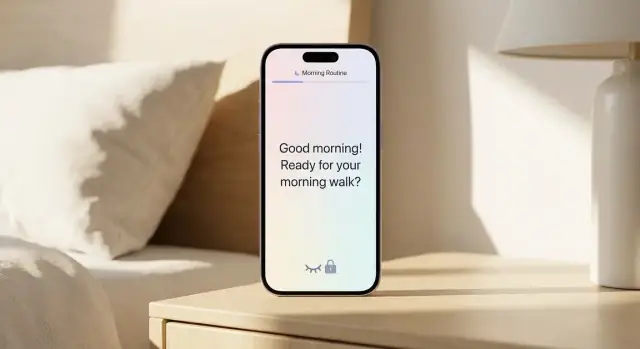
What Context-Based Personal Prompts Are
Context-based personal prompts are small, timely messages your app shows when a user is in a situation where the prompt is likely to help. Instead of blasting reminders at fixed times, the app uses context signals (like time, location, activity, calendar, or recent behavior) to decide when to nudge.
Simple examples
A few easy-to-picture prompts:
- After arriving home: “Take 2 minutes to note one win from today.”
- When a meeting ends: “Write a quick follow-up task before you forget.”
- If the user hasn’t moved for an hour (during work hours): “Stand up and stretch for 30 seconds.”
- During a grocery store visit: “Check your running list before you start shopping.”
The key idea: the prompt is tied to a moment, not just a clock.
What people use them for
Most context-aware prompts aim for one of these outcomes:
- Habit support: building consistency with exercise, hydration, language practice, or reading.
- Reflection and journaling: capturing thoughts when they’re fresh (after work, after workouts, before bed).
- Practical reminders: location- or routine-based checklists (medicine, errands, packing).
- Light coaching: short interventions like “pause and breathe,” “reframe a thought,” or “plan the next step.”
What this post will (and won’t) cover
This guide focuses on how to plan and build the app: choosing context signals, designing privacy-friendly data flows, creating a prompt engine, and delivering notifications without irritating users.
It won’t try to sell you on vague “AI magic,” or promise perfect predictions. Context systems are messy, and the win is incremental usefulness.
Success criteria to aim for
A good context-based prompts app should feel:
- Useful: prompts lead to quick action or insight.
- Timely: the user sees it when it matters, not hours later.
- Not annoying: prompts are sparse, skippable, and easy to tune.
- Privacy-respecting: clear consent, minimal collection, and strong user control.
Pick a Clear Use Case and Prompt Library
A context-based prompts app can do a lot, but your first version should do a few things extremely well. Start by choosing one primary use case (for example: “help me stay focused at work” or “help me journal consistently”), then build a small, high-quality prompt library around that.
Choose 3–5 target users (and their “help moments”)
Pick a handful of people you’re designing for and write down the moments where they’d actually welcome a nudge:
- Busy professional: transitions between meetings, end-of-day wrap-up.
- Student: arriving on campus, starting a study block, after lectures.
- New parent: brief quiet windows, evening reset, grocery store visits.
- Fitness beginner: arriving at the gym, post-walk cooldown, bedtime.
- Anxious overthinker: commuting, before a stressful event, after social plans.
Define prompt categories (keep them scannable)
Use categories that match real intent, not features: health, focus, journaling, errands, learning. Even if you expand later, a clean set makes setup faster and recommendations clearer.
Draft sample prompts + their context triggers
Write prompts like a supportive coach: short, specific, and easy to act on.
- Focus: “What’s the one task that moves today forward?” (weekday, 9–11am, at work location)
- Journaling: “Name one win from today—small counts.” (evening, phone is charging, at home)
- Errands: “You’re near the store—anything to grab?” (near saved grocery location, not already inside)
- Health: “Two minutes: stretch shoulders and neck.” (after 60 minutes of inactivity)
- Learning: “Review one flashcard set?” (commute time, headphones connected)
Set frequency limits to prevent fatigue
Default to fewer prompts than you think. A practical starting point is 1–3 prompts/day, a cooldown window (e.g., no repeats within 3–4 hours), and a weekly cap per category. Make “pause prompts for today” easy to access.
Choose Which Context Signals You’ll Use
Your app gets “context” from signals the phone can sense or infer. The goal isn’t to collect everything—it’s to pick a small set that reliably predicts when a prompt will feel helpful.
Common context signals (and what they’re good for)
Time: morning/evening routines, end-of-day reflection, weekly check-ins.
Location: “arrived home” journaling, “at the gym” motivation, “near grocery store” shopping reminder.
Motion / activity: walking vs. driving vs. stationary helps you avoid interrupting someone at the wrong moment.
Device state: screen on/off, Do Not Disturb, battery level, headset connected—great for delivering prompts when the user is available.
Calendar: before/after meetings, commute windows, travel days.
Weather (optional): rainy-day mood prompts, outdoor habit nudges, but treat as a bonus rather than a core dependency.
Separate “required” from “nice to have”
To keep scope realistic, define a minimal set you can ship confidently:
- Required (MVP): time + device state, optionally simple location (home/work) if permissions are acceptable.
- Nice to have: motion/activity, calendar integration, weather.
This split helps you avoid complex logic before you’ve validated that users even want context-based prompts.
Platform constraints to plan around
Mobile OSes limit background work to protect battery. Design for:
- Background execution limits (especially on iOS): prefer scheduled checks and OS-provided geofences over constant polling.
- Battery impact: continuous GPS is expensive; use coarse location or significant-change updates when possible.
- Permission prompts: ask only when a feature clearly needs it, and offer value immediately after the user accepts.
Avoid sensitive inference unless truly needed
Be careful not to infer or label sensitive attributes (health status, religion, identity, relationships) from context. If a signal could imply something personal, either don’t use it, or make it strictly opt-in with clear wording and an easy off switch.
Privacy, Consent, and User Control by Design
Privacy isn’t a checkbox for a context-aware mobile app—it’s a core product feature. If people don’t feel safe, they’ll disable permissions, ignore prompts, or uninstall. Design your app so it works with the least data possible and makes control obvious.
Ask for the minimum—at the right moment
Start with zero optional permissions and earn access as the value becomes clear.
- Map the minimum permissions you truly need (for example: notifications, motion, location).
- Request permissions just-in-time, right before a feature uses them (e.g., ask for location only when the user enables “prompt me after I arrive at work”).
- Explain in one sentence what you collect and why, using user language (“to detect when you’re walking” instead of “to access accelerometer”).
On-device vs server processing: practical trade-offs
Prefer on-device processing for context detection and prompt selection. It reduces sensitive data leaving the phone, works offline, and feels more trustworthy.
Server processing can help with cross-device sync, advanced analytics, and improving prompt ranking, but it increases risk and compliance overhead. If you use the server, send derived signals (e.g., “commute=true”) rather than raw trails (e.g., GPS coordinates), and avoid storing anything you don’t need.
Give users clear control
Plan user controls from day one:
- Pause prompts (for a day, week, or “until I resume”).
- Quiet hours and days off, plus “only when I’m not busy.”
- Delete history (last prompt, last week, or everything) and reset personalization.
Keep data only as long as it’s useful
Add a simple retention rule: store only what you need, for as long as needed. For example, keep raw events for 7–14 days for debugging, then keep only aggregated preferences (like “prefers evening prompts”)—or delete entirely if the user opts out.
Model the Data: Events, Rules, and Preferences
A context-based prompts app lives or dies by its data model. If you keep it simple and explicit, you’ll be able to explain “why did I get this prompt?” and debug odd behavior without guesswork.
The “context event” model
Treat every detected signal as an event your app can reason about. A minimal structure might include:
- timestamp: when it happened (and optionally when it was detected)
- signal: a normalized type like
arrived_home,walking,calendar_meeting_start,headphones_connected - confidence: a 0–1 score (or low/medium/high) so rules can behave differently when detection is uncertain
You can also store small metadata (e.g., location label “Home”, motion “Walking”), but avoid logging raw GPS trails unless you truly need them.
The “prompt rule” model
A rule connects context to a prompt. Model rules so they can be evaluated the same way every time:
- conditions: required signals (and optional “NOT” signals)
- schedule window: time-of-day and day-of-week boundaries
- cooldown: “don’t fire again for X hours” to prevent repeats
- priority: breaks ties when multiple rules match at once
Add an enabled flag and a snoozed until field so user actions translate cleanly into state.
Preferences for personalization
Keep personalization separate from rules so users can change behavior without rewriting logic:
- goals (e.g., journaling, hydration, mindful breaks)
- preferred tone (supportive, direct, playful)
- opt-outs (topics, times, contexts like “never at work”)
Safe defaults and fallbacks
Context can be missing (permissions denied, sensors off, low confidence). Plan fallbacks such as:
- allow a rule to match on schedule alone when confidence is low
- degrade to a generic prompt tied to the user’s goal
- prefer fewer prompts over uncertain prompts to maintain trust
This model gives you predictable behavior now and room to grow later.
Build the Prompt Engine (Rules and Ranking)
The prompt engine is the “brain” that turns messy real life into a timely, helpful nudge. Keep it understandable and deterministic enough that you can debug it, while still feeling personal.
A simple decision flow
A practical flow looks like this:
- Collect signals (time, location category, motion state, calendar status, app usage, headphones connected, etc.)
- Evaluate rules to build a shortlist of eligible prompt categories
- Select a prompt from that shortlist using a ranking strategy
- Deliver via the chosen channel (in-app card, notification, widget) and log what happened
Safeguards that prevent “prompt spam”
Even good prompts become annoying if they’re too frequent. Add guardrails early:
- Cooldowns: per prompt and per category (e.g., “no journaling prompts within 6 hours”)
- Max prompts/day: a hard cap that respects user preference
- Quiet times: sleep hours, meetings, driving, focus mode
- Conflict resolution: if multiple rules match, prefer the highest-value context (e.g., “driving” overrides “lunchtime”) and avoid stacking prompts back-to-back
Ranking and selection strategies
Start simple, then evolve:
- Random from a category (with “don’t repeat the last N prompts”)
- Scoring: assign points for context match (e.g., +3 at home in the evening, +2 after a workout)
- Recency-aware: down-rank prompts seen recently; up-rank prompts the user tends to act on
Plain-language explanations
Every delivered prompt should carry a short “Why am I seeing this?” line. Example: “You usually reflect after workouts, and you finished one 10 minutes ago.” This builds trust and makes user feedback (“less like this”) actionable.
App Architecture: On-Device First, Cloud Optional
An on-device-first architecture keeps context detection fast, private, and dependable—even when the user has no signal. Treat the cloud as an add-on for convenience (sync) and learning (aggregated analytics), not as a dependency for core behavior.
Core components (on the phone)
- Context Collector: reads permitted signals (time window, location region, motion state, calendar availability, headphones connected, etc.) and normalizes them into simple “context facts.”
- Local Store: a small database (e.g., SQLite) for prompt library, user preferences, rules, and prompt history.
- Prompt Engine: evaluates context facts against rules and ranks candidate prompts.
- Delivery Layer: schedules notifications and in-app surfaces (home widget/card), tracks “shown/dismissed/completed.”
All of this should work without login.
Optional backend (only if you need it)
Keep the server thin:
- Sync service: user account + encrypted sync of settings and history.
- Analytics service: aggregated event counts (e.g., “prompt shown,” “prompt completed”), with strict opt-in.
- Remote config: a safe way to ship new default prompts or tweak ranking weights—without needing an app update.
Offline-first behavior
When there’s no network:
- Context detection and rule evaluation continue normally.
- Notification scheduling uses local triggers only.
- Events destined for analytics/sync are queued locally with timestamps.
When connectivity returns, a background sync uploads the queued events and resolves conflicts. For conflicts, prefer last-write-wins for simple preferences, and merge for append-only data like prompt history.
Background jobs that respect battery
Use OS-native schedulers (iOS BackgroundTasks, Android WorkManager) and design for batching:
- Avoid frequent polling; rely on coarse triggers (time windows, significant location changes, geofences, activity transitions).
- Re-rank prompts only when context meaningfully changes.
- Add cool-downs (e.g., don’t compute again for 15–30 minutes after a dismissal).
What to sync across devices
Sync what improves continuity, not raw sensor data:
- Yes: preferences, enabled signals, rules, custom prompts, prompt history (shown/completed/dismissed), quiet hours, cooldown state.
- Maybe: streaks and summaries.
- No by default: precise location traces, motion timelines, or full context logs.
This split gives users a consistent experience across devices while keeping the most sensitive context processing on-device.
UX for Prompts: Simple Setup and Low Friction
A context-based prompts app only works if it feels effortless. The best UX reduces decisions at the moment a prompt arrives, while still letting users shape what “helpful” means over time.
Home screen: one glance, one tap
Design the home screen around today’s prompts and quick follow-through. A simple structure works well:
- Today’s prompts: the next 1–3 items, with clear labels like “Now,” “Later,” or “This evening.”
- Upcoming: a lightweight list (or timeline) so users aren’t surprised.
- Quick actions: “Snooze,” “Skip,” “Do now,” and “Swap prompt.”
Keep each prompt card focused: one sentence, one primary action. If a prompt needs more context, hide it behind “Why am I seeing this?” rather than showing it by default.
Simple setup with an “Edit Rules” screen
Avoid onboarding that feels like a questionnaire. Start with a small set of defaults, then offer an Edit Rules screen that looks like everyday app settings:
- Toggles for common contexts (morning, commuting, arriving home, quiet time)
- Sliders for frequency (“Less / Normal / More”) and sensitivity (“Only when certain”)
- A clear Do Not Disturb block (hours and days)
Name rules in plain language (“After work wind-down”) instead of technical conditions.
Activity log: trust, learning, and undo
Add an Activity Log that shows what fired, when, and what the app detected (“Prompt sent because: arrived at gym”). Let users:
- Undo actions (restore a skipped prompt)
- Mute a rule from the log (“Stop these for a week”)
- Provide lightweight feedback (“More like this / Less like this”)
Accessibility by default
Include readable text sizes, high-contrast options, large tap targets, and clear button labels. Support reduced motion, avoid relying on color alone, and ensure key flows are usable with screen readers.
Notifications and Delivery Without Being Annoying
Notifications are where a helpful prompts app can quickly turn into a nagging one. The goal is to deliver the right prompt at the right moment—and make it effortless to ignore when the moment isn’t right.
Pick the right delivery channel
Start with the least intrusive option and only escalate when it genuinely improves the experience.
- In-app cards: best for “next time you open the app” prompts (journaling, weekly review). They don’t interrupt, and they’re easy to stack and dismiss.
- Local notifications: great for on-device context triggers (arrived at home, time window, after a workout). They’re fast, private, and work offline.
- Push notifications (only when needed): use when the app must react to server-side events (shared plans, accountability reminders, cross-device syncing). Keep them rare and clearly user-authorized.
A good rule: if the prompt can be decided on-device, send it as a local notification.
Give users quiet control (without making settings feel like homework)
Add a few high-impact controls that prevent annoyance more than they reduce engagement:
- Quiet hours (e.g., 10pm–8am) with a “deliver next morning” option
- Focus mode behavior: either pause all prompts, or allow only a chosen category (like “meditation”)
- Per-category controls: toggles and frequency limits (e.g., “Health: up to 2/day”, “Journaling: 3/week”)
Make these controls accessible from the first prompt experience (“Too many? Adjust frequency”) so users don’t need to hunt through menus.
Write notification copy that feels kind and actionable
Notification text should answer three questions fast: why now, what to do, and how long it will take.
Keep it short, avoid guilt, and use verbs that invite action:
- “Quick check-in: how’s your energy right now? (10 sec)”
- “You’re home—want a 1-minute reset?”
- “Before your meeting: choose one intention?”
If you can’t explain “why now” in a few words, it’s often a sign the trigger is too weak.
Deep link taps to the exact place (with context)
A tap should never drop users onto a generic home screen. Deep link directly to the relevant prompt, pre-filled with the detected context and an easy way to correct it.
For example: tap notification → Prompt screen with “Triggered by: Arrived at gym • 6:10pm” plus actions like Do now, Snooze, Not relevant, and Change this rule. That last option turns irritation into a clean feedback signal for your personalization loop later.
Personalization Loops That Feel Transparent
Personalization should feel like the app is listening—not guessing. The safest path is to start with clear rules, then let users steer improvements through lightweight feedback and simple settings.
Lightweight feedback, right where it matters
After a prompt, offer quick actions that take one tap:
- Helpful / Not helpful
- Snooze (with choices like 30 min, 2 hours, tomorrow)
- Change frequency (more often / less often)
Keep the wording plain and show immediate results. If someone taps “Not helpful,” don’t force a long survey. A small optional follow-up like “Wrong time” or “Wrong topic” is enough.
Turn feedback into explainable adjustments
Use feedback to tune rules and ranking in ways you can describe. Examples:
- If “Not helpful” happens repeatedly for a category in the morning, reduce its morning score.
- If a user snoozes prompts during meetings, lower meeting-time priority for non-urgent categories.
- If “Helpful” is frequent after workouts, boost that trigger for similar contexts.
When changes happen, make them visible: “We’ll show fewer work prompts before 9am” or “We’ll prioritize shorter prompts on busy days.” Avoid hidden behavior that shifts unpredictably.
Personalization settings users can understand
Add a small “Preferences” area with controls for:
- Tone (gentle, direct, playful)
- Length (one-liner vs. short paragraph)
- Categories and goals (journaling, habits, focus, gratitude)
These settings act as a clear contract: users should know what the app is optimizing for.
Be strict about sensitive personalization
Don’t infer sensitive traits (health, relationships, finances) from context data. Only personalize in sensitive areas when users explicitly enable it, and provide an easy way to disable it without losing the rest of their setup.
Testing Strategy for Context Triggers and Edge Cases
Context-based prompts feel “smart” only when they fire at the right moment—and stay quiet when the moment isn’t right. Testing needs to cover both: correctness (did it trigger?) and restraint (did it avoid triggering?).
Test triggers two ways: simulators and real life
Start with fast, repeatable simulator tests so you can iterate without leaving your desk. Most mobile dev tools let you simulate location changes, time shifts, connectivity changes, and background/foreground transitions. Use these to validate your rules and ranking logic deterministically.
Then do real-world walks and drives. Simulators won’t capture messy signals like GPS drift, spotty cellular, or motion sensors that behave differently when the phone is in a pocket, bag, or mounted in a car.
A practical approach is to create a small “test script” for each prompt type (e.g., “arrive at gym,” “commute begins,” “evening wind-down”) and run it end-to-end on actual devices.
Edge cases you should deliberately break
Context systems fail in boring, predictable ways—so test those early:
- Low battery / Low Power Mode (does background detection degrade gracefully?)
- No GPS permission or GPS unavailable (does it fall back to time-only or Wi‑Fi?)
- Time zone changes and daylight saving changes (does scheduling stay correct?)
- Airplane mode, offline usage, and flaky connectivity (does anything block on network?)
- App force-quit or device restart (are pending triggers rebuilt correctly?)
The goal isn’t perfect behavior—it’s sensible behavior that never surprises or annoys.
Measure quality, not just “did it fire”
Instrument outcomes so you can tell whether prompts are helping:
- Prompt open rate (did users engage?)
- Snoozes (timing is slightly off)
- Disables/unsubscribes (prompts are unwanted or too frequent)
- Lightweight feedback (“Helpful” / “Not now” / “Not relevant”)
These signals help you tune your ranking and throttling without guessing.
Add crash reporting and performance checks
Even an MVP should include basic crash reporting and startup/performance metrics. Context detection can be battery-sensitive, so track background CPU/wake-ups and ensure your app stays responsive when triggers evaluate in the background.
MVP Launch Plan and Iteration Roadmap
An MVP for a context-based prompts app should prove one thing: people will accept timely prompts and act on them. Keep the first release narrowly focused so you can learn quickly without shipping a maze of settings.
Minimal MVP scope (first release)
Aim for a small set of prompts, a few context signals, and clear user control:
- 15–30 high-quality prompts in 2–3 categories (e.g., journaling, habits, mood check-ins)
- 2–4 context triggers you can support reliably (time window + one sensor signal like location “arrive home” or activity “walking”)
- Basic scheduling controls: quiet hours, max prompts/day, snooze, disable category
- Simple history: what fired, what the user did (done/snoozed/ignored)
- One “Why this prompt?” explanation per notification
Onboarding that earns permissions
Start with value, not permissions. In the first screen, show a realistic example notification and the benefit (“Short prompts at the moments you choose”). Then:
- Ask the user to pick one goal and one prompt category.
- Let them set quiet hours and frequency.
- Request permissions only when needed (e.g., location the moment they enable “arrive home” triggers).
Rapid prototyping note (if you want to move fast)
If you’re trying to validate the experience quickly, a vibe-coding platform like Koder.ai can help you prototype the core pieces (prompt library UI, rules editor, activity log, and a thin backend) from a chat-driven spec—then iterate on copy and guardrails without rebuilding everything from scratch. It’s especially useful for getting a React-based web dashboard (for internal testing), a Go + PostgreSQL backend (for sync/remote config), and exportable source code you can hand off to a mobile team once the MVP behavior is proven.
Store listing that matches real behavior
Your screenshots and copy should reflect what the app actually does on day one: how many prompts per day, how easy it is to snooze, and how privacy is handled. Avoid implying perfect accuracy; describe controls and limits.
Post-launch iteration loop
Ship analytics that respects privacy: counts of prompts delivered, opened, snoozed, disabled, and time-to-action. Add an in-app “Was this helpful?” after a few uses.
Plan weekly iterations for defaults and prompt copy, then monthly iterations for new triggers. Use a simple roadmap: improve accuracy, expand prompt library, then add advanced personalization once the core loop is working.
FAQ
What are context-based personal prompts?
They’re small, timely nudges that fire when a relevant situation is detected (time, location, activity, calendar, device state, recent behavior) rather than at a fixed time.
The goal is to show a prompt when it’s most likely to be useful—like right after a meeting ends or when you arrive home.
How do I pick a good first use case for a context-based prompts app?
Start with one primary goal (e.g., consistent journaling or better focus), then build a small prompt library around “help moments” where a nudge is genuinely welcome.
A tight first version is easier to tune, test, and explain to users.
Which context signals should I use in an MVP?
Prioritize signals that are reliable, low-battery, and easy to explain:
- Time + device state (often enough for an MVP)
- Simple location labels like Home/Work (if users opt in)
- Motion/activity to avoid interrupting driving or workouts
- Calendar for before/after meeting transitions
Treat weather and other extras as optional bonuses.
How do I prevent notification fatigue and “prompt spam”?
Use strict guardrails from day one:
- Hard cap (e.g., 1–3 prompts/day)
- Cooldowns per prompt and per category
- Quiet hours and “pause for today”
- Conflict resolution when multiple rules match
Default to fewer prompts than you think; users can always turn it up.
Should context detection and prompt selection happen on-device or on a server?
Prefer on-device processing for detecting context and selecting prompts. It’s faster, works offline, and keeps sensitive data from leaving the phone.
If you add a server for sync or analytics, send derived signals (e.g., “commute=true”) instead of raw location trails, and keep retention tight.
How do I handle privacy and consent in a context-aware prompts app?
Ask for the minimum permissions, only when a feature needs them (“just-in-time”), and explain the benefit in one sentence.
Include clear controls like:
- Pause prompts (day/week/until resumed)
- Quiet hours and category toggles
- Delete history and reset personalization
Design so the app is still useful with limited permissions.
What’s a simple data model for context triggers and prompt rules?
Model three things explicitly:
- Context events (timestamp, normalized signal, confidence)
- Prompt rules (conditions, schedule window, cooldown, priority, enabled/snoozed)
- Preferences (goals, tone, opt-outs)
Keeping these separate makes behavior predictable and makes “Why did I get this?” easy to answer.
How should I build the prompt engine and ranking logic?
Use a deterministic flow:
- Collect current context facts
- Evaluate rules to find eligible categories/prompts
- Rank candidates (start with simple scoring or random-without-repeats)
- Deliver and log outcomes (shown/dismissed/completed)
Add a short “Why am I seeing this?” explanation to build trust and support debugging.
What delivery channels should I use (in-app cards vs local vs push notifications)?
Match the channel to urgency and intrusiveness:
- In-app cards: non-urgent prompts that can wait until the next app open
- Local notifications: best for on-device context triggers; private and offline-friendly
- Push notifications: only when you truly need server-driven events; keep rare and opt-in
Deep-link taps directly to the exact prompt with context and quick actions (Do, Snooze, Not relevant, Change rule).
How do I test context triggers and handle edge cases?
Test both correctness and restraint:
- Simulate time, location, background/foreground, and connectivity changes
- Do real-world walks/drives to catch messy sensor behavior
- Break edge cases (permission denied, low power mode, time zone changes, device restart)
Measure quality signals like open rate, snoozes, disables, and “Helpful/Not helpful” feedback—not just whether a trigger fired.