

How to Build a Website for a Software Tool With Interactive Demos
Plan, design, and launch a software tool website with interactive demos that educate users fast, reduce sales friction, and improve signups with clear CTAs.
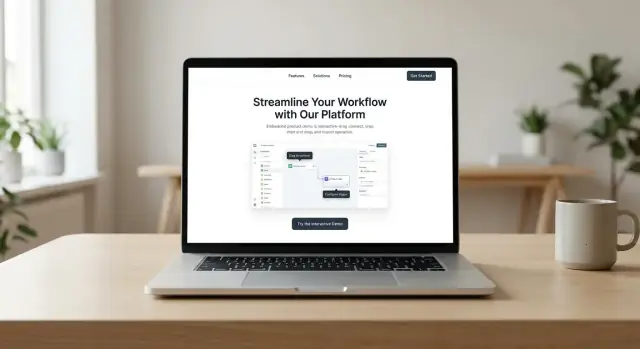
What an Interactive Demo Website Should Achieve
An interactive demo website isn’t just a prettier brochure. Its job is to help a visitor experience your product quickly enough to decide: “Yes, this solves my problem—and I can see how.”
What “interactive demo” means (and what it doesn’t)
Depending on your product and audience, an interactive demo can take a few forms:
- Guided tour: a step-by-step walkthrough with prompts and highlights.
- Click-through demo: a realistic UI you can click, without real data or backend actions.
- Sandbox: a safe, resettable environment where users can try real workflows.
- Embedded app: a trimmed version of your product placed directly on a page (often behind light gating).
What it’s not: a long video that tells users what would happen “if you clicked here.” Interactive means the visitor gets to do something.
The outcomes your website must deliver
Before you design pages or build flows, define the business results your demo website is responsible for. Common outcomes include:
- Self-serve signups (product-led growth)
- Trial starts with enough context to activate fast
- Booked meetings for higher-touch deals
- Self-serve activation (users completing a key action after the demo)
Your interactive demo should support the outcome. Sometimes that means sending a visitor to /pricing, sometimes to /demo, and sometimes directly into a trial.
Who needs to see what first
Different segments arrive with different “first questions.” For example: end users want to know how it fits their daily workflow, managers care about ROI and adoption, and technical evaluators look for integrations and security.
Your site should route each group to the right demo entry point.
What this post will cover
Next, we’ll break down the website structure that supports demos, how to choose the right demo type and placement, how to write conversion-focused messaging, how to track demo engagement, and how to launch and improve over time.
Start With Audience, Use Cases, and the Aha Moment
An interactive demo only works when it answers the visitor’s real question: “Is this for someone like me, and will it solve my problem?” Before you design screens or flows, decide who you’re speaking to and what you want them to understand within the first minute.
Pick 1–2 primary personas (and write their questions)
Choose the smallest set of personas that drives most revenue and product adoption. Common picks for B2B tools are:
- End user: “Will this make my daily work faster?” “Is it easy to learn?”
- Manager: “Will my team actually use it?” “How long to roll out?”
- Buyer/procurement: “Is it secure?” “What’s the pricing and contract flexibility?”
Write their top 3–5 questions in plain language. Your demo should visibly answer them, not just claim it in copy.
Map jobs-to-be-done and define the “aha moment”
List the core jobs your product helps someone complete (not features). For each job, identify the exact moment where the value clicks—the aha moment. Examples:
- “I connected my data source and got a clean dashboard in 60 seconds.”
- “I automated the workflow and approvals stopped living in email.”
- “I found the root cause with one query instead of five tools.”
Build the demo to reach that moment quickly, with minimal setup and minimal reading.
Decide your top 3 user paths (and keep them consistent)
Most websites need just three primary paths:
- Try demo → start trial (for ready-to-act visitors)
- See proof → book a call (for higher-price or complex sales)
- Compare → pricing (for evaluators checking alternatives)
Create a simple messaging hierarchy
Use a clear order: who it’s for → what it does → why it’s different. If you can’t say that in two short sentences above the fold, the demo will have to do too much work later.
Website Structure That Supports Demos
A website with interactive demos works best when the structure answers one question on every page: “What should I try next?” Navigation and page templates should make the demo feel like a natural step—not a separate destination.
Core pages (and what each should do)
Homepage
Lead with a crisp value proposition, then offer a primary entry into the demo (for example, “Try the product in your browser”). Add social proof close to that entry—logos, a short testimonial, or key metrics—and keep one primary CTA consistent.
Product pages
Organize features by outcomes (e.g., “Reduce review time,” “Prevent errors,” “Report faster”) instead of a long feature list. For each outcome, include a mini demo snippet.
If an interactive demo can’t load (mobile, privacy tools), provide a GIF or short clip fallback so visitors still understand the value.
Use-case pages
Create role- or industry-focused pages (e.g., “For Operations,” “For Finance,” “For Agencies”) that tee up a tailored demo flow. These pages should quickly confirm relevance, then link directly into the matching experience—avoid sending everyone back to a generic demo.
Commercial and trust pages that remove friction
Pricing page
Make tiers and included features easy to scan, add a focused FAQ, and include a “See this in a demo” link for each tier so buyers can validate differences without guessing.
Trust pages
Publish simple security, privacy, and compliance basics (and support expectations). Even a lightweight /security and /privacy page can prevent demo drop-off.
Resources that support self-serve learning
Add a /resources hub that points to docs, a help center, templates, and onboarding guides. Tie resources back into demos (“Try this template inside the demo”) to keep learning hands-on.
Homepage Layout and Messaging That Convert
Your homepage has one job: help the right visitor understand what they’ll get, and let them experience it quickly.
Write a hero that earns the click
Lead with outcome + audience + time-to-value—not a feature pile.
Example pattern:
“Close month-end reports for multi-entity teams in 15 minutes—not 2 days.”
Follow with one supporting line that names the category and removes ambiguity (what it is and who it’s for). Then put the primary action where eyes already are.
Put the demo and CTA together (not competing)
If your homepage includes a demo entry point (embed, modal, or “guided tour”), place the primary CTA right next to it:
- Try the demo (primary)
- Start free trial (secondary)
This reduces decision friction: visitors can explore now, or commit if they’re ready.
Keep sections short—and add proof right after claims
Use scannable headers and tight sections. After every big claim, add proof immediately so visitors don’t have to hunt for credibility:
- A number (time saved, adoption, ROI)
- A recognizable customer logo row
- One strong testimonial tied to a measurable result
The sequence matters: claim → proof → next step.
Add a sticky CTA that respects the demo
On longer homepages, a sticky CTA can help, but ensure it doesn’t cover the demo (especially on mobile). Consider a compact bar with a single action (“Try the demo”) that collapses when the demo is in view.
Offer an accessible alternative to the interactive demo
Not everyone can (or wants to) use an interactive demo. Provide a clear alternative near the demo entry:
- A short video walkthrough
- A screenshot carousel
- A text transcript or step-by-step summary
This keeps the page inclusive—and prevents lost conversions when the demo isn’t the right fit for the moment.
Pick the Right Interactive Demo Type and Placement
The best interactive demo is the one a first-time visitor can finish quickly—and that mirrors how they’ll actually use your product. Before you build anything, decide the format and the location on your site so the experience feels intentional (not bolted on).
Choose the right demo format
Different formats suit different products and buyer stages:
- Click-through tour: a lightweight, “guided slideshow” inside a realistic UI. Great for early-stage visitors and products with a clear workflow.
- Live sandbox: a real, editable environment (often limited). Best when hands-on value is the selling point—just keep it safe and fast.
- Prefilled workspace: a sandbox that opens with sample data already in place. Ideal for tools that look empty without setup (CRMs, analytics, project tools).
- Guided walkthrough: step-by-step tasks with prompts (“Click here to create a report”). Best for teaching a repeatable workflow without forcing a full signup.
If your product requires complex setup, a prefilled workspace usually creates the quickest “I get it” moment.
Decide where the demo lives
Placement affects both engagement and performance:
- Embedded on the page: highest visibility; best for homepage or key use-case pages.
- Modal (opens on click): keeps pages clean and is useful for “Try the demo” buttons above the fold.
- Separate route (like /demo): easiest to focus attention, add instructions, and track analytics cleanly.
Many teams use a teaser embed on the homepage plus a dedicated /demo page for the full experience.
Keep scenarios focused—and end with a clear next step
Plan 1–3 demo scenarios based on top use cases (not a feature catalog). Add progress indicators, back/next controls, and a clear end-state: “Start free,” “Book a call,” or “Get pricing.”
Design for mobile
Interactive demos can feel cramped on small screens. Consider a lighter flow, larger tap targets, or a fallback option (like a short video) so mobile visitors still understand the value.
Design Demo Flows That Teach Without Overwhelming
A great interactive demo feels like a guided win, not a feature tour. The goal is to help visitors reach an “aha” quickly, then give them a clear path to go deeper if they want.
Script the flow like a mini story
Before you build anything, write the demo as a sequence of small moments. For each step, define:
- User intent (what they’re trying to accomplish)
- Action (what they click/type)
- Expected result (what changes on screen)
- Microcopy (one short line that explains what to do and what they’ll get)
Keep the language concrete: “Create a project,” “Invite a teammate,” “Generate a report”—not “Leverage collaboration capabilities.”
Keep steps short and front-load quick wins
Aim for 5–8 steps for the “core” flow. Show a meaningful outcome early (e.g., a dashboard updating, an automation firing, a report appearing), then offer an optional “advanced” branch for power features.
Use progressive depth: teach one concept per step, and avoid asking for multiple decisions at once.
Use realistic sample data (without risk)
Good demo data tells a simple story: a company name, a few records, clear labels, and believable numbers. Avoid anything sensitive, proprietary, or too close to a real customer. Visitors should instantly understand what they’re looking at.
Add contextual help without noise
Use tooltips sparingly, plus short “why this matters” notes when a step might feel arbitrary. For deeper explanations, link out to optional content like /docs/getting-started or /blog/demo-onboarding.
End with a clear next action
Don’t let the demo end on a dead screen. Close with one primary CTA (start trial or create account) and 1–2 secondary options (book a call, read the setup guide at /docs/setup), aligned to what the user just achieved.
UI, Performance, and Accessibility Basics
A great interactive demo can still underperform if the surrounding UI feels inconsistent, slow, or hard to use. Treat the demo as part of your product experience: the same attention to polish should apply to the page it lives on.
Keep the UI consistent (so the demo feels “real”)
Use a simple design system and stick to it across the site and the demo container: colors, typography, spacing, buttons, form fields, and icon style. Consistency reduces cognitive load—visitors focus on the value, not on relearning how your interface works.
If your product has a UI kit, borrow it. If not, define a small set of components (primary button, secondary button, input, card, modal) and reuse them everywhere.
Make performance a feature
Interactive demos often fail silently because they ship too much code. Keep the initial load light and let the demo “earn” heavier assets.
- Lazy-load demo assets (scenarios, step content, recordings) only when the user starts the demo.
- Compress media (SVGs, WebP/AVIF images, optimized video) and keep animations subtle.
- Reduce script bloat: remove unused libraries, split bundles, and avoid multiple analytics tags doing the same job.
A demo that starts quickly feels trustworthy. A demo that stutters feels risky.
Build accessibility in from the start
Accessibility isn’t only for compliance—it directly improves usability for everyone.
Ensure:
- Full keyboard navigation (tab order, visible focus, no “keyboard traps”).
- Readable contrast and scalable text (avoid tiny type inside the demo).
- Captions or transcripts for any audio/video.
- Reduced-motion support for users who prefer it (don’t force flashy transitions).
Trust signals near the demo (without stealing attention)
Place lightweight proof close to the demo entry point: customer logos (if allowed), a short testimonial, a rating badge, or a one-line result (e.g., “Cut onboarding time by 32%”). Keep it brief—your demo should remain the hero.
Never let the demo feel broken
Users will forgive “loading,” but not confusion. Add clear loading, empty, and error states:
- Loading: show progress or a skeleton UI so it feels intentional.
- Error: explain what happened in plain language and offer a retry.
- Fallback: if the demo can’t run (device, browser, blockers), provide a guided alternative path like “Watch the 2‑minute walkthrough” or “See key screens.”
Implementation Options and Technical Considerations
Choosing how to build your interactive demo is a trade-off between speed, realism, and ongoing effort. The best approach depends on how complex your product is and how much “real” functionality a visitor needs to feel confident.
Option A: Interactive tour tools (fastest to ship)
Overlay-based tour tools sit on top of your UI (or a replica) and guide users with tooltips, highlights, and step prompts.
They’re ideal when your goal is to explain navigation, key concepts, and the “why” behind features—without needing a functioning backend. They’re also easy to A/B test and update as copy changes.
The main limitation is authenticity: visitors can’t truly generate outputs, integrate data, or test edge cases.
Option B: A real sandbox (most convincing)
A sandbox is a dedicated demo environment with a safe backend and seeded data (example accounts, dashboards, sample projects). This is the closest experience to using your product.
To keep it manageable, design a “golden path” dataset that reliably demonstrates outcomes (not just clicks). Consider automatic resets (e.g., nightly) so the demo never degrades.
This option is more engineering work, but it can pay off for complex B2B tools where buyers need proof, not promises.
Option C: Recorded “fake interactive” demos (lowest cost)
These demos use a pre-recorded flow with click hotspots. Users feel like they’re exploring, but you control every step.
This is a strong alternative when your UI changes frequently or when you want predictable performance on any device. The downside is reduced flexibility: anything outside the scripted path won’t work.
Where Koder.ai can help (especially early)
If you’re iterating quickly, tools like Koder.ai can be useful for prototyping demo experiences and microsites without standing up a full engineering pipeline. Because Koder.ai is a vibe-coding platform that builds web apps through chat (typically React on the frontend, Go + PostgreSQL on the backend), teams can spin up a demo route (like /demo), experiment with guided flows, and then export source code when it’s time to harden and integrate.
This doesn’t replace the need for a properly isolated sandbox for production-grade demos—but it can shorten the “idea → usable demo” loop, which matters a lot when messaging and flows are still changing.
Security and reliability basics
Interactive demos can become an attack surface. At minimum:
- Isolate demo data from production and avoid exposing real customer records.
- Rate-limit endpoints and add bot protections where appropriate.
- Prevent account enumeration (don’t reveal whether an email/user exists; use generic messages).
Also watch performance: demos should load quickly and handle retries gracefully—nothing kills interest faster than a stalled “try it now.”
Maintenance plan (non-negotiable)
Version demos alongside product releases. Treat the demo like a product surface: it needs QA, changelogs, and ownership.
Schedule monthly checks to confirm:
- The demo still matches the current UI and terminology.
- Seeded data is intact and flows complete successfully.
- Any integrations, permissions, and reset jobs still work as intended.
Analytics: Measure Demo Engagement and Conversions
Interactive demos feel great when you watch them—but you need data to know whether they’re actually moving visitors toward signup, trial, or a sales call. Measure both engagement (are people using the demo?) and impact (does it change conversion rates?).
Define the events that matter
Start simple and be consistent. For most demo websites, these events give you a clear picture without creating tracking chaos:
- Demo start (first interaction or “Start demo” click)
- Step view (each screen/step displayed)
- Key interactions (e.g., filter applied, report generated, integration selected)
- Demo completion (reached the intended endpoint)
- CTA click (signup, “Book a demo,” “Start trial,” etc.)
Name events clearly (e.g., demo_started, demo_step_viewed, demo_completed) and include properties like demo type, use case, traffic source, and device.
Track the funnel end-to-end
Set up a funnel that matches real intent:
Page view → demo start → demo completion → signup/trial/booking
Look for two signals: where the biggest drop-off happens (often a specific step), and which traffic sources produce completions—not just starts.
Test what changes behavior
Run A/B tests on the highest-leverage surfaces: homepage headline, primary CTA label, and demo entry points (hero button vs. in-page module vs. exit-intent). Keep tests focused and track the same funnel metrics so results stay comparable.
Session recordings: useful, but handle with care
Recordings can reveal confusion that analytics won’t. Mask inputs, avoid capturing sensitive data, and provide opt-outs where required. If you add recordings, document it in your privacy policy (link from the footer).
Build a simple dashboard your team will actually use
A lightweight dashboard should show: demo start rate, completion rate, top drop-off steps, CTA click-through, and top converting traffic sources. Review weekly, then feed insights into your next iteration (see /blog/launch-checklist-and-continuous-improvement).
SEO and Content That Bring the Right Visitors
SEO for a demo-driven website isn’t about chasing traffic—it’s about attracting people who are already looking for a solution like yours and getting them into the demo quickly.
Start with “one page, one intent” keywords
Pick one primary keyword per page (for example, “interactive product demos” on a dedicated demo page, and your “software tool website” angle on the homepage). Keep the page focused so it’s obvious what the visitor should do next.
Make internal links explicit and helpful. Your core pages should naturally point to /demo (try it now) and /pricing (understand cost) without making users hunt for them.
Build content that matches how buyers search
Create a small set of supporting articles that answer real evaluation questions:
- Use-case posts (e.g., “How teams use X to do Y”) that end with a clear path to /demo.
- Comparisons (X vs Y) that explain who each option is for and link to /pricing for decision-making.
- “How it works” articles that reduce uncertainty and tee up the interactive demo.
Keep claims accurate and specific—avoid vague superlatives. If you mention results, explain the context (team size, timeframe, prerequisites) or present them as examples.
Add schema where it helps (and only where it’s true)
Structured data can improve how you appear in search results. Common choices:
- SoftwareApplication schema on product pages
- FAQ schema on pages that genuinely contain FAQs
Repurpose the demo into distribution assets
Turn your interactive demo into short clips for social posts and email onboarding. A 20–40 second “show, don’t tell” snippet often earns the click better than a long feature list—and it should always point back to /demo.
Use lead magnets only if they support the demo path
Templates, checklists, or example projects can work—if they help someone succeed inside the demo. If a lead magnet distracts from trying the product, it’s hurting conversions, not helping.
CTAs, Lead Capture, and Sales Handoff
A great interactive demo creates momentum—your job is to turn that momentum into the right next step for each visitor. One CTA isn’t enough because not everyone is ready to buy (or buy the same way).
Offer CTAs by intent (not by funnel stage)
Place multiple, clearly differentiated actions near the demo and at the end of key demo moments:
- Try the demo (lowest friction): for people still validating fit.
- Start a free trial: for hands-on evaluators who want real data and their own workspace.
- Book a call: for buyers who need pricing, security, procurement, or a tailored walkthrough.
- Contact sales: for enterprise or multi-stakeholder conversations.
Keep labels literal. “Get started” is vague; “Start free trial” isn’t.
Use smart routing to reduce friction
Route people based on signals you already have (page, demo path, company size, selected use case). A simple rule-of-thumb:
- Self-serve intent → trial signup or instant account.
- Complex intent (security, integrations, multiple teams) → book a call.
If you use scheduling, link directly to /book-a-demo or the relevant calendar step instead of sending visitors back to a generic /contact page.
Capture leads only when it helps
Add a short qualification form only when necessary (e.g., booking a call, requesting pricing, enterprise demo). Keep it minimal: name, work email, company, and one dropdown like “Team size.” Avoid long multi-step forms unless you truly need the data.
Add reassurance right next to the CTA—but only if true: “No credit card required,” “Cancel anytime,” “Takes 2 minutes.”
Create a post-demo “next steps” page
After the demo, don’t drop people at a dead end. Send them to a dedicated page with:
- Clear next action buttons (trial, call, sales)
- Setup resources (quickstart, templates, integrations)
- A recap of what they just saw
This is where marketing hands off to product (trial) or sales (call) without losing momentum.
Launch Checklist and Continuous Improvement
Launching an interactive demo website is less like “publish and forget” and more like opening a new storefront: you want everything working on day one, then you improve based on what real visitors do.
Pre-launch checklist (the unglamorous part that saves you)
Before you announce the site, run a tight QA pass focused on the demo experience:
- QA every demo step end-to-end (including edge cases like refreshing the page, using Back, and restarting the demo).
- Mobile and tablet testing (not just responsive layout—verify taps, keyboard behavior, and scrolling inside the demo).
- Speed tests on real devices and slower connections; demos that hesitate feel broken.
- Link checks across nav, CTAs, and post-demo buttons (especially “Book a call,” “Start trial,” and pricing links).
- Copy consistency: confirm the homepage promise matches what the demo actually shows.
Build a feedback loop inside the demo
Add a lightweight prompt at the end (or after key steps): “Was this demo helpful?” with a yes/no plus an optional text field.
When someone says “no,” ask one follow-up: What were you trying to do? This quickly reveals friction points like confusing terminology, missing context, or a step that doesn’t match the product UI.
Plan an iteration cadence
Treat demo scripts as living assets. Set a simple routine (e.g., monthly review plus a same-week update whenever the product UI changes). Keep a small changelog so marketing, product, and sales stay aligned.
Common pitfalls to watch for
Too many steps, an unclear “end” CTA, slow loading, and mismatched messaging are the biggest conversion killers. If people finish the demo but don’t know what to do next, the demo did its job—and the page didn’t.
Suggested next reads
Make it easy to continue the journey: point visitors to /pricing, /blog, and /docs (if available) based on their intent.
If you’re building and iterating fast, consider prototyping the demo flow (and even the supporting pages) in a tool like Koder.ai first, then exporting the source code once you’ve validated the “aha moment” and conversion path. "}
FAQ
What should an interactive demo website achieve?
An interactive demo website should help visitors experience value fast so they can decide whether the product fits their problem.
In practice, it should:
- Get users to an aha moment in under a minute
- Route different personas to the right path (trial, pricing, call)
- Turn demo momentum into a clear next step (signup, booking, or evaluation)
What counts as an “interactive demo” (and what doesn’t)?
A true interactive demo lets visitors do something—click through a realistic UI, complete a guided task, or try a sandbox workflow.
It’s not just a long video saying “imagine you clicked here.” If the user can’t interact (click/type/choose), it’s not an interactive demo.
How do I pick the right audience for my demo website?
Start by choosing 1–2 primary personas (e.g., end user + manager) and writing their top questions in plain language.
Then make sure your demo visibly answers them—through actions and outcomes—not just claims in copy.
How do I define the “aha moment” for an interactive demo?
Map your jobs-to-be-done and define the exact moment where value clicks (the “aha moment”).
Design the demo so users reach it with minimal setup:
- Prefill data if the product would otherwise look empty
- Front-load a quick win (dashboard, automation, report)
- Keep reading and decisions to a minimum
What are the core user paths my website should support?
Most demo-driven sites work best with three primary paths:
- Try demo → start trial
- See proof → book a call
- Compare → pricing
Keep these paths consistent in navigation and CTAs so every page answers: “What should I try next?”
How do I choose the right type of interactive demo?
Use the format that matches your product complexity and buyer stage:
- Click-through tour for quick, lightweight evaluation
- Guided walkthrough to teach a workflow step-by-step
- Prefilled workspace when setup would otherwise slow value
- Live sandbox when hands-on proof is essential
If setup is complex, a prefilled workspace often creates the fastest “I get it” moment.
Where should the demo live on the site—embedded, modal, or /demo page?
Common placements and when they work best:
- Embedded: highest visibility (homepage or key use-case pages)
- Modal: keeps pages clean while still feeling immediate
- Dedicated route (e.g.,
/demo): best for focus, instructions, and clean tracking
A practical combo is a small teaser embed on the homepage plus a full experience on /demo.
How do I design a demo flow that teaches without overwhelming?
Aim for 5–8 steps in the core flow and write it like a mini story:
- Intent → action → result → one line of microcopy
Front-load a quick win, teach one concept per step, and offer an optional “advanced” branch instead of cramming everything into one path.
How can I make an interactive demo load fast and feel reliable?
Interactive demos commonly fail due to performance, so treat speed as part of trust.
Practical fixes:
- Lazy-load demo assets only after “Start demo”
- Compress media and keep animations subtle
- Split bundles and remove unused scripts/duplicate analytics
- Add clear loading and retry states so it never feels broken
What analytics should I track for an interactive demo website?
Track both engagement and impact with a simple funnel:
Page view → demo start → demo completion → CTA click (trial/booking)
Useful events include:
demo_starteddemo_step_vieweddemo_completed- Key interactions (e.g., filter applied, report generated)
Review drop-off steps weekly, and use insights to update the script, CTA placement, or messaging.