

How to Build a Website for an Industry Glossary and Learning Hub
Learn how to plan, structure, and launch an industry glossary and learning hub website: taxonomy, CMS, search, SEO, workflows, and launch checks.
Set Goals, Audience, and Scope
Before you pick a CMS or design a homepage, get specific about what this glossary and learning hub is for. A clear goal keeps the site focused, makes prioritization easier, and prevents you from publishing dozens of definitions that don’t actually help anyone.
Define what the site must achieve
Most glossary hubs serve more than one purpose. Decide your “primary” job and the supporting jobs.
- Education: help visitors understand your industry’s terms and concepts.
- Lead capture: turn high-intent readers into newsletter subscribers, demo requests, or trial users.
- Support reduction: answer recurring questions so your team spends less time repeating explanations.
- Authority: become the go-to reference people link to and share.
Write this as a one-sentence mission, e.g., “Explain core concepts in plain language and guide readers to the right next step.”
Identify primary audiences
Glossary readers are not all the same person. Typical segments include:
- Beginners who need simple definitions and examples.
- Buyers comparing options who need practical implications and selection criteria.
- Partners who need consistent terminology and positioning.
- Internal teams (sales, success, support) who need canonical phrasing to reuse.
Pick the top 1–2 segments to design around first. You can still serve others, but you can’t optimize every page for everyone.
List the questions you must answer
Your glossary should address real questions, not just “A means B.” Gather input from:
- sales/support tickets and call transcripts
- internal FAQs and onboarding docs
- search queries and competitor glossaries
Aim for questions like: “When would I use this?”, “How is it different from X?”, and “What’s the common mistake?”
Decide success metrics
Choose metrics that match your goals, such as organic traffic, time on page, scroll depth, newsletter sign-ups, demo requests, or deflected support tickets. Define what “good” looks like for the first 90 days.
Clarify scope
Set boundaries so the site ships:
- Glossary only (fastest) vs.
- Glossary + guides/tutorials/templates (more value, more upkeep)
A practical approach: launch with a glossary plus a small set of “starter guides” that link out from the most important terms.
Plan the Information Architecture
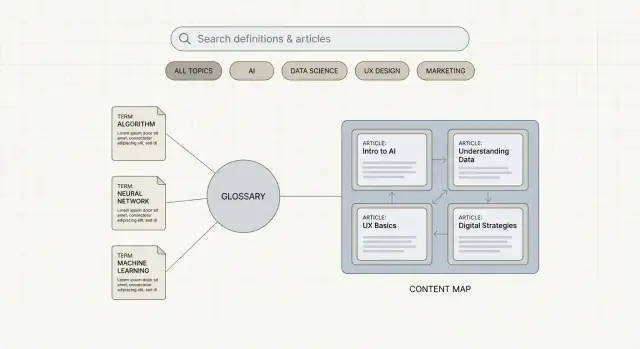
Information architecture (IA) is the map of your learning hub: what content exists, how it’s grouped, and how people move between pages. A clear IA keeps visitors oriented and makes it easier to expand over time.
Choose your core content types
Start by deciding what you will publish—not in detail, just the “buckets”:
- Term (the definition page)
- Category (a collection of related terms)
- Article (explains a concept, trend, or problem)
- Guide (step-by-step, broader than an article)
- Course/Lesson (structured learning, often sequential)
- FAQ (short, direct answers)
- Case study (real-world example)
Define relationships (how content connects)
IA is mostly about relationships. For example:
- Articles reference terms (definitions support reading without leaving the site).
- Guides group into pathways (e.g., “Beginner → Intermediate → Advanced”).
- Case studies link back to the concepts and terms they demonstrate.
Write down these connections as simple rules. This prevents orphan pages and helps you plan navigation that matches how people learn.
Plan navigation and hub pages
A practical, familiar structure usually works best:
- Header: Glossary, Guides, Courses, Resources, About
- Hub landing pages: a “Glossary” overview, a “Guides” hub, a “Learning Paths” page
- Glossary browsing: Category pages + an A–Z index
If you need inspiration, sketch your top-level pages as a sitemap before touching design.
Keep taxonomy simple for v1
Use a minimum set of tags and filters, such as:
- Topics / subtopics
- Difficulty level (beginner/intermediate/advanced)
- Industry segment (if you serve multiple niches)
Map the minimum pages for first release
Define what “launch-ready” means. A common v1 is: one glossary hub, 5–10 categories, 50–150 terms, a small set of guides, and an A–Z index. You can always expand—without reworking the structure.
Design a Glossary Content Model (Templates + Fields)
A glossary feels “easy” until you have 30 terms written by different people. A content model is what keeps every entry consistent, scannable, and trustworthy—without forcing your writers into a rigid mold.
Start with a term page template
Define one default template for every term page, even if some fields are occasionally empty. A practical structure looks like:
- Definition (one clear sentence first, then a short expansion)
- Key takeaways (2–4 bullets for quick understanding)
- Examples (realistic, industry-specific)
- Related terms (2–6 internal links)
- Sources (links or citations used to verify claims)
This makes pages predictable for readers and easier to maintain for your team.
Decide which fields are required vs. optional
Required fields prevent “thin” entries and help with quality control. Consider making these mandatory:
- Synonyms / “also known as”
- Acronyms (and what they stand for)
- Last updated date (visible on the page)
Optional fields can add depth where it’s genuinely helpful: industry variants, region-specific usage, or “see also” notes.
Add learning elements (without turning every term into an essay)
Glossaries become learning hubs when entries teach context, not just definitions. Add structured learning blocks such as:
- Why it matters (one short paragraph tying the term to outcomes)
- Common mistakes (what people often misunderstand)
- Quick checklist (3–5 steps or questions to apply the concept)
These sections also give you repeatable places to add internal links to deeper pages like /learn/topic.
Standardize formatting rules early
Write down simple rules: tone (neutral and helpful), reading level, preferred length ranges (e.g., definition 30–60 words; full page 250–600), capitalization, and how you format examples.
Lock your URL patterns before publishing
Pick stable patterns and stick to them:
- Term pages: /glossary/term-name
- Learning pages: /learn/topic
Changing URLs later creates redirects, broken links, and diluted internal linking—so decide once, then build around it.
Choose Your CMS and Tech Stack (Without Overthinking It)
A glossary and learning hub succeeds when it’s easy to publish, update, and connect entries—not when it uses the fanciest framework. Start by choosing a CMS approach that matches your team’s skills and editing needs.
Pick a CMS approach that fits your workflow
You have three common paths:
- Hosted CMS (traditional): Fast to set up, editors work in one place, good built-in previews. Great if you want “log in and publish” simplicity.
- Headless CMS: Content is managed in a CMS but displayed by a separate front-end. Useful when you want custom UX, multiple sites, or app reuse.
- Static generator + content editor: Content lives as Markdown files (often in Git), then you build a static site. It can be cost-effective and fast, but requires more discipline and basic development support.
If you’re unsure, choose the option your editors can use confidently next week.
Must-have CMS features for glossary teams
Glossaries change frequently, so prioritize operations over bells and whistles:
- Drafts and previews (so definitions can be reviewed before going public)
- Versioning (to track what changed and roll back mistakes)
- Roles and permissions (writers, reviewers, approvers)
- Scheduled publishing (for coordinated launches and updates)
A fast path if you want to ship without a full dev pipeline
If your main bottleneck is building the site itself (not the writing), a vibe-coding platform like Koder.ai can be a practical shortcut. You can describe the structure in chat (glossary index, category pages, term template, A–Z browsing, and “related terms” blocks) and generate a working web app quickly—typically with a React front end and a Go + PostgreSQL backend under the hood.
For glossary teams, the operational features matter as much as the initial build: source code export, deployments/hosting, custom domains, planning mode for scoping, and snapshots with rollback for safer iteration.
Plan media and performance early
Glossary pages often need tables, diagrams, formulas, and comparison callouts. Confirm your platform supports:
- Image resizing/compression and modern formats
- Accessible tables and captions
- Embeds (if needed) without slowing pages
Performance matters for both readers and search visibility, so avoid heavy plugins and oversized assets.
Decide where content lives
- All in the CMS: simplest for non-technical teams.
- Markdown repo: best for teams already using Git and code review.
- Hybrid: CMS for core entries; Markdown for long-form guides.
Environments: staging, backups, access control
Set up staging vs. production so editors can test changes safely. Ensure automatic backups, a clear restore process, and restricted admin access (ideally with SSO or 2FA).
Create UX That Supports Learning and Discovery
A glossary isn’t just a list of definitions—it’s a learning experience. Good UX helps people get oriented quickly, understand a term in context, and confidently choose what to read next.
Make the main journeys obvious
Most visitors arrive with one of four intents, so design for all of them:
- Search-first: a prominent search bar (especially on mobile)
- A–Z browsing: an alphabet strip plus jump-to-letter behavior
- Browse by topic: categories like “Compliance,” “Operations,” or “Pricing”
- “Start here” paths: curated beginner routes such as “New to this industry? Start here”
Keep these entry points consistent across the glossary index and individual term pages so users don’t feel stuck.
Use a predictable, scannable page structure
Glossary pages should feel familiar from one term to the next. A strong default structure includes:
- A clear H1 term name
- A definition box near the top (1–3 sentences)
- Short sections with descriptive headings (e.g., “How it works,” “Why it matters,” “Example,” “Common mistakes”)
Aim for quick comprehension: short paragraphs, minimal jargon, and examples that match real-life scenarios.
Add components that encourage exploration
Help people keep learning without forcing them to search again:
- “See also” term list (tight, genuinely related)
- Related content (guides, checklists, FAQs) as optional next steps
- Next term suggestions based on common reading sequences
These blocks should feel like helpful recommendations—not distractions.
Build trust and reduce noise
Learning content works best when it feels credible and calm:
- Show author/editor, citations or sources, and last updated timestamps
- Keep popups minimal, and make CTAs relevant (e.g., “Download the compliance checklist” on compliance terms)
The goal is a page that teaches first—and converts only when it naturally fits.
Build Search, Filtering, and Cross-Linking
A glossary is only useful if people can find the right definition quickly—and then keep learning with minimal effort. Search, filters, and cross-linking turn a pile of pages into a navigable learning hub.
Site search that feels instant (and forgiving)
Glossary search should be fast and typo-tolerant. Users often arrive with half-remembered spellings, acronyms, or industry shorthand.
Prioritize these capabilities:
- Typo tolerance (e.g., “onboaring” → “onboarding”)
- Synonym support (e.g., “HRIS” ↔ “human resources information system”)
- Prefix matching for quick scanning as users type
- Weighted results so exact term matches appear above blog posts or guides
If your glossary is a learning hub, consider a single search box that can return multiple content types (terms, articles, videos, FAQs), with clear labels so people understand what they’re clicking.
Filters that match how people learn
Filters help users browse when they don’t know the exact term. Keep them simple and based on real needs:
- Category (e.g., Compliance, Operations, Finance)
- Difficulty (Beginner / Intermediate / Advanced)
- Content type (Definition, Guide, Checklist, Case study)
- Freshness like New and Recently updated
Use filters on both your directory pages (A–Z, categories) and your learning hub listings. For term pages themselves, “related terms” and “next up” modules act like implicit filters.
Cross-linking: make learning the default path
Cross-linking is what turns a definition into a journey. Two features matter most:
-
Auto-suggest internal links while editing: when editors mention a term that exists, prompt them to link it. This keeps linking consistent without relying on memory.
-
Structured “Related terms” and “Learn more” blocks: don’t rely only on links inside the body text. Curate 3–8 relevant items so the page stays scannable.
Aim for a mix: close neighbors (synonyms, parent/child concepts) plus one deeper guide for context.
A “no results” page that saves the session
A blank search page is a dead end. Build a “no results” experience that offers:
- Suggested corrections (“Did you mean…”)
- Synonym matches (even if the exact term isn’t in your glossary)
- Popular terms and categories
- A clear option to browse A–Z or /blog
If you allow it, add a lightweight “Request a term” form to capture demand.
Handling duplicates, acronyms, and variants
Glossaries commonly hit naming conflicts. Decide your rules early:
- Duplicate terms: pick one canonical page; use redirects for alternate spellings.
- Acronyms: either give acronyms their own pages or make them aliases that land on the full term—just be consistent.
- Regional variants: keep a single canonical definition when possible, with “Also known as” labels and notes for differences.
This prevents competing pages from confusing users (and search engines) while keeping the glossary inclusive of how people actually search.
SEO Strategy for Glossaries and Learning Hubs
A glossary can rank extremely well—if each page clearly matches what people search for and if your site explains the topic better than a one-line definition.
Start with search intent, not just a list of terms
Do keyword research for each concept to find:
- Term variants (acronyms, spelling differences, “X vs Y”)
- Closely related concepts people confuse
- Question-style queries (“what is…”, “how does… work”, “examples of…”) that can become FAQs
This research should inform what you name the page and what you include on it. If users are comparing or troubleshooting, a two-sentence definition won’t satisfy them.
Write titles and meta descriptions that earn the click
For term pages, keep titles simple and intent-matching:
- “What is Zero Trust? Definition, Examples, and Benefits”
Meta descriptions should promise the value on the page (plain-language definition, a real example, and links to related terms). Avoid clever copy that doesn’t match the query.
Build internal linking rules you can scale
Internal links are the difference between isolated definitions and a learning hub.
Set a rule: every term links to 3–8 related terms when relevant (synonyms, prerequisites, common next steps). Keep anchors natural (“access control”, not “click here”). Also link from guides back to the exact terms they mention.
If you want a consistent structure, add “Related terms” and “Learn next” blocks to the template.
Avoid thin pages by merging and expanding
Glossaries often fail because they create dozens of near-duplicate pages. Instead:
- Merge duplicate terms into one canonical page
- Add context, examples, pitfalls, and a short FAQ based on real queries
If a term can’t support meaningful content, consider covering it inside a broader page rather than publishing a weak standalone entry.
Create hub pages for topical authority
Build hub pages that group terms and guides (e.g., “Identity & Access Management Glossary” + beginner guide + key terms). These hubs help search engines understand your structure and help readers discover content quickly. Add them to your navigation and link to them from term pages.
Schema, Technical SEO, and Performance Basics
Great content can still underperform if search engines can’t crawl it cleanly or users abandon pages that feel slow. For a glossary + learning hub, technical decisions should make every definition page easy to discover, understand, and use.
Add the right schema (and keep it consistent)
Structured data won’t replace good writing, but it helps search engines interpret page purpose.
- Use Article (or BlogPosting) schema for guides and tutorials.
- Consider FAQPage schema when a guide includes a genuine FAQ section.
- For glossary term pages, keep markup conservative and consistent—often a well-structured WebPage + clear headings is enough unless you have a specific schema strategy.
Example for a guide page:
{
  "@context": "https://schema.org",
  "@type": "Article",
  "headline": "What Is Zero Trust?",
  "datePublished": "2025-01-10",
  "dateModified": "2025-01-12"
}
Sitemaps, navigation, and index control
Decide early how glossary URLs appear in your sitemap(s) and navigation.
If you have thousands of terms, it can be helpful to:
- Generate a dedicated
sitemap-glossary.xml(plus a sitemap index). - Include only “ready” term pages (published, non-duplicate) to avoid wasting crawl budget.
- Keep top-level navigation focused; use an A–Z index page and category pages instead of stuffing menus.
Canonicals, trailing slashes, and redirects
Glossaries are prone to duplicate URLs (case changes, parameters, category paths). Set a single canonical format and enforce it:
- Clean canonical URLs (e.g.,
/glossary/zero-trust/) - Consistent trailing slashes (either always on or always off)
- 301 redirects from variants (uppercase, old slugs, legacy paths)
Performance + accessibility basics
Speed and usability are part of SEO.
Optimize performance by keeping image sizes small, enabling caching, and avoiding heavy scripts on term pages.
Confirm accessibility essentials: sufficient contrast, keyboard navigation for A–Z and filters, visible focus states, and readable typography (especially for definition text and examples).
Editorial Workflow, Governance, and Quality Control
A glossary and learning hub earns trust by staying consistent and correct over time. That doesn’t happen by accident—it needs a lightweight workflow, clear ownership, and a few non-negotiable quality checks.
Define roles (even if it’s a small team)
You don’t need a large editorial department, but you do need clarity on who does what:
- Writer: drafts the definition and examples in plain language.
- Subject expert (SME): verifies terminology, nuance, and “what practitioners actually mean.”
- Editor: improves structure, tone, and readability; ensures the entry fits the content template.
- Publisher: schedules, publishes, and validates on-page elements (metadata, links, layout).
If one person wears multiple hats, keep the roles distinct in your process so reviews don’t get skipped.
Use a repeatable editorial checklist
A short checklist prevents most quality issues without slowing you down:
- Accuracy: definition is correct, current, and matches your industry usage.
- Readability: short sentences, minimal jargon, and a clear “what it is / why it matters” flow.
- Citations: include sources when facts, standards, or claims are mentioned.
- Internal links: link to prerequisite terms and related concepts (and check they aren’t broken).
Over time, this checklist becomes your baseline for consistency across hundreds of pages.
Review cadence, updates, and change logs
Glossary entries go stale—product names change, regulations update, and best practices shift. Set a cadence:
- Monthly: review high-traffic or high-conversion terms.
- Quarterly: review the rest in batches.
Maintain a simple change log (“Updated definition,” “Added example,” “Replaced outdated standard”) so teams can trust what changed and why.
Plan content intake (where topics come from)
The best term ideas often come from real questions:
- Support tickets and chat transcripts
- Sales calls and objections
- On-site search queries with “no results”
- SEO gaps (important terms you don’t cover yet)
Capture these in a single backlog with priority signals (traffic potential, customer impact, strategic relevance).
Document style rules to keep authors aligned
Create a short style guide: tone, capitalization, how to handle acronyms, example format, and linking rules. This reduces rewrites and keeps your glossary feeling like one coherent product—not a collection of mismatched pages.
Monetization and Product Alignment (Without Hurting Learning)
A glossary and learning hub can support revenue without turning into a sales brochure. The goal is simple: keep definitions genuinely helpful, then offer a “next step” for readers who want to go deeper.
Keep the glossary openly useful
Avoid gating core definitions behind forms. If someone has to “request access” to understand a term, they’ll bounce—and you’ll lose the trust that makes monetization possible later. Save lead capture for optional extras that build on the definition.
Add lead capture thoughtfully
Use light-touch offers that match the reader’s intent:
- A newsletter sign-up for weekly explainers or industry updates
- A downloadable guide that expands a cluster of related terms (e.g., a PDF “starter kit”)
- A demo or consultation offer when the topic clearly connects to a product use case
Keep forms short. One email field often outperforms long forms on educational pages.
Place CTAs where they help, not where they interrupt
Good CTA placement respects the learning flow:
- End of page: a “Want to go further?” block after the definition and examples
- Sidebars: secondary CTAs that don’t compete with the main content
- Hub pages: stronger CTAs on overview pages where users are already exploring a topic
If you recommend product pages, keep it contextual and specific, with relative links like /features or /pricing.
Align content with product (without forcing it)
Instead of adding a generic “Buy now” everywhere, map a subset of terms to relevant product capabilities. For example, an entry about a process can link to a feature that supports that process—plus 1–2 related terms to continue learning.
If your product is how readers build things (not just how they learn), you can also offer a relevant “build it” next step. For instance, if a guide teaches how to structure documentation or a glossary system, you can point to a tool like Koder.ai as a way to turn that structure into a deployed app (with code export) rather than leaving readers with theory only.
Track what actually drives value
Measure beyond pageviews. Track newsletter sign-ups, demo requests, and assisted conversions (when a glossary visit happens before a conversion). This helps you invest in the terms that educate and move people toward the right product decision.
Launch, Measure, and Improve Over Time
A glossary and learning hub is never really “done.” The goal of launch day is to ship a solid baseline, then use real data to decide what to expand, fix, and refresh.
Your launch checklist (the unglamorous stuff that prevents headaches)
Before you announce anything, make sure the fundamentals are in place:
- Analytics: confirm page views are firing on glossary entries, topic hubs, and search results pages.
- Search Console: verify the domain, submit your sitemap, and check for indexing errors.
- XML sitemap: include glossary pages and hub pages; exclude thin or duplicate utility pages.
- 404 handling: design a helpful 404 page that points people back to key topics and includes site search.
Run content QA like you’re your own reader
Do one focused QA pass before launch and another shortly after:
- Broken links: internal cross-links, “related terms,” and hub-to-term paths.
- Formatting issues: tables, lists, callouts, and definition blocks should be consistent.
- Missing metadata: titles, meta descriptions (if you write them), canonical URLs, and last-updated dates.
This is also the moment to standardize how acronyms, capitalization, and examples are written so the hub feels cohesive.
Measure what matters: dashboards you’ll actually use
Set up lightweight dashboards (in your analytics tool or BI) that answer practical questions:
- Top terms: which definitions attract the most traffic and which ones keep people engaged.
- Top topics: which hubs drive the most click-through into terms.
- On-site search queries: what visitors are trying to find but can’t quickly locate via navigation.
Pair this with a simple monthly report: “new terms added, terms updated, biggest traffic movers, top search queries, and notable 404s.”
Iterate with a clear plan
Use your data to guide the next cycle of work:
- Add new clusters around recurring searches and emerging industry themes.
- Improve low-performing pages by clarifying the first paragraph, adding examples, and tightening “related terms.”
- Refresh outdated terms with updated definitions, new regulations/standards, or current best practices.
If you’re building on a platform that supports snapshots and rollback (for example, Koder.ai), you can iterate more aggressively on navigation and templates because it’s easier to revert changes that don’t perform.
Maintenance routines that keep quality high
Schedule ongoing care so the hub doesn’t decay:
- Link checks (monthly or quarterly) for internal and outbound references.
- Content audits to retire, merge, or rewrite weak entries.
- Accessibility checks (contrast, headings, keyboard navigation), especially after design changes.
If you treat your glossary like a product—launch, learn, iterate—you’ll steadily grow trust, traffic, and usefulness without needing a massive rebuild.
FAQ
What’s the first step before building an industry glossary and learning hub?
Start with a one-sentence mission that names the primary job (education, lead capture, support reduction, or authority) and the “next step” you want readers to take.
Example: “Explain core concepts in plain language and guide readers to the right next step.”
How do I choose the right audience for my glossary?
Pick 1–2 primary segments and design for them first:
- Beginners (simple definitions + examples)
- Buyers (implications, comparisons, selection criteria)
- Partners (consistent positioning)
- Internal teams (canonical phrasing)
You can still serve others, but optimization gets messy if every page tries to satisfy everyone.
Where do the best glossary term ideas come from?
Use real inputs, not brainstorming:
- Support tickets and chat logs
- Sales calls and call transcripts
- Internal FAQs and onboarding docs
- Search queries and competitor glossaries
Prioritize questions like “When would I use this?”, “How is it different from X?”, and “What’s the common mistake?”
What metrics should I track to know if the glossary is working?
Choose metrics that match your goal and define a 90-day baseline.
Examples:
- Education: organic traffic, time on page, scroll depth
- Lead capture: newsletter sign-ups, demo/trial requests
- Support reduction: deflected tickets, fewer repeated questions
- Authority: backlinks, brand mentions, shares
What’s a realistic scope for a v1 glossary and learning hub?
A practical v1 is:
- 1 glossary hub page
- 5–10 category pages
- 50–150 term pages
- An A–Z index
- A small set of starter guides linked from your most important terms
Ship a clean structure first; expand content without changing the foundation.
What should every glossary term page include?
Use a consistent template so entries stay scannable and trustworthy:
- Definition (one clear sentence + short expansion)
- Key takeaways (2–4 bullets)
- Examples (realistic and specific)
- Related terms (2–6 internal links)
- Sources/citations
Add optional learning blocks like “Why it matters” and “Common mistakes” when they genuinely help.
How should I structure URLs for glossary terms and learning pages?
Lock them before publishing to avoid redirects and broken internal links later.
Common patterns:
- Term pages:
/glossary/term-name - Learning pages:
/learn/topic
Be consistent about trailing slashes (always on or always off) and enforce one canonical format.
How do I choose the right CMS/tech stack for a glossary?
Choose the approach your editors can use confidently next week:
- Hosted CMS: fastest setup, simple workflows
- Headless CMS: flexible UX, multi-channel reuse
- Static generator + Markdown: fast and cheap, but needs dev discipline
Prioritize drafts/previews, versioning, roles/permissions, and scheduled publishing—those matter more than fancy frameworks for glossary operations.
What UX features make a glossary feel like a learning hub?
Build for the four common intents:
- Search-first (prominent, mobile-friendly search)
- A–Z browsing (alphabet strip + jump-to-letter)
- Browse by topic (clear category pages)
- “Start here” paths (beginner routes and learning paths)
On term pages, keep the structure predictable (definition box near the top, short sections, clear headings) and add “See also”/“Learn next” blocks to encourage exploration.
How do I prevent thin content and duplicate terms from hurting SEO?
Avoid thin or duplicate pages by design:
- Make one canonical page per concept; redirect alternates
- Support synonyms and acronyms in search (and decide whether acronyms get their own pages or act as aliases)
- Add context that matches intent: examples, pitfalls, and a short FAQ where relevant
- Build hub pages that group terms + guides to reinforce topical authority
This keeps the site useful for readers and clearer for search engines.