

How to Create a Mobile App for Smart Daily Check-Ins
Plan and build a mobile app for smart daily check-ins: define goals, design the flow, pick features, choose a tech stack, and launch with privacy in mind.
What Smart Daily Check-Ins Are (and Why People Use Them)
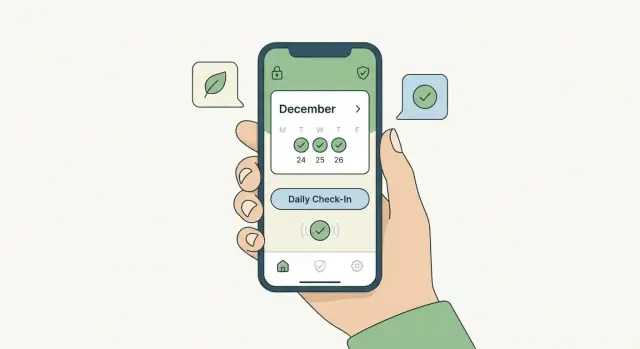
A daily check-in app is a lightweight way to share a quick update at a consistent cadence—usually in under a minute. A smart daily check-in keeps that same low-friction routine, but adds small touches of “intelligence” so the experience becomes more relevant over time (without turning into a survey).
What “smart” means in practice
Smart check-ins are still simple: a tap, a slider, a short note, maybe a photo. The “smart” part is how the app adapts:
- It remembers what you answered yesterday and avoids redundant questions.
- It changes prompts based on context (day of week, prior streaks, goals, or role).
- It nudges at the right time with push notifications, but doesn’t spam.
- It summarizes patterns back to the user (“You report low energy most Mondays”).
The goal is quick, consistent, low-friction updates that produce useful signals over time.
Why people use daily check-ins
Smart check-ins work anywhere a small, repeated data point helps someone make better decisions:
- Habits & self-improvement: a habit tracking app that asks “Did you walk today?” plus a 1–5 mood rating.
- Wellbeing: journaling-lite prompts like stress level, sleep quality, and a short note.
- Team status: an employee check-in app for blockers, workload, and sentiment—especially for remote teams.
- Field work: quick completion updates, safety confirmations, or shift summaries for distributed staff.
- Caregiving: daily health observations, medication adherence, or “any concerns today?”
MVP-first expectations (this guide’s focus)
It’s tempting to start with complex scoring, predictions, or dozens of question types. This guide focuses on building an MVP mobile app: a check-in flow people will actually complete, plus just enough logic to make it feel personalized. After launch, you’ll improve prompts, timing, and insights based on real usage.
Individuals vs. teams: who you’re building for
This decision changes almost everything:
- Individual apps optimize for motivation, reflection, and privacy. Insights are primarily “for me.”
- Team apps optimize for clarity and coordination. You’ll need roles, shared visibility rules, and reporting.
Be explicit early—your onboarding, data model, and permissions will depend on it.
Define Your Users, Goals, and Success Metrics
Before you write requirements or screens, get specific about who the check-ins are for and what “better” looks like. Smart daily check-ins fail most often when the app tries to satisfy everyone with the same flow.
Main user types (and what each needs)
End user (the person checking in) wants speed, clarity, and psychological safety.
They need a check-in that takes under a minute, reminders they can control, and feedback that feels helpful (not judgmental). They also need to understand what data is collected and who can see it.
Manager/coach (the person supporting others) wants visibility without micromanaging.
They need trends over time, lightweight ways to follow up, and signals that highlight who needs attention today—without forcing them to read every entry.
Admin (the person running the program) wants control and consistency.
They need user and team management, templates, permissions, and basic reporting to prove the program is working.
Define the primary outcome
Pick one primary outcome and design everything around it:
- Consistency: people actually complete check-ins regularly.
- Visibility: the right people can see the right signals at the right time.
- Accountability: users feel a gentle commitment to themselves or a group.
- Insights: patterns emerge that lead to better decisions (personal or organizational).
If you can’t state your primary outcome in one sentence, the app will drift into a “feature pile.”
Choose success metrics that match your goal
A few practical metrics for a daily check-in app:
- Completion rate: % of users who submit today (and weekly average).
- Streak retention: how many users maintain 7/14/30-day streaks.
- Time-to-check-in: median seconds from open to submit.
Also track opt-out rates for reminders and drop-off points during onboarding.
Decide: private, shared, or both
Be explicit about visibility:
- Private: great for habit tracking and personal reflection.
- Shared with a group/manager: great for employee check-in app use cases and coaching.
- Both: allow users to keep free-text private while sharing simple ratings or tags.
Document this early—it affects UX, permissions, and trust throughout the product.
Design the Check-In Format: Questions, Timing, and “Smart” Logic
A smart daily check-in succeeds or fails on one thing: whether people actually finish it. Optimize for speed, clarity, and a small sense of reward.
Keep it tiny: 1–3 questions, under 30 seconds
Start with the minimum set that still produces useful signal. If your check-in takes longer than a quick text reply, completion rates usually drop.
A good rule:
- 1 core question (the “headline” metric)
- 1 context question (why/what changed)
- 1 optional detail (only if needed)
Examples:
- “How are you feeling?” + “What’s the biggest driver?” + optional note
- “Did you do the habit?” + “What got in the way?” + optional plan for tomorrow
Choose input types that match the moment
Different inputs fit different situations. Mix them carefully so the flow stays fast.
- Emoji / 1–5 scale: best for mood, energy, stress
- Multiple choice: best for reasons, categories, blockers
- Short text: best for nuance (keep it optional)
- Photo: useful for meals, workouts, proof-of-work (avoid making it mandatory)
- Location (optional): only when it clearly benefits the user (e.g., “checked in at the office”) and can be turned off
Decide frequency and timing rules (then make them flexible)
Pick a default schedule that matches the user’s reality:
- Daily, weekdays only, or custom days
- A recommended time window (e.g., evening reflection)
- “Nudge” rules (one reminder, then stop)
Add a simple “snooze” and “I did it already” option to reduce annoyance.
Add “smart” logic without surprises
Smart check-ins should feel helpful, not invasive:
- Adaptive prompts: if someone reports low mood, follow up with one gentle question
- Remembered answers: preselect yesterday’s common choice to save taps
- Suggestions: offer a small next step (“Want to set a 10-minute plan for tomorrow?”)
Keep the logic transparent: “We’re asking this because you selected X.”
Late check-ins and edits: set expectations upfront
Decide whether users can:
- Edit today’s entry
- Submit late for yesterday
If you allow it, label entries clearly (“Edited” / “Added later”) so trends and reports remain trustworthy—especially for an employee check-in app or shared reporting.
Create a Simple User Flow and UX People Will Stick With
A daily check-in only works if it feels effortless. Your UX goal isn’t to impress—it’s to get someone from “I saw the prompt” to “I’m done” in under a minute, with zero confusion.
Start with the simplest possible flow
Map one “happy path” and design everything around it:
Open app → see today’s prompt → answer → submit → get a quick confirmation → optionally view a short summary.
Extra options (editing past days, advanced insights, settings) should stay out of the way until someone actively looks for them.
Keep screens focused and thumb-friendly
One action per screen makes check-ins feel light. If a screen has two primary buttons, you’re asking the user to think instead of respond.
Design for a quick, one-handed interaction:
- Large tap targets and obvious buttons (especially for rating scales and multiple choice).
- Clear labels that match real language (“Skip today” vs. “Dismiss”).
- A visible progress cue for multi-question check-ins (e.g., “2 of 5”), so it doesn’t feel endless.
Accessibility basics that pay off immediately
Accessibility isn’t a “nice-to-have” for check-ins—it’s part of retention.
Make sure you cover the basics early:
- Strong contrast and readable default text sizes.
- Controls that work well with screen readers (VoiceOver/TalkBack): proper labels, logical focus order.
- Don’t rely on color alone to convey meaning (e.g., “red = bad”).
Microcopy that reduces hesitation
Small wording changes can materially improve completion. Aim for friendly, direct prompts that remove uncertainty:
- Explain why you’re asking, briefly (“This helps tailor tomorrow’s questions”).
- Normalize short answers (“A quick note is enough”).
- Offer safe exits (“Skip” or “Not today”) without guilt.
If you want inspiration, model your onboarding and prompts like a conversation—then tighten the language until it reads fast. (More on onboarding patterns at /blog/app-onboarding.)
Plan error states and offline behavior
People will check in on trains, in basements, or with spotty Wi‑Fi. Don’t punish them.
- If submission fails, save a draft automatically and show a clear “We’ll sync when you’re back online.”
- Prevent data loss: never clear answers without confirmation.
- Use human error messages (“Couldn’t connect. Your check-in is saved.”), not technical codes.
A forgiving flow builds trust—and trust is what turns a daily check-in into a habit.
Core Features for an MVP (and What to Save for Later)
An MVP for a daily check-in app should do one thing extremely well: help people complete a quick check-in and see something useful from it. Everything else is optional until you prove retention.
The MVP essentials (build these first)
1) Onboarding that explains value in 30 seconds
Keep setup lightweight: what the app is for, how long a check-in takes, and what users get back (a clearer picture of patterns, not “more tasks”). Ask only for what you truly need on day one—typically a name, time zone, and a preferred check-in time. Delay permissions (notifications, contacts, calendar) until the moment they’re needed.
2) Reminders that respect real life
Push notifications are usually enough for an MVP. Add the basics that prevent annoyance: quiet hours, a “snooze” option, and an easy way to change reminder time. If your audience includes deskless teams or users with limited push reliability, consider SMS/email as an optional fallback—but keep it minimal.
3) A gentle motivation loop
Streaks and badges can work, but the tone matters. Use encouraging language (“Nice job checking in three days this week”) instead of guilt (“You broke your streak”). Small, positive nudges beat aggressive gamification for long-term trust.
4) Views that make the data feel worth entering
At minimum: a daily log, a weekly trends view (simple charts or summaries), and a place for notes. If you add searchable history, keep it fast and forgiving (search by keyword and date range).
Team features: include only if your use case demands it
For an employee check-in app, the MVP can support: group check-ins, a simple manager summary, and clearly labeled private notes (access-controlled). Avoid complex org charts and heavy analytics until you confirm adoption.
Save for later (common “nice-to-haves”)
AI-generated insights, mood predictions, deep integrations (Slack/Teams), custom automation, and advanced dashboards are best postponed. If the core check-in habit isn’t sticky, extra features won’t fix it.
Add Intelligence Without Making the App Creepy
“Smart” can make a daily check-in app feel effortless—or make people feel monitored. The difference is clarity, restraint, and control.
Decide what “smart” means (and keep it narrow)
Pick 1–2 intelligence benefits that directly reduce effort:
- Personalization: reorder or shorten questions based on what the user usually answers.
- Predictions: gently flag patterns (e.g., “you often skip check-ins on weekends”).
- Summaries: turn raw entries into weekly highlights (“3 good days, 2 stressful days”).
Avoid “smart” features that guess deeply personal causes (“you’re depressed”) or imply you know why something happened.
Practical examples that feel helpful
A few lightweight tactics that users typically accept:
- Smart prompt ordering: if a user often adds a note after rating mood, surface the note field sooner.
- Detecting missed days: if someone skips two check-ins, show a low-friction restart prompt (“Want to do a quick 10‑second check-in today?”) instead of guilt.
- Suggested follow-ups: if sleep score is low, suggest one optional follow-up question (“What kept you up?”). Make it skippable.
Set boundaries and explain recommendations
People get uneasy when an app acts like it has secret knowledge. A simple rule: every suggestion should be explainable in one sentence.
Example microcopy:
“Suggested because you mentioned ‘late caffeine’ twice this week.”
Also, be careful with sensitive areas (health, relationships, finances, work performance). Don’t infer medical conditions, don’t label users, and don’t present guesses as facts.
Build a feedback loop (so users stay in control)
Give users an easy way to correct the app:
- “Not relevant” / “Don’t ask again” on suggestions
- Edit or override auto-tags
- “This summary is wrong” feedback
This improves accuracy and signals respect.
Always offer an off switch
Include a per-user setting to disable smart features (or parts of them). A good approach is tiered controls:
- Smart ordering: on/off
- Suggestions: on/off
- Weekly summaries: on/off
When users can dial intelligence up or down, the app feels supportive—not invasive.
Pick a Tech Approach: Native vs Cross-Platform vs PWA
Your tech choice should match what your check-in app needs on day one: how “mobile” it must feel, how fast you need to ship, and what your team can maintain.
Native apps (Swift/Kotlin)
Best when you need top-notch performance, deep OS integration (widgets, advanced notification actions, health sensors), or very polished UI.
Trade-off: you build (and maintain) two separate apps for iOS and Android, which usually means higher cost and slower iteration unless you have a larger team.
Cross-platform apps (Flutter/React Native)
A common choice for a daily check-in app because you can share most of the code across iOS and Android while still publishing to the App Store and Google Play.
Trade-off: you may hit edge cases with certain device features, and some “native-feeling” details can take extra effort. For most MVPs, it’s a strong balance of speed and quality.
PWA (Progressive Web App)
A PWA runs in the browser and can be “installed” to a home screen. It’s great if you want a fast launch, simple updates (no app store review for every change), and broad device support.
Trade-off: push notifications and background behavior are more limited (especially on iOS), and a PWA may feel less like a true mobile habit tracking app.
What you’ll typically build (regardless of approach)
Most smart check-ins include:
- A mobile client (native, cross-platform, or web)
- A backend API (stores check-ins, calculates “smart” logic, manages accounts)
- A database (users, schedules, responses)
- Analytics (activation, retention, question completion)
- A notification service (push + fallback email/SMS if needed)
A fast path to an MVP with Koder.ai
If your goal is to validate retention quickly, a vibe-coding approach can help. With Koder.ai, you can describe the check-in flow, schedules, and roles in a chat-style “planning mode,” generate a working web app (React) plus backend (Go + PostgreSQL), and iterate on prompts and reminders without rebuilding from scratch. When you’re ready, you can export source code, deploy with hosting and custom domains, and use snapshots/rollback to safely test new check-in logic.
Authentication, files, and retention of data
For authentication, plan for:
- Consumer apps: email link/OTP, plus optional guest mode (with clear limits)
- Business/employee check-in app: SSO (Google/Microsoft/Okta) to reduce friction
If you allow photos or attachments, decide where they live (cloud storage vs database), who can access them, and how long you keep them (for example, “delete attachments after 90 days” or “keep until the user deletes”). These choices affect privacy expectations, storage cost, and support burden.
Cost and complexity in plain terms
- Native: highest cost, best control
- Cross-platform: mid cost, fastest MVP-to-app-store path
- PWA: lowest cost, fastest iteration, but more feature limits
If you’re unsure, many teams start cross-platform for an MVP, then go native only if real usage proves it’s necessary.
Privacy, Security, and Permissions People Can Understand
Trust is a feature in a daily check-in app. People are sharing feelings, habits, health notes, or work signals—and they’ll abandon the product if it feels like it’s collecting more than it needs.
Collect only what you need
Start with a “data diet”: capture the minimum information required to deliver the benefit you promised. If the app’s job is a mood check-in, you probably don’t need precise location, contacts, or microphone access.
A simple rule: if you can’t explain why you need a data point in one sentence, don’t collect it “just in case.” You can always add fields later, but you can’t easily undo a reputation for over-collection.
Permissions, explained at the moment they matter
Avoid asking for permissions on first launch with no context. Instead, use just-in-time prompts:
- Notifications: ask right before the user schedules reminders (“Enable reminders so you don’t miss your 8pm check-in”).
- Location: only if it’s core (e.g., “check in when arriving at the office”), and offer a manual alternative.
- Photos: ask when the user taps “Add photo,” and explain where it’s stored.
Keep the language plain and user-centered: what you’ll do, what you won’t do, and how to change it later.
Security basics you should still build in
You don’t need security jargon, but you do need the fundamentals:
- Encryption in transit: use HTTPS/TLS for all network traffic.
- Secure storage: protect sensitive data on device and on your servers (e.g., encrypted databases, properly managed keys).
- Access controls (especially for teams): authenticate users, enforce strong session handling, and log access to sensitive records.
If you support an employee check-in app use case, be explicit about admin capabilities and audit trails.
Roles and visibility rules
Define who can see what, and when. For example: individual entries visible only to the user; managers see aggregated trends; HR sees flagged items only with consent or clear policy. Make these rules visible in the UI (not hidden in a legal page).
User controls that reduce anxiety
Give people control over their data:
- Export their entries (CSV/JSON is fine)
- Delete individual entries
- Delete their account (and explain retention timelines)
A short, readable privacy page linked in settings (e.g., /privacy) reinforces that the app is designed to help—not to watch.
Test, Measure, and Improve Retention
Retention is where a daily check-in app succeeds or quietly fails. The goal isn’t “more data”—it’s learning what helps people complete check-ins consistently, without feeling nagged.
Instrument the moments that matter
Before tweaking UX, make sure you can see the basic behavior. Set up event tracking for a small, clear set of actions:
- Started check-in (opened the check-in screen)
- Completed check-in (submitted answers)
- Skipped (explicit skip, snooze, or “not today”)
- Notification opened (tap-through from a reminder)
Keep event names consistent and include a few helpful properties (e.g., check-in type, day of week, reminder time). This will help you spot patterns like “people start but don’t finish” versus “people never open the reminder.”
Watch quality signals like a hawk
If the app is slow, crashes, or fails to sync, retention drops regardless of how good your questions are. Monitor:
- Crash reports and app hangs
- Slow screens (time-to-interactive on the check-in flow)
- Failed sync/background upload errors
- Notification delivery rates (sent vs delivered vs opened)
Treat these as product metrics, not just engineering metrics. A 2-second delay on the final submit button can be the difference between a habit and churn.
Usability test early (and repeat)
Run quick usability tests with 5–10 target users before building too much. Give them realistic scenarios (“It’s 9pm and you’re tired—do your check-in”) and observe:
- Where they hesitate
- What words confuse them
- Whether they understand what happens after submission
Small fixes—like changing button labels or shortening one question—often improve completion more than adding new features.
A/B test reminders with care
Reminders are powerful but easy to overdo. If you run A/B tests, change one variable at a time:
- Timing (morning vs evening)
- Wording (encouraging vs factual)
- Frequency (daily vs weekdays)
Define your success metric upfront (e.g., completed check-ins per user per week) and avoid “winning” a test that boosts opens but increases skips or uninstalls.
Build a simple metrics dashboard
Create a lightweight dashboard tied to the success metrics you defined earlier: completion rate, streak retention, reminder open-to-complete rate, and a few quality indicators (crashes, slow screens). Keep it visible to the whole team so each release has a clear hypothesis and measurable outcome.
Launch Plan: App Store Readiness, Support, and Iteration
A smart daily check-in app usually succeeds or fails in the first week after launch. Treat “launch” as the start of learning—not the finish line.
App Store readiness: the essentials
Prepare your store listing like a mini sales page, not a technical spec sheet.
Focus on:
- Screenshots that show the flow: onboarding → check-in screen → insights/history. Add short captions (“1-minute check-in”, “Your weekly trend”).
- A clear description: who it’s for (habit tracking, employee check-ins, wellness prompts), what it does, and what it doesn’t do.
- Privacy details people can understand: what data you collect, why, and how to delete it. Keep the tone plain-language; link to your policy.
Also confirm the basics: app name availability, icon, versioning, and any permission prompts are justified (especially notifications).
Rollout plan: reduce risk, increase signal
Start small so you can fix issues before they affect everyone.
A practical rollout checklist:
- Recruit a beta group that matches your real audience (not just friends).
- Use a staged release (e.g., 5% → 25% → 100%) to catch crashes and confusing UX.
- Set up a support email and a lightweight FAQ page (even a single /blog post can work early).
Create a feedback loop that doesn’t annoy users
Add an in-app feedback option that’s always available (e.g., “Send feedback” in Settings).
After 7 days, trigger a short survey (2–3 questions):
- “Was this worth keeping?”
- “What’s missing?”
- “Anything confusing or uncomfortable?”
Iterate from usage, not opinions
Build your roadmap from real behavior: completion rate, streaks, notification opt-in, and drop-off points.
Keep a running list of:
- Improve: steps where users hesitate or abandon.
- Remove: features no one touches.
- Add later: requests that only matter after retention is solid.
If you offer plans, link pricing clearly from your site (/pricing). For ongoing education and release notes, publish updates in /blog.
FAQ
What’s the difference between a daily check-in app and a smart daily check-in app?
A daily check-in app helps users submit a quick update at a consistent cadence—usually in under a minute. A smart daily check-in stays lightweight but adapts over time (e.g., avoids redundant questions, times nudges better, and summarizes patterns) so the experience feels more relevant without turning into a long survey.
Which metrics matter most for a daily check-in MVP?
Start by choosing one primary outcome, then measure it:
- Consistency: daily/weekly completion rate, 7/14/30‑day streak retention
- Speed: median time from open → submit
- Reminders: opt-out rate, reminder open → completion rate
Also track onboarding drop-off so you can see whether people fail before they ever build the habit.
How many questions should my check-in include to keep completion high?
Keep the first version tiny:
- 1 core question (headline signal)
- 1 context question (what drove it)
- 1 optional detail (free text/photo only if needed)
Aim for under 30 seconds. If the check-in feels like a survey, completion rates typically drop.
What input types work best for fast daily check-ins?
Pick inputs that fit the moment and minimize typing:
- 1–5 scale / emoji: mood, energy, stress
- Multiple choice: reasons, blockers, categories
- Short text: nuance (make it optional)
- Photo: proof-of-work or visual logs (avoid mandatory)
- Location: only if it clearly helps and can be turned off
Mix types carefully so the flow stays fast and thumb-friendly.
How should I choose reminder timing and frequency without annoying users?
Set a sensible default, then make it flexible:
- Daily vs weekdays only vs custom days
- A recommended time window (e.g., evening reflection)
- One reminder, then stop (plus snooze)
Also include “I already did it” or “Not today” to reduce annoyance and prevent spammy nudging.
What “smart” features can I add without making the app feel creepy?
Use small, explainable logic that reduces effort:
- Preselect or reorder based on common past answers
- One gentle follow-up if a key signal is low (skippable)
- Simple summaries like weekly highlights
Add transparency (“Suggested because you selected X”) and give users controls like Not relevant and Don’t ask again so the app stays supportive, not invasive.
What’s the simplest user flow for a daily check-in app?
Start with one clear “happy path”:
Open app → today’s prompt → answer → submit → quick confirmation → optional summary.
Keep advanced settings (editing, history search, templates) out of the way until users actively look for them. One primary action per screen usually beats “feature-rich” screens for retention.
How should a check-in app handle offline use and failed submissions?
Design for low trust bandwidth and spotty connectivity:
- Save a draft automatically if submission fails
- Show a clear message like “We’ll sync when you’re back online.”
- Never clear answers without confirmation
- Keep error messages human (no codes)
Reliability is retention—people won’t build a daily habit on a fragile flow.
Should I build my check-in app as native, cross-platform, or a PWA?
Choose based on how “mobile” you need to be and how fast you must ship:
- Native (Swift/Kotlin): best OS integration; higher cost (two codebases)
- Cross-platform (Flutter/React Native): fastest MVP-to-app-store balance for many teams
- PWA: fastest iteration, but more limits (especially iOS push/background)
If you’re unsure, cross-platform is often a strong MVP default unless you need deep device features on day one.
What privacy and permissions practices are essential for smart daily check-ins?
Build trust with a “data diet” and clear visibility rules:
- Collect only what you can explain in one sentence
- Ask permissions just-in-time (notifications when scheduling reminders, photos when adding a photo)
- Use HTTPS/TLS and strong access controls
- For teams, define roles and what managers/admins can see
- Offer user controls: export, delete entries, delete account (with retention timelines)
A readable privacy page (e.g., /privacy) and clear UI labels reduce anxiety and churn.