

JavaScript Time Formatting & Conversion: Common Pitfalls
Learn how to format and convert time in JavaScript without surprises: timestamps, ISO strings, time zones, DST, parsing rules, and reliable patterns.
What Usually Goes Wrong with JavaScript Time
JavaScript time bugs rarely look like “the clock is wrong.” They show up as confusing little shifts: a date that’s correct on your laptop but wrong on a coworker’s machine, an API response that looks fine until it’s rendered in a different timezone, or a report that’s “off by one” around a seasonal time change.
The most common symptoms
You’ll typically notice one (or more) of these:
- Off by one hour: especially around Daylight Saving Time, or when a value is unintentionally converted between local time and UTC.
- Off by one day: a date-only value (like “2025-12-23”) appears as the previous/next day depending on timezone.
- Wrong timezone: times look correct, but the offset (e.g.,
+02:00) is different from what you expected. - Inconsistent formatting: “works in Chrome” but looks different in Safari, or a server and browser disagree on how to parse a string.
Why this happens: “time” can mean different things
A big source of pain is that the word time can refer to different concepts:
- An instant: a specific moment worldwide (e.g., “2025-12-23T10:00:00Z”). This is what you usually want for logging, events, and API storage.
- A calendar date: a day on the calendar without a timezone (e.g., a birthday, an invoice date). Treating it like an instant can shift it across day boundaries.
- Wall-clock time: “9:00 AM in Berlin,” which depends on timezone rules and daylight saving changes.
JavaScript’s built-in Date tries to cover all of these, but it primarily represents an instant in time while constantly nudging you toward local display, which makes accidental conversions easy.
What this article focuses on
This guide is intentionally practical: how to get predictable conversions across browsers and servers, how to choose safer formats (like ISO 8601), and how to spot the classic traps (seconds vs milliseconds, UTC vs local, and parsing differences). The goal isn’t more theory—it’s fewer “why did it shift?” surprises.
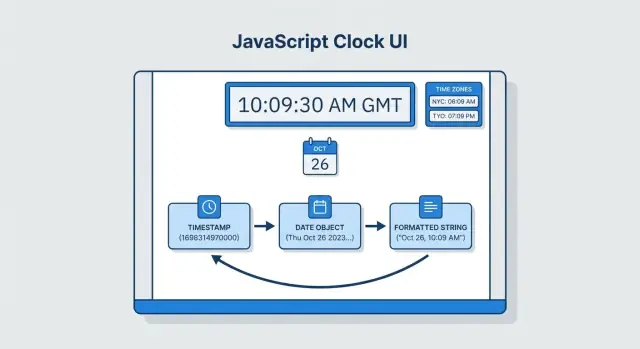
Time Data Types: Timestamp, Date, and String
JavaScript time bugs often start with mixing representations that look interchangeable, but aren’t.
The three representations you’ll see most
1) Epoch milliseconds (number)
A plain number like 1735689600000 is typically “milliseconds since 1970-01-01T00:00:00Z”. It represents an instant in time with no formatting or time zone attached.
2) Date object (wrapper around an instant)
A Date stores the same kind of instant as a timestamp. The confusing part: when you print a Date, JavaScript formats it using your environment’s local rules unless you ask otherwise.
3) Formatted string (human display)
Strings like "2025-01-01", "01/01/2025 10:00", or "2025-01-01T00:00:00Z" are not a single thing. Some are unambiguous (ISO 8601 with Z), others depend on locale, and some don’t include a time zone at all.
“Instant in time” vs “human display time”
- Instant in time: “this exact moment globally” (best stored as epoch ms or an ISO string in UTC).
- Human display time: “what the user should see” (depends on locale and time zone).
The same instant can display differently by time zone:
const instant = new Date("2025-01-01T00:00:00Z");

instant.toLocaleString("en-US", { timeZone: "UTC" });
// "1/1/2025, 12:00:00 AM"

instant.toLocaleString("en-US", { timeZone: "America/Los_Angeles" });
// "12/31/2024, 4:00:00 PM" (previous day)
Pick one “source of truth”
Choose a single internal representation (commonly epoch milliseconds or UTC ISO 8601) and stick to it across your app and APIs. Convert to/from Date and formatted strings only at the boundaries: input parsing and UI display.
Timestamps: Seconds vs Milliseconds (Easy to Mix Up)
A “timestamp” usually means epoch time (also called Unix time): the count of time since 1970-01-01 00:00:00 UTC. The catch: different systems count in different units.
JavaScript’s Date is the source of most confusion because it uses milliseconds. Many APIs, databases, and logs use seconds.
The rule of thumb
- Unix timestamp (seconds):
1704067200 - JavaScript timestamp (milliseconds):
1704067200000
Same moment, but the millisecond version has three extra digits.
Safe conversions (seconds ↔ milliseconds)
Use explicit multiplication/division so the unit is obvious:
// seconds -> Date
const seconds = 1704067200;
const d1 = new Date(seconds * 1000);

// milliseconds -> Date
const ms = 1704067200000;
const d2 = new Date(ms);

// Date -> seconds
const secondsOut = Math.floor(d2.getTime() / 1000);

// Date -> milliseconds
const msOut = d2.getTime();
The classic bug: passing seconds into Date()
This looks reasonable, but it’s wrong when ts is in seconds:
const ts = 1704067200;      // seconds
const d = new Date(ts);     // WRONG: treated as milliseconds
The result will be a date in 1970, because 1,704,067,200 milliseconds is only about 19 days after the epoch.
Quick validation and debugging checks
When you’re not sure which unit you have, add quick guardrails:
function asDateFromUnknownEpoch(x) {
  // crude heuristic: seconds are ~1e9-1e10, milliseconds are ~1e12-1e13
  if (x < 1e11) return new Date(x * 1000); // assume seconds
  return new Date(x);                      // assume milliseconds
}

const input = Number(valueFromApi);
console.log({ input, digits: String(Math.trunc(input)).length });
console.log('as ISO:', asDateFromUnknownEpoch(input).toISOString());
If the “digits” count is ~10, it’s probably seconds. If it’s ~13, it’s probably milliseconds. Also print toISOString() while debugging: it’s unambiguous and helps you spot unit mistakes immediately.
Local Time vs UTC: Why Your Output Shifts
JavaScript’s Date can be confusing because it stores a single instant in time, but it can present that instant in different time zones.
Internally, a Date is essentially “milliseconds since the Unix epoch (1970-01-01T00:00:00Z)”. That number represents a moment in UTC. The “shift” happens when you ask JavaScript to format that moment as local time (based on the computer/server settings) versus UTC.
Local getters vs UTC getters
Many Date APIs have both local and UTC variants. They return different numbers for the same instant:
const d = new Date('2025-01-01T00:30:00Z');

d.getHours();      // hour in *local* time zone
d.getUTCHours();   // hour in UTC

d.toString();      // local time string
d.toISOString();   // UTC (always ends with Z)
If your machine is in New York (UTC-5), that UTC time may appear as “19:30” on the previous day locally. On a server set to UTC, it will appear as “00:30”. Same instant, different display.
Why logs look “wrong”
Logs often use Date#toString() or interpolate a Date implicitly, which uses the environment’s local time zone. That means the same code can print different timestamps on your laptop, in CI, and in production.
Practical guidance
Store and transmit time as UTC (e.g., epoch milliseconds or ISO 8601 with Z). Convert to user locale only when displaying:
- For APIs: prefer
toISOString()or pass epoch milliseconds - For UI: format in the user’s time zone using
Intl.DateTimeFormat
If you’re building an app quickly (for example with a vibe-coding workflow in Koder.ai), it helps to bake this into your generated API contracts early: name fields clearly (createdAtMs, createdAtIso) and keep the server (Go + PostgreSQL) and client (React) consistent on what each field represents.
ISO 8601 Strings: The Safest Format for APIs
If you need to send dates/times between a browser, a server, and a database, ISO 8601 strings are the safest default. They’re explicit, widely supported, and (most importantly) they carry time zone information.
Use explicit UTC or an explicit offset
Two good interchange formats:
- UTC time (recommended when you don’t care about a local zone):
2025-03-04T12:30:00Z - Local time with an offset (recommended when “local clock time” matters):
2025-03-04T12:30:00+02:00
What does “Z” mean?
Z stands for Zulu time, another name for UTC. So 2025-03-04T12:30:00Z is “12:30 at UTC.”
When do offsets like +02:00 matter?
Offsets are crucial when an event is tied to a local timezone context (appointments, bookings, store opening times). 2025-03-04T12:30:00+02:00 describes a moment that is two hours ahead of UTC, and it’s not the same instant as 2025-03-04T12:30:00Z.
Avoid ambiguous date strings
Strings like 03/04/2025 are a trap: is it March 4 or April 3? Different users and environments interpret it differently. Prefer 2025-03-04 (ISO date) or a full ISO datetime.
Round-trip safely (string → Date → string)
const iso = "2025-03-04T12:30:00Z";
const d = new Date(iso);
const back = d.toISOString();

console.log(iso);  // 2025-03-04T12:30:00Z
console.log(back); // 2025-03-04T12:30:00.000Z
That “round-trip” behavior is exactly what you want for APIs: consistent, predictable, and time zone–aware.
Parsing Pitfalls: Date.parse and Browser Differences
Date.parse() feels convenient: hand it a string, get back a timestamp. The problem is that for anything that isn’t clearly ISO 8601, parsing can rely on browser heuristics. Those heuristics have differed across engines and versions, which means the same input may parse differently (or not at all) depending on where your code runs.
Why Date.parse() can vary
JavaScript only standardizes parsing reliably for ISO 8601–style strings (and even then, details like time zone matter). For “friendly” formats—like "03/04/2025", "March 4, 2025", or "2025-3-4"—browsers may interpret:
- Month/day vs day/month based on locale assumptions
- Missing time zone as local time in one engine, but rejected in another
- Slightly malformed strings as “close enough”… until they aren’t
If you can’t predict the exact string shape, you can’t predict the result.
The surprising case: YYYY-MM-DD
A common trap is the plain date form "YYYY-MM-DD" (for example, "2025-01-15"). Many developers expect it to be interpreted as local midnight. In practice, some environments treat this form as UTC midnight.
That difference matters: UTC midnight converted to local time can become the previous day in negative time zones (e.g., Americas) or shift the hour unexpectedly. It’s an easy way to get “why is my date off by one day?” bugs.
Parsing checklist: user input vs server input
For server/API input:
- Prefer full ISO 8601 with an explicit time zone, e.g.
2025-01-15T13:45:00Zor2025-01-15T13:45:00+02:00. - Treat date-only values as data, not a moment in time. If it’s a birthday or due date, keep it as a plain string (
"YYYY-MM-DD") and avoid converting it to aDateunless you also define the intended time zone.
For user input:
- Don’t accept ambiguous formats like
03/04/2025unless your UI forces the meaning. - Prefer controlled inputs (date pickers) that produce a known format.
- If you must parse free text, define and enforce the accepted formats up front.
Use explicit rules (not heuristics)
Instead of relying on Date.parse() to “figure it out,” choose one of these patterns:
- Only accept ISO 8601 from servers; reject anything else.
- Manually parse known formats (split the string and use
new Date(year, monthIndex, day)for local dates). - Store and transmit timestamps (epoch milliseconds) for precise instants, and format for display later.
When time data is critical, “it parses on my machine” isn’t good enough—make your parsing rules explicit and consistent.
Formatting for Humans with Intl.DateTimeFormat
If your goal is “show a date/time the way people expect,” the best tool in JavaScript is Intl.DateTimeFormat. It uses the user’s locale rules (order, separators, month names) and avoids the brittle approach of manually stitching strings like month + '/' + day.
Why it beats manual string building
Manual formatting often hard-codes US-style output, forgets leading zeros, or produces confusing 24/12-hour results. Intl.DateTimeFormat also makes it explicit which time zone you’re displaying—critical when your data is stored in UTC but your UI should reflect the user’s local time.
Common options you’ll actually use
For “just format it nicely,” dateStyle and timeStyle are the simplest:
const d = new Date('2025-01-05T16:30:00Z');

// User’s locale + user’s local time zone
console.log(new Intl.DateTimeFormat(undefined, {
  dateStyle: 'medium',
  timeStyle: 'short'
}).format(d));

// Force a specific time zone (great for event times)
console.log(new Intl.DateTimeFormat('en-GB', {
  dateStyle: 'full',
  timeStyle: 'short',
  timeZone: 'UTC'
}).format(d));
If you need consistent hour cycles (e.g., a settings toggle), use hour12:
console.log(new Intl.DateTimeFormat('en-US', {
  hour: 'numeric',
  minute: '2-digit',
  hour12: true
}).format(d));
A practical UI pattern
Pick one formatting function per “type” of timestamp in your UI (message time, log entry, event start), and keep the timeZone decision intentional:
- Use local time for “when it happened for me.”
- Use a fixed zone (often UTC) for audit logs, server events, or cross-team coordination.
This gives you consistent, locale-friendly output without maintaining a fragile set of custom format strings.
Daylight Saving Time: The Hidden Off-by-One-Hour Bug
Daylight Saving Time (DST) is when a time zone shifts its UTC offset (typically by one hour) on specific dates. The tricky part: DST doesn’t just “change the offset”—it changes the existence of certain local times.
Missing and duplicated wall-clock times
When clocks spring forward, a range of local times never happens. For example, in many regions, the clock jumps from 01:59 to 03:00, so 02:30 local time is “missing.”
When clocks fall back, a range of local times happens twice. For example, 01:30 can occur once before the shift and once after it, meaning the same wall-clock time can refer to two different instants.
Adding 24 hours vs “same local time tomorrow”
These are not equivalent around DST boundaries:
- Add 24 hours: “exactly 24 * 60 * 60 seconds later”
- Next day at the same local time: “tomorrow at 9:00 AM in this time zone”
If DST starts tonight, “tomorrow at 9:00 AM” might be only 23 hours away. If DST ends tonight, it might be 25 hours away.
// Scenario: schedule “same local time tomorrow”
const d = new Date(2025, 2, 8, 9, 0); // Mar 8, 9:00 local

const plus24h = new Date(d.getTime() + 24 * 60 * 60 * 1000);
const nextDaySameLocal = new Date(d);
nextDaySameLocal.setDate(d.getDate() + 1);

// Around DST, plus24h and nextDaySameLocal can differ by 1 hour.
Why setHours can surprise you
If you do something like date.setHours(2, 30, 0, 0) on a “spring forward” day, JavaScript may normalize it to a different valid time (often 03:30), because 02:30 doesn’t exist in local time.
Safer approaches
- Do arithmetic in UTC for elapsed time (durations): use epoch milliseconds and UTC methods.
- For local scheduling, be explicit about the intent: “next day at 9:00 local” should use calendar operations (
setDate) rather than adding milliseconds. - When exchanging times via APIs, prefer ISO 8601 with an offset or
Zso the instant is unambiguous.
Durations vs Dates: Don’t Use Date for a Timer
A common source of bugs is using Date to represent something that isn’t a calendar moment.
A timestamp answers “when did this happen?” (a specific instant like 2025-12-23T10:00:00Z). A duration answers “how long?” (like “3 minutes 12 seconds”). These are different concepts, and mixing them leads to confusing math and unexpected time zone/DST effects.
Why Date is the wrong tool for durations
Date always represents a point on the timeline relative to an epoch. If you store “90 seconds” as a Date, you’re really storing “1970-01-01 plus 90 seconds” in a particular time zone. Formatting it can suddenly show 01:01:30, shift by an hour, or pick up a date you never intended.
For durations, prefer plain numbers:
- Store durations as seconds or milliseconds (pick one unit and stick to it).
- Do arithmetic with numbers.
- Convert to a display string only at the end.
Converting seconds to HH:mm:ss
Here’s a simple formatter that works for countdown timers and media lengths:
function formatHMS(totalSeconds) {
  const s = Math.max(0, Math.floor(totalSeconds));
  const hh = String(Math.floor(s / 3600)).padStart(2, "0");
  const mm = String(Math.floor((s % 3600) / 60)).padStart(2, "0");
  const ss = String(s % 60).padStart(2, "0");
  return `${hh}:${mm}:${ss}`;
}

formatHMS(75);    // "00:01:15" (countdown timer)
formatHMS(5423);  // "01:30:23" (media duration)
If you’re converting from minutes, multiply first (minutes * 60) and keep the value numeric until you render it.
Comparing, Sorting, and Ranges Without Surprises
When you compare times in JavaScript, the safest approach is to compare numbers, not formatted text. A Date object is essentially a wrapper around a numeric timestamp (epoch milliseconds), so you want comparisons to end up as “number vs number”.
Safe comparisons (timestamps win)
Use getTime() (or Date.valueOf(), which returns the same number) to compare reliably:
const a = new Date('2025-01-10T12:00:00Z');
const b = new Date('2025-01-10T12:00:01Z');

if (a.getTime() < b.getTime()) {
  // a is earlier
}

// Also works:
if (+a < +b) {
  // unary + calls valueOf()
}
Avoid comparing formatted strings like "1/10/2025, 12:00 PM"—those are locale-dependent and won’t sort correctly. The main exception is ISO 8601 strings in the same format and timezone (e.g., all ...Z), which are lexicographically sortable.
Sorting and filtering by range
Sorting by time is straightforward if you sort by epoch milliseconds:
items.sort((x, y) => new Date(x.createdAt).getTime() - new Date(y.createdAt).getTime());
Filtering items within a range is the same idea:
const start = new Date('2025-01-01T00:00:00Z').getTime();
const end   = new Date('2025-02-01T00:00:00Z').getTime();

const inRange = items.filter(i => {
  const t = new Date(i.createdAt).getTime();
  return t >= start && t < end;
});
“Start/end of day” (local vs UTC)
“Start of day” depends on whether you mean local time or UTC:
// Local start/end of day
const d = new Date(2025, 0, 10); // Jan 10 in local time
const localStart = new Date(d.getFullYear(), d.getMonth(), d.getDate(), 0, 0, 0, 0);
const localEnd   = new Date(d.getFullYear(), d.getMonth(), d.getDate(), 23, 59, 59, 999);

// UTC start/end of day
const utcStart = new Date(Date.UTC(2025, 0, 10, 0, 0, 0, 0));
const utcEnd   = new Date(Date.UTC(2025, 0, 10, 23, 59, 59, 999));
Pick one definition early and stick to it throughout your comparisons and range logic.
Debug Checklist: How to Diagnose a Time Conversion Bug
Time bugs feel random until you pin down what you have (timestamp? string? Date?) and where the shift is introduced (parsing, time zone conversion, formatting).
1) Capture the “three views” of the same moment
Start by logging the same value in three different ways. This quickly reveals whether the issue is seconds vs milliseconds, local vs UTC, or string parsing.
console.log('raw input:', input);

const d = new Date(input);
console.log('toISOString (UTC):', d.toISOString());
console.log('toString (local):', d.toString());
console.log('timezone offset (min):', d.getTimezoneOffset());
What to look for:
- If
toISOString()is wildly off (e.g., year 1970 or far future), suspect seconds vs milliseconds. - If
toISOString()looks right buttoString()is “shifted,” you’re seeing a local time zone display issue. - If
getTimezoneOffset()changes depending on the date, you’re crossing daylight saving time.
2) Verify the environment: time zone and locale
Many “it works on my machine” reports are simply different environment defaults.
- Browser: check OS time zone settings and browser language. Then log:
console.log(Intl.DateTimeFormat().resolvedOptions());
- Node.js / server: confirm the process time zone:
console.log('TZ:', process.env.TZ);
console.log(Intl.DateTimeFormat().resolvedOptions().timeZone);
If your server runs in UTC but your laptop runs in a local zone, formatted output will differ unless you specify a timeZone explicitly.
3) Add tests where time breaks most often
Create unit tests around DST boundaries and “edge” times:
- One hour before and after the DST switch in the relevant zone
- End of month/year, and
23:30→00:30crossovers - Multiple time zones if your product supports them
If you’re iterating fast, consider making these tests part of your scaffolding. For example, when generating a React + Go app in Koder.ai, you can add a small “time contract” test suite up front (API payload examples + parsing/formatting assertions) so regressions get caught before deployment.
Quick pre-ship checklist
- Inputs have a clear contract: epoch milliseconds or ISO 8601 with offset.
- No ambiguous strings like
"2025-03-02 10:00". - Formatting always specifies
localeand (when needed)timeZone. - Tests cover DST boundaries for your target regions.
Recommended Patterns for Reliable Time Handling
Reliable time handling in JavaScript is mostly about choosing a “source of truth” and being consistent from storage to display.
A simple set of best practices
Store and compute in UTC. Treat user-facing local time as a presentation detail.
Transmit dates between systems as ISO 8601 strings with an explicit offset (preferably Z). If you must send numeric epochs, document the unit and keep it consistent (milliseconds is the common default in JS).
Format for humans with Intl.DateTimeFormat (or toLocaleString), and pass an explicit timeZone when you need deterministic output (for example, always showing times in UTC or a specific business region).
Decision guide: DB vs API vs UI
- Database: store an instant in time as UTC (epoch milliseconds or a UTC datetime type). Avoid “local” datetimes unless your domain truly stores wall-clock times (like “store opens at 09:00”).
- API boundaries: prefer ISO 8601 with
Z(e.g.,2025-12-23T10:15:00Z). If using epochs, include a field name likecreatedAtMsto make units obvious. - UI: take the stored UTC instant and format it for the user’s locale. For scheduling UIs, clearly label the time zone and keep conversions explicit.
When a library is worth it
Consider a dedicated date-time library if you need recurring events, complex time zone rules, DST-safe arithmetic (“same local time tomorrow”), or lots of parsing from inconsistent inputs. The value is in clearer APIs and fewer edge-case bugs.
If you want to go deeper, browse more time-related guides at /blog. If you’re evaluating tooling or support options, see /pricing.
FAQ
What format should I use for timestamps in JavaScript?
Use epoch milliseconds or a UTC ISO 8601 string as your internal format. Convert to a local format only when you show the value to a person.
Why does my Unix timestamp turn into a date in 1970?
JavaScript Date expects milliseconds. Multiply a Unix timestamp in seconds by 1000 before passing it to new Date().
Why does the same date show different times on different computers?
A Date stores one instant, but JavaScript often displays it in the computer's local time zone. Compare toISOString() with toString() to see whether the data changed or only the display changed.
How do I prevent a date from shifting by one day?
Keep a date-only value such as a birthday or invoice date as YYYY-MM-DD. Do not turn it into a Date unless you also define the intended time zone.
What date format is safest for an API?
Send a full ISO 8601 value with Z for UTC, such as 2025-03-04T12:30:00Z, or include an explicit offset. Avoid strings like 03/04/2025 because people and browsers can read them differently.
How should I format dates for users?
Use Intl.DateTimeFormat and specify a timeZone when the screen needs a fixed zone. It formats dates according to the user's locale without manual string building.
Should I use Date.parse for user-entered dates?
Do not rely on it for informal or ambiguous strings. Accept a known ISO format from APIs, or parse controlled user input with rules that you define yourself.
Why should I avoid using Date for a countdown or duration?
A Date marks a moment on the calendar, while a duration is only an amount of time. Store durations as seconds or milliseconds, then format the number when you render it.
How does Daylight Saving Time affect JavaScript dates?
Use epoch milliseconds for elapsed-time math. For schedules such as "tomorrow at 9:00 AM" in a named zone, use calendar-based operations and test the DST transition dates.
What is the fastest way to debug a JavaScript time bug?
Log the raw input, toISOString(), toString(), and getTimezoneOffset(). A wrong ISO value often means a parsing or unit problem, while a different local string usually means a time-zone display difference.