

Meeting room and desk booking app: plan rules before screens
Plan a meeting room and desk booking app with clear availability, recurring reservations, check-in rules, and conflict alerts before design.
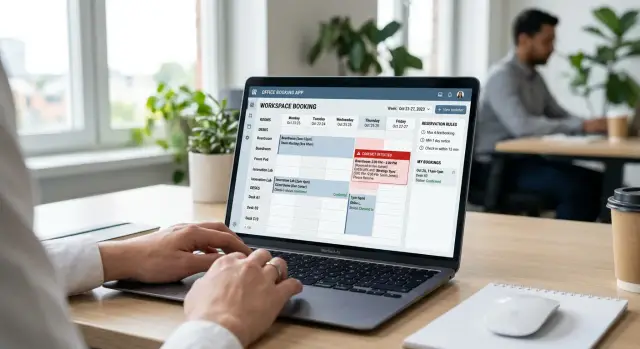
Start with the booking problems you need to solve
A meeting room and desk booking app can look polished and still frustrate people every day. A calendar cannot decide whether a team can reserve the boardroom for an afternoon, whether one person can hold two desks, or what happens when nobody arrives. Those are policy decisions, and the app needs to apply them consistently.
Begin with the problems people report now. They are usually ordinary: someone booked a room and never used it, a visitor found no desk, or two teams thought they had the same space. Write down these situations before anyone chooses buttons, colors, or notification text.
Unclear office reservation rules waste space quietly. An employee might reserve a desk every Monday for months, then work remotely most of those days. Someone else sees no desks available and stays home, even though many reserved seats are empty. Meeting rooms have the same problem when people book extra time "just in case."
Set a small group of decisions first:
- Who can book each type of space and how far ahead
- How long one reservation can last
- Whether users can hold more than one booking at once
- When the app releases an unused room or desk
- Who can override a reservation when plans change
Keep policy separate from interface design. "Release a desk after 30 minutes without check-in" is a policy. "Show a countdown beside the booking" is an interface choice. The policy creates fair access, while the screen helps people understand it.
For example, a six-person team may need a room at 10:00 while one teammate books a desk for the same morning. That can be fine. But if the room has a 15-minute check-in rule and nobody arrives, the app should release it at 10:15 and notify the team.
Write policies in plain sentences that employees can question and revise. Avoid wording such as "cancel unused bookings quickly." State the time, action, and exception: "The app releases a room 15 minutes after its start time unless an organizer checks in." Clear rules make recurring reservations, conflict alerts, and notifications much easier to build.
List the spaces and people using the app
A booking app breaks down when every space follows the same rules. Build an inventory that matches the real office: enclosed rooms, open desks, quiet zones, phone booths, training areas, parking spaces, and shared equipment where needed.
Give every item a name people recognize. "Room 3" causes mistakes if two floors use that label. "Harbor room, floor 2" tells a visitor where to go. Desk zones also work better when their names describe their use, such as "Window desks" or "Support team area."
Record the details that affect a person's choice. A six-seat room with a screen and video camera suits a client call, but not a 12-person workshop. Show accessibility information before a person books, rather than burying it in a note after the reservation.
A resource record should include:
- Location, floor, and a nearby landmark
- Capacity and available equipment
- Accessibility details, such as step-free access or an adjustable desk
- Hours when the space accepts reservations
- Whether a manager must approve the booking
Access rules need the same level of detail. Decide who can reserve each resource before creating the calendar. A sales team may book client rooms, while any employee can reserve a hot desk. Some department rooms may open to everyone after a certain time.
Avoid vague permissions such as "staff only." Name the groups in the app: employees, contractors, office managers, visitors, and administrators. Then state what each group can do. Contractors might reserve a desk for one day but not book meeting rooms. Office managers can update room details and cancel bookings when maintenance closes a space.
Limit approvals to cases where they prevent a real problem. Large rooms, executive spaces, after-hours access, and training rooms with specialist equipment may need approval. A standard two-person room usually does not. Too many approval steps send people back to chat messages and spreadsheets.
Koder.ai can turn this inventory into an early app plan through chat. Describe each space, the user groups, and their permissions in plain language so the screens and notifications follow office rules instead of guessing them.
Define availability step by step
Availability is more than an empty calendar slot. Every space needs its own hours, limits, and blocked dates. Define these rules in plain language before designing the calendar.
Start with each type of space. A quiet desk might be open Monday to Friday from 8:00 to 18:00. A meeting room may remain available later for client calls. If one department controls a room, apply that access limit before publishing its schedule. People get annoyed when an app lets them choose a space, then rejects the booking at the final step.
Set minimum and maximum reservation lengths. Desks might use half-day or full-day blocks, while rooms use 30-minute slots. A 15-minute minimum often fills calendars with awkward gaps. For many offices, 30 minutes for rooms and half a day for desks is easier to manage.
Use a clear order when deciding whether a slot is open:
- Confirm that the space is open at the requested time.
- Check holidays, maintenance, cleaning, and private events.
- Check whether another reservation already uses the space.
- Apply booking length and access rules.
- Apply the advance booking limit.
Administrators should add a reason for blocked time. "Projector replacement, 13:00 to 16:00" is far clearer than an empty gray area on the calendar. A company holiday can block all relevant spaces, while a private event may block only one room.
Choose how far ahead people can reserve. A two-week window can work when office attendance changes often. A 60-day window may better suit teams planning workshops or visitor meetings. Organizers can have a longer window than regular employees, but the app should state that difference clearly.
Check for rules that collide. If desks allow full-day bookings but the office opens at 8:00 and closes at 18:00, define "full day" in the app. If a room closes at 18:00, a two-hour reservation cannot start at 17:00. Small details prevent confusing conflict alerts later.
Keep the first rule set short enough that an office manager can review it in a few minutes. Once the policy is approved, Koder.ai can help turn written rules into calendar logic, admin controls, and notifications.
Set rules for recurring reservations
Recurring reservations save people from booking the same desk or room each week. They also cause problems when the app treats a repeating booking as one permanent block. Set the rules before designing the calendar.
Offer repeat choices that reflect normal office habits: daily, weekly, and monthly. A weekly booking fits a team meeting every Tuesday at 10:00. Daily repeats can suit someone using the same desk during a short project. Monthly repeats work for events such as a payroll review on the first Monday.
Every series needs an end date. Avoid an "ongoing forever" option, which can quietly occupy a popular room for months. Let people choose a final date or a fixed number of occurrences. The app can also cap a series, such as 12 weekly bookings, if office policy requires it.
Check each date before saving
The app should test every occurrence, not only the first reservation. A room may close for maintenance on one date, or another team may already hold a later slot in the series.
Show a preview before confirmation. Include the room or desk, time, repeat pattern, final date, and total number of reservations. If some dates fail, name them and explain why.
For example, Priya books Room Cedar every Wednesday from 2:00 to 3:00 p.m. for eight weeks. Facilities close the room for repairs on the fourth Wednesday. The app should let her confirm the seven open dates and skip the repair date, or choose another available room for that one meeting.
Do not move a meeting to another room without permission. A different location can affect attendees, equipment, and accessibility.
Make changes predictable
Users need two edit options: change one occurrence or change the whole series. If Priya moves only the sixth meeting to Thursday, the other seven reservations should remain on Wednesday. If she changes the series time to 3:00 p.m., the app should test every future occurrence again and report conflicts before saving.
Use the same approach for cancellations. Let people cancel one date, all future dates, or the full series. This prevents unused recurring desk reservations from blocking space coworkers could use.
Decide how check-in will work
A reservation only helps when someone uses the space. Set a short check-in window that opens shortly before the booking and closes soon after it begins. A room booked for 10:00, for example, could allow check-in from 9:50 to 10:10. That gives people time to arrive without holding an empty room all morning.
Choose one action that confirms attendance. A person might tap "Check in" in the app, scan a code at the door, or use a tablet outside the room. Keep the method consistent across the office. If desks use app check-in and rooms use a wall tablet, explain both methods clearly.
Release spaces after a missed check-in
Write the missed check-in rule before building notifications. Once the window closes, the app should cancel the reservation and make the room or desk available again. It should also tell the original booker what happened.
A fair policy usually includes a small grace period. Someone may be delayed by a prior meeting or an elevator queue. Fifteen minutes can suit a one-hour room booking, while workplaces with 30-minute meetings may need a five-minute limit.
Decide whether repeated missed check-ins have consequences. Start with reminders, then consider a temporary limit on advance bookings for people who repeatedly hold spaces they do not use. A single missed reservation rarely justifies a harsh penalty. Plans change.
Let meeting hosts confirm attendance
For group meetings, the host should be able to check in for everyone. Requiring every attendee to confirm adds unnecessary friction. If the host does not arrive, another invited attendee can take over after the booking begins.
The app should release an unused room as soon as the rule triggers. It can then alert people who asked to hear when that room became free. A simple message works: "Orchid room is available now until 11:00. Book it before someone else does."
Keep an activity record with the reservation time, check-in time, cancellation, and release reason. Office managers can use it to find rooms that look busy on paper but often sit empty. The record also helps resolve disputes when two teams claim the same space.
Koder.ai can help model these actions before you spend time refining screens. Describe the timing, who can confirm attendance, and the release policy in chat, then test a few missed check-ins with realistic bookings.
Write clear conflict alerts
A booking conflict alert should explain the problem in plain language and tell the person what to do next. Messages such as "Reservation failed" create support requests. A clear alert helps someone choose another room, desk, or time without guessing.
Block every overlap for the same space. If Maya reserves Room Alder from 10:00 to 11:00, the app must reject another reservation for any part of that hour, including 10:45 to 11:30. Apply the same rule to individual desks.
State the space, date, and conflicting period in the alert. For example: "Room Alder is booked on Tuesday, 10:00-11:00. Your requested time, 10:45-11:30, overlaps with that reservation." Do not name the person who holds the existing booking unless office policy allows it.
Give people a useful next step
When the app can find alternatives, show them. Offer open rooms with enough seats at the requested time, or show the same room at the closest open times. For desks, suggest open desks in the selected zone before recommending another floor.
Keep suggestions close to the original request:
- Room Birch, 8 seats, available 10:45-11:30
- Room Alder, available 11:00-11:45
- Room Cedar, 6 seats, available 10:45-11:30
Use direct status labels such as "Booking confirmed," "Booking blocked," "Booking changed," and "Booking cancelled." Each outcome needs different information.
Handle recurring bookings carefully
A later office closure can conflict with a recurring reservation months after someone creates it. A team might reserve Room Cedar every Monday, then an administrator closes the office for maintenance on one Monday. The app should flag that occurrence rather than remove the entire series.
Tell the user exactly what changed: "Your Room Cedar booking on Monday, 14 October was cancelled because the office is closed for maintenance. Your other weekly bookings remain active." If the closure affects only part of the day, offer an open time or another suitable room.
Send the same information to everyone affected by a change. Clear alerts stop people from arriving for a meeting or desk reservation that the app has already blocked or cancelled.
Create screens that match the rules
Show people what they can reserve before asking for details. An availability view should default to the user's office, the current date, and likely work hours. If a room needs host check-in, has a capacity limit, or is closed for maintenance, show that status in the search result.
A simple list works well for most offices. Each result can show the space name, floor, free time, capacity, and equipment such as a display or video camera. Someone looking for a six-person room at 2:00 p.m. should not need several taps to compare options.
Keep the booking flow short
After someone selects a space, carry the chosen date and time into the form. Let them adjust the time, add attendees if the app supports them, and see the rules that apply. A recurring desk booking can show its end date and the number of future reservations it will create.
Use one confirmation screen before saving. Repeat the details people often get wrong:
- Space name, office location, and floor
- Date, start time, and end time
- Capacity and selected equipment
- Recurring schedule, if any
- Check-in deadline and cancellation rule
"Confirm reservation" should create the booking, while "Back" should return the person to editing. Users should never have to guess whether the app saved a change.
Put changes where users expect them
Give each person a "My bookings" area with upcoming reservations first. Show statuses such as confirmed, awaiting check-in, cancelled, or released after a missed check-in. Put change and cancel actions on the reservation card or detail page, not in a distant settings menu.
When someone changes a recurring desk reservation, explain the choice plainly. They may want to update only this Tuesday or all future Tuesdays. If the new time conflicts with another reservation, retain the original booking until they choose a free option.
If Maya moves her 10:00 a.m. room booking to 11:00 a.m. and another team already holds the room, the app should say so and offer nearby times or similar rooms. It should not cancel her 10:00 a.m. reservation without warning.
Walk through a realistic booking scenario
Maya works in a hybrid office. She needs a desk near her product team every Tuesday and Thursday, so she creates a recurring reservation for Desk D-14 from 9:00 a.m. to 5:00 p.m. The app checks the desk calendar before saving the series and confirms every available date.
A few weeks later, the facilities manager learns that Cedar Room needs repairs. The room will close from Wednesday through Friday, including Thursday afternoon when Maya's team has a recurring planning meeting there. The manager marks the room unavailable and records the repair window.
The app should not erase Maya's meeting without notice. It finds the reservation that overlaps with the closure, keeps the unaffected weekly meetings in place, and marks only the Thursday booking as needing attention. Users should not have to rebuild a full series because of one exception.
Maya receives a clear alert: "Cedar Room is unavailable on Thursday, May 16, from 1:00 p.m. to 3:00 p.m. because of repairs." The message names the affected meeting, date, and time so she can act quickly.
The app then offers replacements that fit the original group size and time where possible:
- Birch Room, Thursday, 1:00 p.m. to 3:00 p.m.
- Maple Room, Thursday, 1:30 p.m. to 3:30 p.m.
- Cedar Room, Friday, 1:00 p.m. to 3:00 p.m.
- Keep the meeting time and move to a video call
Maya chooses Birch Room and confirms the change. The app updates that occurrence, notifies attendees, and leaves later Thursday reservations in Cedar Room unchanged. The activity record should show that the repair closure caused the exception.
The same app can ask Maya to check in when she arrives at D-14. If she misses the allowed window, the app releases the desk for someone else. Her recurring pattern remains active for future Tuesdays and Thursdays unless she cancels it.
This scenario checks whether recurring reservations, temporary closures, alerts, replacement choices, and check-in rules work together. If a step is confusing on paper, it will confuse people in the app.
Test the rules and plan the build
A booking app fails when its rules contradict one another. Test them before spending time polishing calendars, buttons, or notifications. Begin with a small set of rooms, desks, users, and sample bookings over a few days.
Check basic availability first. Each resource needs clear bookable hours, a time zone, capacity where relevant, and blocked periods for cleaning, maintenance, or private events. A desk that appears open at 8:00 but only opens at 9:00 quickly damages trust.
Use a short test checklist:
- Book a room inside its normal hours and outside them.
- Try to book a desk another person already holds.
- Create a repeating reservation that crosses a holiday or blocked date.
- Check in on time, late, and not at all.
- Cancel a reservation and confirm that the space becomes available.
Pay close attention to recurring bookings. If Maya reserves Desk 14 every Tuesday for eight weeks and the office closes on one Tuesday, the app should skip that date and explain why. It should not create a reservation nobody can use. Also test editing one occurrence against editing the whole series.
Missed check-ins need the same care. If a person has not checked in after the grace period, the app should release the room or desk and notify them. Test the exact boundary: a check-in one minute before release, at the release time, and one minute later. Staff should see the newly available space immediately.
Read every alert as a busy employee
Conflict alerts should name the space, date, and time. "Desk 14 is booked from 10:00 to 14:00" is much better than "Reservation conflict." When possible, offer a direct next action, such as viewing open desks nearby or choosing another time.
Test alerts for recurring reservations as well. A person needs to know whether one occurrence failed or the entire series changed. Avoid sending several alerts for the same event. One clear message is enough.
Turn tested rules into a build plan
Write each approved rule as a short statement: who can book, when they can book, what blocks a reservation, and what happens after a missed check-in. Keep edge cases beside the related rule rather than in a separate document.
Koder.ai's planning mode can map these flows before development begins. Describe the meeting room and desk booking app in chat, include the rules and test cases, then create a small first version with a resource list, availability calendar, booking form, check-in action, and conflict messages. Test it with sample users before adding admin controls or reports.
FAQ
What should we plan before designing a booking app?
Start with the situations that cause trouble now, such as unused reservations, double bookings, and visitors who cannot find a desk. Turn each situation into a rule with a clear time, action, and exception.
What details should each room or desk include?
List every bookable resource, including rooms, desks, quiet zones, parking spaces, and shared equipment. Give each one a distinct name, location, capacity, equipment details, opening hours, and accessibility information.
How should the app decide if a space is available?
Set availability in a fixed order: opening hours, blocked dates, existing reservations, access and duration rules, then advance booking limits. This prevents the app from showing spaces that users cannot actually reserve.
What reservation lengths work best for rooms and desks?
Use time blocks that match the space. Many offices use 30-minute room slots and half-day or full-day desk bookings. Set minimum and maximum lengths so people do not create awkward gaps or hold spaces longer than needed.
How should recurring reservations work?
Offer daily, weekly, and monthly repeats, but require an end date or a set number of bookings. Check every date in the series, because a later date may clash with maintenance, a holiday, or another reservation.
Can users change just one booking in a recurring series?
Let users edit one occurrence, all future occurrences, or the full series. When a change creates a conflict, keep the original reservation until the user selects and confirms an available option.
How should check-in work?
Choose one clear method, such as an in-app button, a code at the door, or a room tablet. Open check-in shortly before the reservation and close it soon after the start time, then explain the deadline on the booking.
What happens if someone does not check in?
Release the room or desk after a short grace period and notify the original booker. Fifteen minutes may suit a one-hour room booking, while shorter meetings may need a smaller window.
What should a booking conflict alert say?
Name the space, date, requested time, and conflicting period. Then offer useful alternatives, such as a room with enough seats at the same time or the closest available time for the same room.
What should we test before launching the app?
Test normal bookings, overlaps, blocked dates, recurring exceptions, cancellations, and check-ins at the exact release boundary. Run the tests with a few real rooms, desks, and sample users before adding reports or advanced admin controls.