

Members-Only Websites: A Simple Way to Protect Content
Learn how members-only websites protect pages, downloads, and videos with simple access rules, plus setup steps, best practices, and common mistakes to avoid.
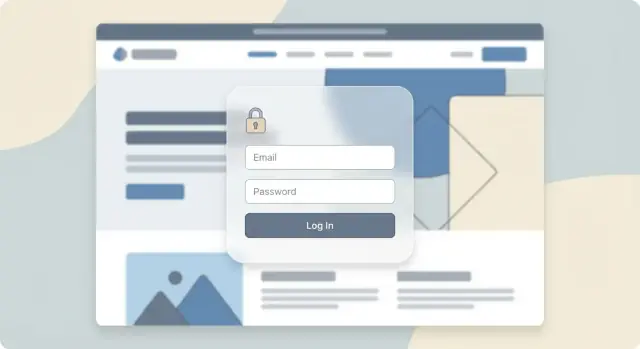
What a Members-Only Website Is (and Isn’t)
A members-only website is a site (or a section of a site) where visitors must log in to view certain pages, files, or features. Public content stays available to everyone, while “private” content is gated behind a user account and access rules.
What it is
At its core, members-only access is simply access control:
- People sign up (or are invited) and get a website login.
- You decide which content is private content and who can see it.
- Members can return anytime and get a consistent, personalized experience (instead of hunting for a shared password).
This is often simpler than complicated security setups because it relies on proven building blocks—accounts, permissions, and a clear “who can view what” structure—rather than custom workarounds.
Common ways people use it
Members-only areas show up in many practical scenarios:
- Courses and training libraries (lessons, worksheets, replays)
- Client portals (deliverables, invoices, onboarding docs)
- Communities (discussion boards, member directories, events)
- Premium blogs or newsletters (a lightweight paywall or subscriber portal)
What it isn’t
A members-only website is not a guarantee that content can’t be copied. Members can still screenshot, download, or share information. Think of it as a way to protect content by controlling access, reducing casual sharing and keeping things organized—not as “perfect anti-piracy.”
It’s also not the same as putting your entire site behind a single shared password. A real membership site ties access to individual accounts, which makes managing permissions, upgrades, and cancellations much cleaner.
Why Put Content Behind a Login
Putting content behind a login is less about “locking things down” and more about deciding who gets access, when, and why. A members-only area can turn your website from a public brochure into a controlled space for learning, collaboration, or paid value.
Protect the work you actually want to monetize
If you publish premium articles, tutorials, templates, swipe files, or downloads, a login helps you reserve the best material for members. That can support a subscription, a one-time purchase, or even a free sign-up where the “price” is an email address and ongoing engagement.
Make casual scraping harder
Public pages are easy to copy, mirror, and redistribute. Requiring a website login won’t stop a determined thief, but it does reduce anonymous access and prevents most “drive-by” scraping and indexing of private content.
Share client documents without the email chaos
A subscriber portal (or client portal) is a clean way to deliver files and updates:
- Upload proposals, reports, invoices, or recordings
- Keep everything versioned in one place
- Remove access when a project ends
That’s often safer—and easier to manage—than emailing attachments back and forth.
Create perks that feel worth joining
Content gating also lets you offer benefits that are hard to replicate on public pages: member-only Q&As, office hours, a resource library, or a “vault” of past sessions. The login becomes part of the product—clear proof there’s something extra on the other side.
Used well, access control supports trust: visitors know what’s free, members know what they’re paying for, and you stay in control of your private content.
Common Members-Only Models
Not every members-only website is a full “membership site” with a paywall and complex billing. Most successful setups fall into a few simple models, each with a clear reason for putting content behind a website login.
1) Paid memberships
This is the classic paywall approach: people pay to access private content. You might charge a monthly subscription (steady revenue) or a one-time payment (simple to manage). It works well for premium courses, expert libraries, downloadable templates, or a subscriber portal that delivers ongoing value.
A good fit when your protected content is the product.
2) Free accounts
Here, content gating is used to exchange value for an email address and basic profile—without charging. Typical examples include onboarding resources, a community space, or “members get more” articles. Free accounts can also reduce support by giving customers a single place to find guides, FAQs, and updates.
A good fit when access control supports lead generation or customer success.
3) Invite-only access
Invite-only members-only websites are common for internal teams, partners, clients, or beta users. Instead of public sign-ups, admins create accounts or send invites. This model is ideal when you need tight control over who can see private content, such as partner pricing, internal documentation, or client deliverables.
A good fit when membership is based on relationship, not marketing.
4) Tiered access
Tiering means different members see different content: basic vs pro vs enterprise. This can be done with multiple plans, user roles, or access groups. Tiered access is helpful when you want to protect content while still offering a “preview” level for new users.
A good fit when you offer multiple product levels and want the site to match them.
Key Building Blocks You’ll Need
A members-only website can be simple, but it still relies on a few core building blocks. Get these right and you’ll avoid most “why can everyone see this?” or “why can’t paying members log in?” headaches.
1) User accounts and authentication
You need a reliable way for people to identify themselves.
Email + password is the familiar default, but it adds friction (and password resets). Many sites reduce drop-off with magic links (a one-time sign-in link sent by email). If your audience is inside a company or school, SSO (single sign-on) can be even smoother—members sign in with Google/Microsoft/Okta instead of creating a new password.
Whatever you choose, make sure you can handle basics like email verification, password resets, and “log out everywhere” for compromised accounts.
2) Authorization rules (access control)
Authentication answers “who are you?” Authorization answers “what are you allowed to see?”
Plan for roles or tiers (e.g., Free, Pro, Team) and map them to pages, posts, and downloads. Good access control is explicit: if a page is protected, it should always require the right role—no exceptions.
3) Secure content delivery for files and media
Protecting a page is one thing; protecting the PDF/video behind it is another.
Use delivery methods that don’t expose a permanent, shareable URL. Common approaches include expiring links, signed URLs, or serving downloads only after a permission check. This matters most for downloadable files and hosted video.
4) Admin tools to manage members
You’ll want a clear admin area to:
- Add/remove members and reset access
- Change roles when someone upgrades/downgrades
- Revoke access immediately for refunds, cancellations, or policy issues
If you can’t answer “who has access to this right now?” in a minute, your tooling needs improvement.
Content Types You Can Protect
A members-only website isn’t just “articles behind a login.” You can protect most content you publish—so long as you’re clear on what you’re protecting (viewing, downloading, or sharing) and how strict your access needs to be.
Page-level protection for articles and documentation
The simplest option is locking individual pages. This works well for premium blog posts, client-only documentation, onboarding guides, internal SOPs, or a subscriber portal knowledge base.
Page-level rules are also useful when only a handful of items are private, or when you want to mix public and private content in the same section without restructuring your site.
Folder or category rules for whole sections
If you have a full “library” (courses, resources, templates, help docs), protecting an entire folder, category, or collection is easier to maintain. New pages added to that area inherit the same access rule, so you don’t have to remember to lock each one.
This approach is ideal for tiered memberships (e.g., Basic gets /resources, Pro gets /resources + /training).
Download protection for PDFs, ZIPs, and templates
Downloads are often the first thing people try to share, so it’s worth handling carefully. You can restrict access to:
- PDFs (guides, worksheets, reports)
- ZIPs (asset packs, project files)
- Templates (Notion/Excel files, design files)
Where possible, store files in a protected area and serve them only after login, rather than placing a public URL on a private page.
Video protection options and realistic limits
You can restrict video access by embedding videos only on members-only pages or using a video host that supports domain or token-based restrictions.
Realistic limit: if a member can watch a video, they can usually record their screen. Access control reduces casual sharing and keeps your library organized, but it can’t guarantee a video will never be copied.
Members-Only vs Password Pages vs Private Links
These three options all “hide” content, but they’re very different in how access is granted, tracked, and revoked.
1) Members-only (true user accounts)
A members-only website uses individual logins (email + password, SSO, magic links, etc.) and rules that determine who can see what.
This is the best fit when you need:
- Different access levels (free vs paid, team vs individual)
- Easy revoking (remove one person without changing anything for everyone else)
- Auditability (who accessed which page, when)
- A better experience (saved preferences, onboarding, account pages)
If your content is a subscriber portal, training library, customer resources, or a paywall, user accounts are usually the right foundation.
2) Password-protected pages (shared password)
Password protected pages are simpler: one password unlocks a page (or a section of your site). That simplicity is also the limitation.
Key trade-offs:
- The password can be forwarded to anyone
- You can’t easily tell who accessed the content
- Rotating the password is disruptive (it logs out everyone, including legitimate users)
This works for low-risk gating like a temporary press page, a short-lived campaign, or a draft you want to keep out of search results.
3) Private links (link-only sharing)
“Anyone with the link can view” is convenient—but it’s weak for sensitive content.
Why private content shouldn’t rely on link-only access:
- Links get forwarded, pasted into tickets, or saved in shared docs
- Links can appear in browser history, previews, and analytics tools
- You can’t reliably revoke access once the link spreads
Use private links for low-stakes sharing (e.g., a preview), not for real content gating.
A note on IP allowlists (internal tools)
For internal dashboards or tools used from known networks, an IP allowlist can add a useful layer: only requests from approved IP ranges can reach the content.
It’s helpful, but rarely enough on its own—remote work, mobile networks, and VPNs make IPs change. Pair it with logins whenever possible.
When you need stronger security
If you’re dealing with compliance requirements (HIPAA, SOC 2, GDPR-sensitive workflows), client contracts, or highly confidential documents, you may need more than basic access control: SSO, MFA, detailed audit logs, least-privilege roles, and formal policies.
If you’re unsure, start with accounts (not shared passwords) and add stricter controls as risk increases.
Plan Your Access Rules Before You Build
Before you pick tools or start uploading files, decide exactly who should see what, and when. Clear access rules prevent messy migrations later (and awkward “Why can’t I see this?” support emails).
Start with public vs. gated content
List your content and label each item as public, preview, or members-only.
Public content builds trust and helps people find you. Previews (a teaser video, a sample lesson, a short excerpt, a limited download) let visitors judge quality without giving everything away. Members-only content is the “real value” that requires a website login.
A simple guideline: if it helps people decide to join, keep it public or preview; if it delivers the main outcome, gate it.
Define roles/tiers and map them to areas
Even if you start with one plan, write down your future tiers now. For example:
- Free account: access to a starter library
- Standard: full course library
- Pro: courses + templates + monthly live sessions
Then map tiers to content areas (not individual pages) so it’s easier to manage. Think in sections like “Course Hub,” “Template Vault,” “Replays,” or “Community.” This turns access control into a few clear rules instead of hundreds of exceptions.
Plan the member journey end-to-end
Sketch the path a member takes:
Sign-up → welcome email → first login → onboarding checklist → first “win” → ongoing engagement → renewal.
Decide what members see on day one (a dashboard is ideal), what you’ll prompt them to do next, and how you’ll remind them to return.
Decide how cancellations and expiry work
Be explicit about edge cases:
- What happens the moment someone cancels—immediate loss of access, or access until the billing period ends?
- What does an expired member see (a paywall page, renewal offer, or limited free area)?
- Do you allow “grace periods” for failed payments?
Writing these rules down now keeps your membership site consistent and fair—and makes setup much faster later.
Step-by-Step Setup (High-Level)
Setting up a members-only website is mostly about defining who can log in and what they can see. Here’s a high-level sequence you can follow regardless of platform.
1) Enable accounts (registration or invites)
Decide how people become members:
- Self-serve signup: best for newsletters, communities, and paid plans.
- Invite-only: best for client portals or internal resources.
Make sure you collect only what you need at signup (usually name + email + password), and confirm emails if your platform supports it.
2) Create roles or tiers, then attach permissions
Most membership sites work better with simple tiers (for example: Free, Pro, Client). Create those roles first, then map access rules to them.
Protect the right assets:
- Pages: guides, course lessons, pricing calculators
- Files: PDFs, templates, slides
- Collections: knowledge base categories or resource libraries
3) Customize the key access pages
Don’t leave the default experience untouched. Update:
- Login page: clear headline and a “Forgot password” link
- Signup page: what members get + what happens next
- No-access page: explain how to gain access (upgrade, request invite, or contact support)
If you have a pricing page, link to it using a relative URL like /pricing.
4) Test with multiple accounts
Create at least three test users (one per tier). Verify:
- Each tier can see only what it should
- Logged-out visitors are redirected correctly
- Protected files can’t be accessed via old links
5) Write a simple admin checklist
Document the ongoing basics: how to add/remove members, change tiers, reset passwords, upload protected files, and what to check after publishing new content. A one-page checklist prevents most “why can’t I access this?” support emails.
6) If you need a custom portal (without a long build cycle)
If your member area needs app-like UX—dashboards, role-based libraries, onboarding checklists, file delivery, and admin workflows—you don’t always have to choose between a rigid plugin and a months-long custom build.
Platforms like Koder.ai (a vibe-coding platform) let you describe the member portal you want in chat and generate a working web app quickly—typically with a React front end and a Go + PostgreSQL backend under the hood. It can be a practical option when you want true access control and a polished subscriber portal, plus the ability to export source code and iterate fast.
User Experience Tips That Reduce Drop-Off
A members-only website can protect content, but friction during sign-up and login is where most people quit. Good UX makes content gating feel fair: visitors understand what they’ll get, and members can reach it quickly.
Keep sign-up simple
Ask for the minimum you truly need on day one—usually email + password (or even passwordless). Every extra field lowers completion rates.
If you need more details for billing or onboarding, collect them later inside the subscriber portal once the account is created.
Make gated pages self-explanatory
When someone hits a protected page, don’t show a dead end.
Add a short message that answers three questions:
- What’s inside (specific, not vague)
- Who it’s for (members, paid users, students, etc.)
- How to get access (login, start trial, join)
A simple call-to-action like “Log in” and “Create account” placed above the fold reduces confusion. If you have multiple access levels (e.g., free vs paywall), say which plan unlocks the page.
Offer easy account recovery
Forgotten passwords are a common source of support tickets on any membership site.
Provide:
- “Forgot password” on every login screen
- Email verification/resend links
- Clear error messages (e.g., “Wrong password” vs “No account found”)
If you use magic links, make the expiration time clear and provide a one-click “Send a new link” option.
Optimize for mobile members
Many users will sign up and log in on their phone. Make sure your website login, menus, and protected content work on small screens:
- Large tap targets for buttons and form fields
- Autofill-friendly inputs (email keyboard, password managers)
- Simple navigation back to the member home page (a “My account” link)
A good rule: after logging in, members should land on a clear starting point (dashboard, latest content, or library) instead of being dropped back onto a confusing marketing page.
Security Best Practices (Simple and Practical)
A members-only website doesn’t need enterprise security to be safe—but it does need a few consistent habits. The goal is to protect your content and your members’ accounts without making login feel painful.
Make login harder to abuse
Start with authentication. If your platform supports it, consider passwordless login (magic links or one-time codes). It removes the “weak reused password” problem for many people.
If you use passwords, enforce basics:
- Minimum length (12+ is a good baseline)
- Block common passwords (like “Password123”)
- Offer (or require) two-factor authentication (2FA) for admins
Also add “speed bumps” against brute-force attempts: login rate limits, temporary lockouts after repeated failures, and CAPTCHA on suspicious activity.
Use HTTPS everywhere (and keep admin access tight)
HTTPS should be on for your entire site, not only the checkout or login page. Most hosts provide free TLS certificates—turn them on and redirect all traffic to HTTPS.
For admins and staff, follow the “least access” rule:
- Give people only the permissions they need (editor vs admin matters)
- Remove old accounts immediately when roles change
- Review permissions on a schedule (monthly or quarterly)
If your platform allows it, restrict admin access by IP, device, or SSO.
Protect member areas from spam and bots
Members-only sites still get spam—especially through forms (contact, onboarding, community posts). Use form protections like reCAPTCHA/hCaptcha, email verification, and moderation queues for first-time posters.
If you run a subscriber portal with downloads, add rate limits on heavy endpoints and consider expiring download links to reduce automated scraping.
Set rules for shared accounts and suspicious activity
Decide upfront what you allow: one login per person, or team access? Put it in your terms and enforce it.
Practical signals to watch: many logins from different locations, repeated failed attempts, or unusually high downloads. When triggered, require a password reset, step-up verification, or temporary access pause.
Common Mistakes and How to Avoid Them
A members-only website can be a clean way to protect content and run a membership site, but small setup decisions often create big problems later. Here are the mistakes that most often hurt sign-ups, support load, and trust—and the fixes that keep your content gating simple.
Blocking everything with no preview or value explanation
If every page is hidden behind a website login with no context, new visitors don’t know what they’d get. Instead, publish a short “public layer”: a teaser paragraph, a table of contents, sample lessons, or a short demo. Pair it with a clear message (“This is part of the subscriber portal”) and one call-to-action.
Creating too many tiers and confusing members
More tiers rarely means more revenue—it often means more hesitation. Keep your access control structure straightforward (usually 1–3 plans). Name tiers based on outcomes (“Starter”, “Pro”) rather than vague labels, and show exactly what changes between plans. If you must add complexity later, start with add-ons rather than new tiers.
Forgetting to protect files hosted outside your site
Many people lock down pages but leave the real assets public: PDFs on a shared drive, videos with an open link, or downloads in a public folder. Audit where your private content lives and ensure those hosts support access rules, expiring links, or tokenized URLs. Otherwise, your paywall is just a signpost.
Not testing edge cases (expired members, refunds, role changes)
Most issues appear after billing events, not during launch. Test what happens when someone cancels, expires, gets refunded, upgrades, or changes role. Confirm the experience is graceful: clear messaging, easy renewal, and no accidental access to protected content.
Assuming gating prevents screenshots or re-sharing
Content gating reduces casual sharing, but it can’t stop screenshots. Set expectations in your terms, watermark sensitive downloads, and focus on making your protected content easier to use legitimately than to pirate—fresh updates, community, and searchable organization.
Measure Results and Improve Over Time
A members-only website isn’t “set it and forget it.” The simplest way to make it work long-term is to watch a few key numbers, listen to members, and make small, steady changes.
Track the metrics that tell the real story
Start with a basic funnel:
- Sign-ups: how many new accounts are created each week.
- Conversions from previews: among visitors who view a teaser/preview, how many upgrade or register.
- Churn: how many members cancel or fail to renew, and when they do it (week 1 vs month 6).
If you have multiple plans, track these per tier—otherwise averages can hide problems.
Find your “upgrade” pages
Not all gated pages are equal. Monitor which protected posts, videos, downloads, or portal pages:
- get visited most often before purchase
- are viewed by active members right before renewal
- trigger support questions or refunds
Those pages are telling you what people value—or what’s confusing. They’re prime candidates for better previews, clearer positioning, or an improved onboarding flow.
Use feedback and support as product research
Collect member feedback in lightweight ways: a short “How’s it going?” email, a 1-minute in-portal survey, and a simple tag system in your help desk (billing, access, content requests). Patterns in support requests often reveal friction faster than analytics.
Run small experiments (one change at a time)
Try controlled tweaks like:
- preview length (first 10% vs first 30%)
- pricing tiers (simpler options, clearer differences)
- onboarding emails (3-day mini-series vs single welcome email)
Record results for 2–4 weeks, then keep what works.
Revisit access rules as your library grows
As you add content, periodically review who should see what. Rules that made sense with 10 items can feel messy at 100. A quarterly check keeps your access control clear—and your member experience consistent.
FAQ
What’s the difference between a members-only website and a password-protected page?
A members-only website uses individual user accounts (email/password, magic link, or SSO) plus permission rules to decide who can view specific pages, files, or features.
A password-protected page usually uses one shared password, which is easy to forward and hard to revoke for a single person.
When does it make sense to put content behind a login?
It’s a good fit when your content or service is more valuable with controlled access, such as:
- Courses, replays, and resource libraries
- Client portals for deliverables and invoices
- Communities and member directories
- Premium articles or a subscriber portal
If you’re only hiding a temporary draft or a low-risk page, a shared password or private preview may be enough.
How do I decide what should be public vs gated?
Start by labeling everything as public, preview, or members-only.
Then define roles/tiers (even if you only have one today) and map them to sections (e.g., /resources, /training, /replays) instead of managing dozens of one-off page exceptions.
What are the most common members-only website models?
Most setups fall into four patterns:
- Paid membership: content is the product (subscription or one-time)
- Free account: gating for lead gen or customer success
- Invite-only: clients, partners, internal teams, betas
- Tiered access: different plans see different sections
Pick the model that matches how you grant access and how often it changes (upgrades, cancellations, project end dates).
What are the core building blocks I need before I build?
Plan for these fundamentals:
- Authentication: login method (password, magic link, SSO)
- Authorization: roles/tiers and clear access rules
- Secure delivery: protected downloads/media (avoid permanent shareable URLs)
- Admin tools: add/remove members, change roles, revoke access quickly
If you can’t quickly answer “who has access right now?”, improve your roles and admin workflow first.
How do I protect PDFs, ZIPs, and templates so they aren’t shareable?
Protecting the page isn’t always enough, because files can leak via direct URLs.
Practical approaches include:
- Store files in a protected area and serve them only after a permission check
- Use expiring or signed links for downloads
- Avoid embedding permanent, public file URLs on gated pages
After setup, test by logging out and trying to access the file link directly.
Can I actually protect videos from being copied?
You can reduce casual sharing, but you can’t guarantee a member won’t copy content.
For video, common options are:
- Embed videos only on members-only pages
- Use a host that supports domain restrictions or token-based access
Realistically, if someone can watch a video, they can often screen-record it—so focus on access control, organization, and ongoing value.
What are simple security best practices for a members-only site?
At minimum, use:
- HTTPS site-wide
- Email verification and reliable account recovery
- Rate limits/lockouts for repeated login failures
- 2FA for admins (and optionally members)
- Least-privilege admin roles (remove old staff access quickly)
These steps prevent most account abuse without making login feel painful.
What should I test before launching?
Test with multiple accounts (one per tier) and include edge cases:
- Logged out vs logged in behavior (redirects and messaging)
- Role upgrades/downgrades
- Cancellation timing (immediate vs end of billing period)
- Expired or refunded accounts
- Direct access to protected file URLs
Catching these early prevents the most common “I paid but can’t access” support tickets.
How do I measure whether my members-only website is working?
Track a small set of signals that connect directly to outcomes:
- Sign-ups (weekly)
- Conversion from previews to registration/paid
- Churn (and when it happens)
- Which gated pages drive upgrades, renewals, or support requests
Use what you learn to adjust previews, onboarding, and access rules—one change at a time.