

Modern App Creation 101: A No‑Code Guide for Beginners
Learn how modern apps are created—without coding. Understand the parts of an app, pick the right tools, design screens, connect data, test, and publish.
What App Creation Means (Even If You Don’t Code)
“Building an app” simply means creating a useful tool that people can open, tap, and rely on to get something done—like booking appointments, tracking inventory, managing clients, or sharing updates with a team.
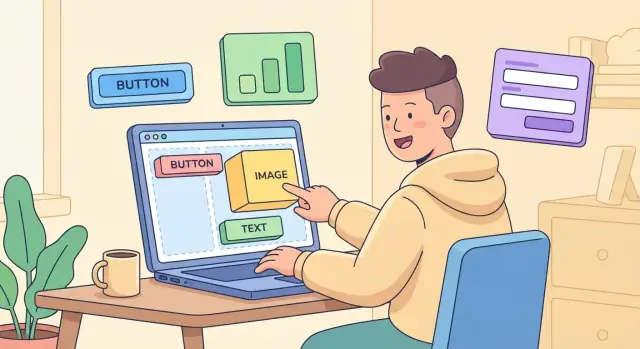
You don’t need to write code to ship a real app anymore. No‑code and low‑code tools let you assemble an app from building blocks: screens (what users see), data (what the app remembers), and rules (what happens when someone clicks a button). The trade‑off is that you still make many important decisions: what problem you’re solving, which features matter first, how your data should be organized, and how the app should behave in edge cases.
What you’ll actually do (end to end)
This guide walks through the typical path from idea to launch:
- Define a clear goal and a small first version (an MVP)
- Sketch screens and user flows before building
- Set up your data (a simple database)
- Add logic and automations (without writing code)
- Connect external services when needed (integrations/APIs)
- Test the app so it works for real users
- Choose how to launch (web, mobile, or internal tool)
Quick glossary (plain terms)
App: A set of screens and actions that helps users do a task.
Database: The organized place your app stores information (users, orders, messages).
API: A “connector” that lets your app send/receive data from another service (payments, email, calendars).
Login: The way users prove who they are so the app can show the right data.
Hosting: Where your app runs online so others can access it.
App store: Apple/Google marketplaces for distributing mobile apps (not required for every app).
If you can describe your app clearly and make thoughtful choices, you’re already doing app creation—even before the first screen is built.
The Four Parts of Most Apps: Screens, Data, Logic, Integrations
Most apps—whether you build them with no‑code tools or traditional code—are made from the same four building blocks. If you can name them, you can usually debug them.
1) Screens (the UI)
Screens are what people see and tap: forms, buttons, menus, lists, and pages. Think of screens like the “rooms” in a building—users move from one to another to get something done.
2) Data (the database)
Data is what the app stores: user profiles, tasks, bookings, messages, prices, and so on. If screens are rooms, data is the filing cabinet (or spreadsheet) behind the scenes. Even simple apps usually need a database so information doesn’t disappear when you close the app.
Frontend vs backend (in plain terms)
The frontend is the part you interact with (the screens). The backend is the part that stores and processes information (the database + logic).
A helpful analogy: the frontend is the counter at a café; the backend is the kitchen and the order system.
3) Logic (rules and automations)
Logic is the “if this, then that” behavior: show an error if a field is empty, calculate totals, send reminders, or restrict actions based on roles.
4) Integrations (other services)
Integrations connect your app to tools like email, calendars, payment providers, maps, or CRMs—so you don’t have to rebuild everything yourself.
A simple example: booking app
- Screens: Choose a service → pick a date/time → enter details → confirmation.
- Data: Services, available slots, bookings, customers.
- Logic: Prevent double‑booking, require payment for premium slots, send confirmation.
- Integrations: Google Calendar, Stripe, email/SMS.
What “state” means
“State” is what your app remembers right now—like the selected date, items in a cart, or whether a user is logged in. Some state is temporary (only for this session), and some is saved as data (so it’s still there tomorrow).
No‑Code vs Low‑Code vs Traditional Coding: Choosing Your Path
Choosing how to build your app is mostly about trade‑offs: speed vs flexibility, simplicity vs control, and short‑term cost vs long‑term options. You don’t need to pick “the best” approach—just the best fit for what you’re building right now.
Three approaches, in plain terms
No‑code means you build by clicking and configuring (drag‑and‑drop screens, forms, workflows). It’s ideal when you want to move fast.
- Pros: fastest to learn, quick prototypes and MVPs, fewer technical decisions.
- Cons: less flexibility for unusual features, performance limits on complex apps, can be harder to switch platforms later.
Low‑code mixes visual building with small bits of code (or advanced expressions). It’s a middle path when you want more control without going full engineering.
- Pros: more customization, better for complex logic, can scale further.
- Cons: steeper learning curve, you may still need a developer for tricky parts.
Traditional coding means building with programming languages and frameworks.
- Pros: maximum flexibility, best performance, full control over security and architecture.
- Cons: highest time and cost, requires engineering skills and ongoing maintenance.
A modern alternative: “vibe‑coding” with an AI build platform
In practice, there’s also a newer workflow that sits between no‑code and traditional coding: describing what you want in plain English and letting an AI system generate the app structure, screens, and backend scaffolding—while still producing real source code you can own.
For example, Koder.ai is a vibe‑coding platform where you build web, server, and mobile apps through a chat interface. It can be a good fit when you want no‑code speed but don’t want to be locked into a purely visual builder—especially if you care about exporting source code, having a real backend, and keeping a clear path to customization.
Tool categories you’ll see
Most beginner setups combine a few pieces:
- Website builders (marketing site + simple forms)
- App builders (web/mobile UI and navigation)
- Database tools (where your app’s data lives)
- Automation tools (send emails, sync data, schedule tasks)
How to choose based on your goal
If you need a prototype to validate an idea, go no‑code.
For an MVP or internal tool (dashboards, approvals, trackers), no‑code or low‑code is often enough.
For a customer‑facing app with payments, heavy traffic, strict branding, or unique features, consider low‑code now with a path to custom code later—or a platform that generates a full application stack you can evolve.
Practical constraints to check early
Budget and time matter, but also:
- Performance: complex screens and large datasets may feel slow on no‑code.
- Offline access: many no‑code tools are online‑first.
- Platform: web vs iOS/Android (and app store requirements).
- Integrations: the more services you must connect, the more low‑code/custom becomes useful.
A good rule: start simple with the least complicated tool that can still ship what you need.
Start With a Clear Goal and a Simple MVP
Before you choose a tool or design a screen, get clear on why the app should exist. Beginners often start with features (“it should have chat, profiles, payments…”), but the fastest progress comes from starting with a goal.
Common goals that make good starter apps
Most first apps succeed because they do one of these things well:
- Validate an idea: prove people actually want it (and what they’ll pay for).
- Save time: replace messy spreadsheets, repeated emails, or manual follow-ups.
- Sell a service: capture leads, take bookings, deliver a paid digital service.
- Manage a community: coordinate members, events, resources, and updates.
Define the problem and the person
A clear problem statement keeps you from building “nice to have” features.
Try filling in this sentence:
“[Target user] struggles with [problem] because [current workaround], and that causes [impact].”
Example: “Freelance photographers struggle with tracking deposits because they juggle DMs and bank transfers, causing missed payments and awkward follow-ups.”
Think MVP: the smallest version that proves value
An MVP (minimum viable product) is not a “cheap version.” It’s the smallest app that lets a real user complete the main job end-to-end. If your app can’t deliver the core outcome, extra features won’t rescue it.
To keep your MVP small, pick one primary user and one primary action (for example: “request a quote,” “book an appointment,” or “submit a task”).
A simple planning template
Use this quick template to write your first draft:
User: (who exactly?)
Goal: (what do they want to accomplish?)
Steps: 1) … 2) … 3) …
Success metric: (how will you know it works?)
If you can’t describe the steps in 3–5 lines, your MVP is probably too big. Tighten it now—it will make every later decision (screens, data, automations) much easier.
Plan Your Screens and User Flows (Before You Build)
Before you touch a no‑code tool, map what people are trying to do. Most apps feel “simple” because their main paths are clear—and everything else supports those paths.
What a user flow is (in plain English)
A user flow is the sequence of steps someone takes to complete a goal. Common flows include:
- Sign up / log in: open → create account → confirm → enter app
- Browse: home → category/list → details
- Buy: details → add to cart → checkout → confirmation
- Book: search → pick time → confirm → reminder
- Message: open chat → write → send → see reply
Pick 1–2 flows that matter most, and write them as simple “Step 1, Step 2, Step 3.” That becomes your build plan.
Sketch screens fast (paper works)
You don’t need design skills to plan screens.
Option A: Paper sketch
- Draw a phone/desktop rectangle.
- Add only the big elements: title, main list, primary button.
- Label what happens when you tap/click.
Option B: Simple wireframe tool
Use a basic wireframe app (or slides) to create boxes for sections. Keep it grey-and-boxy on purpose—this is about structure, not colors.
Prioritize the “happy path”
Build the happy path first: the most common, successful route (e.g., sign up → browse → buy). Delay edge cases like “password reset” or “what if the card fails” until the core experience works end‑to‑end.
Quick checklist: screens many apps need
Most beginner apps can start with:
- Home/Dashboard
- List/Browse (items, posts, bookings)
- Details (single item)
- Create/Edit (form)
- Profile/Account
- Settings
- Help/Support (FAQ or contact)
- Login/Sign up
If you can sketch these and connect them with arrows, you’re ready to build with far fewer surprises.
Understand Data: Your App’s Database in Plain Terms
Every app that feels “smart” is usually doing one simple thing well: remembering information in an organized way. That organized memory is your database. It stores things like users, orders, messages, tasks, and settings so your app can show the right screen to the right person at the right time.
If screens are what people see, data is what your app knows.
Tables (or Collections), Fields, and Records
Most beginner-friendly tools describe data in one of two similar ways:
- Tables (common in spreadsheet-style databases)
- Collections (common in document-style databases)
Either way, the idea is the same:
- A record (also called a row or document) is one item: one user, one task, one invoice.
- A field is one piece of information on that item: name, email, status, due date.
Example: a simple “to-do app” might have:
- Users table: id, name, email
- Tasks table: id, title, due_date, status, assigned_user_id
Relationships: How data connects
Apps usually need to connect records together.
In the example above, each task belongs to a user. That connection is a relationship. Some common patterns:
- One-to-many: one user → many tasks
- Many-to-many: many students ↔ many classes (usually done with a “join” table like Enrollments)
Good relationships help you avoid duplication. Instead of storing the user’s full name on every task, you store a link to the user record.
User accounts: profiles, roles, and permissions
If your app has logins, you’ll typically deal with:
- Profile data: details about the user (name, company, preferences)
- Roles: a label for what kind of user they are (Admin, Manager, Member)
- Permissions: what they’re allowed to view/edit/delete
A simple rule to follow: decide early which data is private, which is shared, and who “owns” each record (for example, “a task is owned by its creator” or “owned by a team”).
Common beginner mistakes to avoid
A few data issues can quietly create big headaches later:
- Storing everything as text: dates, prices, and true/false values should use proper types so sorting and filtering work.
- Missing unique IDs: every record needs a stable unique identifier so links don’t break when names change.
- Unclear ownership: if you don’t define who can see a record, you can accidentally expose other users’ data.
If you get your data structure right, the rest of app creation—screens, logic, and automation—becomes much easier.
Add Logic and Automations Without Writing Code
App “logic” is simply a set of rules: if this happens, then do that. No‑code tools let you build these rules by choosing triggers (what happened) and actions (what the app should do), often with a few conditions in between.
Think in “If This, Then That” rules
A useful way to design logic is to write rules as plain sentences first:
- If a user leaves the email field empty, then show an error message.
- If an order is marked “Paid,” then change its status to “Processing.”
- If a booking is created, then send a confirmation message.
Once your rule reads clearly in English, translating it into a visual builder is usually straightforward.
Common examples you’ll use early
Form validation: require fields, check formats (email/phone), prevent impossible values (quantity can’t be negative).
Status changes: move items through stages (New → In Review → Approved) and lock or reveal fields based on status.
Notifications: email, SMS, or in‑app alerts when something important happens (a task is assigned, a deadline is near).
Pricing rules: apply discounts, taxes, shipping tiers, or promo codes based on cart total, location, or membership level.
Workflows and automations (when to use them)
Use an automation or workflow when a rule should run every time, without someone remembering to do it—like sending reminders, creating follow‑up tasks, or updating multiple records at once.
Keep critical workflows simple at first. If a workflow has many branches, write them down as a short checklist so you can test each path.
Decide integrations upfront
Even if you connect services later, decide early what you’ll need:
Payments (Stripe/PayPal), email (Gmail/Mailchimp), maps (Google Maps), calendars (Google/Outlook).
Knowing this upfront helps you design the right data fields (like “Payment Status” or “Event Timezone”) and avoids rebuilding screens later.
Design Basics: Make It Clear, Consistent, and Usable
Good design isn’t about making your app “pretty.” It’s about helping people finish a task without thinking too hard. If users hesitate, squint, or tap the wrong thing, design is usually the reason.
The basics that matter most
Clarity: Each screen should answer “What is this?” and “What can I do here?” Use plain labels (e.g., “Save changes,” not “Submit”). Keep one primary action per screen.
Consistency: Use the same patterns everywhere. If “Add” is a plus button in one place, don’t switch to a text link elsewhere. Consistency reduces learning time.
Spacing and readable text: White space is not wasted space—it separates groups and prevents mis-taps. Use a comfortable base font size (often 14–16px for body text) and avoid long, dense paragraphs.
Common UI components (and how to use them)
Buttons should look clickable and differ from secondary actions (e.g., outline vs solid).
Inputs (text fields, dropdowns, toggles) need clear labels and helpful examples (placeholder text is not a label).
Lists and cards work well for browsing items. Use cards when each item has multiple details; use simple lists when it’s mostly one line.
Navigation bars should keep the most important destinations stable. Don’t hide core features behind multiple menus.
Accessibility essentials (beginner-friendly)
Aim for strong contrast between text and background, especially for small text.
Make tap targets big enough (at least around 44×44px) and leave space between them.
Always include labels, and write error messages that explain how to fix the issue (“Password must be 8+ characters”).
A lightweight style guide checklist
- Colors: 1 primary, 1 accent, 2–3 neutrals; define success/warning/error colors
- Typography: 1–2 fonts; consistent sizes for headings, body, captions
- Icons: one icon set; consistent stroke/filled style
- Components: button styles, input styles, card/list patterns
- Tone: friendly, direct microcopy (“You’re all set,” “Try again”)
If you define this once, every new screen becomes faster to build—and easier to test later in /blog/app-testing-checklist.
Connect to Other Services: A Gentle Intro to APIs
Most apps don’t live alone. They send receipts, take payments, store files, or sync customer lists. That’s where integrations and APIs help.
What an API is (in plain terms)
An API is a set of rules that lets one app “talk” to another. Think of it like ordering at a counter: your app asks for something (for example, “create a new customer”), the other service responds (for example, “customer created, here’s the ID”).
No‑code tools often hide the technical details, but the idea stays the same: your app sends data out and receives data back.
Common beginner integrations
A few services show up again and again:
- Stripe for payments and subscriptions
- Google Sheets for simple storage, exports, or lightweight admin workflows
- Airtable as an easy-to-edit database
- Zapier or Make to connect many apps with simple automations
- Email providers (Gmail, SendGrid, Mailchimp) for signups, notifications, and newsletters
Data syncing: pick a “source of truth”
When you connect multiple tools, decide which one is the main place your data lives (your “source of truth”). If you store the same customer in three places, duplicates and mismatched updates are almost guaranteed.
A simple rule: store core records (users, orders, appointments) in one system, and sync outward only what other tools need.
Security basics for integrations
Keep it safe and boring:
- Prefer official connectors over random scripts or copy-pasted plugins
- Give each integration the minimum access it needs (read-only vs full edit)
- Never expose secrets (API keys) in public pages or client-side settings; store them in your platform’s secure settings
Test Like a Beginner (But Catch Real Problems)
Testing isn’t about finding every bug—it’s about catching the issues that make people quit. The best approach for a first-time builder is simple: test the most common paths, on more than one device, with fresh eyes.
A simple “real life” testing checklist
Run these checks end-to-end, pretending you’re a brand-new user:
- Signup + login: can you create an account, verify email (if used), log out, and log back in?
- Forms: try valid entries, missing required fields, weird inputs (extra spaces, long text), and canceling halfway.
- Empty states: what does a user see when they have no data yet (no projects, no messages, no tasks)? Is it clear what to do next?
- Errors: intentionally break things—wrong password, expired link, invalid file upload. Do error messages explain how to fix it?
- Slow network: test on mobile data or throttled Wi‑Fi. Do spinners/loading messages appear? Does the app avoid duplicate submissions?
If you can, ask someone else to do the same checklist without guidance. Watching where they hesitate is gold.
Gather feedback without overthinking it
Start small: 5–10 people who match your audience is enough to reveal patterns.
- Short user tests: give a goal (“Create a task and share it”) and stay quiet while they try.
- Screen recordings: tools like Loom or built-in device recording help you see confusion you’d miss in written feedback.
- Tiny surveys: after they finish, ask 3 questions: What was easy? What was confusing? What would you change first?
Bug tracking basics (so fixes don’t get lost)
Even a spreadsheet works. Each bug report should include:
- Steps to reproduce (1, 2, 3…)
- Expected vs actual result
- Screenshot/video
- Priority: P0 (blocks use), P1 (painful), P2 (annoying)
Improve iteratively
Resist the urge to “fix everything” in one giant update. Release small changes, measure what improves, and repeat. You’ll learn faster—and you’ll keep the app stable while it grows.
Launch Options: Web, Mobile, or Internal App
Choosing how to launch is mostly about where people will use your app—and how much “distribution work” you want to take on.
Where your app “lives”: hosting and deployment
Your app needs a home on the internet (or inside your company network). That home is called hosting—a server that stores your app and delivers it to users.
Deployment is the act of publishing a new version to that home. In no‑code tools, deployment often looks like clicking “Publish,” but behind the scenes it’s still placing your latest screens, logic, and database connections onto a live environment.
If you’re using a full-stack build platform like Koder.ai, deployment can also include practical “ops” features that matter after launch—such as hosting, custom domains, snapshots, and rollback—so you can ship updates without worrying that one bad change will break your live app.
Option 1: A web app (share a link)
This is usually the fastest path. You publish, get a URL, and users open it in a browser on desktop or mobile. It’s great for MVPs, admin dashboards, booking forms, and customer portals. Updates are easy: deploy changes and everyone sees the latest version next time they refresh.
Option 2: A mobile app (App Store / Google Play)
Mobile stores can help with discovery and feel “official,” but they add steps:
- Store listings need icons, screenshots, an app description, and often a short preview text.
- You’ll provide privacy information (what data you collect, why, and how it’s used).
- You typically need a support email (and often a simple support page).
Expect review times to vary—from hours to days—and be ready for revisions if the reviewer asks for clearer privacy details, login instructions, or content changes.
Option 3: An internal app (for a team)
If the app is only for staff, you can launch privately: restrict access by email/domain, put it behind a login, or distribute it through internal tools (MDM, private links, or an intranet). This avoids public store reviews and keeps changes in your control, while still requiring thoughtful permissions and data access rules.
After Launch: Maintenance, Security, and Costs
Launching your app is a milestone, not the finish line. The work after release is what keeps it reliable, safe, and affordable as real people start using it.
What “maintenance” actually includes
Maintenance is the ongoing care of your app:
- Updates: fixing bugs, improving screens, and adjusting workflows as your process changes.
- Backups: making sure your data can be restored if something goes wrong (ideally automated and tested).
- User support: answering questions, handling “I can’t log in,” and collecting feedback.
- Monitoring: watching for failed automations, broken integrations, slow pages, or error spikes.
A simple habit: keep a small change log and review it weekly so you don’t lose track of what’s live.
Privacy and basic security hygiene
Even a small internal app can hold sensitive information. Start with practical basics:
- Use strong, unique passwords and turn on two-factor authentication wherever possible.
- Set up roles and permissions (admin vs editor vs viewer).
- Follow least access: give people only what they need to do their job.
- Limit who can export data, view customer details, or change integrations.
If you collect personal data, write down what you store, why you store it, and who can access it.
Cost planning (so there are no surprises)
No-code tools often charge in a few common ways: subscriptions, per-user fees, and usage-based costs (database size, automations, API calls, storage). As usage grows, costs can jump—review your pricing page monthly and track what drives usage.
If you’re comparing platforms, also check whether you can export your source code and how hosting/deployment is priced, because those factors affect your long-term flexibility.
Next steps: learn, then know when to hire help
Keep learning with your tool’s docs and community forums, and save useful guides in one place. Consider hiring help when you need a polished interface (designer), custom code/integrations (developer), or a clean build plan and security review (consultant).
For more planning tips, revisit /blog/start-with-a-simple-mvp.
FAQ
Do I really count as “building an app” if I don’t write code?
You’re still doing app creation if you can:
- Define a clear user and problem
- Describe the main steps a user takes (the “happy path”)
- Decide what data the app must remember
- Choose basic rules (validation, notifications, permissions)
No-code removes programming, not product decision-making.
What’s the simplest way to define an MVP for my first app?
Start with one primary user and one primary action that delivers value end-to-end (e.g., “book an appointment” or “submit a request”). Keep it small enough to describe in 3–5 steps and attach a success metric (time saved, bookings completed, fewer errors). If you can’t summarize it simply, the MVP is probably too big.
What are the four building blocks of most apps, and why do they matter?
Most apps are made of:
- Screens (UI): what users see and tap
- Data (database): what the app stores
- Logic: rules like “if this, then that”
- Integrations: connections to other services (email, payments, calendars)
When something breaks, asking “Is it a screen, data, logic, or integration issue?” speeds up debugging.
What is a “user flow,” and how do I map one before building?
A user flow is the step-by-step path someone takes to finish a goal. To create one quickly:
- Write the goal in one sentence.
- List the 5–8 steps a user takes (open → choose → enter info → confirm).
- Sketch only the screens needed for those steps.
Build the happy path first; add edge cases after the core flow works.
When do I need a database instead of a spreadsheet?
Use a database when you need information to persist and be searchable/filterable (users, bookings, tasks, orders). A spreadsheet can be okay for quick exports or admin workflows, but apps usually need:
- Proper data types (dates, numbers, true/false)
- Stable unique IDs
- Relationships (e.g., one user → many bookings)
Good data structure makes screens and automations much easier.
What does “state” mean in an app, and when should I store it?
State is what the app remembers right now (selected date, logged-in status, items in a cart). Some state is temporary (session-only) and some should be saved as data (so it’s there tomorrow).
A practical rule: if you want it to survive refresh/logout/device change, store it in the database; otherwise keep it as temporary state.
How do logins, roles, and permissions usually work in beginner apps?
Start by deciding:
- What data is private vs shared
- Who owns a record (creator, team, company)
- Which roles exist (Admin, Editor, Viewer)
Then enforce it with permissions so users only see/edit what they should. This prevents accidental data exposure—especially in multi-user apps.
What’s the safest way to connect integrations and avoid messy data sync?
Pick a single source of truth for core records (users, orders, appointments), then sync outward only what other tools need. This avoids duplicates and mismatched updates.
Prefer official connectors, grant minimum access (read-only when possible), and keep API keys in secure settings—never in public pages or client-side configs.
How should I test a no-code app so real users don’t get stuck?
Test the most common paths end-to-end:
- Signup/login/logout
- Forms (valid, missing fields, weird inputs)
- Empty states (no data yet)
- Error cases (wrong password, invalid upload)
- Slow network behavior
If you want a structured checklist, use /blog/app-testing-checklist and have 1–2 people try it without guidance.
Should I launch as a web app, a mobile app, or an internal tool—and what costs should I expect?
A web app is fastest: publish, share a link, and update instantly. A mobile app can feel more “official,” but adds store assets, privacy details, and review time. An internal app avoids public distribution but still needs strong permissions.
Plan ongoing costs too: subscriptions, per-user fees, and usage-based charges (automation runs, storage, API calls).