

Name Tag and Badge Print List for Fast Event Check-In
Use a name tag and badge print list to collect names early, avoid lines, and print accurate badges fast at the door with a simple, repeatable setup.
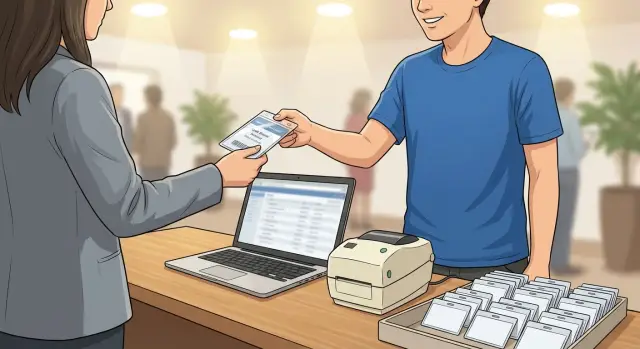
Why badge printing gets slow at the door
Badge printing rarely fails because the printer is “too slow”. It breaks down when the information feeding the printer is incomplete, inconsistent, or hard to find right as a line is forming.
The first bottleneck is missing or messy names. If someone arrives and you can’t find them on the list, staff start asking questions, checking multiple places, and guessing spelling. Each pause feels small, but it compounds when 10 people are waiting.
On-the-spot printing also drags when you don’t have a prepared print list and template. Instead of clicking print, you’re building the badge while the attendee stands there: typing a name, choosing fields, fixing capitalization, then reprinting when it looks wrong.
The same issues show up again and again: last-minute edits (“I changed companies” or “Use my nickname”), duplicate entries, hard-to-read handwriting, inconsistent formatting (ALL CAPS, extra spaces), and mixed data sources that don’t match.
Good check-in looks boring, and that’s the point. Staff should search one place, find one clear record, and print a badge that looks like every other badge.
When it’s working, you’ll notice fast lookup (by last name or email), consistent layouts, and almost no “hold on, let me fix that” moments. The table stays calm, and attendees feel the event is organized before they even walk in.
If your current list is messy, it’s worth cleaning it earlier, even if that means 30 minutes the day before. You can do it manually, or use a helper tool (for example, Koder.ai) to normalize names and spot duplicates so the door doesn’t become the cleanup step.
What a name tag and badge print list actually is
A name tag and badge print list is one file that tells you exactly what to print for each person who might show up. It’s your single source of truth for attendee details, so no one is guessing, hunting through emails, or retyping names at the door.
It usually lives as a spreadsheet or a table exported from your registration tool. Every badge is generated from the same clean set of rows, and each row contains the fields you need to confirm identity quickly and print consistently.
During a rush, the list becomes a search tool. A volunteer types a few letters, confirms they have the right person, and prints in seconds. That speed comes from removing repeated manual work: no copying names from a phone screen, no reformatting titles, and no asking people to spell their company while the line grows.
A good print list also supports handoffs. If one volunteer’s shift ends, the next person should be able to sit down and keep going without decoding someone else’s notes. That means the list stays clear, consistent, and current.
Most print lists include:
- Full name (as it should appear on the badge)
- Badge type (speaker, attendee, staff)
- Company or affiliation (optional)
- Check-in status (blank, printed, picked up)
- Notes for exceptions (pronunciation, preferred name)
Example: at a 150-person meetup, two volunteers share one laptop and printer. With a clean print list, they do three actions per person: search, confirm, print. Without it, they retype names, make spelling errors, and create mismatched badges that need reprints.
Pick the fields before you collect any names
Messy data often starts with a simple mistake: collecting registrations before you decide what you actually need.
Start with the minimum required to identify someone and help others talk to them. For most events, that’s first name, last name, and one affiliation line (company, school, or organization). Those three fields cover most use cases and keep badges readable from a few feet away.
Then add extras only if you’re confident you can collect and print them consistently. Pronouns can be helpful when handled respectfully. Role or ticket type can speed decisions (speaker, sponsor, VIP), but it can also clutter the badge.
Some fields are useful but shouldn’t be printed. Dietary notes are a good example: they help catering, but printing them can feel too personal and can also slow down scanning and quick visual checks.
Finally, add one unique identifier in the data, like a registration ID or order number. You usually won’t print it prominently, but it helps when two people share the same name.
A simple badge rule you can write down in one line:
- Print: first name (large), last name (large), company or org (smaller)
- Optional print: role or ticket type, pronouns
- Don’t print: dietary notes, phone, full email
- Keep a unique ID in the data, even if it stays off the badge
- Limit to 2-3 lines so you don’t end up with tiny fonts
If you can’t explain why a field exists, drop it. Fewer fields now means fewer fixes at the door.
Set naming rules that prevent last-minute confusion
Long check-in lines often come from tiny name problems: mixed formats, missing last names, nicknames nobody recognizes, and “+1” guests with no clear label. Decide a few rules and stick to them.
Start with one display format for everyone, like “First Last”. Don’t mix “Last, First” on some entries and initials on others. If you have attendees from cultures where family name order varies, keep the badge display consistent and store the original order in a separate field.
Preferred names are where things usually break. The clean fix is two fields: one for the registration name and one for the badge name. “Katherine Johnson” can show as “Kate Johnson” on the badge, while your back-office records still match payments and receipts.
To keep badges readable, set a few basic text rules early:
- Use Title Case for names (avoid ALL CAPS unless required)
- Allow accents and hyphens when possible
- Decide a length cutoff and a fallback for long titles
- If two people share the same name, add a small identifier like company or city
Plan your “plus one” approach too, and document it. The easiest for printing is collecting each guest as a separate person. Only print “Alex Chen +1” when you truly don’t need the guest’s name.
Example: a couple arrives and says, “I’m Sam, and this is my partner Taylor.” If your rule is separate guests, your team searches Sam, then prints Taylor’s badge from the same registration without creating a new record on the spot.
How to collect names ahead of time (without chaos)
Fast badge printing starts days earlier with one goal: get every attendee into one clean master list.
Names usually come from a signup form, a shared spreadsheet, or a ticketing export. The problem isn’t collecting names. It’s collecting them in multiple places that all keep changing.
Pick one “official” source and treat everything else as input. If you sell tickets in one system, export from there and paste into your master list. If you use a form, make that form the only way to add a name after a certain date.
Make the master list boring on purpose:
- One row per person (no merged cells)
- First name, last name, and organization (only if you’ll print it)
- A simple Status column: Not printed, Printed, Reprint needed
- A Notes column for special cases (VIP, speaker, phonetic spelling)
- An edit owner (who approved the change)
As the event gets close, lock down edits. Set a clear cutoff time, then limit editing rights to one person (or a tiny team). Everyone else submits changes in one agreed way, and the owner applies them.
Example: a 150-person meetup exports names from ticketing. Two days before, the organizer freezes the list and starts printing. Late signups still go into the same master list, but only the check-in lead can add them. If someone changes their company name onsite, the badge runner marks “Reprint needed” instead of rewriting history and losing track.
Step-by-step: prepare and print badges quickly
Fast printing starts before you touch the printer. Treat your list as the source of truth, and treat your badge template as a form that must fit the paper the same way every time.
- Clean the list. Remove duplicates, fix obvious typos, normalize spacing, and ensure every row has what you need to print. Watch for hidden issues like trailing spaces and “blank” rows that still contain a space.
- Lock the layout to your real paper size. Confirm the exact badge stock (label sheets, rolls, pre-cut inserts). Check margins, font sizes, and placement so nothing gets cut off.
- Build a print queue you can skim. For most events, sort by last name. If you have multiple arrival waves, add a simple group column and sort by group, then last name.
- Run a 10-badge test. Print a small batch, compare it to the holder, adjust alignment once, then reprint the same test until it’s right.
- Freeze the main list. Once you start printing at speed, route edits through a controlled changes process instead of editing the master file mid-run.
For changes, keep it consistent:
- One person handles edits and reprints.
- One shared note records what changed and when.
- Reprints happen in small batches every few minutes, not as constant one-offs.
Example: if someone says “My company name is wrong,” don’t stop the main print run. Mark the change, finish the current batch, then reprint in the next changes batch.
Simple template and printing setup that saves time
A good badge setup is boring on purpose. Anyone on your team should be able to click Print and get the same result every time.
Keep the template readable (and hard to break)
Start with one base layout and resist extra design. Big, clear text beats fancy graphics when people are moving.
A simple structure is:
- First name (largest)
- Last name (large)
- Company or role (medium)
- Ticket type or access note (small, optional)
- A small QR or code only if staff will actually scan it
Choose fonts that print cleanly and sizes you can read from 3-6 feet away. If you have multiple ticket types (Speaker, VIP, Staff), create one template per type so you’re not changing colors or labels at the door.
Make printer settings match before the event
Many badge delays come from mismatched settings: the laptop prints at 100%, the driver forces “Fit to page,” or the paper size is wrong.
Before doors open, confirm the basics on the exact laptop you’ll use:
- Same paper size in the template and printer driver
- Same orientation (portrait or landscape) everywhere
- One default printer selected (not “last used”)
- Print scaling set once, then left alone
Plan for reprints. Add a simple “Reprint” checkbox or a tiny footer like “R1, R2” plus a short reason (typo, lost, printer jam). That way you can fix issues fast without guessing later.
Common mistakes that create long lines
Even fast setups fall apart for simple reasons. Most delays aren’t printer speed. They’re preventable confusion: the wrong file, unclear edits, and badges that are hard to read.
A classic problem is printing from the wrong version of the list. Someone updates the spreadsheet at 8:45, but the person at the printer is still using yesterday’s export. Now you have missing names, duplicates, and a growing line while you “reprint just a few.” Treat the name tag and badge print list like a final guest list: one owner, one final file, one print source.
Another delay is skipping a real test print. A template can look perfect on screen and still print too high, too low, or slightly off-center. If you only test after doors open, you’ll waste time adjusting margins in front of attendees.
Edits at the desk also create chaos. If volunteers type names however they like, you end up with “Jon Smith,” “John Smith,” and “John S.” as three separate entries. Searches turn into guesswork.
Five mistakes that usually create the longest lines:
- Printing from an old export or the wrong tab
- Testing alignment and badge stock only after check-in starts
- Allowing free-form name edits with no rules
- Having no clear process for walk-ins, name changes, or lost badges
- Cramming badges with too much text so people squint or ask questions
The fix is deciding ahead of time what happens in messy moments. If someone says “I registered as Elizabeth, but my badge should say Liz,” your team should already know whether to reprint or handwrite a temporary badge and fix it after the rush.
Keep controls lightweight:
- One final print file and one owner
- A 10-minute test print the day before with the exact stock
- A short naming rule (preferred first name, last name, no titles)
- A separate mini-list for walk-ins and reprints
Quick checklist for the day before and the morning of
A smooth check-in starts before anyone shows up. The goal is simple: print or reprint a badge in under a minute without guessing what to do.
The day before
Rehearse with the same files and supplies you’ll use onsite, not “close enough” versions.
- Export your name tag and badge print list, save it as a final version, and keep an offline backup (laptop folder or USB).
- Run a real test print on the exact badge stock or label sheets, and check alignment and text size.
- Pack extras: ink or toner, badge stock, lanyards, and one spare cable or power adapter for the printer.
- Decide your reprint rule (typos, lost badges): who approves it and how you record it so you don’t create duplicates.
- Write the walk-in flow: what info you collect, how you add them to the list, and how you mark paid or confirmed.
If something fails in the test, fix it now. On event day, you won’t have time to troubleshoot drivers, margins, or “why is it printing blank?”
The morning of
Set up the table like a small production line: greet, find, print, hand off.
- Plug in, power on, and print one sample badge to confirm alignment.
- Open the master list and sort it the way you’ll search (usually last name, then first name).
- Keep backup supplies within arm’s reach, and keep the spare cable visible.
- Brief the team on reprint and walk-in steps, including who can take payments or confirmations.
- Do a five-minute dry run and time the full check-in from hello to badge on a lanyard.
That short practice run often removes the small bottlenecks that create the long line.
Example: a realistic check-in flow for a small event
A 250-person meetup, 2 volunteers, 1 laptop, and 1 badge printer. Doors open at 6:00. You want people inside by 6:20, not stuck in a line.
Before the event, export your name tag and badge print list to a spreadsheet and print badges in advance. Print all badges except the ones marked “pending” (missing last name, unpaid, or unclear spelling).
At the table, Volunteer A runs the main line. Volunteer B handles exceptions and walk-ins. Put the printer with Volunteer B so reprints don’t block the main flow.
Sorting that speeds up lookups
Sort the list by Last Name, then First Name. Add a helper column for “Badge Name” (what you actually print) so you’re not deciding format at the table. If you expect similar names, add Company or Team as a small line on the badge.
Stack printed badges A-Z in trays or folders (A-E, F-J, K-O, P-T, U-Z). People say their last name, you grab, hand off, done.
Handling 20 walk-ins without blocking the line
Walk-ins go to Volunteer B. Keep a small pack of blank badges and a simple intake form. Use a clear rule: if they need payment or approval, they wait in the walk-in lane.
A simple walk-in flow:
- Collect name and email and confirm badge-name spelling
- Print using a “Walk-in” badge template
- Assign a quick ID (like W-01) for your count
- Send them in and log details after the rush
For quick badge-name changes, don’t debate at the table. Confirm spelling, reprint once, and hand them the corrected badge. If the printer is busy, use a temporary sticker or marker for a few minutes, then swap it later.
Next steps: keep it simple now, improve for the next event
If your goal is a smooth line at the door, keep the setup simple. A clean spreadsheet plus a solid name tag and badge print list is often enough for small to medium events, especially if you have one check-in lane and you pre-print most badges.
You usually need a dedicated check-in app when you have multiple entrances, frequent walk-ins, lots of reprints, or staff who aren’t comfortable working in spreadsheets under pressure. The tipping point isn’t the total attendee count. It’s how many exceptions you expect in the first 30 minutes.
If you move beyond a spreadsheet, start by writing down the smallest feature set that would actually reduce lines:
- Fast search by name, email, or company
- One-click print and one-click reprint
- A reprint log (who, when, why)
- Walk-in registration that follows the same naming rules
- Export of the attendee list for backup and reporting
A lightweight custom tool can be built quickly if you keep the admin screen simple: one table, one search box, one print button, and clear statuses like Not printed, Printed, Checked in.
If you want to prototype a tool like that without a long build cycle, Koder.ai can help you describe the workflow in plain language and generate a working web app you can test with staff. If you keep iterating close to an event, features like snapshots and rollback can also help you avoid breaking check-in with last-minute changes.
For your next event, aim for one improvement at a time: reduce fields, tighten naming rules, then add automation only where it removes real bottlenecks.
FAQ
Why does badge printing slow down even with a fast printer?
A badge printer usually isn’t the real bottleneck. Lines get long when staff can’t quickly find a person in the list, the data is inconsistent, or they have to type and format names while the attendee waits.
What is a name tag and badge print list?
It’s a single, clean file that tells you exactly what to print for each attendee. The goal is that anyone working check-in can search one place, confirm the right record, and print a consistent badge in seconds.
What fields should I include on the badge and in the print list?
Start with first name, last name, and one affiliation line like company or organization if it will be printed. Add a unique identifier in the data for tie-breaks, but keep the printed badge to two or three readable lines.
How should I handle preferred names or nicknames?
Use separate fields: one for the registration name and one for the badge name. That way payments and receipts still match the legal or signup name, while the badge shows what the person wants people to call them.
How do I avoid having multiple conflicting attendee lists?
Pick one “official” master list and treat everything else as input. Export or copy changes into that master list, then set a cutoff where only one owner (or a very small team) can edit it to avoid version confusion.
What’s the fastest way to clean up a messy list before the event?
Remove duplicates, normalize capitalization and spacing, and make sure required fields aren’t blank or filled with stray spaces. Do a quick scan for obvious issues that break searching, like swapped first/last names or inconsistent company spellings.
What should I test in the badge template and printer settings before doors open?
Test print on the exact badge stock and confirm paper size, orientation, and print scaling match the template. Most “printer problems” at the door are actually alignment or driver settings that weren’t validated ahead of time.
What’s the best way to handle last-minute edits and reprints at the door?
Keep a clear process: one person approves edits, changes are noted, and reprints are done in small batches so the main line doesn’t stop. If someone wants a change during a rush, mark it and reprint after the current batch finishes.
How do I handle walk-ins without slowing down everyone else?
Create a separate walk-in flow so it doesn’t block the main line, and collect the minimum info needed to identify them later. Add walk-ins to the same master list using the same naming rules, even if you print them with a simple “Walk-in” template.
Can Koder.ai help with preparing a badge print list and reducing check-in chaos?
If you’re short on time, focus on one clean master list, consistent naming rules, and a stable template that prints correctly every time. If you need faster cleanup and duplicate spotting, a helper tool like Koder.ai can normalize names and flag issues before check-in becomes the cleanup step.