

No-Code Tools vs AI App Builders: A User-First Comparison
Compare no-code tools and AI-driven app builders from a real user viewpoint: learning curve, speed, control, cost, support, and best-fit use cases.
What We Mean by No-Code vs AI App Builders
People often use “no-code” and “AI app builder” as if they’re the same thing. They overlap, but they’re not identical—and understanding the difference helps you choose the right tool for your project.
No-code tools (plain definition)
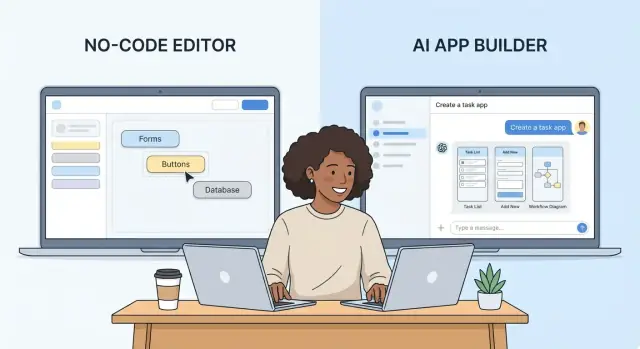
A no-code tool lets you build an app by configuring pre-made building blocks—think forms, databases, pages, workflows, and integrations—using a visual editor. You “drag and drop,” set rules, and connect data sources, but you typically decide the structure: what screens exist, what fields are in your database, what triggers an automation, and what happens next.
No-code tools usually shine when you want predictable, repeatable results—and when you’re okay learning the tool’s way of doing things.
AI-driven app builders (plain definition)
An AI app builder uses prompts (and sometimes a short interview) to generate parts of an app for you: layouts, data models, workflows, copy, and even logic. Instead of starting with a blank canvas, you start with a “draft” the AI proposes, then you refine it.
AI app builders are often best when you want to get from idea to something usable quickly, or when you don’t yet know the “right” structure and want help creating a first version.
Who this comparison is for
This article is for:
- Non-technical builders who want to create a working tool without learning programming
- Small teams (founders, ops, agencies, consultants) who need a quick way to prototype, automate, or ship an internal app
- Citizen developers who want more control than spreadsheets, but less overhead than custom software
Important: these tools aren’t all in the same category
Both “no-code” and “AI app builder” can describe very different products. Some focus on web apps, others on workflow automation, and others on internal tools (dashboards, admin panels, CRUD apps). Comparing them fairly means paying attention to what you’re trying to build—an onboarding portal and a Slack automation have very different requirements.
How we’ll evaluate them
To keep this practical, we’ll compare them through a user-first lens:
- Speed: how quickly you can get a first version working
- Control: how much you can customize without hitting a wall
- Quality over time: testing, reliability, and maintenance as the app grows
- Cost and effort: pricing limits, plus time spent learning and fixing
- Fit: which approach matches common scenarios like MVPs, automations, and client projects
How Each Approach Works (From a User’s View)
At a practical level, no-code tools and AI app builders feel different because they start from different “inputs.” No-code tools start from what you can see and place. AI app builders start from what you can describe.
Drag-and-drop vs prompting (and editing the result)
With a classic no-code tool, you typically build by dragging UI elements onto a canvas—forms, tables, buttons, charts—and then connecting them to data. Progress is incremental: you click, place, preview, adjust.
With an AI app builder, you often begin by typing a prompt like “Create a client intake app with a dashboard and email notifications.” The system generates screens, data models, and basic logic. Your work shifts to refining: editing generated screens, correcting assumptions, and prompting again for changes.
Templates, components, and integrations: where each starts strong
No-code platforms usually shine early with reusable components and templates you can browse, plus well-defined integration catalogs (Stripe, Airtable, Google Sheets, Slack, etc.). You’re guided by the tool’s “rails.”
AI app builders can jump-start structure faster—especially for common business apps—because they infer an app from your description. But you may spend time nudging the output toward your exact workflow and terminology.
Where logic lives: visual workflows vs AI-generated rules
In no-code, logic tends to live in visual workflows: “When this button is clicked → validate fields → write record → send email.” It’s explicit and inspectable.
In AI builders, logic may be generated as rules, scripts, or configurations you didn’t hand-assemble. That can be convenient, but it’s worth checking how transparent and editable the rules are.
Making changes: click-to-edit vs prompt-to-regenerate
No-code edits are usually precise: change a field label, update a condition, rearrange a layout.
AI edits can be conversational (“Add a status dropdown and filter the list view”), but may regenerate larger parts of the app. The best experience is when you can choose: prompt for broad changes, then fine-tune with direct click-to-edit controls.
Getting Started: Setup, Onboarding, and Learning Curve
Your first hour with an app builder usually decides whether you’ll stick with it. No-code tools and AI app builders can both get you to “something working” quickly—but the path feels very different.
First-hour experience: setup and onboarding
No-code tools tend to start with structure: you pick a template (CRM, booking form, inventory list), connect a database, and follow a guided checklist. The onboarding is often visual and step-based, which makes progress predictable.
AI app builders usually start with intent: you describe what you want (“a client intake portal with email reminders”), and the tool generates a draft. Onboarding often focuses on prompt examples, review screens, and iterate cycles rather than long tutorials.
Learning curve: visual concepts vs prompts
With no-code tools, the learning curve is about understanding building blocks—pages, tables, triggers, roles, and states. Once you learn the vocabulary, it transfers well across projects.
With AI app builders, the skill is writing effective prompts and spotting gaps in what was generated. You don’t need to memorize UI concepts as early, but you do need to communicate requirements clearly.
Common early mistakes (and how fixable they are)
- No-code: misconfigured permissions, broken relationships between tables, and “why didn’t this automation run?” These are fixable, but sometimes require careful checking.
- AI builders: vague prompts (“make it modern”), missing edge cases (error states, empty data), and inconsistent naming. Fixes are easier when the tool supports targeted edits (for example, “only change the approval step”).
Confidence before publishing
No-code tools often provide higher confidence because you can trace logic visually and preview each screen state.
AI app builders can feel like a quicker leap: you gain speed, but you’ll want to review generated flows, permissions, and sample data carefully before sharing with real users.
Building Your First App: Speed and Friction Points
Your first build is where expectations meet reality. Both no-code tools and AI app builders can feel “instant” at the start—but they get fast in different ways, and they get stuck in different ways.
Speed for common tasks
No-code tools are quickest when the task matches a known template: a simple landing page, a basic form, a CRUD app (create/read/update/delete records), or a straightforward workflow automation. You’re clicking through familiar building blocks, so progress is predictable.
AI app builders can be faster for the first draft: you describe what you want (“a client intake form that creates a record and emails me”) and you often get a working skeleton in minutes—UI, data model, and logic included.
The iteration loop: edit → preview → test
No-code typically has a clear loop: you change a setting, preview, test, repeat. It’s structured, but can feel slow if you’re hunting for the right panel or property.
AI builders often let you iterate in plain language (“make the form shorter,” “add a status field,” “send a Slack message too”). That can reduce menu-hunting, but it adds a step: verifying what the AI changed and whether it broke something else.
Edge cases: where friction shows up
Edge cases are where “fast” becomes “why won’t this work?” for non-technical builders:
- Validation rules (phone formats, required fields only in certain cases)
- Conditional flows (if/then branching, multi-step approvals)
- Permissions (who can view/edit which records)
No-code tools usually expose these as settings—powerful, but sometimes buried or limited. AI builders may generate the rules quickly, but you can get stuck when you need a precise exception (“everyone can edit except contractors on Fridays”) and the tool can’t express it cleanly.
When you go from fast to stuck
A useful rule of thumb: no-code gets sticky when you hit platform limits; AI gets sticky when you can’t inspect or control the logic. The best “first app” experience is the one that still lets you understand what’s happening when something behaves unexpectedly.
Control and Customization Without Writing Code
Control is where the difference between classic no-code tools and AI app builders becomes most obvious. Both promise “no coding,” but they give you very different ways to steer the final result.
UI precision: pixel control vs generated UI
Most no-code tools treat the interface like a design surface: you place components, set spacing, define states, and fine-tune responsive behavior. If you care about exact layouts (brand rules, complex forms, consistent spacing), this can feel reassuring.
AI app builders often generate screens from prompts and iterate quickly, but “quick” can also mean “approximate.” You may get a good starting point, then spend time nudging the system toward the exact interaction you pictured—especially for conditional fields, multi-step flows, or strict design systems.
Data model control: tables, relations, constraints, migrations
No-code platforms typically expose data modeling as a first-class feature: tables, relationships, required fields, unique constraints, and sometimes migration tools when you change your schema. That structure helps when an app grows beyond a prototype.
AI builders may abstract the data model behind natural language. That’s convenient until you need clarity: What are the actual tables? Are relations enforced? What happens when you rename a field or split one table into two?
Business logic clarity: can you read and reason about it later?
In no-code tools, logic is usually visible as workflows, rules, or formula-like expressions. It can still get messy, but you can inspect it.
With AI-generated logic, the risk is “mystery behavior.” If you can’t clearly see why something happens, troubleshooting becomes guesswork.
Versioning and rollback: safe changes
Before you customize heavily, check whether you can:
- See a history of changes
- Roll back to a working version
- Compare revisions
- Limit who can change core logic
These basics often matter more than any single feature once real users depend on the app.
Quality, Testing, and Maintenance Over Time
A tool can feel magical on day one and still frustrate you a month later if quality slips after small changes. The key difference between many no-code tools and an AI app builder is what stays stable when you iterate.
Reliability expectations: what can break after edits or regenerations
No-code builders tend to be predictable: if you change a form field, you can usually trace which screens, automations, or database tables will be affected. Breakages happen, but they’re often localized (a missing field, a broken filter, a failed integration step).
AI app builders can be faster to revise, but “regenerate” actions may rewrite more than you intended—layouts, data models, and logic can shift together. Quality depends heavily on whether the product supports version history, diff-style previews, and a safe way to accept or reject AI changes.
This is also where features like snapshots and rollback become practical, not “nice to have.” For example, Koder.ai includes snapshots/rollback so you can iterate quickly in a chat-driven build process while still having a safe escape hatch if a change breaks a workflow.
Testing options for non-technical users
With no-code tools, testing usually looks like:
- Previewing screens and flows
- Using sample data or a test database
- A simple staging vs production environment
AI builders sometimes add conversational testing (“Try these 5 scenarios”), or can generate test data for you. The best ones make it easy to replay scenarios after each change so you’re not manually clicking through the same path every time.
Debugging experience: error messages, logs, and guidance
When something fails, non-technical users need clarity, not mystery. In no-code tools, you’ll often get step-by-step run logs for automations (“Step 3 failed: auth expired”). In AI builders, errors may be more abstract unless the product exposes:
- Human-readable explanations
- Links to the exact workflow step or component
- Actionable fixes (reconnect account, map field, adjust permissions)
Maintenance over time: updating integrations and workflows
Maintenance is where “prototype to production” becomes real. No-code tools typically offer stable connectors and clear upgrade paths, but you may still need to reauthorize accounts, update API keys, or adjust mappings when a third-party app changes.
AI app builders can reduce maintenance by suggesting fixes (“This integration changed—update the field mapping”), but only if the underlying workflows are transparent. Look for audit trails, rollback, and dependency views so you can confidently change one part without breaking the rest.
Integrations, Data, and Collaboration
Integrations are where “can I build this?” turns into “can I run this every day?” Both no-code tools and AI app builders can connect to your stack—but they differ in how predictable and controllable those connections feel.
Connecting to the services you already use
No-code tools typically offer a menu of native connectors for common needs: email marketing, payment processors, spreadsheets, CRMs, chat tools, and calendar apps. The upside is clarity: you can see exactly what data is being pulled or pushed.
AI app builders may set up integrations from a prompt (“connect Stripe and send invoices”), which is great for speed. The trade-off is you’ll want to verify each field mapping and edge case—especially around customers, invoices, and subscriptions.
APIs and webhooks without engineering help
If a service isn’t on the connector list, APIs and webhooks are the escape hatch. Many no-code platforms provide visual API builders, webhook triggers, and scheduled jobs—often enough to integrate niche tools without writing code.
AI app builders can generate API calls and workflows quickly, but you should check whether you can:
- Edit endpoints, headers, and payloads
- Store secrets safely
- Handle retries, timeouts, and errors
Data portability and avoiding lock-in
Look for clean imports/exports (CSV, JSON) and the ability to migrate your data model. No-code tools often make exporting tables straightforward, while AI builders may hide structure behind generated “objects.” Ask: can you export both data and schema, or only data?
If you care about long-term ownership, also confirm whether you can export source code. Some AI-first platforms (including Koder.ai) support source code export, which can reduce lock-in when an internal tool becomes a customer-facing product.
Permissions and team collaboration
For teams, basics aren’t enough. Prioritize role-based access (viewer/editor/admin), approval steps for publishing changes, and audit trails. No-code platforms often have mature collaboration features; AI app builders vary widely, so confirm what’s included before you invite clients or teammates.
Security and Trust: Questions Users Should Ask
Security isn’t only an “enterprise” concern. If your app touches customer info, payment details, health data, or even internal documents, you’re responsible for how it’s handled—whether you build it with classic no-code tools or an AI app builder.
What you can realistically secure yourself
Even without coding, you can usually control a few high-impact basics:
- Access control: Who can view, edit, or administer the app? Look for roles, permissions, and audit logs.
- Data hygiene: Avoid uploading more sensitive data than needed (especially into AI prompts or file uploads).
- Privacy settings: Can you disable public sharing links, restrict domains, and enforce SSO (if available)?
No-code platforms often make permissions and data storage clearer (tables, workflows, connectors). AI app builders may add an extra layer: prompts, generated code, and chat history that can unintentionally store sensitive context.
Trust signals to look for
Before committing, check:
- Security and compliance pages: SOC 2, ISO 27001, GDPR/DPAs, data residency options.
- Documentation depth: Clear explanations of where data is stored, backups, and retention.
- Support and incident history: Response times, status page, and how they communicate outages.
Sensitive-data questions to ask vendors
Ask directly (and expect specific answers):
- Where is my data stored, and how long is it retained (including logs and backups)?
- For AI features: Is my data used to train models? Can I opt out? Are prompts/chat histories stored?
- What encryption is used at rest and in transit?
- Can I export/delete all data reliably if I leave?
If data residency matters (for example, to comply with trans-border data transfer rules), confirm whether the platform can run workloads in the geographies you require. Some platforms, like Koder.ai (running on AWS globally), position this as a first-class capability rather than an enterprise-only exception.
When to involve a technical reviewer
Bring in a security-minded reviewer before launch if you handle regulated data, need SSO/SCIM, connect to core systems (CRM/ERP), or your app will be used by external clients. A one-hour review of permissions, connectors, and data flows can prevent expensive mistakes later.
Cost Comparison: Pricing, Limits, and Total Effort
Cost is where “no-code vs AI” gets surprisingly nuanced. Two tools can look similarly priced on the homepage, yet feel very different once you’re building real workflows, inviting teammates, and pushing into production.
Typical pricing models you’ll see
No-code tools often charge per user (especially for collaboration), and sometimes per app or per environment (dev vs production). You may also see pricing tiers tied to features like advanced permissions, audit logs, or higher automation limits.
AI app builders frequently lean on usage-based pricing: credits for messages, generation, model calls, or “runs.” Some still layer in per-seat pricing for teams, but the “meter” is usually tied to how much you generate and execute.
As an example, Koder.ai uses tiered plans (free, pro, business, enterprise) and supports a chat-driven build workflow—so it’s worth estimating both team needs (collaboration/governance) and generation/iteration volume.
Limits that change the real price
The biggest budget surprises usually come from limits you only discover after a few builds:
- Connectors and integrations: Basic integrations may be included, while premium connectors (Salesforce, NetSuite, certain data warehouses) cost extra.
- Higher limits: More records, more automation runs, larger file uploads, more API calls—often gated behind higher tiers.
- Paid environments: Some platforms charge separately for additional workspaces, staging environments, or production-grade hosting.
- Add-ons: SSO, advanced security, and governance features can be separate line items.
This is the point where it’s worth checking /pricing and reading what’s actually included—especially the footnotes.
Time cost: prompt iteration vs visual configuration
Even if the subscription cost is similar, the effort cost can swing the decision.
With AI builders, you may spend time iterating prompts, correcting misunderstood requirements, and re-generating pieces that almost work. It can be fast for a first draft, but there’s a “steering” cost to getting consistent results.
With no-code tools, the time cost is usually upfront in visual configuration: setting up data structure, defining rules, building screens, and connecting automations step-by-step. It can feel slower at first, but often becomes predictable once you learn the patterns.
A practical way to budget: run a small pilot
Before committing to annual plans, set aside a small pilot budget (time + money). Build one real workflow end-to-end, include at least one integration, invite a teammate, and push it close to “production-like.” That’s the quickest way to uncover whether your costs are mostly seats, limits, or usage—and which platform keeps total effort under control.
Best-Fit Scenarios (MVPs, Automations, Client Work)
Different builders shine depending on what you’re trying to ship, who will maintain it, and how often requirements change. Below are four common scenarios and how no-code tools and an AI app builder typically feel in practice.
Solo founder building an MVP
If your goal is to validate an idea quickly, AI app builders can feel like the shortest path from “concept” to “something clickable.” You describe the product, it generates screens, data models, and basic flows, and you iterate by chatting.
No-code tools often take a bit more setup (choosing templates, wiring data, configuring logic), but they reward you with clearer structure. When the MVP becomes a real product, that structure can make future changes less confusing.
Rule of thumb: choose AI when you’re exploring fast and rewriting is acceptable; choose no-code when you already know the core workflow and want a steadier foundation.
Operations team automating workflows
Ops teams usually care about reliability, auditability, and predictable behavior. No-code workflow automation tools often feel safer here: triggers, conditions, and error handling are explicit, and teammates can read the logic later.
AI builders can be excellent for generating the first version of an automation, but the “last mile” matters: retries, edge cases, notifications, and what happens when a system changes its API.
Best fit: no-code for recurring automations with clear SLAs; AI-assisted building for quickly drafting flows that you then lock down and document.
Agency delivering client apps
Agencies need repeatability, handoff, and brand control. No-code platforms usually provide stronger knobs for consistent design systems, reusable components, and client-friendly admin experiences.
AI builders speed up early prototypes and can impress during discovery workshops (“let’s mock it up live”), but the handoff can be trickier if the project relies on lots of prompt-based iteration that’s hard to standardize across clients.
Best fit: no-code for production client work; AI builders for proposal-stage prototypes and rapid concept testing.
Internal tools for a small business
Internal apps often start simple but grow quickly—new fields, permissions, and reports appear every month. No-code tools tend to offer clearer role-based permissions, data ownership controls, and collaboration features for non-technical admins.
AI builders can still work well if the team is small and one owner maintains the tool, but you’ll want to confirm you can control access, export data, and avoid being locked into one workflow.
Best fit: no-code when multiple people administer the tool; AI builders when speed matters and a single “app owner” can manage changes.
Decision Guide: Which One Should You Choose?
Choosing between no-code tools and an AI app builder is less about “which is better” and more about what you’re building, how much control you need, and how comfortable you are with a bit of uncertainty.
Decide based on three factors
1) App type
If you’re building a fairly standard internal tool (forms, dashboards, simple workflows), no-code tools are usually predictable and stable. If you’re exploring a brand-new idea, need quick UI drafts, or want to generate screens and logic from a prompt, an AI app builder can help you move faster at the start.
2) Need for control
No-code platforms tend to provide clear, manual controls: you decide the database structure, permissions, UI components, and automations. AI app builders may produce good defaults, but you might spend time “negotiating” with the system to get a specific behavior—or discovering limitations later.
3) Tolerance for uncertainty
AI-powered development can be impressive, but it may introduce variability (outputs differ between prompts, features shift, and edge cases appear). If your project needs repeatability and strict rules from day one, lean no-code.
A 10-minute checklist
Answer these quickly:
- Do you need exact control over data model, roles, and UI states? → No-code
- Is your goal to prototype fast and validate with users this week? → AI app builder
- Will non-technical teammates maintain this monthly? → No-code (often clearer)
- Are requirements still fuzzy and changing daily? → AI app builder
- Do you need reliable integrations and audit trails now? → No-code (usually more mature)
Before you choose, write down what “done” means: users, key screens, required integrations, must-have permissions, and success metrics. Use this quick guide: /blog/requirements-checklist.
The hybrid approach (often the best move)
Many teams win by mixing both:
- Start with an AI app builder to scaffold screens, flows, and a rough data structure.
- Move into no-code controls (or more explicit configuration) to refine permissions, validations, automations, and long-term maintenance.
A practical hybrid can also mean using an AI-first “vibe-coding” platform that still gives you production-grade foundations. For instance, Koder.ai lets you build web, backend, and mobile apps through chat, with planning mode, source code export, deployment/hosting, custom domains, and snapshots/rollback—useful if you want AI speed without giving up the ability to own and evolve the underlying application.
If you’re unsure, pick the option that makes it easiest to change your mind after two weeks—because early flexibility is usually more valuable than early perfection.
Wrap-Up and Next Steps
Choosing between no-code tools and an AI app builder isn’t about “which is better.” It’s about which trade-offs you’re willing to accept for the type of app you’re trying to ship—and how confident you need to feel while building it.
The core trade-offs (quick table)
| Dimension | No-code tools | AI app builders |
|---|---|---|
| Speed to first version | Fast once you learn the UI and patterns | Often fastest for a first draft from a prompt, but iterations may vary in consistency |
| Control & customization | High within the platform’s components and rules; predictable | Can feel “magical,” but sometimes less predictable; fine control may require more back-and-forth |
| Maintenance over time | Clearer ownership of flows, data, and logic; easier to audit | Can be easier if the tool keeps things organized, but harder if changes regenerate logic in unexpected ways |
| Cost & total effort | Costs are usually tied to seats/usage/features; effort is front-loaded learning | Costs may scale with generation/usage; effort shifts to prompting, reviewing, and testing outputs |
Next steps: run a small prototype (and define “done”)
Don’t start by migrating a core business process. Pick a small, real workflow—something like a request form, a simple internal dashboard, or a lightweight CRM for a single team.
Before you build, write down success criteria in plain language:
- What does the app need to do (and not do)?
- Who will use it, and how often?
- What would make you say, “This is good enough to keep”?
What to track during trials
Run both tools (or two candidates) through the same mini-project. Track a few signals that reflect real user experience—not just hype:
- Time-to-first-version: from sign-up to a usable draft someone else can click through.
- Bug rate: count issues that block a task (broken permissions, wrong calculations, missing fields).
- User feedback: 5–10 minutes with a real user beats hours of internal debate.
If you want a simple rule: prioritize the tool that makes mistakes easier to spot and fix. That’s what keeps projects moving after the first demo.
Compare plans and commit to a short pilot
Once you have a prototype and metrics, pricing becomes clearer—because you’ll know your real usage, team size, and feature needs. You can compare plans and limits here: /pricing.
Set a short pilot window (for example, two weeks), decide whether you’re aiming for “prototype,” “internal launch,” or “client-ready,” and then pick the approach that supports that outcome with the least ongoing friction.
If you do end up sharing what you build publicly, check whether your platform offers an incentive program. For example, Koder.ai provides ways to earn credits through creating content about the platform or referring other users—handy if you’re iterating often and want to offset experimentation costs.
FAQ
What’s the simplest difference between a no-code tool and an AI app builder?
No-code tools are visual builders where you manually assemble UI, data tables, and workflows from pre-made blocks. AI app builders start from a prompt (or interview) and generate a first draft—screens, data model, and logic—which you then refine.
If you already know your structure, no-code often feels more predictable; if you want a fast draft from a fuzzy idea, AI can get you moving quicker.
Which one is usually faster to get a working first version?
Expect faster first drafts with AI app builders, especially for common business apps (intake forms, dashboards, simple automations). The trade-off is verification: you’ll spend time checking what the AI generated and correcting assumptions.
No-code can be slower at minute one, but the build loop (edit → preview → test) is usually more controlled and repeatable.
Which approach gives more control without writing code?
No-code typically gives more precise control because you directly edit components, data schema, permissions, and workflow steps.
AI builders can feel “high control” at the start (because you can ask for big changes in plain language), but you should confirm you can inspect and edit the generated rules rather than relying on repeated regeneration.
What are the most common early mistakes with each approach?
Common no-code pitfalls include:
- Misconfigured permissions/roles
- Broken table relationships
- Automations that don’t run due to a missed trigger or condition
Common AI builder pitfalls include:
- Vague prompts that produce generic UI/logic
- Missing edge cases (empty states, error handling)
- Inconsistent naming or fields that don’t match your real process
How can I tell if an AI builder’s generated logic will be debuggable later?
Look for:
- A way to view workflows/rules step-by-step
- Run logs or traceability (what ran, what failed, why)
- Human-readable errors with links to the failing step
If an AI builder can’t show you why something happened, debugging becomes guesswork—especially as your app grows.
What should I check to avoid data lock-in?
Ask these questions before you invest heavily:
- Can you export data in CSV/JSON?
- Can you export (or clearly view) the schema/data model, not just the records?
- Are integrations and field mappings visible and editable?
If structure is hidden behind “objects” the AI created, migrations and handoffs can get painful later.
Is a hybrid approach (AI + no-code) actually practical?
Not always. Many teams do well with a hybrid workflow:
- Use an AI app builder to scaffold screens, flows, and a rough data model quickly.
- Switch to no-code-style controls (or a more explicit builder mode) to refine permissions, validations, and maintenance.
The key is choosing tools that let you make targeted edits—not only regenerate large chunks.
How do pricing and limits differ between no-code platforms and AI app builders?
Start with the real pricing drivers:
- No-code often scales by seats, apps/environments, and feature tiers (permissions, audit logs).
- AI builders often add usage-based costs (credits for generation, runs, model calls).
To avoid surprises, run a small pilot and note what hits limits first: records, runs, API calls, or collaborators.
What security questions should I ask before using AI features with real customer data?
At minimum, verify:
- Role-based access control and audit logs
- Where prompts/chat history are stored (for AI features)
- Whether your data is used to train models, and if you can opt out
- Export/delete guarantees and retention windows (including backups)
If you handle sensitive data, consider a quick technical/security review before launch.
What’s the best way to decide which one to choose for my project?
Run a two-week pilot with one real workflow end-to-end (one integration, one teammate, near production-like).
Use a requirements checklist to define “done” before you start: /blog/requirements-checklist. Then compare plans once you know actual usage patterns: /pricing.