

No-Show and Late-Cancel Tracker for Fair, Calm Policies
Use a no-show and late-cancel tracker to keep clear counts per customer, apply your policy consistently, and avoid awkward back-and-forth at the desk.
Why tracking no-shows gets awkward fast
A no-show or late cancel isn’t just “one missed appointment.” It’s a time slot you can’t sell twice. You still pay staff, you lose the chance to book someone else, and the rest of the day gets harder when you’re trying to patch gaps.
The awkward part usually shows up later. A client calls to book again and you mention your fee or deposit rule. They say, “I’ve only missed once.” Your staff member remembers it differently. Now you’re debating feelings and memory instead of facts.
That’s what a no-show and late-cancel tracker is for. Not to catch people out, but to keep a clean, shared history so you can apply the same rule to everyone without guessing. When the record is clear, your team can stay calm and kind, and clients can see the standard is consistent.
Here’s a common moment: a regular arrives 15 minutes late and asks to “just do a shorter session.” The desk person wants to help, but the next client is waiting. Without a record, the decision feels personal. With a record, it’s a straightforward policy call.
Tracking should support clarity, not punishment. It helps you protect schedule time, keep decisions consistent across staff, and reduce on-the-spot negotiating.
Write the policy in simple, measurable rules
A good cancellation policy isn’t strict or soft. It’s clear. If two different staff members can read it and reach the same decision, you’ve got the right level of detail.
Start by defining the two key events in plain words.
A no-show is when the client doesn’t arrive and doesn’t contact you before the start time. A late cancel is when the client cancels too close to the appointment for you to refill the slot.
Next, choose a late-cancel window that matches reality. Many businesses pick 24 hours, but the right window is the one that reflects how long it usually takes you to book that spot again.
Be explicit about reschedules. If you allow “rescheduling” inside the late window, say whether it still counts as a late cancel. One clean rule: “If you move the appointment inside 24 hours, it counts as a late cancel unless we can fill the original slot.”
Write down a short exceptions list so staff aren’t guessing mid-conversation. Keep it narrow and specific, like sudden illness, a real emergency, or severe weather that affects travel. If you want flexibility, add a limit such as “one exception per 12 months.”
A measurable example you can copy and adjust:
- Late cancel: cancel or move within 24 hours of start time
- No-show: not here by 10 minutes after start time and no message
- Reschedule: counts as late cancel if done within 24 hours (unless the original slot is filled)
- Exceptions: sudden illness, emergency, unsafe travel conditions
When your policy is written this way, your tracker stays factual. That’s what keeps conversations calm: you’re not judging intent, you’re applying the same rules for everyone.
Decide what you will track per customer
A tracker only works if it stays simple enough that people actually use it. Start with the minimum fields that let you apply your policy consistently.
For most appointment businesses, you need:
- Customer identifier (name plus phone number is usually enough)
- Date of appointment
- Type (no-show or late cancel)
- Short note (optional)
Keep notes brief and neutral: “called 20 minutes before,” “arrived 15 minutes late, could not be seen,” or “texted after start time.” Skip opinions like “seemed careless.” Those invite arguments later.
Next, decide what counts as “one customer.” In some businesses, tracking by person is fairest. In others, households share bookings and reminders, so tracking by household or primary phone number closes loopholes. Pick one method and stick to it.
Add a time window so it feels fair. A rolling last 6 or 12 months is common: old mistakes drop off, while patterns still show up.
Finally, decide who can edit records and when. This prevents quiet changes after a dispute.
- Entries are made the same day (or within 24 hours)
- Deletions or reversals require manager approval
- If something is corrected, add a short reason instead of rewriting history
Choose a tracker format that staff will actually use
A tracker only works if it fits the way your front desk actually moves. If it takes more than a few seconds, people will skip it, and your policy will feel random later.
Pick a “home” everyone can open instantly during a busy shift. Most teams do fine with a shared spreadsheet or a consistent place inside the booking system. Paper logs can be fast but are easy to lose and hard to search.
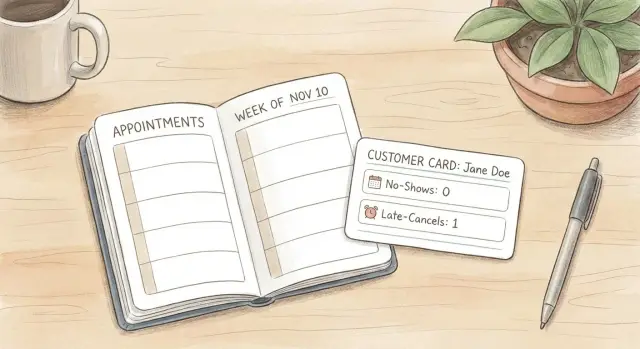
Whichever format you choose, keep one line per customer and only the fields you’ll act on. Two counters are usually enough: No-shows (count) and Late cancels (count). Add a Last incident date so you can apply your time window without guessing.
To prevent arguments later, standardize outcome labels so counts don’t drift. Keep it short: Attended, No-show, Late cancel, Cancelled (on time).
Make lookup painless. Staff should be able to find the customer in under 10 seconds while rebooking, using a name plus one backup detail (phone or email).
How to set it up step by step
Start by deciding what counts and what doesn’t. If you try to track everything, the tracker turns into a debate log.
Keep the setup small:
- Define categories and thresholds. Example: “Late cancel means within 24 hours,” and “2 late cancels in 90 days triggers a deposit.”
- Create your fields. Client name, phone or email for lookup, counts, last incident date, and a one-sentence note.
- Set the update moment. Right after the outcome is known, the person who closes out the visit updates the record in under 30 seconds.
- Use one booking script. “I’m seeing two late cancels in the last 90 days. To book this spot, we’ll need a deposit.”
- Review on a rhythm. Weekly for busy businesses, monthly for smaller teams, just to catch duplicates or missing entries.
Keep the identifier consistent. If “Sarah J.” exists twice, your counts will be wrong. Phone number is usually the cleanest.
Make the policy easy to follow before problems happen
Most no-show conflict starts before anyone misses an appointment. People forget the window, don’t know how to cancel, or hear different rules depending on who answers.
Put the key rule inside every reminder, not just on a sign at the desk. Include the exact window (for example, “please cancel at least 24 hours before”) and the one or two ways you accept cancellations (call, reply to text, or use your booking app). If you use multiple channels, copy the same wording everywhere.
When someone reaches out, give a clear choice right away: cancel, reschedule, or keep the appointment. This reduces the gray area where a client thinks they “kind of” canceled.
Train staff to avoid arguing about intent. Stick to what happened and what your policy says. A calm script helps:
- “I can help you reschedule. This counts as a late cancel because it’s inside 24 hours.”
- “We track late cancels and no-shows the same way for everyone.”
- “If you think we recorded it wrong, let’s check the date and time together.”
Apply consequences fairly without case-by-case debates
Fair enforcement starts with one rule: decide based on the record, not on memory or who the customer is.
A short escalation ladder keeps emotions out of it:
- First incident: reminder of the policy and how to avoid fees next time
- Second incident: apply the fee as written
- Third incident: require a deposit or prepay to book
- Continued incidents: limit booking options or pause scheduling
Define when counts reset so people can recover. A common option is a clean-slate reset after 6 months with no incidents. If you do this, write it down and follow it automatically, not as a favor.
When you make an exception, document it briefly so the tracker stays trustworthy. One line is enough: “Fee waived once due to verified hospital visit, policy explained, next time fee applies.”
A realistic example you can copy
A salon books 45-minute appointments. There are only a few slots per stylist each day, so a late cancel often can’t be filled.
They keep a simple tracker with two fields per customer: “Late cancels (last 90 days)” and “No-shows (last 90 days).” The policy is one sentence in the booking notes: “After 1 late cancel or 1 no-show, a deposit is required to book the next appointment.”
Timeline for one customer, Maya:
- Mar 10: Cancels 90 minutes before (counts as 1 late cancel)
- Apr 14: Doesn’t show (counts as 1 no-show)
When Maya calls to rebook, the staff member doesn’t argue or guess. They check the tracker and say: “I can book you in. I see one late cancel and one no-show in the last 90 days, so the next appointment needs a deposit. It goes toward your service.”
The same rule applies to a different customer, Jordan, who late-cancels once because of a sick child. The salon still marks it as a late cancel, but the tone stays kind and consistent: “No worries, hope they feel better. For the next booking we’ll take a deposit, and after you attend, you’re back to normal booking.”
Quick checklist for a clean, trustworthy tracker
The goal is simple: the same situation gets the same result, every time.
- Update the record the same day, every time.
- Keep the late-cancel window written in plain language and shown to customers consistently.
- Use one short staff script so nobody improvises under pressure.
- Keep exceptions rare and logged with a factual note.
- Review monthly to spot missing entries or inconsistent labels.
If the tracker is boring and consistent, it does its job. If it’s messy, it becomes a debate tool.
Common mistakes that create drama
Most conflict isn’t about the fee itself. It’s about surprise, mixed messages, and “but last time you didn’t charge me.”
Mistake 1: Everyone uses a different definition
If one person treats “late cancel” as within 24 hours, another uses “same day,” and a third decides based on vibe, you’ll get arguments. Pick one rule, write it down, and train on it.
Mistake 2: Tracking too much, so nobody updates it
If your tracker expects a story every time, updates get skipped when the day is busy. Keep it fast: date, type, and (only if needed) a short note.
Mistake 3: Memory instead of one source of truth
Relying on “I remember she did this before” creates resentment and mistakes, especially with multiple staff. Put the record in one place and make it easy to find during the conversation.
Mistake 4: Random resets (or never resetting)
If counts reset without warning, customers feel singled out. If they never reset, long-time clients feel punished forever. Pick a rule like “counts roll for 12 months” and tell people up front.
Mistake 5: Turning it into blame
When a client is upset, don’t argue about intent. Stick to facts: what happened, what the written policy says, and what happens next.
Next steps: keep it simple now, automate later
The best tracker is the one your team will still use in a month. Start with the simplest format you can maintain for 30 days, then adjust based on what actually happens at the front desk.
Before you add more tracking, reduce incidents first. Many “policy problems” are really reminder and scheduling problems. Make it easy for clients to do the right thing: clear reminder timing, one obvious way to cancel, and a short message that restates the window.
If you want a practical 30-day plan, keep it small:
- Track only three outcomes: attended, late cancel, no-show
- Keep one count per client (plus last incident date)
- Add a note only when it changes the situation (illness, emergency, clinic error)
- Review weekly to catch gaps and see whether reminders are working
If the spreadsheet starts feeling like a chore, that’s usually your signal to automate. Some teams build a tiny internal form or app that mirrors the same fields, locks down editing, and shows the next step consistently. If you go that route, a platform like Koder.ai (koder.ai) can help you create and deploy a simple tracker app from a chat-based build, while keeping the same rules you already use.
FAQ
Why should I track no-shows and late cancels at all?
Track them because memory gets messy and feels personal. A simple record gives your team one shared set of facts, so you can apply the same rule to everyone without arguing about what “really happened.”
What late-cancel window should I choose (24 hours, same day, etc.)?
A good default is 24 hours, because it’s easy to explain and common enough that clients recognize it. If your slots usually refill faster or slower, set the window to match how long it realistically takes you to rebook that time.
How do I define a no-show in a way staff can’t interpret differently?
Define it in measurable terms, not feelings. For example, “not here by 10 minutes after start time and no message” is clear, while “too late” invites debate.
Should a last-minute reschedule count as a late cancel?
Pick one rule and write it down. A simple approach is: rescheduling inside the late window still counts as a late cancel unless you can fill the original slot, so the rule stays fair and consistent.
What information should I track per customer?
Keep it minimal: a consistent customer identifier, the appointment date, the incident type (no-show or late cancel), and an optional short neutral note. If you can’t act on a field, don’t track it.
What should staff write in the notes (and what should they avoid)?
Use brief, factual notes that describe what happened without opinions. If you ever have to review it later, neutral wording keeps the conversation calm and reduces defensiveness.
How long should incidents “count” before they reset?
Use a rolling time window, like the last 6 or 12 months, so old mistakes drop off while patterns still show up. Write the reset rule down and follow it automatically, not as a special favor.
What’s the simplest tracker format that still works in a busy front desk?
Pick the fastest option your team will actually use every time, such as a shared spreadsheet or a consistent place inside your booking workflow. If it takes more than a few seconds, it won’t stay updated and the policy will feel random.
How do we enforce consequences without sounding harsh or starting an argument?
Use one short script that references the record and the policy, not the customer’s intent. For example: “I can book you in, and I’m seeing two late cancels in the last 90 days, so we’ll need a deposit for this appointment.”
When should we move from a spreadsheet to an app, and how can Koder.ai help?
Automate when updates are getting skipped, edits are hard to control, or searching takes too long during calls. If you want a small internal app that mirrors your exact fields and rules, Koder.ai can help you build and deploy one from a chat-based build, while keeping the workflow simple for staff.