

Offline-first mobile app sync rules users can understand
Offline-first mobile app sync rules that users understand: clear conflict patterns, simple status messages, and copy that reduces confusion offline.
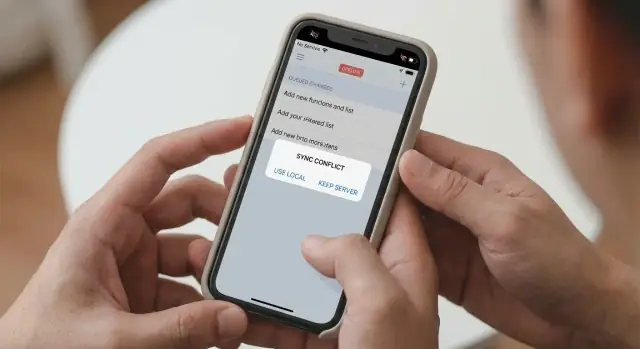
What users think should happen when they go offline
Most people don’t think about networks. They think about the task in front of them. If they can still type, tap Save, or see the change on screen, they assume it worked.
Their expectations usually boil down to a few rules:
- “If I can see my edit, it’s saved.”
- “When I get signal again, it will upload by itself.”
- “Nothing I did should disappear.”
- “My edit shouldn’t be quietly replaced by someone else’s.”
Underneath that are two fears: lost work and surprise changes.
Lost work feels like betrayal because the app let them continue. Surprise changes can feel even worse because the app looks like it “changed its mind” later.
That’s why you have to define “synced” in plain words. Synced doesn’t mean “I can see it on my phone.” It means “this change was uploaded and accepted by the server, and other devices will get it too.” Your UI should help people understand which of those states they’re in.
A common failure mode: someone edits their shipping address on the subway, sees it updated, and closes the app. Later they open it at home and the old address is back. Even if the system did something logical, the user experiences it as data loss.
Predictable rules plus clear messages prevent most of this. Short status lines like “Saved on this device” vs “Synced to your account” do a lot of work.
The basic model: saved locally, then synced later
A good offline-first approach starts with one simple promise: when you tap Save, your work is safe right now, even without internet.
What gets saved where
When a user edits something, the app should save it on the device first. That’s the version they should expect to see immediately.
Separately, the app tries to send that change to the server when it can. If the phone is offline, those edits aren’t “lost” or “half saved.” They’re simply waiting to be sent.
In the UI, avoid technical words like “queued” or “pending writes.” Prefer plain language: “We’ll send your changes when you’re back online.”
States users can understand
People feel calmer when the app clearly shows what state it’s in. You can cover most situations with a small set of states:
- Online (can sync right away)
- Offline (saved on this device)
- Reconnecting (trying to get back online)
- Syncing (sending your recent changes)
- Synced (everything is up to date)
Then add one special state when the app truly can’t finish without the user: Needs attention.
A simple visual system works well: one small icon plus one short line of text near the action that mattered (for example, at the bottom of an edit screen).
Example copy:
- “Saved on your phone. Will sync when online.”
- “Syncing changes…”
- “All changes synced.”
- “Couldn’t sync. Tap to review.”
Where conflicts come from (and why they surprise people)
A sync conflict happens when two edits are made to the same thing before the app can compare notes with the server.
Conflicts usually come from normal behavior:
- You edit on two devices (phone and tablet).
- Two people change the same shared record.
- One device stays offline for a long time and “catches up” later.
What surprises users is that they didn’t do anything wrong. They saw their edit succeed locally, so they assume it’s final. When the app later syncs, the server may reject it, combine it in an unexpected way, or replace it with someone else’s version.
Not all data carries the same risk. Some changes are easy to reconcile without drama (likes, read/unread, cached filters). Others are high-stakes (shipping addresses, prices, inventory counts, payments).
The biggest trust-breaker is the silent overwrite: the app quietly swaps a user’s offline change for a newer server value (or vice versa) with no message. People notice later, usually when it matters, and support tickets follow.
Your rules should make one thing predictable: will their change win, be combined, or require a choice?
Three conflict patterns: last-write-wins, merge, or ask
When an app saves changes offline, it eventually has to decide what to do if the same item was changed somewhere else. The goal isn’t perfection. It’s behavior users can predict.
1) Last-write-wins (LWW)
Last-write-wins means the most recent edit becomes the final version. It’s fast and simple, but it can overwrite someone else’s work.
Use it when being wrong is cheap and easy to fix, like read/unread state, sort order, or “last viewed” timestamps. If you use LWW, don’t hide the tradeoff. Clear copy helps: “Updated on this device. If a newer update exists, it may replace this one.”
2) Merge (combine changes)
Merge means the app tries to keep both sets of changes by combining them. This is a good fit when people expect edits to stack, like adding items to a list, appending messages, or editing different fields of a profile.
Keep the message calm and specific:
- “Synced. Your changes were combined with updates from another device.”
If something couldn’t be merged, say what happened in plain words:
- “We kept your phone number and the other device’s address.”
3) Ask the user (only when it matters)
Asking is the fallback when the data is important and an automatic decision could cause real harm, like payments, permissions, medical info, or legal text.
A practical rule of thumb:
- If the cost of being wrong is high, prefer Ask.
- If conflicts are common but low-risk, prefer LWW.
- If users expect both changes to survive, prefer Merge.
- If you can’t explain the outcome in one sentence, you probably need Ask.
- If support tickets would be expensive, avoid silent overwrites.
Last-write-wins: simple, fast, and easy to misunderstand
Last-write-wins (LWW) sounds straightforward: when the same field is edited in two places, the newest edit becomes the saved truth. The confusion comes from what “newest” actually means.
What “last” actually means
You need a single time source or LWW gets messy fast.
The safest option is server time: the server assigns an “updated at” when it receives each change, then the newest server timestamp wins. If you rely on device time, a phone with the wrong clock can overwrite good data.
Even with server time, LWW can surprise people because “the last change to reach the server” might not feel like “the last change I made.” A slow connection can change the order of arrival.
When LWW is a good fit (and when it hurts)
LWW works best for values where overwriting is acceptable, or where only the latest value matters: presence flags (online/offline), session settings (mute, sort order), and similar low-stakes fields.
Where LWW hurts is meaningful, carefully edited content: profile info, addresses, pricing, long text, or anything a user would hate to “disappear.” One silent overwrite can feel like data loss.
To reduce confusion, make the outcome visible and blame-free:
- “Updated to the latest version from your account.”
- “Your offline edit was replaced by a newer change made on another device.”
- “Saved offline. We’ll sync when you’re back online.”
- “Synced. This item now matches the most recent update.”
- “Having trouble syncing. Your changes are still on this device.”
Merge strategies users can live with
Merge works best when people can guess the outcome without reading a help page. The simplest approach is: combine what’s safe, interrupt only when you can’t.
Field-level merge (better than “whole record wins”)
Instead of picking one version of an entire profile, merge by field. If one device changed the phone number and another changed the address, keep both. This feels fair because users don’t lose unrelated edits.
Helpful copy when it succeeds:
- “We saved both updates. Your phone number and address were updated.”
If one field conflicts, say it plainly:
- “We couldn’t combine two different phone numbers. We kept the most recent one. You can change it anytime.”
Append-only merge (the easiest to explain)
Some data types are naturally additive: comments, chat messages, activity logs, receipts. If two devices add items while offline, you can usually keep them all. This is one of the lowest-confusion patterns because nothing gets overwritten.
Clear status message:
- “You’re offline. New messages will send when you’re back online.”
Lists: predictable rules for adds and deletes
Lists get tricky when one device deletes an item and another edits it. Pick a simple rule and say it plainly.
A common approach is: adds always sync, edits sync unless the item was deleted, and deletes win over edits (because the item is gone).
Conflict copy that prevents panic:
- “We kept both sets of changes where possible. One item was removed on another device, so your edit to that item wasn’t applied.”
When you document these choices in plain language, people stop guessing. Support tickets drop because the app’s behavior matches the message on screen.
When to ask the user: a conflict dialog that’s not scary
Most conflicts don’t need a dialog. Ask only when the app can’t pick a safe winner without risking surprise, like two people changing the same field in different ways.
Interrupt at one clear moment: right after sync completes and a conflict is detected. If a dialog pops up while the user is typing, it feels like the app is breaking their work.
Keep choices to two buttons whenever possible. “Keep mine” vs “Use theirs” is usually enough.
What the dialog should show (without raw data)
Use plain language that matches what users remember doing:
- What item had the conflict (profile, note, address)
- What changed on each side (in simple words)
- Rough timing (“a few minutes ago”), not timestamps
- What happens next after they choose
Instead of a technical diff, describe the difference like a tiny story: “You changed the phone number to 555-0142. Someone else changed it to 555-0199.”
UX copy you can reuse
Dialog title:
We found two versions
Dialog body example:
Your profile was edited on this phone while offline, and it was also updated on another device.
This phone: Phone number set to (555) 0142 Other update: Phone number set to (555) 0199
Buttons:
Keep mine
Use theirs
Confirmation after choosing:
Saved. We’ll sync your choice now.
If you need a little extra reassurance, add one calm line under the buttons:
You can change this again later in Profile.
Step-by-step: pick rules, then design the screens and copy
Start by deciding what people are allowed to do without a connection. If you let users edit everything offline, you also accept more conflicts later.
A simple starting point: drafts and notes are editable; account settings are editable with limits; sensitive actions (payments, password changes) are view-only until online.
Next, pick a conflict rule per data type, not one rule for the whole app. Notes can often merge. A profile field usually can’t. Payments shouldn’t conflict at all. This is where you define the rules in plain language.
Then map the visible states users will encounter. Keep them consistent across screens so people don’t have to relearn what they mean. For user-facing text, favor phrases like “Saved on this device” and “Waiting to sync” over internal terms.
Write the copy like you’re explaining it to a friend. If you use the word “conflict,” immediately explain it: “two different edits happened before your phone could sync.”
Test the words with non-technical users. After each screen, ask one question: “What do you think will happen next?” If they guess wrong, the copy isn’t doing its job.
Finally, add an escape hatch so mistakes aren’t permanent: undo for recent edits, version history for important records, or restore points. Platforms like Koder.ai use snapshots and rollback for the same reason: when edge cases happen, recovery builds trust.
Common mistakes that cause support tickets
Most sync support tickets come from one root problem: the app knows what’s happening, but the user doesn’t. Make the state visible and the next step obvious.
Mistake 1: Vague errors with no action
“Sync failed” is a dead end. Say what happened and what the user can do.
Better: “Couldn’t sync right now. Your changes are saved on this device. We’ll try again when you’re online.” If there is a choice, offer it: “Try again” and “Review changes waiting to sync.”
Mistake 2: Hidden waiting changes
If people can’t see their unsent updates, they assume work is gone. Give them a place to confirm what’s stored locally.
A simple approach is a small status line like “3 changes waiting to sync” that opens a short list with item names and rough times.
Mistake 3: Silent auto-resolves on important data
Auto-resolving conflicts can be fine for low-stakes fields, but it creates anger when it overwrites something meaningful (addresses, prices, approvals) without a trace.
At minimum, leave a note in activity history: “We kept the most recent version from this device” or “We combined changes.” Better: show a one-time banner after reconnection: “We updated 1 item during sync. Review.”
Mistake 4: Time and date that look wrong
Users judge fairness by time. If your “Last updated” uses server time or a different timezone, it can look like the app changed things behind their back.
Show times in the user’s local timezone, and consider friendlier phrasing like “Updated 5 minutes ago.”
Mistake 5: Treating offline like an error
Offline is normal. Avoid scary red states for everyday disconnections. Use calm language: “Working offline” and “Saved on this device.”
If someone edits a profile on the train and later sees older data on Wi-Fi, they rarely contact support when the app clearly shows “Saved locally, will sync when online” and then “Synced” or “Needs attention.” If it only shows “Sync failed,” they will.
Quick checklist: can a user predict what will happen?
If people can’t predict your sync behavior, they stop trusting the app.
Make the offline state hard to miss. A small badge in the header is often enough, but it has to appear when it matters (airplane mode, no signal, or server unreachable) and disappear quickly when the app is back online.
Then check the moment after a user taps Save. They should see instant confirmation that the change is safe locally, even if sync can’t happen yet. “Saved on this device” reduces panic and repeat tapping.
A short checklist to sanity-check your flow:
- Offline is clearly indicated and not hidden in a menu.
- Every edit confirms a local save right away.
- Users can review changes waiting to sync.
- Sync outcomes are explicit (“All changes synced” vs “Needs attention”).
- If a conflict happens, the message says what changed and what rule was used.
Also make recovery feel normal. If last-write-wins overwrites something, offer “Undo” or “Restore previous version.” If you can’t offer that, give a plain next step: “Try again when online,” plus a clear way to contact support.
A simple test: ask a friend to go offline, edit one field, then edit it again on another device. If they can explain what will happen without guessing, your rules are working.
Example scenario: two edits to the same profile while offline
Maya is on a train with no signal. She opens her profile and updates the delivery address from:
“12 Oak St, Apt 4B” to “12 Oak St, Apt 4C”.
At the top of the screen she sees: “You’re offline. Changes will sync when you’re back online.” She hits Save and keeps moving.
At the same time, her partner Alex is at home, online, and edits the same address in their shared account to: “14 Pine St”. Alex saves and it syncs immediately.
When Maya gets signal again, she sees: “Back online. Syncing your changes…” Then a toast: “Synced.” What happens next depends on your conflict rule.
How it plays out with different rules
-
Last-write-wins: Maya’s edit was made later, so the address becomes “12 Oak St, Apt 4C”. Alex is surprised because their change “disappeared.” A better follow-up message: “Synced. Your version replaced a newer update from another device.”
-
Field-level merge: If Alex changed the street and Maya changed only the apartment number, you can combine them: “14 Pine St, Apt 4C”. The toast can say: “Synced. We combined changes from another device.”
-
Ask the user: If both changed the same field (street line), show a calm prompt:
“Two updates to Delivery address”
“We found changes from another device. Nothing was lost. Choose which one to keep.”
Buttons: “Keep mine” and “Use other update”.
What the user learns is simple: syncing is predictable, and if there’s a clash, nothing was lost - they can choose.
Next steps: write your rules down and prototype the flow
If you want offline behavior users can predict, write your rules as plain sentences first. A helpful default: merge for low-risk fields (notes, tags, descriptions), but ask for high-risk data (payments, inventory counts, legal text, anything that could cost money or break trust).
Turn those rules into a small copy kit you reuse everywhere. Keep wording consistent so users learn it once.
- “Saved on this device. We’ll sync when you’re online.”
- “Working offline. Changes will send when you’re back online.”
- “Syncing now…”
- “Up to date.”
- “Couldn’t sync. We’ll retry automatically.”
- “Sync paused. Waiting for a connection.”
- “We found two different edits. Choose which version to keep.”
- “Your choice is saved. We’re syncing it now.”
Before you build the full feature, prototype the screens and the copy. You want to see the whole story: edit while offline, reconnect, sync, and what happens when there’s a clash.
A lightweight test plan that catches most confusion:
- Do an airplane mode walkthrough from login to edit to reconnect.
- Edit the same item on a second device while the first is offline.
- Reconnect and watch what changes, what stays, and what the user is told.
- Test one high-risk field that triggers an “ask.”
If you’re using Koder.ai, planning mode can help you map the offline states and draft the exact messages, then generate a quick Flutter prototype to validate the flow before committing to a full build.
FAQ
What should an offline-first app promise when I tap Save without internet?
Default to: save locally first, then sync later.
When the user taps Save, confirm immediately with copy like “Saved on this device.” Then, separately, sync to the server when a connection is available.
Why isn’t “I can see my edit” the same as “it’s synced”?
Because seeing an edit on screen only proves it’s stored on that device right now.
“Synced” should mean: the change was uploaded, accepted by the server, and will appear on other devices too.
What status states should the UI show for offline and syncing?
Keep it small and consistent:
- Online
- Offline (saved on this device)
- Reconnecting
- Syncing
- Synced
- Needs attention (only when the user must decide)
Pair one icon with one short status line near the action that mattered.
What’s good UX copy for offline saves and sync progress?
Use plain language and say what’s safe:
- “Saved on your phone. Will sync when online.”
- “Syncing changes…”
- “All changes synced.”
- “Couldn’t sync. Your changes are still on this device.”
Avoid technical terms like “queued writes” or “pending mutations.”
What actually causes sync conflicts?
A conflict happens when two different edits hit the same item before the app can sync and compare with the server.
Common causes:
- Editing on two devices
- Two people editing a shared record
- One device staying offline a long time
When is last-write-wins a good idea (and when is it risky)?
Use last-write-wins only for low-stakes values where overwriting is cheap, like:
- Read/unread
- Sort order
- Presence or “last viewed”
Avoid it for addresses, prices, long text, approvals, and anything users would feel as “lost work.”
How do you define “last” in last-write-wins without weird time bugs?
Prefer server time.
If devices decide “latest” using their own clocks, a wrong device time can overwrite correct data. With server time, “last” becomes “last received and accepted by the server,” which is at least consistent.
When should the app merge changes instead of picking a winner?
Use merge when users expect both changes to survive:
- Append-only data (messages, comments, logs)
- Different fields of the same record (field-level merge)
- Adds to lists
If a specific field can’t be merged, say exactly what you kept and why in one sentence.
When should you force a “Keep mine vs Use theirs” conflict dialog?
Ask only when being wrong is expensive (money, permissions, legal/medical info).
Keep the dialog simple:
- Two buttons: “Keep mine” / “Use theirs”
- A short description of what changed on each side
- Reassurance: “Nothing was lost. Choose which one to keep.”
How do you prevent “my edit disappeared” support tickets after reconnecting?
Make waiting changes visible.
Practical options:
- A status line like “3 changes waiting to sync”
- A small list showing item names and rough times
- A “Needs attention” state when the user must resolve something
Also add recovery when possible (undo, version history, snapshots/rollback) so mistakes aren’t permanent—tools like Koder.ai use snapshots and rollback for this reason.