

Order status timeline: UI and events that cut support load
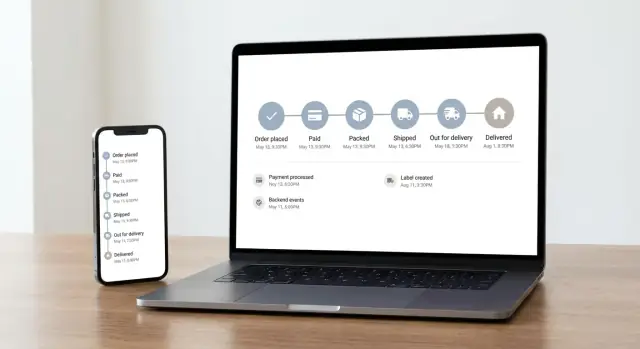
Order status timeline that explains what is happening, what is next, and when to worry, using a simple event model that keeps updates consistent.
Why unclear order status creates support tickets
Most “Where is my order?” tickets aren’t really about shipping. They’re about uncertainty. If a customer can’t tell what’s happening, they ask a human even when nothing is wrong.
The same questions show up on repeat: where the order is right now, whether it has shipped or is still being prepared, when it will arrive (and whether that date changed), whether they can cancel or change the address, and what to do when tracking hasn’t moved.
When your team answers these manually, two problems appear fast. First, it doesn’t scale. A small spike in orders can turn into a flood of tickets, and response times get worse. Second, answers drift. One agent says “it’s processing,” another says “it’s being packed,” and the customer hears conflict instead of clarity. That leads to follow-ups, which creates even more work.
The goal is simple: customers should be able to self-serve order status without guessing or needing custom replies. A good order status timeline does that by turning internal activity into a clear story the customer can follow.
Transparency doesn’t mean exposing every internal detail. It means the customer can clearly see the current state in plain language, when it changed (with a reasonable timestamp), what happens next (and what could delay it), and when it’s worth contacting you.
When customers can answer “what’s happening and what should I do?” on their own, many tickets never get created.
What customers expect from order tracking
Customers don’t check tracking because they’re curious. They check because they want answers quickly: where is my order right now, when did something last happen, and what’s supposed to happen next.
A good order tracking UI tells a story, not just a label. “Shipped” is a label. A story is: “Packed at our warehouse yesterday at 3:12 PM, picked up by the carrier, next update should be an in-transit scan.” The story reduces guesswork, so people don’t reach for support.
Three things matter most on an order status timeline:
- The current step, clearly highlighted as the single source of truth
- The last update time (with timezone if you have a global audience)
- The next expected step, plus a rough window (even if it’s wide)
Anxiety spikes when tracking feels silent or vague. The biggest triggers are long gaps with no explanation, status text that could mean anything (“Processing”), and missing delivery windows. If you can’t estimate delivery yet, say so plainly and explain what you’re waiting for, such as: “We’ll show an ETA after the carrier scans the package.”
Accuracy matters more than optimism. People forgive delays more than they forgive false promises. If your data is partial, show what you know and avoid pretending you know the rest.
A simple example: if a package sits at “Label created” for 36 hours, customers assume it’s stuck. A helpful timeline adds context: “Carrier has not scanned the parcel yet. Next update is expected after pickup. If there’s no scan by tomorrow 5 PM, we’ll investigate.” That one sentence can prevent a wave of “Where is my order?” tickets.
Designing a status timeline UI that answers questions
A good order status timeline should answer three things at a glance: where the order is now, what happened before, and what the customer should expect next. Keep it simple. If people need to read a help article to understand the timeline, it won’t reduce support tickets.
Start with a small set of customer-friendly milestones. Most stores can cover the majority of questions with a stable set like: Placed, Paid, Packed, Shipped, Delivered, plus clear endings like Canceled and Returned.
For each step, add one short line of microcopy that explains what it means and what happens next. For example: “Packed: Your items are prepared in our warehouse. Next: handed to the carrier.” This prevents the classic “Is it actually shipped?” message.
Always show timestamps, and label the source of the update so customers trust it. “Updated 14:32 by Warehouse” feels different than “Updated today.” When the source is external, say so: “Updated by Carrier.” If you don’t know the source, don’t guess.
Exceptions should be louder than normal progress. Treat them as their own visible step, or a clear badge on the relevant step, with plain language and the next action. Common ones include Delay, Address issue, and Delivery attempt failed.
A simple, reliable pattern is:
- Normal steps look neutral and become checked when complete
- The current step is clearly highlighted and includes “what happens next” text
- Exceptions use a distinct style and include an explicit action (for example, “Confirm address”)
Example: a customer sees “Shipped (Carrier) 09:10” and then “Delivery attempt failed 18:40.” If the UI also shows “Carrier could not access the building. Next attempt: tomorrow,” you avoid a back-and-forth thread.
Customer-friendly states vs internal workflow steps
Your internal workflow might include dozens of steps: picking, packing, batching labels, handing off to a carrier, retries, exceptions, and more. Customers don’t need that level of detail. They want clear answers to simple questions: “Did you get my order?”, “Has it shipped?”, “When will it arrive?”, and “Is something wrong?”
That’s why it helps to separate internal operations from customer-facing states. Keep your internal workflow as complex as it needs to be, but present a small, stable set of timeline steps that make sense outside your warehouse.
A practical approach is to add a mapping layer: many internal events roll up into a few timeline states. For example, payment authorized, fraud check passed, and inventory reserved can roll up into “Order confirmed.” Pick started, packed, and label created might appear as “Preparing.” Carrier handoff and in-transit scans become “Shipped.” An out-for-delivery scan becomes “Out for delivery,” and a delivered scan plus photo confirmation becomes “Delivered.”
This mapping layer is also your safety net. If you change your backend later (new carrier, new fulfillment center, new retry logic), your order status timeline shouldn’t jump around or suddenly sprout new steps. Customers build trust when the timeline stays consistent from order to order.
Make each customer-facing state readable and accessible. Use plain text labels first, then support them with icons and color. Color should never be the only signal. A delayed state should say “Delayed” in words. Keep contrast high, use a clear “current step” marker, and write short helper text like “We’re preparing your order (usually 1-2 days).” This reduces “what does this mean?” tickets before they start.
A simple backend event model for order updates
A good order status timeline starts with one simple idea: store events, not just the latest status. An event is a fact that happened at a specific time, like “label created” or “package delivered.” Facts don’t change later, so your timeline stays consistent.
If you only overwrite a single status field (for example, status = shipped), you lose the story. When a customer asks, “When did it ship?” or “Why did it go backwards?”, you have no clean answer. With events, you get a clear history and an audit trail you can trust.
The smallest useful event record
Keep the record small and boring. You can always add more later.
order_id: which order this event belongs toevent_type: what happened (picked_up, out_for_delivery, delivered)happened_at: when it happened (the time of the real-world action)actor: who caused it (system, warehouse, carrier, support)details: small extra data (tracking number, location, note)
When your UI renders the timeline, it sorts events by happened_at and displays them. If you later change how you label customer-facing steps, you can remap event types without rewriting history.
Idempotency (no duplicate facts)
Delivery systems often resend the same update. Idempotency means: if the same event arrives twice, it should not create two timeline entries.
The simplest approach is to give each incoming event a stable unique key (for example, a carrier event ID, or a hash of order_id + event_type + happened_at + tracking_number) and store it. If it shows up again, you ignore it.
Choosing the right events and mapping them to the timeline
An order status timeline works best when it mirrors real moments customers recognize, not your internal tasks. Start by listing the points where something truly changes for the buyer: money captured, a box exists, a carrier has it, it arrived.
Pick events from real-world moments
A small set is usually enough to answer most “Where is my order?” messages:
- Payment confirmed
- Label created
- Handed to carrier (first carrier scan if you can)
- Out for delivery
- Delivered
Keep names consistent and specific. “Packed” and “Ready” sound similar, but they mean different things to customers. Choose one meaning per event, and don’t reuse a label for a different moment.
Decide what customers can see
Not every backend event belongs in the UI. Some are for your team only (fraud review, warehouse pick started, address validation). A good rule: if showing it would create more questions than answers, keep it internal.
Map internal steps into fewer customer states. You might have five warehouse steps, but the timeline only shows “Preparing your order” until it reaches “Handed to carrier.” This keeps the UI calm and predictable.
Time matters as much as the label. Store two timestamps when you can: when the event happened, and when you recorded it. Show the occurrence time in the UI (carrier scan time, delivery confirmation time). If you only show processing time, a late import can make it look like the package went backwards.
Carrier data will be missing sometimes. Plan for it. If you never receive a “Handed to carrier” scan, fall back to “Label created” with a clear message like “Waiting for the carrier to scan the package.” Avoid inventing progress.
A concrete example: the warehouse prints a label at 10:05, but the carrier doesn’t scan until 18:40. Your backend event model should store both events, but your timeline shouldn’t imply movement during the gap. That choice alone prevents a lot of “It says shipped but hasn’t moved” tickets.
Step by step: build the timeline UI and keep it in sync
Step 1: write the customer timeline first. List 5 to 8 steps a shopper can understand (for example: Order placed, Paid, Packed, Shipped, Out for delivery, Delivered). Write the exact sentence you will show for each step. Keep it calm and specific.
Step 2: define event types and a mapping. Your systems may have dozens of internal states, but customers should see a smaller set. Create a simple mapping table like warehouse.picked -> Packed and carrier.in_transit -> Shipped.
Step 3: store events, then compute the view. Save every event as an append-only record with order_id, type, occurred_at, and optional data (like carrier code or reason). The UI should be generated from events, not from a single mutable status field.
Step 4: return a timeline-ready API. The response should be easy for the frontend: steps (with labels), the current step index, timestamps you know, and a short message.
{
  "order_id": "123",
  "current_step": 3,
  "steps": [
    {"key":"placed","label":"Order placed","at":"2026-01-09T10:11:00Z"},
    {"key":"paid","label":"Payment confirmed","at":"2026-01-09T10:12:00Z"},
    {"key":"packed","label":"Packed","at":"2026-01-09T14:40:00Z"},
    {"key":"shipped","label":"Shipped","at":null,"message":"Waiting for carrier scan"}
  ],
  "last_update_at": "2026-01-09T14:40:00Z"
}
Step 5: keep the UI fresh without being noisy. For an order status timeline, polling every 30 to 120 seconds is often enough during active shipping, and much less often when nothing has changed.
Step 6: add fallbacks for delayed data. If the carrier scan is late, show the last known update and a clear next action: “If there’s no update by tomorrow, contact support with order 123.”
A practical example: the customer sees “Packed” with a timestamp, then “Shipped: Waiting for carrier scan” until carrier.accepted arrives. No custom replies needed, just honest state.
Example scenario: a normal order with a real-world delay
A customer places an order for a hoodie. Payment is instant, but packing takes two business days. Shipping then hits a carrier delay. The customer should still feel informed without needing to ask support.
Here is the timeline the customer sees, day by day (same UI, just new entries added):
| Day and time | Status shown | Message in plain language |
|---|---|---|
| Mon 09:12 | Order placed | “We got your order. You will get updates as it moves.” |
| Mon 09:13 | Payment confirmed | “Payment approved. Next: we will prepare your package.” |
| Tue 16:40 | Preparing your order | “We are packing your items. Expected ship date: Wed.” |
| Wed 14:05 | Shipped | “Handed to carrier. Tracking will update as the carrier scans it.” |
| Thu 08:30 | In transit | “On the way. Current estimate: delivery Fri.” |
| Fri 10:10 | Delivery delayed | “The carrier reported a delay due to high volume. New estimate: Sat. No action needed right now.” |
| Sat 12:22 | Out for delivery | “With your local driver. It usually arrives today.” |
| Sat 18:05 | Delivered | “Delivered. If you cannot find it, check around your entrance and with neighbors.” |
Notice what changed on Friday: you didn’t create a brand-new flow. You added one event (for example, shipment_delayed) and mapped it to a clear customer message. The earlier steps stay the same, and the UI stays stable.
The contact option should appear only after a clear threshold, so people don’t click it just because they feel anxious. A simple rule works well: show “Contact us” if the order is 24 hours past the latest promised delivery estimate, or if the status hasn’t changed for 72 hours during “In transit.” Before that, show reassurance and the current estimate instead.
Common mistakes that make tracking worse
A good order status timeline reduces “where is my order?” messages. A bad one creates new questions because the UI and the data behind it don’t match what people actually experience.
Mistake 1: Making the timeline too detailed
If you expose every internal step, customers get lost. Fifteen micro-statuses like “picked”, “sorted”, “labeled”, “staged”, and “queued” look busy but don’t answer the two real questions: “When will it arrive?” and “Is something wrong?” Keep the public timeline to a small set of clear milestones, and keep the rest internal.
Mistake 2: Losing history and changing the past
Overwriting the current status without saving events is a fast way to create contradictions. A customer sees “Shipped,” refreshes later, and suddenly it says “Preparing” again because a retry or a manual edit happened. Store a time-stamped event history and build the current state from that history.
The most common pitfalls are easy to spot:
- Labels that sound official but mean nothing (for example, “Processing” with no explanation)
- Delivery estimates you can’t reliably meet, followed by silence when you miss them
- No clear path for cancellations, returns, or refunds, so the timeline stops mid-story
- Partial shipments shown as one shipment, which makes “Delivered” feel like a lie
- Carrier exceptions hidden or minimized, so customers learn about delays from the carrier first
Here’s why it matters. One item ships today and the second is backordered. If you only show “Shipped,” the customer expects everything. If you show “Partially shipped (1 of 2)” and keep “Delivered” tied to each package, the timeline stays believable.
Treat timeline labels as product copy, not database fields. Write them for humans, then map your internal events to those few customer-friendly steps.
Quick checklist before you ship it
Before you release your order status timeline to every customer, do a quick pass from the customer’s point of view: “If I saw this at 11pm, would I still open a support ticket?” The goal is clarity without sounding like something is wrong.
Start with time and expectation. Every order should show the last update time and hint at what typically happens next. “Last updated 2 hours ago” plus “Next: carrier pickup” reduces the feeling of being stuck.
Keep the pre-launch checklist short:
- Every order shows a clear “Last updated” time and a plain next step (even if it’s “Next: waiting for carrier scan”).
- A 48-hour gap is explained in normal language (for example: “No new carrier scans yet. This can happen between pickup and the first sorting center.”).
- Exceptions are visible and understandable. Delay, address problem, failed payment, delivery attempt, or “held at pickup point” shouldn’t be hidden behind codes.
- The current status is derived from events (payments, warehouse, carrier, delivery), not manual edits in an admin screen.
- There is one place to change how events map to timeline steps, so you don’t patch logic in three services and the UI.
After that, test a few messy orders on purpose. Pick one with a split shipment, one with a carrier that scans late, and one with a failed delivery attempt. If the timeline reads like a mystery, customers will ask humans to interpret it.
Finally, confirm your support team can see the same view the customer sees, including timestamps and exception messages. When both sides read the same story, replies get shorter, and many tickets never get written.
Next steps: roll out safely and keep improving
Start small. A minimal order status timeline that answers the top questions (Did you get my order? When will it ship? Where is it now?) beats a complicated tracker full of edge cases. Ship the core states first, then add more detail only when real customer feedback proves it helps.
Plan a careful rollout so you can learn without breaking trust. Pick a small slice of orders (for example, one warehouse, one shipping method, or one country) and watch what changes in support volume and customer behavior before you expand.
Measure what actually reduces tickets
Don’t guess. Instrument the timeline so you can see whether it’s doing its job. Compare the most common “Where is my order?” questions before and after release, and track which status screens customers view right before they contact support.
A simple starter set of metrics:
- Ticket rate per 1,000 orders (overall and by carrier)
- Top ticket reasons (before vs after)
- Status timeline views within 24 hours of ticket creation
- Time spent on the tracking page and exit rate
- Percentage of orders with missing or late events
Make exceptions consistent, not improvised
Most support load comes from exceptions: label created but no scan, weather delay, address issue, split shipment. Prepare message templates for these cases so your team gives the same answer every time. Keep them short, clear, and action-based: what happened, what you’re doing, what the customer should expect next.
If you’re prototyping the UI and the event-backed API, a vibe-coding platform like Koder.ai (koder.ai) can be a practical way to generate a first pass from a short chat, then refine the copy and mappings as you learn from real tickets.
Widen coverage in stages. Once the subset rollout shows fewer tickets (and no new confusion), expand to more order types and carriers. Keep a regular review cadence: every few weeks, scan new ticket themes and decide whether the fix is better wording, a new exception template, or a new event feeding the timeline.
FAQ
What’s the main goal of an order status timeline?
Default to a small, readable timeline that answers three questions: what’s happening now, when it last changed, and what happens next. Most tickets come from uncertainty, so the timeline should reduce guessing (for example, “Waiting for carrier scan” instead of a vague “Processing”).
Which status steps should I show to customers?
Use a stable set most shoppers understand:
- Placed
- Payment confirmed
- Preparing (or Packed)
- Shipped
- Out for delivery
- Delivered
Also include clear endings like Canceled and Returned. Keep internal steps (pick/pack/batch/retry) out of the customer view.
Do I really need timestamps on every tracking step?
Show the timestamp for each step and a clear “Last updated” time. If you sell internationally, include the timezone (or make it unambiguous). A timestamp turns “nothing is happening” into “this happened recently,” which prevents follow-ups.
How should I handle “Label created” with no carrier scan?
Treat it as its own visible exception, not normal progress. A good default message is:
- What you know: “Carrier hasn’t scanned the parcel yet.”
- What’s next: “Next update is expected after pickup.”
- When to escalate: “If there’s no scan by tomorrow 5 PM, we’ll investigate.”
Don’t imply movement you can’t prove.
How do I avoid exposing messy internal workflow steps?
Separate facts (events) from the customer timeline (states). Store detailed internal events, then map them into a few customer-friendly steps. This keeps the UI consistent even if your warehouse workflow changes.
What’s the simplest backend model to support a timeline?
Store events as append-only facts (for example: label_created, picked_up, out_for_delivery, delivered) with:
order_idevent_typehappened_atactor(system/warehouse/carrier/support)- optional
details
Then render the timeline from the event history instead of a single mutable status field.
How do I prevent duplicate tracking events from showing up?
Use idempotency. Give each incoming update a stable unique key (carrier event ID, or a hash of key fields) and ignore duplicates. This prevents repeated entries like “Out for delivery” appearing twice when a carrier resends updates.
Should I show an estimated delivery date if I’m not sure?
Show the best known estimate, and be honest about what you’re waiting for. If you don’t have an ETA yet, say so plainly (for example, “We’ll show an ETA after the first carrier scan”). Accuracy beats optimistic promises that later break trust.
How should exceptions like delays or failed delivery attempts appear in the UI?
Make exceptions obvious and action-based. Common ones:
- Delay (with new estimate, if known)
- Address issue (with “Confirm address”)
- Delivery attempt failed (with next attempt info)
Exceptions should be louder than normal progress and should tell the customer what to do, if anything.
When should the tracking page tell customers to contact support?
A practical rule is to show contact options only after a clear threshold, such as:
- 24 hours past the latest promised delivery estimate, or
- 72 hours with no change while “In transit”
Before that, show reassurance plus the last update and the next expected step to prevent anxious clicks.