

Out of the Box: What It Means in Software and What to Expect
Learn what “out of the box” really means in software, what to expect on day one, and how to compare ready-to-use tools vs custom builds.
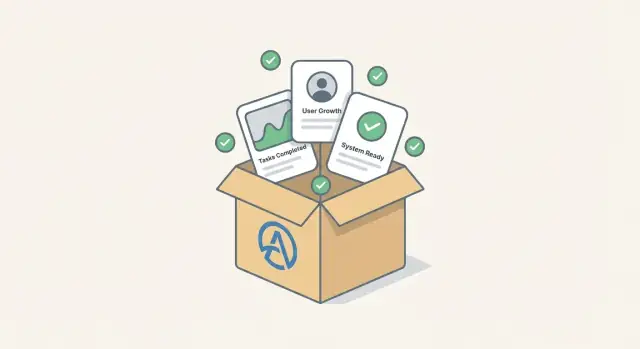
What “Out of the Box” Means
“Out of the box” in software means you can start using the product quickly with its default configuration—without needing custom development, heavy consulting, or a long implementation project.
Think of it as software that arrives with the core pieces already assembled: common workflows are prebuilt, essential settings have sensible defaults, and there’s a clear path to getting real work done on day one (or at least week one).
Why buyers care
Most teams aren’t looking for a tool that can theoretically do everything—they want one that delivers time to value. Out-of-the-box software reduces the number of early decisions you have to make, like designing processes from scratch or mapping every field and rule before anyone can log in.
That often translates into:
- Faster start and shorter implementation time
- Lower upfront cost and fewer dependencies on specialists
- A more predictable rollout because the product’s “standard way” is already tested across many customers
A realistic expectation: “out of the box” can still require setup
“Out of the box” does not always mean “no setup needed.” You may still need a basic, ready-to-use setup step such as:
- Creating users and roles
- Connecting email, calendars, or data sources
- Choosing templates, permissions, and basic policies
The key difference is that these steps are usually configuration (selecting options the software already supports), not customization (building new features or changing how the product fundamentally works).
What this article will help you evaluate
Because “out of the box” is also a marketing phrase, the rest of this guide will help you judge whether an out of the box software claim is real. You’ll learn what typical out of the box features look like, where trade-offs show up, and how to validate “plug and play tools” with a quick pilot before you commit.
Out-of-the-Box vs “No Setup Needed”
“Out of the box” usually means the product can deliver value quickly using its default configuration—not that you’ll never need to touch settings again.
“No setup needed,” on the other hand, is a much stronger claim. It suggests you can sign in and start working with zero meaningful decisions: no users to invite, no data to import, no permissions to set, no policies to confirm. That’s rare for business software.
What you can expect on day one
Out-of-the-box software typically includes three building blocks that make the first launch smoother:
- Features: the actual capabilities (e.g., task tracking, reporting, approvals)
- Templates: prebuilt starting points (e.g., project plans, intake forms, dashboards)
- Default settings: sensible presets (e.g., statuses, roles, notification rules)
This is why “out of the box” can be true even when some setup is still required.
Common misunderstandings
The biggest misconception is equating out-of-the-box with “plug-and-play forever.” In practice, most teams still do a small amount of work to match the tool to their reality—like renaming stages the way your team talks, setting access levels, or choosing which notifications matter.
Another misunderstanding is assuming out-of-the-box automatically means “best practice for our industry.” Defaults are designed to fit many teams, which can also mean they fit no team perfectly.
A realistic out-of-the-box workflow (example)
Imagine a simple customer support tool.
You can start immediately with a default workflow: New → In Progress → Waiting on Customer → Resolved. The out-of-the-box dashboard shows open tickets and average response time.
But to make it work well beyond the first day, you’ll likely still:
- Invite teammates and assign roles
- Connect an email inbox
- Define business hours for response-time metrics
- Add a couple of tags (e.g., “Billing,” “Bug”)
That’s still “out of the box”—just not “no setup needed.”
Typical Out-of-the-Box Features in Software
When a vendor says their product works “out of the box,” they usually mean you can log in and start completing common tasks without designing your own system from scratch. In practice, that shows up as a handful of prebuilt capabilities that reduce implementation time and shorten time to value.
Prebuilt templates, sample data, and guided onboarding
Many out of the box software tools include ready-made templates for the most common workflows (projects, pipelines, ticket queues, campaigns, etc.). Templates save you from the “blank page” problem—especially helpful if your team isn’t sure what the ideal structure should be yet.
You’ll often see:
- Starter templates you can copy and lightly tweak
- Sample data so dashboards and screens aren’t empty on day one
- A guided setup checklist or in-app tour (sometimes role-based)
Sensible defaults for permissions, notifications, and layouts
A true ready to use setup usually includes a default configuration that fits most teams reasonably well. That might mean:
- Standard roles (Admin, Manager, Member, Viewer)
- Default permission settings that prevent accidental oversharing
- Notification rules that aim to be useful without being noisy
- A layout that matches the most common way people work (e.g., list + detail view, or kanban + filters)
The point is simple: these defaults let you operate safely and productively before you’ve had time to tune everything.
Core integrations available immediately (email, calendar, etc.)
Out-of-the-box features often include “plug and play tools” integrations that can be enabled in minutes, not weeks. Common examples include:
- Email syncing or forwarding
- Calendar connections (e.g., Google or Microsoft)
- Single sign-on options (even if advanced SSO is a paid tier)
- Basic file storage integrations
These aren’t always deeply customizable, but they’re usually enough to connect daily work quickly.
Basic reporting and dashboards included by default
Most out of the box software ships with built-in dashboards and standard reports so you can measure activity right away. Expect basics like:
- Status/volume metrics (open vs closed, by owner, by due date)
- Simple trend charts over time
- A default dashboard for common roles
If you need highly specific KPIs, you may still face configuration vs customization decisions later—but usable reporting on day one is a strong signal the product is genuinely out of the box.
Benefits: Speed, Simplicity, and Predictable Rollout
Out-of-the-box software is appealing for one main reason: you can start seeing results quickly. Instead of spending weeks designing workflows, building integrations, and rewriting screens, you’re usually working with a proven default configuration that’s already been used by many other teams.
Faster time to first result (time-to-value)
Because the core features are already in place, you can move straight to real work: importing data, inviting users, and running a first process end-to-end. That “first win” matters—once people see the tool solving an actual problem, buy-in increases and adoption gets easier.
Lower implementation effort and fewer project risks
Heavy implementations tend to fail in predictable ways: unclear requirements, constant scope changes, and long feedback loops. Out-of-the-box tools reduce those risks by limiting the number of decisions you have to make up front. You’re not inventing a new system; you’re selecting and configuring one that’s already coherent.
Easier training with standard flows
Standard screens and workflows often come with built-in guidance, templates, and vendor documentation. Training becomes more about “here’s how our team will use it” and less about “here’s how we built it.” That can shorten onboarding time for new hires and reduce reliance on internal experts.
More predictable costs
When a product works well with minimal custom work, budgeting is simpler. You’re paying for licenses and a defined setup effort rather than open-ended development, testing, and maintenance. Even if you later add integrations or tweaks, you can do it step-by-step instead of funding a large project before you see any value.
Limitations and Trade-Offs to Watch For
Out-of-the-box software can get you moving quickly, but the “default way” of working is also a constraint. The biggest trade-off is between standard flows that work for many teams and your unique requirements that may not fit neatly.
Standard flows vs. the way you actually work
Most out-of-the-box tools assume common processes: a typical sales pipeline, a basic approval loop, a simple support queue. If your team has unusual handoffs, specialized terminology, or strict rules about who can do what, you may spend time adapting your process to the tool—not the other way around.
The “almost fits” trap (and the rise of workarounds)
When a product is close but not quite right, people often create workarounds: extra spreadsheets, duplicate records, manual steps, or “we’ll remember to do it later” habits. These fixes can erase time-to-value and make reporting unreliable because the system no longer reflects reality.
A good warning sign: if you’re changing your process in ways that increase manual effort just to match the software, you’re trading short-term speed for long-term friction.
Hidden limits you should test early
Some constraints aren’t obvious in the demo. Confirm practical ceilings like:
- User tiers and role/permission depth (can you truly restrict sensitive data?)
- Automation limits (number of workflows, triggers, run frequency)
- Reporting depth (custom fields, multi-step funnels, cross-team dashboards)
- Integration boundaries (one-way sync vs two-way, delays, API access)
How to spot when customization will be necessary
Customization is likely if you need unique data relationships, complex approval logic, regulated audit trails, or a very specific customer experience. If those requirements are core (not “nice to have”), plan for configuration plus add-ons—or consider alternatives before committing.
Configuration vs Customization: A Practical Difference
“Out of the box” often hinges on one practical question: can you get what you need by configuring the product, or do you have to customize it?
Configuration: using what’s already built
Configuration means adjusting the software’s existing options without changing the product itself. It’s usually done through admin screens and can often be reversed.
Common configuration examples include:
- Settings (notifications, approval steps, SLAs, routing rules)
- Fields (adding a “Customer Tier” dropdown, making a field required)
- Roles and permissions (who can view, edit, export)
- Templates (email templates, document layouts, standard reports)
If a vendor says their tool is “ready to use,” they typically mean you can reach a useful default configuration quickly—and then tweak it safely.
Customization: changing the product to fit you
Customization means building something new that isn’t part of the standard product. This can be valuable, but it’s rarely “plug and play.”
Typical customization examples:
- Custom code (scripts, plugins, custom workflows beyond built-in rules)
- Bespoke integrations (one-off connectors, complex data mapping, unusual sync logic)
- Unique UI (custom screens, heavily modified forms, branded portals with special behavior)
Questions to ask vendors (and get in writing)
To evaluate “out of the box software” claims, ask:
- “Which requirements are met with default configuration only?”
- “What would require custom code or a paid professional services package?”
- “What integrations are standard, and what counts as a bespoke integration?”
- “If we customize, what happens during upgrades—does it break or require rework?”
Maintenance and upgrades: the hidden cost
Configuration generally survives updates and keeps implementation time and ongoing effort low. Customization can increase testing, documentation, and upgrade coordination—slowing time to value and making future changes more expensive.
A good rule: start with configuration for the first rollout. Customize only after you’ve proven the out of the box features cover 80–90% of your real needs.
A Simple Checklist to Evaluate “Out of the Box” Claims
“Out of the box” can mean anything from “it opens” to “you can run a real workflow on day one.” The fastest way to cut through marketing is to test the product against your specific process, not a generic tour.
1) Start with your real work
Before talking to vendors, write down what “ready to use” must cover for you.
- List your must-have workflows and edge cases
Include the awkward parts: exceptions, approvals, handoffs, and reporting needs. If it doesn’t handle these, it’s not truly out of the box for your team.
2) Demand proof, not promises
Ask to see the product doing your job, end to end.
- Ask for a live demo using your real scenario
Provide a short script (3–5 steps) and a sample dataset. Watch for how often the presenter says, “We’d configure that later” or “We can customize it.” Those are fine answers—just not “out of the box.”
3) Validate you can actually operate it
Many tools look great in a demo but fall apart in real administration.
- Check admin controls: roles, approvals, audit history
Confirm you can restrict access, enforce approvals, and review who changed what and when—without buying add-ons or writing code.
4) Confirm data freedom and connectivity
A tool isn’t “ready” if your data gets stuck or integrations are unclear.
- Verify data import/export and integration options
Check supported formats, API availability, and whether common integrations are native, paid, or require a partner. Also ask how long a typical import takes and what breaks (duplicates, missing fields, historical data).
If the product passes these four checks with minimal “later” items, it’s much closer to a true out-of-the-box fit.
Security and Compliance: What to Confirm Early
“Out of the box” can be a big time-saver, but security and compliance are areas where defaults can surprise you. Before anyone starts inviting users or importing real data, take a short pass through the essentials and get clear answers from the vendor.
Security basics to verify
Start with how people sign in and what they can do once inside.
- SSO (single sign-on): Is SSO supported (SAML/OIDC)? Is it included in your plan or a paid add-on? Can you enforce it for all users?
- Access controls: Are roles permission-based (e.g., “view/export/admin”) or just broad labels? Can you restrict sensitive actions like exports, deletions, and billing changes?
- Audit logs: Are audit logs available, searchable, and exportable? What events are recorded (logins, permission changes, data exports)? How long are logs retained?
Compliance: confirm, don’t assume
If you have requirements like SOC 2, ISO 27001, HIPAA, or GDPR, ask for evidence and boundaries.
- Request the latest reports/certifications and confirm they cover the exact product you’re buying.
- Ask where data is stored and processed (regions), and whether you can choose a region.
- Clarify who is the data controller vs processor, and what agreements are available (e.g., DPA).
Data ownership, backups, and portability
Ask directly:
- Who owns the data, and what happens to it after cancellation?
- How do backups work (frequency, retention, restore process), and is disaster recovery documented?
- Can you export all data in common formats, including attachments and audit logs?
Review defaults before going live
Treat default settings as a starting point, not a final decision. Confirm password policies, MFA enforcement, sharing links, external collaboration, retention rules, and any “public by default” options—then document the choices so rollout stays consistent.
How to Run a Quick Pilot in 1–2 Weeks
A quick pilot is the fastest way to validate whether “out of the box software” is truly ready to use in your environment. The goal isn’t perfection—it’s to confirm implementation time, early time to value, and where the default configuration breaks down.
Week 0 (Prep): Pick a narrow, real use case
Choose a small team and one real project that reflects daily work (not a demo scenario). Define a single “first outcome” you can point to—e.g., publishing a report, closing a ticket queue, launching an email campaign, or onboarding five users.
Keep scope tight: one workflow, one data source, and a limited set of roles.
If you’re unsure what the “right” workflow should look like, it can also help to prototype the process quickly before you evaluate vendors. For example, a vibe-coding platform like Koder.ai can generate a lightweight internal app from a chat prompt (web, backend, or mobile) so you can validate screens, roles, and approvals with real users—then decide whether to buy a packaged tool or continue building.
Week 1: Install, onboard, and measure
Track three numbers from the start:
- Setup time: from sign-up to the first working workspace (including integrations)
- Training time: how long before users can complete the core task unaided
- First outcome time: how quickly you reach the agreed outcome
During onboarding, note any “hidden setup” steps that contradict a ready-to-use claim (permissions, data mapping, security settings, templates).
Week 2: Capture friction, then decide what to change
Collect feedback in short daily notes or a 20-minute debrief:
- Where did people get stuck?
- What felt confusing in the out of the box features?
- What was missing vs. simply not configured?
Then decide what to configure now vs later. Prioritize changes that remove blockers for the core workflow, and defer nice-to-haves. If you need heavy customization to get basic value, that’s a signal the tool may not be truly plug and play.
Buy vs Build: When Out-of-the-Box Wins
Choosing between buying out-of-the-box software and building your own isn’t a philosophical debate—it’s usually a question of time, team capacity, and how unusual your requirements really are.
When you should buy
Out-of-the-box wins when your needs are common across many organizations and the software already supports them with sensible defaults. This is especially true if you:
- Need results quickly (a short implementation time and faster time to value)
- Have a small team that can’t own a long development and maintenance cycle
- Want a predictable rollout with fewer moving parts than a custom build
Typical examples: basic CRM, ticketing, HR onboarding, project tracking, standard reporting, or “good enough” approval workflows.
When you should build
Building is usually justified when the business process is genuinely unique and creates competitive advantage—or when default configuration would force constant workarounds. Building also makes sense if you have strong development resources and product ownership to keep it healthy over time.
Good signals for build: highly specialized workflows, strict performance needs, unusual data model requirements, or heavy integration logic that off-the-shelf tools can’t handle cleanly.
A practical hybrid approach
Many teams start with out-of-the-box software to get a working baseline, then extend later where it matters. The key is to avoid heavy customization too early; choose a tool that supports configuration first, and offers clear extension points (APIs, webhooks, apps) when you’re ready.
There’s also a middle path when you need custom behavior but can’t afford a long build cycle: accelerate the “build” side so it behaves more like out-of-the-box. Koder.ai is designed for this scenario—teams can describe the app in a chat interface, generate a React web app with a Go + PostgreSQL backend (and Flutter for mobile when needed), and iterate with features like planning mode, snapshots, and rollback. That can reduce implementation time while still giving you source code export and full control over the end product.
Cost categories to compare (beyond license vs dev)
Compare buy vs build across: time (implementation and ongoing), support burden, upgrades and vendor changes, and risk (security, continuity, key-person dependency). A “cheaper” build can become expensive if it slows delivery or ties you to constant maintenance.
Making Out-of-the-Box Work Well for Your Team
Out-of-the-box software delivers the most value when your team aligns around a shared way of working. The goal isn’t to force everyone into the tool’s defaults—it’s to agree on a “standard” approach that the default configuration can support with minimal tweaks.
Choose one standard way to work (and write it down)
Decide a standard process and document it. Keep it practical: what happens first, who owns each step, and what “done” means. A one-page workflow doc beats a complicated playbook that nobody reads.
Make consistency easy with conventions
Use naming conventions for fields, tags, and workflows. This prevents the slow drift into messy data (e.g., five versions of the same status). Define a short list of rules like:
- How to name projects and accounts
- Which tags are allowed (and what they mean)
- When to use a custom field vs. a note
Consistency also improves reporting—because you can trust that everyone is labeling work the same way.
Add a lightweight change process
Create a lightweight change process for new requests. Out-of-the-box tools can turn chaotic when every suggestion becomes a new field, automation, or pipeline.
A simple approach: one intake form, a weekly 15-minute review, and a clear decision rule (“Does this help 80% of users?”). Track approved changes in a short changelog so people know what’s new.
Support adoption with minimal enablement
Plan onboarding materials and a short internal FAQ. Focus on the top tasks people must do in week one. Include screenshots, common mistakes, and examples of “good” entries.
If you already have internal docs, link them from a single starting page (e.g., /handbook/tooling) so help is easy to find.
Next Steps and Decision Guide
If you’re close to choosing an out-of-the-box software option, focus on reducing surprises. “Ready to use” should mean predictable day-one value—not hidden work that shows up after you sign.
What to verify before you commit
Start by writing a one-page requirements list (must-haves, nice-to-haves, and deal-breakers). Then validate each item against the product, not the marketing page.
A quick final check:
- Core workflows: Can you complete your top 3 tasks using the default configuration (or with simple settings changes)?
- Data and integrations: How will you import/export data, and which integrations are included vs paid add-ons?
- Roles and permissions: Can you restrict access the way your team actually works?
- Reporting: Are the standard reports enough for weekly/monthly decisions?
- Support and onboarding: What’s included (docs, live support, implementation help), and what costs extra?
Demo, pilot, then decision
Ask for a demo that follows your real process end-to-end. After that, run a short pilot with a small group and real data so you can measure time-to-value and adoption.
When you compare options, don’t just compare features—compare the plan that includes what you need (users, integrations, permissions, support). Use /pricing to line up costs with your requirements list.
Make the “yes” actionable
Once you’ve chosen a tool, immediately turn your notes into a simple rollout plan: who’s involved, what gets configured, what training is needed, and what success looks like after week one. For step-by-step guidance and setup checklists, go to /docs.
FAQ
What does “out of the box” mean in software?
It means you can get meaningful value quickly using the product’s default configuration—without custom development or a long implementation project. You’ll usually still do light setup (users, roles, integrations), but the core workflows, templates, and defaults are already usable.
Is “out of the box” the same as “no setup needed”?
Not always. “Out of the box” typically implies minimal configuration, while “no setup needed” implies zero meaningful decisions (no permissions, no data import, no policies to confirm). For most business tools, truly “no setup” is rare.
What are typical out-of-the-box features I should look for?
Expect:
- Prebuilt workflows/features for common jobs (tracking, approvals, reporting)
- Templates to avoid starting from a blank page
- Sensible defaults for roles, notifications, and layouts
- Basic dashboards/reports that work on day one
- Native integrations you can enable quickly (email/calendar/SSO depending on plan)
What setup is normal even for out-of-the-box software?
Common “ready-to-use” setup steps include:
- Inviting users and assigning roles/permissions
- Connecting email, calendars, or file storage
- Choosing templates and basic policies (notifications, business hours)
- Importing initial data (or using sample data)
These are normal as long as they’re configuration—not building new functionality.
How can I tell configuration from customization in practice?
Configuration uses options the product already provides and is usually reversible (fields, roles, templates, routing rules). Customization changes or extends the product (custom code, bespoke integrations, custom UI).
A practical test: if you need engineering time or a services project to meet a core requirement, you’re no longer “out of the box.”
What’s the fastest way to validate an “out-of-the-box” claim?
Use a short script based on your real workflow:
- Can you complete your top 3 tasks end-to-end with defaults or simple settings?
- Can you operate permissions, approvals, and audit history without add-ons/code?
- Can you import/export your data cleanly?
- Are key integrations available natively and quickly?
If most answers require “we’ll customize later,” the claim is weak.
How do I run a 1–2 week pilot to test time-to-value?
Run a narrow pilot with real users and data:
- Pick one workflow and one clear outcome
- Track setup time, training time, and time to first outcome
- Log every “hidden setup” item (permissions, mapping, security defaults)
If basic value requires heavy rework, it’s a sign the tool isn’t truly plug-and-play for your team.
What are the biggest trade-offs of out-of-the-box software?
Watch for:
- The tool “almost fits,” causing spreadsheets, duplicate records, or manual steps
- Shallow permissions that can’t protect sensitive data
- Automation/reporting ceilings that only appear after you try your real scenario
- Integration limits (one-way sync, delays, API locked behind tiers)
These issues often erase the initial speed advantage if discovered late.
What security and compliance checks should I confirm before going live?
Verify early (and get clarity on plan/tier):
- SSO support (SAML/OIDC), MFA, and enforcement options
- Role/permission granularity (including exports/deletions)
- Audit logs (what’s recorded, retention, exportability)
- Compliance evidence (SOC 2/ISO/HIPAA/GDPR where relevant)
- Data ownership, backups/restore, and full export/portability
Defaults are a starting point—review them before importing real data.
When should I buy out-of-the-box software versus build my own?
Buy out-of-the-box when your workflow is common, you need fast results, and you can live with a “standard way” of working. Build when the process is truly unique, creates competitive advantage, or off-the-shelf tools force constant workarounds.
A useful hybrid approach is to buy first, then extend via supported APIs/webhooks after you’ve proven the baseline. For budgeting comparisons, include implementation time, ongoing maintenance, and upgrade risk—not just license vs dev cost.