

Paul Mockapetris and DNS: How the Internet Got Human Names
Learn how Paul Mockapetris created DNS, replacing unwieldy host lists with a scalable naming system. See how DNS works, why caching matters, and key security basics.
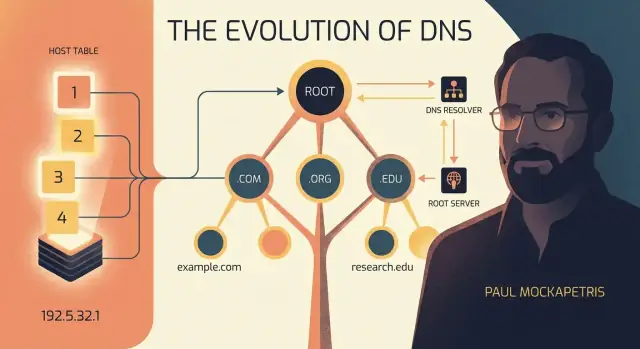
Why DNS Matters to Everyone Who Uses the Internet
Every time you type a web address, click a link, or send an email, you’re relying on a simple idea: humans should be able to use memorable names, while computers do the work of finding the right machine.
DNS solves an everyday problem: computers communicate using numerical addresses (IP addresses) like 203.0.113.42, but people don’t want to memorize strings of numbers. You want to remember example.com, not whatever address that site happens to use today.
DNS, in one sentence
The Domain Name System (DNS) is the internet’s “address book” that translates human-friendly domain names into the IP addresses computers use to connect.
That translation sounds small, but it’s the difference between an internet that feels usable and one that feels like a phone directory written entirely in digits.
What to expect in this guide
This is a non-technical tour—no networking background required. We’ll walk through:
- The basic idea behind DNS and why it was needed
- The key roles involved (your device, DNS resolvers, and authoritative servers)
- The parts you’ll actually encounter when running a website or email
- The security and trust questions DNS raises (and the tools that help)
Along the way, you’ll meet Paul Mockapetris, the engineer who designed DNS in the early 1980s. His work mattered because he didn’t just create a new naming format—he designed a system that could scale as the internet expanded from a small research network into something used by billions of people.
If you’ve ever had a site “go down,” waited for a domain change to “propagate,” or wondered why email settings include mysterious DNS entries, you’ve already met DNS from the outside. The rest of this article explains what’s happening behind the scenes—clearly, and without the jargon.
Before DNS: When One Shared File Had to Name Everything
Long before anyone typed a familiar web address, early networks had a simpler problem: how do you reach a specific machine? Computers could talk to each other using IP addresses (numbers like 10.0.0.5), but humans preferred hostnames—short labels like MIT-MC or SRI-NIC that were easier to remember and share.
The original “name service”: HOSTS.TXT
For the early ARPANET, the solution was a single shared file called HOSTS.TXT. It was essentially a lookup table: a list of hostnames paired with their IP addresses.
Each computer kept a local copy of this file. If you wanted to connect to a machine by name, your system checked HOSTS.TXT and found the corresponding IP address.
This worked at first because the network was small, changes were relatively rare, and there was a clear place to get updates.
Why it stopped working
As more organizations joined, the approach started to buckle under normal growth:
- Updates became constant. New machines appeared, addresses changed, and names needed tweaking.
- Name conflicts multiplied. Two groups could pick the same hostname without realizing it.
- Distribution lag caused outages. If your HOSTS.TXT copy was outdated, a hostname might point to the wrong address—or nowhere.
The core issue was coordination. HOSTS.TXT was like one shared address book for the entire world. If everyone depends on the same book, every correction requires a global edit, and everyone has to download the newest version quickly. Once the network reached a certain size, that “one file for everything” model became too slow, too centralized, and too error-prone.
DNS didn’t replace the idea of mapping names to numbers—it replaced the fragile way that mapping was maintained and distributed.
Paul Mockapetris: The Engineer Behind a Scalable Naming Idea
In the early 1980s, the internet was shifting from a small research network into something bigger, messier, and more widely shared. More machines were joining, organizations wanted autonomy, and people needed an easier way to reach services than memorizing numeric addresses.
Paul Mockapetris, working in that environment, is widely credited as the designer of DNS. His contribution wasn’t a flashy product—it was an engineering answer to a very practical question: how do you keep names usable when the network keeps growing?
The core insight: naming has to scale
A naming system sounds simple until you picture what “simple” meant back then: one shared list of names that everyone had to download and keep up to date. That approach breaks as soon as change becomes constant. Every new host, rename, or correction turns into coordination work for everyone.
Mockapetris’ key insight was that names aren’t just data; they’re shared agreements. If the network expands, the system for making and distributing those agreements must expand too—without requiring every computer to constantly fetch a master list.
A distributed system, not a bigger file
DNS replaced the idea of “one authoritative file” with a distributed design:
- Responsibility is divided: different organizations manage their own parts of the name space.
- Answers are discovered by asking the right servers, rather than copying the whole world locally.
- Results can be cached so most lookups are quick, while still allowing changes to propagate over time.
That’s the quiet brilliance: DNS wasn’t designed to be clever; it was designed to keep working under real constraints—limited bandwidth, frequent changes, many independent admins, and a network that refused to stop growing.
The Design Goals That Shaped DNS
DNS wasn’t invented as a clever shortcut—it was designed to solve specific, very practical problems that showed up as the early Internet grew. Mockapetris’ approach was to set clear goals first, then build a naming system that could keep up for decades.
The goals, in plain language
- Scalable: It had to work not just for hundreds of computers, but for millions (and eventually billions) of names.
- Distributed: No single master file or one central machine could be responsible for everything.
- Reliable: The system should still answer questions even if some servers are down or unreachable.
- Easy to manage: Organizations needed a way to update their own names without asking one global administrator to edit a giant list.
Delegation: the “secret sauce”
The key concept is delegation: different groups manage different parts of the name tree.
For example, one organization manages what’s under .com, a registrar helps you claim example.com, and then you (or your DNS provider) control the records for www.example.com, mail.example.com, and so on. This splits responsibility cleanly, so growth doesn’t create a bottleneck.
Built to survive failures
DNS assumes problems will happen—servers crash, networks partition, routes change. So it relies on multiple authoritative servers for a domain and on caching in resolvers, so a temporary outage doesn’t immediately break every lookup.
What DNS is (and isn’t)
DNS translates human-friendly names into technical data, most famously IP addresses. It’s not “the Internet itself”—it’s a naming and lookup service that helps your devices find where to connect.
DNS in One Picture: A Hierarchy of Names
DNS makes names manageable by organizing them like a tree. Instead of one giant list where every name must be unique globally (and someone has to police it), DNS breaks naming into levels and delegates responsibility.
The hierarchy: root → TLD → domain → subdomain
A DNS name is read from right to left:
- Root: the invisible dot at the end of every name (often omitted).
www.example.com.technically ends with a. - TLD (Top-Level Domain):
.com,.org,.net, country codes like.uk - Domain:
exampleinexample.com - Subdomain / host:
wwwinwww.example.com
So www.example.com can be broken into:
com(the TLD)example(the domain registered under.com)www(a label the domain owner creates and controls)
Why a hierarchy helps
This structure reduces conflicts because names only need to be unique within their parent. Many organizations can have a www subdomain, because www.example.com and www.another-example.com don’t collide.
It also spreads the workload. The .com operators don’t need to manage every website’s records; they only point to who is responsible for example.com, and then the example.com owner manages the details.
“Zone” in plain English
A zone is simply a manageable piece of that tree—DNS data someone is responsible for publishing. For many teams, “our zone” means “the DNS records for example.com and whatever subdomains we host,” stored on their authoritative DNS provider.
Who Does What: Resolvers, Authoritative Servers, and You
When you type a website name into a browser, you’re not asking “the internet” directly. A few specialized helpers split the work so the answer can be found quickly and reliably.
The main actors
You (your device and browser) start with a simple request: “What IP address matches example.com?” Your device usually doesn’t know the answer yet, and it doesn’t want to call a dozen servers to find out.
A recursive resolver does the searching on your behalf. This is typically provided by your ISP, your workplace/school IT, or a public resolver. The key benefit: it can reuse cached answers from previous lookups, speeding things up for everyone using it.
Authoritative DNS servers are the source of truth for a domain. They don’t “search” the internet; they hold the official records that say which IPs, mail servers, or verification tokens belong to that domain.
A lookup, step by step (high level)
- Your device asks its configured recursive resolver for
example.com. - If the resolver already has a fresh cached answer, it replies immediately.
- If not, the resolver asks the DNS hierarchy where to find the authoritative servers for that domain (starting from the top and narrowing down).
- The resolver reaches the domain’s authoritative server, gets the final answer, and returns it to your device.
- Your browser uses that IP address to connect to the website.
“Recursive” vs “authoritative,” in one analogy
Think of the recursive resolver as a librarian who can look things up for you (and remembers popular answers), while an authoritative server is the publisher’s official catalog: it doesn’t browse other catalogs—it simply states what’s true for its own books.
A DNS Lookup, Step by Step (Without the Jargon)
When you type example.com into your browser, your browser isn’t actually looking for a name—it needs an IP address (a number like 93.184.216.34) to know where to connect. DNS is the “find me the number for this name” system.
1) Browser asks the operating system
Your browser first asks your computer/phone’s operating system: “Do we already know the IP address for example.com?” The OS checks its own short-term memory (cache). If it finds a fresh answer, the lookup ends here.
2) OS asks a DNS resolver
If the OS doesn’t have it, it forwards the question to a DNS resolver—usually run by your ISP, your company, or a public provider. Think of the resolver as your “DNS concierge”: it does the legwork so your device doesn’t have to.
3) Resolver follows directions: root → TLD → authoritative
If the resolver doesn’t have the answer cached, it starts a guided search:
- Root server: The resolver asks where to find info for the domain ending (like
.com). The root server doesn’t give the final IP—it gives referrals, basically directions: “Ask these.comservers next.” - TLD server (
.com): The resolver asks the.comservers whereexample.comis handled. Again, not the final IP—more directions: “Ask this authoritative server forexample.com.” - Authoritative server: This is the source of truth for that domain. It replies with the actual record (for example, an
AorAAAArecord) containing the IP address.
4) Answer returns (and usually gets cached)
The resolver sends the IP back to your OS, then to your browser, which can finally connect. Most lookups feel instant because resolvers and devices cache answers for a period set by the domain owner (TTL).
A simple mental model
A straightforward flow to remember is: Browser → OS cache → Resolver cache → Root (referral) → TLD (referral) → Authoritative (answer) → back to Browser.
Caching and TTL: Why DNS Is Fast (and Sometimes Slow to Change)
DNS would feel painfully slow if every visit to a website required starting from scratch and asking multiple servers for the same answer. Instead, DNS relies on caching—temporary “memory” of recent lookups—so most users get answers in milliseconds.
What caching is (and why it exists)
When your device asks a DNS resolver for example.com, that resolver may need to do some work the first time. After it learns the answer, it stores it in a cache. The next person who asks for the same name can be answered immediately.
Caching exists for two reasons:
- Speed: fewer network round trips, faster page loads.
- Reduced load: authoritative DNS servers don’t have to answer every single request from every single user.
TTL: “How long to keep this answer before asking again”
Every DNS record is served with a TTL (Time To Live) value. Think of TTL as instructions that say: keep this answer for X seconds, then discard it and ask again.
If a record has a TTL of 300, resolvers may reuse it for up to 5 minutes before re-checking.
The trade-off: change vs. stability
TTL is a balancing act:
- Short TTLs help changes spread faster (useful during migrations), but can increase DNS query volume.
- Long TTLs reduce query traffic and make things steadier, but changes take longer to reach everyone.
Real situations where TTL matters
If you’re moving a website to a new host, switching a CDN, or doing an email cutover (changing MX records), TTL determines how quickly users stop going to the old place.
A common approach is to lower TTLs in advance of a planned change, make the switch, then raise TTLs again once everything is stable. That’s why DNS can be fast day-to-day—and why it can feel “stubborn” right after an update.
DNS Records You’ll Actually See (A, AAAA, CNAME, MX, TXT)
When you log into a DNS dashboard, you’ll mostly be editing a handful of record types. Each record is a small instruction that tells the internet where to send people (web), where to deliver mail, or how to verify ownership.
The common record types (with everyday examples)
| Record | What it does | Simple example |
|---|---|---|
| A | Points a name to an IPv4 address | example.com → 203.0.113.10 (your website server) |
| AAAA | Points a name to an IPv6 address | example.com → 2001:db8::10 (same idea, newer addressing) |
| CNAME | Makes one name an alias of another name | www.example.com → example.com (so both go to the same place) |
| MX | Tells where email for the domain should go | example.com → mail.provider.com (priority 10) |
| TXT | Stores “notes” machines can read (verification, email policy) | example.com has an SPF record like v=spf1 include:mailgun.org ~all |
| NS | Says which authoritative servers host DNS for a domain/zone | example.com → ns1.dns-host.com |
| SOA | The zone’s “header”: primary NS, admin contact, and timing values | example.com SOA includes ns1.dns-host.com and retry/expire timers |
Mistakes people run into
A few DNS errors show up again and again:
- Putting a CNAME at the apex (
example.com). Many DNS providers don’t allow it because the root name must also carry records like NS and SOA. If you need “root to a hostname,” use an A/AAAA record or an “ALIAS/ANAME” feature if your provider supports it. - Conflicting records: don’t set a CNAME and an A record for the same hostname (for example, both on
www). Pick one approach. - Typos and formatting gotchas: one wrong character in
mail.provider.comcan break email; missing/extra dots and copying the wrong host field (e.g.,@vswww) is a common cause of outages.
If you’re sharing DNS guidance with a team, a small table like the one above in your docs (or a runbook page) makes reviews and troubleshooting much faster.
Who Runs DNS: Domains, Registrars, and Root Servers
DNS works because responsibility is split across many organizations. That split is also why you can move providers, change settings, and keep your name online without asking “the internet” for permission.
Domain registration vs. DNS hosting (not the same thing)
Registering a domain is buying the right to use a name (like example.com) for a period of time. Think of it as reserving a label so nobody else can claim it.
DNS hosting is running the settings that tell the world where that name should point—your website, email provider, verification records, and so on. You can register a domain with one company and host DNS with another.
Registry, registrar, and name servers—plain-English roles
- Registry: The organization that operates a top-level domain (TLD) such as
.com,.org, or.uk. It maintains the official database of who holds each name under that TLD and which name servers are responsible for it. - Registrar: The retailer you use to register (and renew) a domain. The registrar talks to the registry on your behalf and lets you edit key domain settings.
- Name servers: The machines (run by your DNS host) that publish your domain’s DNS records—A/AAAA, MX, TXT, CNAME, etc. These are called authoritative because they provide the final answers for your domain.
What root servers do (and don’t do)
Root servers sit at the top of DNS. They don’t know your website’s IP address and they don’t store your domain’s records. Their job is narrower: they tell resolvers where to find the authoritative servers for each TLD (like where .com is handled).
Delegation: how control moves from the TLD to your domain
When you set “name servers” for your domain at your registrar, you’re creating a delegation. The .com registry (via its authoritative servers) will then point queries for example.com to the name servers you chose.
From that moment, those name servers control the answers the rest of the internet receives—until you change the delegation again.
Security and Trust: What Can Go Wrong and How DNS Helps
DNS is built on trust: when you type a name, you assume the answer points to the real service. Most of the time it does—but DNS is also a favorite place to attack, because a small change in “where this name goes” can redirect lots of people.
Common DNS risks (and what they look like)
One classic issue is spoofing or cache poisoning. If an attacker can trick a DNS resolver into storing a fake answer, users may be sent to the wrong IP address even when they typed the correct domain. The result can be phishing pages, malware downloads, or intercepted traffic.
Another problem is domain hijacking at the registrar level. If someone gets into your registrar account, they can change name servers or DNS records and effectively “take over” your domain without touching your website hosting.
Then there’s the everyday danger: misconfigurations. A stray CNAME, an old TXT record, or an incorrect MX record can break login flows, email delivery, or verification checks. These failures often look like “the internet is down,” but the root cause is a small DNS edit.
How DNSSEC helps (high level)
DNSSEC adds cryptographic signatures to DNS data. In plain terms: the DNS answer can be validated to confirm it hasn’t been altered in transit and that it truly came from the domain’s authoritative DNS. DNSSEC doesn’t encrypt DNS or hide what you’re looking up, but it can prevent many kinds of forged answers from being accepted.
Privacy: DoH and DoT
Traditional DNS queries are easy for networks to observe. DNS-over-HTTPS (DoH) and DNS-over-TLS (DoT) encrypt the connection between your device and a resolver, reducing snooping and some on-path tampering. They don’t magically make DNS “anonymous,” but they do change who can see and manipulate queries.
Practical safeguards for teams
Use MFA on your registrar, enable domain/transfer locks, and restrict who can edit DNS. Treat DNS changes like production deployments: require review, keep a change log, and set up monitoring/alerts for record or name server changes so you learn about surprises quickly.
Practical DNS Tips for Teams Managing a Website or Email
DNS can feel like “set it and forget it,” until a small change knocks out your website or email. The good news: a few habits make DNS management predictable—even for small teams.
A simple checklist for small teams
Start with a lightweight process you can repeat:
- Choose a DNS provider you trust: look for an easy UI, clear change history, and support for modern records (including TXT for email authentication). If your domain is registered at one company, it’s still fine to host DNS elsewhere.
- Decide on a TTL strategy: TTL (time to live) controls how long others cache your records. Use longer TTLs for stable services (better performance), and temporarily lower TTLs before planned migrations (faster changeover).
- Document every change: keep a shared note with what changed, why, when, and who approved it. Include the previous values so you can undo mistakes quickly.
Reliability habits that prevent “mystery outages”
Most DNS problems aren’t complicated—they’re just hard to notice quickly.
- Use multiple name servers: your DNS provider should publish at least two authoritative name servers in different locations. This reduces the risk of a single failure taking you offline.
- Monitor from outside your network: basic uptime monitoring that checks DNS resolution (not just HTTP) can catch issues earlier.
- Have a rollback plan: before edits, copy the current zone records. If something breaks, restoring known-good values should take minutes, not hours.
If you deploy apps frequently, DNS becomes part of your release process. For example, teams shipping web apps from platforms like Koder.ai (where you can build and deploy apps via chat, then attach custom domains) still rely on the same fundamentals: correct A/AAAA/CNAME targets, sensible TTLs during cutovers, and a clear rollback path if something points to the wrong place.
Email deliverability: the DNS records that matter
If you send email from your domain, DNS directly affects whether messages reach inboxes.
- SPF (TXT record): lists which servers are allowed to send mail for your domain.
- DKIM (TXT record): adds a cryptographic signature so recipients can verify the message wasn’t altered.
- DMARC (TXT record): tells recipients what to do when SPF/DKIM checks fail (and gives you reporting). Start with a “monitoring” policy, then tighten once you’re confident.
Human-friendly names made the internet scale beyond a small research community. Treat DNS like shared infrastructure—small care upfront keeps your site reachable and your email trusted as you grow.
FAQ
What is DNS in plain English?
DNS (Domain Name System) translates human-friendly names like example.com into IP addresses like 93.184.216.34 so your device knows where to connect.
Without DNS, you’d have to remember numeric addresses for every site and service you use.
Why did the internet move away from HOSTS.TXT?
Early networks relied on a single shared file (HOSTS.TXT) that mapped names to IP addresses.
As the network grew, it became unmanageable: constant updates, conflicting names, and outages caused by outdated copies. DNS replaced the “one global file” approach with a distributed system.
What did Paul Mockapetris contribute to the internet?
Paul Mockapetris designed DNS in the early 1980s to solve the scaling problem of naming on a rapidly growing network.
The key idea was delegation: split responsibility across many organizations so no single master list (or administrator) becomes a bottleneck.
How does the DNS name hierarchy (root, TLD, domain, subdomain) work?
DNS names are hierarchical and read right-to-left:
- Root (the trailing dot, usually hidden):
www.example.com. - TLD:
.com - Domain:
example.com - Subdomain/host:
www.example.com
This hierarchy makes delegation and management practical at global scale.
What’s the difference between a recursive resolver and an authoritative DNS server?
A recursive resolver looks up answers on your behalf and caches them (often run by an ISP, workplace, or public provider).
An authoritative DNS server is the source of truth for a domain’s records; it doesn’t “search,” it answers for its zone.
What happens when I type a domain into my browser?
A typical lookup goes like this:
- Your device checks its local DNS cache.
- It asks a recursive resolver.
- If needed, the resolver follows referrals: root → TLD (like
.com) → the domain’s authoritative servers. - The authoritative server returns the record (like an
A/AAAA). - The resolver caches the result and replies to your device.
Why do DNS changes take time to “propagate,” and what does TTL mean?
TTL (Time To Live) tells resolvers how long they may cache a DNS answer before checking again.
- Lower TTLs: changes spread faster, but increase query volume.
- Higher TTLs: fewer queries and more stability, but updates can take longer to be seen.
“Propagation” is mostly just caches expiring at different times.
Which DNS record types do website and email setups usually require?
The most common records you’ll manage are:
A/AAAA: point a name to IPv4/IPv6 addresses (web apps, servers).CNAME: alias one hostname to another (common forwww).MX: where email for the domain should be delivered.TXT: verification and email auth (SPF, DKIM, DMARC).NS: which name servers are authoritative for the domain.
A practical rule: don’t put both CNAME and A records on the same hostname.
What’s the difference between domain registration and DNS hosting?
A registrar is where you register/renew the domain name (your right to use example.com).
A DNS host/provider runs the authoritative name servers and stores your DNS records.
You can mix-and-match: register with one company and host DNS elsewhere by changing the domain’s NS (name server) settings at the registrar.
What are common DNS security risks, and what tools reduce them?
DNS can fail due to:
- Cache poisoning/spoofing (forged answers stored by a resolver)
- Registrar/account takeover (name servers or records changed)
- Misconfigurations (wrong
MX, conflicting records, typos)
Practical defenses:
- Enable MFA and domain/transfer locks at your registrar.
- Use change review + a rollback plan for DNS edits.
- Consider DNSSEC to authenticate DNS answers.
- Use DoH/DoT to encrypt the link between your device and the resolver (privacy and some tamper-resistance).