

Turn a PDF workflow into an app with a simple plan
Learn how to turn a PDF workflow into an app by identifying fields, states, approvals, and outputs before any build work starts.
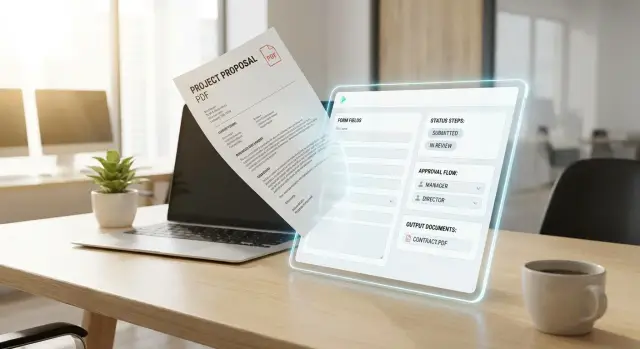
Why a PDF process breaks down in real work
A PDF can look complete because it shows every box, label, and signature line. But it usually captures only the surface of the job. It shows what people type into the form, not everything that happens before, during, and after it.
That gap matters when you want to turn a PDF workflow into an app. If you copy the document field by field, you often get a digital version of the same confusion. The form is there, but the real work still lives in people's heads.
In most teams, staff fill in missing steps from memory. They know who to ask, when to chase approval, what to do if information is missing, and which version of the file to use. None of that is obvious when you look at the PDF alone.
A simple expense form shows the problem. The PDF may ask for amount, date, and reason. What it does not show is that purchases over a certain limit need manager approval, finance may ask for a receipt in chat, and urgent requests sometimes get approved first and documented later.
The hidden parts are usually the same from team to team: unwritten decisions, approvals that happen in email or chat, exceptions for urgent or incomplete cases, and outputs such as reports, payment records, or audit history.
Outputs are especially easy to miss at the start. Teams focus on the form because it is visible, then realize later they also need notifications, status tracking, exported data, or a clean record of who approved what.
That is why rebuilding from the PDF alone often fails. The document is only one part of the process. If you want the app to feel useful on day one, you need to capture the work around the form, not just the form itself.
What to pull out of the document first
Before you turn a PDF workflow into an app, treat the document like raw material. Do not start with screens or buttons. Start by pulling out the data the process depends on.
Read the PDF line by line and mark every field a person can edit. That includes obvious inputs like name, date, amount, and comments, but also checkboxes, dropdowns, signatures, and any notes people fill in by hand. If users write in the margins or attach extra pages, that matters too.
Then label each field by type. Some values are required every time. Some are optional and only show up in special cases. Others are calculated, such as tax, total cost, or days remaining. If you miss this early, the app will feel confusing because users will not know what they must fill in and what the system should handle for them.
A simple way to review the form is to sort each field into four types: editable by a person, required or optional, calculated by a rule, or added from another source.
That last group is easy to miss. A field may appear on the PDF, but the person filling it out may not actually know it. Maybe finance adds a cost center, HR confirms an employee ID, or the system pulls in today's date automatically.
Also note who provides each piece of data. One form often looks like it belongs to one person, but the information may come from three or four people. That tells you who needs access in the app and which fields should lock after submission.
Finally, flag anything that repeats. Tables, line items, lists of products, multiple approvers, and supporting files should stand out right away. A PDF can hide repeated rows inside a neat grid, but in an app those usually become dynamic lists or attachments.
For example, a purchase request PDF might have one requester, one budget owner, a table of items, and a vendor quote. That is not one simple field set. It is a mix of single fields, repeating rows, calculated totals, and uploaded documents.
Find the states behind the form
A PDF usually shows one moment in a process: the part someone fills in. The real work happens around it. If you want to turn a PDF workflow into an app, start by naming the states the item moves through from start to finish.
Use plain words people already say at work. Good state names are easy to understand at a glance, such as Draft, Submitted, Under Review, Approved, Rejected, and Completed. Avoid vague labels like Active or In Progress if they do not tell people what is actually happening.
A simple test is to ask, "What can be true about this request right now?" If two people give different answers for the same stage, the state is probably too fuzzy and needs a better name.
Match each state to an action
Each state needs a clear owner and a clear next step. You should know who is allowed to move the item forward and what action causes the change.
For example:
- Draft: created and edited by the requester
- Submitted: locked for review and visible to a manager
- Under Review: manager can approve, reject, or send back
- Approved: finance or operations can process it
- Completed: no more changes, record kept for reporting
This is also where hidden rules start to appear. A manager may be able to approve up to a limit, while a director must approve anything above that amount. That is not just a note. It is part of the state logic.
Then write down what changes in each state. Think about fields, not just labels. In Draft, the requester may edit everything. After submission, the amount, vendor, and reason might become read-only, while comments stay open for reviewers. In Approved, payment details may unlock for the finance team only.
Read-only rules matter because they protect the process. If a key field can change after approval, the app no longer matches the real workflow. A clear state map keeps the form honest and makes the app much easier to build.
Map approvals and exceptions
A PDF usually shows the happy path. Real work does not. If you want to turn a PDF workflow into an app, you need to map who says yes, who can say no, and what happens when the process goes off script.
Start by writing the approval order in plain language. Keep it as a sequence of decisions, not just a list of names. For example: employee submits request, manager reviews it, finance checks policy, then operations confirms payment details. That order matters because the app will use it to move work forward.
For each step, name the person, role, or team that owns the decision. Be specific. "Manager" is better than "someone from the department." If approval changes based on amount, location, or project type, note that too. A small request may need one approval, while a larger one may need two.
At each approval step, capture five things: who reviews it, what they can do, what information they need to decide, how long the step can wait before follow-up, and what rule sends it to the next stage.
Rejections need their own path. Do not stop at "rejected." Ask what happens next. Does the request close right away? Can the person edit and resubmit? Does the app keep the original reason for rejection? If rework is allowed, note which fields can change and who reviews the updated version.
Then look for skips and exceptions. A common example is auto-approval for low-risk requests. Another is a compliance review that only happens for certain countries or totals. These are easy to miss when you only read the PDF, but they shape the real process.
A simple way to test your map is to run three cases: a normal approval, a rejection, and an exception. If you can explain where each one goes without guessing, your approval workflow is clear enough to build from.
Step by step: turn the document into an app plan
To turn a PDF workflow into an app, start with one real PDF that people use today, even if it is messy, outdated, or full of notes. A real version shows what actually happens, not what people vaguely remember.
Then translate the document into actions. Each page, section, and signature block should answer one simple question: who does what here? A date box may mean "submit request." A manager signature may mean "review and approve." A finance section may mean "check budget and release payment."
A simple way to map it is this:
- Pick one PDF version and mark every field, note, checkbox, and signature area.
- Rewrite each part as a user task, such as create request, review, approve, reject, or send back.
- Group the fields by task, not by page layout, so the app matches the work instead of the paper.
- Add the rules behind each step, including required fields, status changes, approvals, and exceptions.
- Test the flow with one real user and ask where they pause, guess, or need extra steps.
This task-based grouping matters more than most teams expect. A PDF is designed for printing and scanning. An app should be designed around moments of work. If requester details appear on page one and budget details appear on page three, but the same person enters both at the start, keep them in one task.
Next, write down what changes the item's status. For example, a draft becomes submitted, then approved, rejected, or returned for edits. Also capture what the app must produce at the end, such as a confirmation record, a downloadable summary, a notification, or data sent to another system.
Keep the first test small. Sit with one person who uses the form in real work and walk through a recent example. If they say, "I also email finance after this," that is part of the workflow too.
A simple example: expense request form
A travel expense form is a good example of how to turn a PDF workflow into an app. On paper, it looks simple: fill in the trip details, send it for approval, and wait. In real work, the process usually includes edits, questions, and missing receipts.
Start with the employee. They enter the trip dates, destination, purpose of travel, and each expected cost, such as transport, hotel, meals, or event fees. Instead of typing everything into a static PDF, the app can guide them with clear fields, totals, and simple checks.
For example, if someone enters a hotel cost but forgets the number of nights, the app can flag it right away. That removes the back and forth that often happens when the form is reviewed later.
How the request moves
Once the employee submits the request, the manager reviews it. The manager might approve it, reject it, or send it back with a note like, "Please explain why the flight cost is higher than usual." The request is not just a file anymore. It now has a state, such as Draft, Submitted, Needs changes, Manager approved, Finance approved, or Rejected.
That state matters because it tells everyone what happens next. If the manager asks for changes, the employee updates the request and resubmits it without starting over.
After manager approval, finance reviews the same record. Finance may check budget limits, policy rules, or missing receipts. Then they approve or reject the request based on those checks.
What the app produces
At the end, the app stores one full record in one place. That includes who submitted it, when it changed, who approved it, and the final amount. It can also generate a short summary with the employee name, trip dates, total requested amount, approval history, and final finance decision.
That is where a PDF form becomes much more useful. Instead of a document that people email around, you get a working process with data, status, and a clear outcome.
Decide what the app should produce
When you turn a PDF workflow into an app, the form itself is only part of the job. The real value comes from what the app creates, stores, and sends after someone clicks submit.
Start by thinking of each submission as one record. That record should hold the form data, the current status, the person who submitted it, and any files or notes tied to it. If you do this well, people stop searching through email threads, shared folders, and old PDFs to find the latest version.
Start with one clear source of truth
A good app saves one record for every request, application, or approval. Even if the process later creates a PDF or a report, the record in the app should stay the main source of truth.
That makes updates much easier. If finance changes the status from pending to approved, everyone sees the same record instead of passing around a revised document.
You should also decide which status changes need alerts. Most teams only need a few: submitted, approved, rejected, sent back for edits, and completed. Simple notifications help people act on time without checking the app every hour.
Some workflows also need a final document as output. That could be a receipt, a summary report, a signed approval page, or a file sent to another team. Only create these when they serve a real need. If nobody uses the generated PDF after approval, skip it.
Do not forget the audit trail. The app should keep a history of key dates and decisions, such as when the request was submitted, who approved it, who rejected it, and what comments were left. This matters when someone asks, "What happened here?" two months later.
Common mistakes to avoid
One of the biggest mistakes is copying the PDF page layout instead of copying the actual job people are trying to get done. A form often shows boxes, labels, and signature lines, but the real process is about decisions, handoffs, and rules. If you mirror the page too closely, you can end up with an app that looks familiar but still feels slow.
A better approach is to ask simple questions: what must be entered, who needs to see it, and what happens next? The goal is not to recreate paper on a screen. The goal is to make the work move.
Another common problem is missing approvals that happen outside the document. The PDF may show one signature field, but in real life the request might also be reviewed in chat, by email, or in a quick hallway conversation. If those side steps are not captured, your app plan will be incomplete from day one.
Watch for status names that sound different but mean almost the same thing. Teams often use labels like "submitted," "sent," "in review," and "pending approval" without a clear difference. That creates confusion for users and makes reporting messy.
Keep statuses simple and distinct: Draft, Submitted, Approved, Rejected, and Paid.
You should also define who can edit what after approval. This is easy to forget, and it causes trouble later. If an expense request is approved, can the employee still change the amount? Can a manager reopen it? Can finance correct a coding mistake without restarting the whole request?
Small edit rules prevent big problems. If a field changes after approval, the app should clearly decide whether to keep the approval, revoke it, or send the request back for review.
A simple test helps: give the draft plan to someone who actually uses the form and ask them where work usually goes off script. Their answer will show gaps faster than the PDF ever will.
Quick checklist before you build
Before you build anything, do one last review of the process on paper. If a step, rule, or decision still depends on memory, it will likely break once real people start using the app.
Use this quick check to spot the gaps early:
- Assign every field to a person or role.
- Define what moves the request from one state to the next.
- Add a fallback for each approval.
- Check every output for purpose and timing.
- Ask one person to walk through the full flow from start to finish.
A simple test helps here. Hand the draft to someone who did not design the process and ask them to explain what happens after each action. If they cannot tell when a form is complete, who approves it, or what gets produced at the end, the app logic is still too vague.
This is where many teams save time. Instead of starting screens and buttons too early, they clean up the rules first. That makes it much easier to turn a PDF workflow into an app without rebuilding the process three times.
Next steps to move from document to app
The safest way to turn a PDF workflow into an app is to start smaller than you think. Do not begin with every field, every rule, and every exception in the document. Pick the smallest version that still solves a real problem for real people.
A good starting point is one form, one clear decision, and one outcome. If a team uses a request form that ends with manager approval, build that path first. Leave edge cases, rare exceptions, and advanced reports for later.
This keeps the project easy to test. It also helps people react to something concrete instead of debating a long list of ideas.
Build the first version around one screen and one approval path. One person submits the request, the right reviewer gets it, the reviewer approves or rejects it, the requester sees the result, and the app creates the needed output.
Once that basic loop works, show it to the people who actually use the form. Not just managers or project owners. Sit with the person who fills it out, the person who reviews it, and the person who deals with mistakes when something is missing.
Ask simple questions: What feels slower here than it should? What information is still unclear? What happens when the request is incomplete? Small comments at this stage often prevent expensive changes later.
A simple example: if your PDF process has five sections, but only two are required for most requests, start with those two. If 80% of requests follow the same approval path, build that first. You can add the unusual cases after the main flow is stable.
If you want to move faster from notes to a prototype, Koder.ai can help once you have mapped the fields, states, approvals, and outputs. It is built for creating web, server, and mobile apps from plain-language prompts, so a clear process plan is much easier to turn into something people can actually test.
The goal is not to rebuild the whole document on day one. The goal is to get one useful workflow working, test it with users, and improve it from there.
FAQ
What should I do first when turning a PDF workflow into an app?
Start with one real PDF that people use now. Mark every field, checkbox, note, signature area, attachment, and repeated table, then rewrite each part as a task someone actually does.
Should I copy the PDF page layout into the app?
No. A PDF shows the document, not the full process. If you copy the layout too closely, you usually keep the same confusion instead of fixing it.
How do I find the hidden steps that are not shown on the PDF?
Talk to the people who use the form and walk through a recent example. Ask what happens before submission, who reviews it, what gets chased in chat or email, and what happens when something is missing or urgent.
What states should a basic workflow app have?
Start with simple, clear states such as Draft, Submitted, Under Review, Approved, Rejected, and Completed. Use names that tell users exactly what is happening right now.
How do I map approvals and exceptions correctly?
Map the approval order in plain language and note who decides, what they need, and what moves the item forward. Also define what happens on rejection, resubmission, skips, and rule-based approvals.
What should the app store after someone submits a form?
Treat each submission as one record. That record should store the form data, current status, files, comments, approval history, and key dates so people are not hunting through email or old PDFs.
What do I do with tables, line items, and attachments from the PDF?
Mark them early. Repeating rows usually become dynamic lists, and extra files become attachments tied to the same record.
Can users still change fields after a request is approved?
Define edit rules by state. For example, core fields may lock after submission, while reviewers can still leave comments, and finance may unlock only specific fields after approval.
How small should the first version of the app be?
Start with the smallest useful path. If most requests follow one approval route, build that first and leave rare exceptions and advanced reports for later.
Can Koder.ai help me build the first prototype from this workflow plan?
Yes, once your fields, states, approvals, and outputs are clear. Koder.ai can help you turn that plain-language plan into a web, server, or mobile app prototype much faster.