

Photographer Website: Fast Galleries That Win Inquiries
Build a photographer website with fast galleries, responsive images, clear pricing, and reliable inquiry forms that turn portfolio views into bookings.
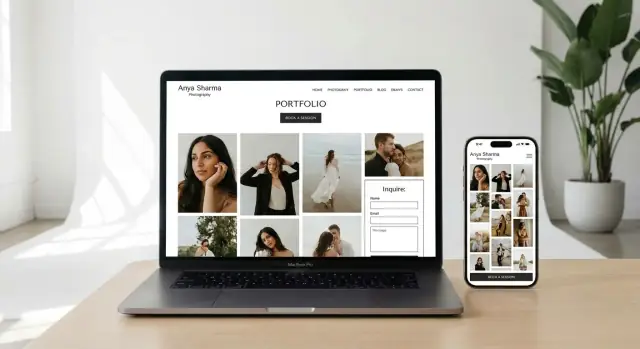
Decide what the website must accomplish
A photographer website should help a suitable visitor judge your style, understand the offer, and send a qualified inquiry with little friction. A beautiful portfolio supports that job, but appearance alone will not move someone through the decision.
Choose one primary conversion goal. For most independent photographers, that goal is a completed inquiry from someone who fits the service, location, availability, and price range. Newsletter subscriptions, social follows, and gallery views can still matter, but they should not compete with the booking path.
Lead the homepage with the category you most want to book. A broad message about photographing everything forces visitors to work out whether you have relevant experience. A focused statement such as wedding photography in a defined region, studio newborn sessions, or product photography for growing brands lets the right people recognize a fit immediately.
You can still accept other assignments. Give secondary services their own portfolio categories and pricing information instead of combining unrelated work in one opening gallery.
Most sites need five main pages:
- Home: positioning, selected work, service area, and one inquiry action
- Portfolio: focused galleries organized by service or client intent
- About: relevant experience, working style, and what clients can expect
- Pricing: starting rates or packages with the main variables explained
- Contact: a short, tested form and a clear description of the next step
Each page should answer a specific decision question. The portfolio proves visual fit. Pricing establishes financial fit. The About page reduces uncertainty about the experience. The contact page makes acting on that confidence easy.
Measure whether the structure works instead of judging it by taste alone. Start with a small set of numbers:
- Qualified inquiry rate: completed suitable inquiries divided by unique visitors
- Portfolio progression: visitors who move from a gallery to pricing or contact
- Form completion rate: form starts compared with successful submissions
- Gallery depth: albums opened and photos viewed within each album
- Mobile abandonment: exits before a usable gallery or inquiry action appears
Record the starting values before changing the design. Otherwise, a cleaner page may feel better without producing better leads.
Make gallery speed part of the sales process
Fast gallery delivery protects attention while visitors decide whether your work matches what they want. A delay between arriving and seeing photographs interrupts that decision, especially when someone is comparing several photographers on a phone.
Speed also affects perceived reliability. A gallery that stalls, shifts around, or ignores taps can make the whole business feel neglected. Visitors cannot see whether the cause is an oversized file, a third-party script, or a weak connection. They only experience a page that does not respond.
Set a practical performance budget before uploading work. As a starting point, aim to make the first gallery view usable within about two seconds on a midrange phone under a constrained connection. Keep the first visible group of thumbnails below roughly 700 KB in total, then adjust after testing the actual design. A simple grid can meet a smaller budget than a full-screen editorial layout.
For individual files, thumbnails often fit within 60 to 180 KB, while larger lightbox images may land around 250 to 700 KB. Subject matter changes the result. Fine foliage, confetti, fabric, and visible grain need more data than a portrait against a plain wall. Treat these figures as working limits, not fixed quality rules.
Common causes of slow galleries include:
- Full-resolution camera exports used as display files
- Several analytics tags, chat tools, font files, and social widgets loading together
- Slider libraries that download every image before showing the first one
- Video backgrounds competing with portfolio images for bandwidth
- Gallery effects that occupy the main browser thread during scrolling
Audit the complete page rather than blaming the gallery component automatically. A well-compressed image grid can still feel slow when five other services run before it becomes interactive.
Perceived speed deserves attention too. Reserve the correct space for each image, display a lightweight placeholder, and respond immediately when someone opens a photo. A visitor will tolerate a brief high-resolution load when the interface confirms the tap and keeps the rest of the page stable.
Prepare display images without sacrificing the work
The best image workflow exports each photograph for its actual display role instead of sending one large file everywhere. Keep archival originals and client delivery files outside the public portfolio workflow.
Choose formats according to the publishing system and the photographs:
- JPEG remains a dependable photographic fallback and is easy to inspect before upload.
- WebP usually provides smaller files at comparable visual quality and works well as a general web format.
- AVIF can reduce size further, particularly for complex scenes, but every export still needs visual inspection.
- PNG is better reserved for graphics that require transparency, not ordinary photographs.
- An automated image service can generate multiple formats and select an appropriate version for the visitor's browser.
Do not assume that one quality number behaves identically in every editor or encoder. A JPEG setting of 78 in one export tool may not match 78 in another. Create a repeatable preset, inspect representative files, and judge skin, hair, gradients, shadow detail, grain, and fine patterns at the size clients will see.
Dimensions matter as much as compression. A practical starting range is 2,000 to 3,000 pixels on the long edge for large desktop or lightbox views. Grid files commonly need 500 to 1,000 pixels, depending on column width and screen density. Generate intermediate widths as well so a small phone does not receive the desktop asset.
Use a consistent color workflow. Convert display images to sRGB unless the publishing system explicitly manages another web color space. Check several files on a phone and a desktop after upload because an export that looks correct in an editing application can shift when a profile is missing or handled differently.
Remove metadata that the public display does not need. Large previews embedded in metadata add weight, while coordinates can reveal a private home, client location, or protected venue. Preserve copyright and creator information if it supports your workflow, but review location data before publication.
A reliable export check has five parts:
- Confirm the intended crop and long-edge dimension.
- Inspect important detail at normal viewing size and at full size.
- Compare file weight against the performance budget.
- Verify color and orientation after upload.
- Check that private metadata has been removed.
Export a representative portrait, a dark reception photograph, a wide outdoor scene, and a detail-heavy image before processing an entire archive. Those files expose compression problems faster than checking only a clean studio portrait.
Deliver responsive images in the right order
Responsive delivery lets each device request an image close to the size it will actually display. Without it, a narrow phone may download the same large file prepared for a wide desktop screen.
Use multiple image candidates and accurate display-size rules in the page markup. The browser can then choose among thumbnail, medium, and large versions according to layout width and screen density. Check the generated markup when using a site builder because a responsive setting can still fail if every candidate points to the same original file.
Give every image known dimensions or an aspect ratio. This reserves space before the file arrives and prevents the grid from shifting under a visitor's finger. For masonry layouts, store the actual ratio of each photograph so placeholders match vertical, square, and horizontal files.
Load the opening content differently from the rest of the gallery. The main image and first visible thumbnails should load promptly. Images far below the first screen can use native lazy loading. Applying lazy loading to everything, including the first photograph, can delay the content that creates the initial impression.
Avoid downloading both mobile and desktop hero files when only one is visible. Hiding one version with styling does not always stop the browser from requesting it. Use responsive image selection or art direction so the unused file is not transferred.
A thumbnail-first lightbox pattern keeps the grid light. When someone opens a photograph, show the existing thumbnail or a small preview immediately, request the larger version, and replace the preview once decoding finishes. Preload only the next likely image rather than the entire album. That provides smooth forward navigation without consuming every visitor's data allowance.
Caching reduces repeat work. Give versioned image files a long browser cache period, and use a globally distributed image service when the audience spans several regions. When an image changes, publish it under a new version so returning visitors do not remain stuck with an old cached copy.
Third-party scripts should load after the essential portfolio interface whenever possible. If a chat widget or scheduling tool blocks the gallery, delay it until the main content is usable or until the visitor requests it. Every service added to the page should justify its effect on loading and interaction.
Design galleries around how clients evaluate work
A gallery should help visitors find relevant proof quickly, not ask them to inspect every successful photograph you have made. Selection and structure often matter more than the visual effect used to present the files.
Choose the browsing model that matches the service. A grid supports quick comparison. Masonry accommodates mixed orientations but needs stable placeholders and consistent spacing. A slideshow controls sequence and suits a concise story, although it hides the total range of work. Albums organized by session type, location, industry, or event let visitors self-select before loading a large set.
Keep each album focused. Thirty strong photographs usually communicate more than 150 uneven ones, though documentary assignments may justify a longer sequence. Open with an image that defines the set, establish range through people, setting, detail, and lighting conditions, then close before repetition weakens the impression.
Use every photograph for a reason. It should add visual variety, demonstrate consistency under a different condition, answer a client concern, or advance the story. Several near-identical portraits do not provide several times the proof.
Long collections need structure. Divide them into real albums, use pagination, or reveal another limited group when requested. Preserve the visitor's position when a lightbox closes so they do not have to find their place again.
Lightbox controls should remain predictable:
- Place previous, next, and close controls consistently.
- Support swiping on touch screens without blocking normal vertical scrolling.
- Support arrow controls and Escape for visitors using a physical keyboard.
- Display a brief loading state when the larger file is not ready.
- Keep captions readable without covering the important part of the photograph.
Avoid autoplay, long entrance animations, and elaborate transitions. They make clients wait for the designer's timing instead of browsing at their own pace. Motion should clarify a state change, such as opening an image, rather than becoming the subject.
Test the entire sequence, not just the opening grid. Open an album, move through several photographs, close it, switch categories, return to the previous set, and begin an inquiry. Small failures often appear only after the first interaction.
Make every gallery accessible
An accessible gallery gives visitors equivalent ways to understand and operate it, including people who cannot use a mouse or see every photograph. Accessibility also improves ordinary situations such as browsing with a damaged screen, bright glare, temporary injury, or reduced motion settings.
Write useful alternative text for images that communicate information. Describe the subject, action, and relevant setting in natural language, such as a couple exchanging rings in a candlelit restaurant. Do not fill the description with service and city phrases. Decorative images that repeat information already present should have empty alternative text so assistive software can skip them.
A portfolio photograph may need a different description depending on context. In an album about a specific wedding, the people and event may matter. In a page explaining low-light technique, the lighting result may be the relevant detail. Write for the purpose of that page rather than attaching the same description everywhere.
Make the complete lightbox operable without a pointer. Opening it should move focus into the viewer, controls should have clear names, and closing it should return focus to the thumbnail that launched it. Keep focus inside the open viewer so someone navigating controls does not move through the hidden page behind it.
Visible text and controls need sufficient contrast against both dark and light photographs. A translucent button may disappear over part of an image, so test controls against the full range of portfolio tones. A solid control background is often safer than relying on shadows.
Respect reduced motion preferences. Remove zoom sweeps, parallax, and animated repositioning when a visitor has requested less movement. The gallery should remain fully understandable when all decorative animation is disabled.
Captions should not be the only place you disclose service conditions, licensing, or pricing. Some visitors will never open individual photographs. Put decision-making information in normal page content where it remains readable and discoverable.
Make the mobile experience steady and comfortable
A mobile gallery should remain readable, tappable, and stable with one-handed use on a constrained connection. Desktop testing alone hides spacing errors, oversized transfers, and controls that sit beneath browser or device interfaces.
Use tap targets around 44 CSS pixels where the layout permits, with enough separation to prevent accidental activation. Close, previous, next, filter, and inquiry controls deserve particular attention. Tiny visual icons can sit inside larger invisible tap areas without dominating the photograph.
Keep body copy comfortable without requiring zoom, and prevent captions from shrinking to fit long lines. Navigation labels should remain understandable without hover behavior. If a filter depends on a tooltip that appears only under a mouse pointer, replace it with visible text or an accessible control name.
A sticky inquiry action can work well on long galleries, but it must not cover photographs, captions, cookie choices, or lightbox controls. Keep it compact and dismissible when space is limited. Repeat a normal inquiry action after the gallery as a fallback for visitors who prefer page content over floating controls.
Prevent layout movement by reserving image space, loading fonts carefully, and avoiding late banners above the gallery. A page that moves while someone is tapping feels unreliable and can send them to the wrong album or action.
Test on at least one actual phone in addition to browser simulation. Use mobile data or connection throttling, enable low power mode, rotate the device, increase the system text size, and try the site with one hand. Watch for delayed taps, horizontal overflow, blocked controls, and abrupt scrolling.
Pay attention to heat and battery use during a longer session. Autoplay video, oversized animations, and aggressive preloading can make a gallery technically functional while producing an unpleasant mobile experience. If the phone becomes warm after browsing a few albums, investigate scripts, video, and image decoding.
Turn portfolio interest into booking intent
A visitor who likes the work should always be able to identify the next useful action without searching the navigation. Use one primary call to action and name it according to the commitment being requested.
Check availability works well when dates determine whether a conversation can proceed. Get a quote fits commercial and variable-scope assignments. Start your inquiry is direct when the form gathers the information needed for a reply. Choose one phrase for the main action and keep it consistent across the site.
Place the action where motivation naturally rises: after the opening portfolio sample, at the end of a relevant album, beside pricing, and after specific social proof. Do not insert a button after every few photographs. Excessive repetition turns the action into visual noise.
The short section before the action should answer what the visitor receives and what happens next. A wedding photographer might mention coverage options and the first consultation. A commercial photographer may state that the reply will confirm scope, usage, schedule, and estimate requirements.
Collect enough information to recognize fit without turning the first contact into a full planning questionnaire. Useful pre-qualification details include:
- Service or session type
- Preferred date or a flexible-date option
- City, venue, or travel requirement
- Approximate budget range
- A short description of the desired result
State an honest response window near the form. If you normally answer within two business days, say that instead of promising a faster reply that cannot be maintained. Mention the next step, such as a short call, a package recommendation, or a written estimate.
Do not imply scarcity unless it is real. Generic warnings about limited spaces can weaken trust when they remain unchanged throughout the year. A factual availability statement or direct date check is more useful.
Provide a clear recovery route after submission. The confirmation can ask the sender to check spam if the promised reply does not arrive and can present another contact method. Keep that instruction on the confirmation screen and in the automatic response rather than interrupting the form itself.
Build a short and dependable inquiry form
A booking inquiry form should collect the minimum information needed for a useful first response and confirm that the message was delivered. Every field adds effort, especially on a phone, so each one needs a defined purpose.
A practical starting form asks for name, email, service type, date, location, and a short message. Make the date optional when the service can be planned later. Ask for a phone number only when calls or text messages are part of the stated process.
Use dropdowns when the options are clear and limited. A service selector can route a lead to the correct package or team member, while a small set of budget ranges can identify mismatches early. Include an unsure option when clients may not know the right category. Do not force them to choose an inaccurate answer just to continue.
Validation should happen near the affected field and explain how to fix the problem. Preserve completed entries after an error. A generic failure message at the top of a long form makes users search for the cause and often leads to abandonment.
Spam protection should remain mostly invisible to real clients. Use a hidden trap field, request-rate controls, and server-side filtering before adding a challenge. If a challenge is necessary, confirm that it works with touch input, assistive technology, and privacy restrictions.
Form reliability extends beyond the visible interface. Send submissions through an authenticated mail setup, store a recoverable copy when consent and policy allow it, and test delivery to the actual inbox. Check the spam folder during testing. A success screen is misleading if the server accepted the form but the message never reaches anyone.
After submission, show an on-page confirmation with the expected reply time and next step. Send an automatic email carrying the same information, but do not make that email sound like a personal reply. A clear receipt reduces duplicate submissions and gives the client evidence that the address was entered correctly.
Ask only for information you are prepared to protect. Do not collect payment details, identity documents, health information, or private event logistics in a general inquiry form. Explain any consent checkbox in plain language and keep marketing consent separate from the request for a photography quote.
Test the form after every design, mail, security, or hosting change. Submit it from a phone, intentionally trigger each validation error, use an address outside your own mail provider, and verify both the notification and automatic response.
Use pricing and FAQs to qualify leads
Pricing information should help suitable clients recognize a realistic fit before they invest time in an inquiry. It does not have to expose every possible quote, but it should remove uncertainty about the likely level of investment.
Choose the amount of detail that matches the service model. A starting price fits assignments whose final cost depends on duration, travel, usage, or production. A most-booked package gives clients a realistic reference point. A complete package table works when the offer is standardized and exceptions are uncommon.
When using a starting price, explain what it includes and what commonly changes the total. Without that context, visitors cannot tell whether the figure covers a short session, a full event, editing, travel, prints, or commercial usage.
Describe packages with concrete client language:
- Coverage time and the parts of an event or session it normally includes
- Expected range of edited photographs
- Delivery method and typical preview and final-gallery timing
- Included prints, albums, assistants, locations, or wardrobe changes
- Booking steps, retainer requirements, and payment schedule
Commercial work needs a plain explanation of licensing. State whether the estimate includes a defined period, region, media type, or campaign use. Separate the creative fee, production expenses, and extended usage when that distinction affects the quote.
Address travel, tax, rush delivery, advanced retouching, extra coverage, and cancellation terms before they become a long email thread. Use actual rules from the business rather than copying another photographer's policy. If a term depends on a contract, describe the general principle and make the signed agreement controlling.
A compact FAQ near pricing and the inquiry form can answer the remaining decision questions. Five useful topics are availability, turnaround, rescheduling, travel, and editing scope. Replace any question that generates few real conversations with one that repeatedly appears in inquiries.
Review prices wherever they appear whenever packages change. Conflicting figures between the homepage, pricing page, form, and automatic email create avoidable distrust. Keep one source of truth for package details and use a publication checklist when updating it.
Build photography SEO around real client intent
Photography SEO works best when each page clearly names the service, place, audience, and evidence it contains. Search visibility and booking usability improve together when visitors reach a page that directly answers the query they entered.
Create separate service pages only when each service has distinct work, pricing factors, client questions, or process details. A wedding visitor should not have to sort through product photographs to find relevant proof. The same principle applies to family, newborn, event, editorial, property, and brand work.
Location pages should reflect places where you genuinely accept assignments. Give each one original value through local portfolio work, travel details, venue experience, season considerations, or a service-specific process. Do not publish dozens of pages that differ only by a city name.
Use a direct page title and one clear main heading. Supporting headings should answer practical questions in natural language. Write category introductions that explain what the gallery contains and who the service suits instead of filling space with repeated search phrases.
Portfolio case studies can capture specific intent while demonstrating experience. Explain the assignment, constraints, approach, and result, then include a focused selection of photographs. For commercial work, obtain permission before naming clients, campaigns, unreleased products, or performance results.
Keep business details consistent across the site and profiles you control. Use the same business name, service area, contact information, and opening details. If you do not receive clients at a public studio, describe the service area and meeting process without publishing a private address.
Connect pages according to the booking decision. Portfolio categories should lead to relevant pricing information, pricing should lead to the inquiry form, and useful guides should lead back to the service they support. Use descriptive navigation wording so visitors know what they will reach.
Search snippets deserve accurate metadata. The title should identify the service and differentiating detail, while the description should summarize the page without making promises the content does not support. Avoid writing several pages with the same title and description.
Structured business and service information can help search systems interpret the page, but it cannot repair vague content or inconsistent facts. Validate any structured data generated by a theme or builder after changing business details.
Add trust signals that answer real doubts
Trust grows when the site provides specific evidence about the work, communication, delivery, and business policies. Generic praise and decorative badges carry less weight than details a prospective client can verify or imagine in their own project.
Place one or two relevant testimonials near the service they discuss. A useful testimonial mentions the assignment, a concern, how the photographer handled it, and the outcome. Publish names, photographs, company logos, and identifying details only with permission.
Awards, publications, association memberships, and client logos should be current and accurate. Remove expired memberships and unclear badges. For brand work, a concise group of recognizable clients is easier to evaluate than a moving wall of logos.
Write the About page for clients rather than other photographers. Explain what you photograph, how you direct or observe people, how you handle the schedule, and what happens after the shoot. Equipment details belong only where they answer a client concern, such as backup coverage or a specialized technical requirement.
Make the service area clear. State the city or region you normally cover, whether travel is available, and how remote planning or studio meetings work. People should not need to submit a form merely to discover that the assignment is outside your area.
Policies reduce uncertainty when they use plain, accurate wording. Summarize the approach to retainers, rescheduling, cancellations, delivery, archiving, and image use, then put the binding terms in the client agreement. Avoid legal promises that have not been reviewed for the business and jurisdiction.
Contact details should feel consistent with the rest of the site. Use a recognizable sender name in confirmation emails, keep typography and branding stable through the form, and remove broken social accounts. A neglected profile can weaken the confidence created by a polished portfolio.
Security and privacy are part of trust as well. Protect the form with a secure connection, restrict access to submissions, delete records according to the stated policy, and disclose analytics or marketing tools where required. Collecting less information makes those responsibilities easier to manage.
Measure the booking journey and improve one issue at a time
Analytics should reveal where suitable visitors lose momentum between seeing the work and completing an inquiry. Tracking every tap creates noise, so define a short sequence tied to the booking decision.
A useful funnel contains five events:
- A service or gallery page becomes usable.
- The visitor opens a relevant album or views a meaningful portion of it.
- The visitor reaches pricing or selects the inquiry action.
- The visitor starts the form.
- The form submits successfully.
Separate device types and major traffic sources when reviewing the sequence. A healthy desktop result can hide a mobile problem, while low-intent social traffic can distort a page that performs well for local search visitors.
Compare qualified inquiries, not form volume alone. A shorter form may produce more submissions but more mismatched requests. Record whether leads fit the service, location, schedule, and realistic budget so conversion changes can be judged against business value.
Use performance diagnostics alongside behavior data. Check the main loading content, interaction responsiveness, and layout stability on the homepage, a representative gallery, pricing, and contact. Test with real photographs and production scripts because an empty template says little about the published experience.
Change one meaningful variable at a time. Possible tests include the primary action wording, the number of required form fields, the order of package information, or a grid compared with a hero followed by a grid. Keep the rest of the page stable long enough to observe a useful number of visits and inquiries.
Small sites may not receive enough traffic for formal split testing. In that case, make a single change, record when it went live, and compare several weeks with similar seasonality and traffic sources. Treat the result as directional rather than claiming certainty from a handful of inquiries.
Review recordings or detailed interaction reports only when privacy settings and consent permit them. Mask form fields and client information. Aggregate funnel data is often enough to locate the page that needs direct testing.
Maintain speed and reliability after launch
A repeatable publishing routine keeps a photography site fast after new galleries, plugins, fonts, and marketing tools accumulate. Maintenance should be scheduled work with a short checklist, not an emergency response after inquiries stop arriving.
Before launch, verify analytics events, mobile gallery behavior, mail delivery, confirmation messages, backups, and recovery. Submit several test inquiries from different devices and mail providers. Restore a backup in a safe test environment so the existence of a backup is not mistaken for a working recovery process.
For every new gallery:
- Curate the set before export.
- Generate the required image widths and formats.
- Inspect color, compression, captions, and alternative text.
- Test the first load and lightbox on a phone.
- Confirm that the inquiry action still works.
Run a broader review each quarter. Update maintained components, remove unused scripts and plugins, check the highest-traffic pages, submit a real test form, inspect broken controls, and compare current performance with the established budget. Make a fresh backup before changes that affect the publishing system.
Keep a simple change log for operational use. Record gallery uploads, theme changes, tracking additions, form updates, and performance results. When loading slows or submissions fail, this record narrows the investigation.
A custom build can be useful when a template cannot meet the image workflow or booking requirements. Koder.ai lets users plan and create web and server applications through chat, with React as its primary web technology and Go with PostgreSQL for backend work. For a photographer site, it can be used to build a focused gallery and inquiry flow, deploy and host the result, connect a custom domain, export the source code, and recover through snapshots and rollback. Planning mode helps define image handling, page structure, and form behavior before implementation begins.
Whether the site uses a builder, a custom application, or an established content system, keep the operating rules the same: publish only intentional files, protect the conversion path, test the real inbox, and remove additions that cost more attention than they earn.
FAQ
What should a photographer website focus on most?
For most photographers, the main goal should be a qualified inquiry. Build the homepage around the service you want to book most, show relevant work early, explain the service area and pricing level, then give visitors one clear way to contact you.
Should I put every type of photography in one portfolio?
Use separate galleries or albums for services with different clients and expectations. A couple planning a wedding should not need to sort through product campaigns or newborn sessions to decide whether your work fits.
How fast should a photography gallery load?
Start by making the first gallery view usable in about two seconds on a midrange phone with a limited connection. Keep visible thumbnails light, delay images below the first screen, and remove scripts that block the gallery from responding.
What image sizes and formats work best for a portfolio?
Use image files made for the role they play. Grid thumbnails often need only 500 to 1,000 pixels on the long edge, while larger lightbox images may need 2,000 to 3,000 pixels. WebP works well for many photo galleries, with JPEG as a dependable fallback.
Do I need responsive images for my photo gallery?
Yes. Responsive images let phones download smaller files while larger screens receive versions that fit their display. Make sure your site actually provides different image widths instead of sending every device the same original upload.
What gallery layout helps visitors choose a photographer?
Choose the gallery style based on how clients compare your work. A grid helps people scan quickly, masonry handles mixed image shapes, and focused albums help visitors find work related to their event, industry, or session type.
How should I write alt text for portfolio photos?
Write alt text for photographs that communicate useful information, describing the subject, action, and setting in plain language. For example: "A couple exchanges rings in a candlelit restaurant." Leave alt text empty for purely decorative images that repeat nearby content.
What fields should a photography inquiry form include?
Ask only for what you need to give a useful first reply: name, email, service type, date, location, and a short message. Add budget ranges or a phone number only when they help your stated booking process.
Should photographers list prices on their website?
Show a starting price, a typical package, or a clear price range when possible. Explain what affects the final cost, such as coverage time, travel, editing, prints, or commercial usage. This helps suitable clients contact you and reduces mismatched inquiries.
How can I tell if my photographer website generates better leads?
Track the path from gallery viewing to pricing, form starts, and successful submissions. Review qualified inquiries rather than raw form volume, then change one issue at a time, such as slow mobile images, unclear pricing, or too many required form fields.