

Restaurant Allergy Notes App: Safer Repeat Orders for Teams
Build a restaurant allergy notes app to store customer allergy info, flag repeat orders, and help staff serve safer meals with simple workflows.
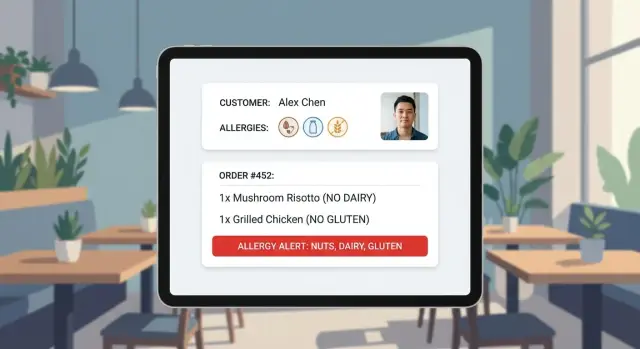
Why restaurants need allergy notes that do not get lost
Allergy risk often shows up on repeat visits, not the first one. The first time someone orders, they usually explain everything carefully, and staff pay extra attention. On visit three or ten, everyone relaxes, the order sounds familiar, and the real danger is assuming last time’s details still apply.
When allergy notes live in someone’s memory, they travel with the person, not the team. If that server is off today, if the host is new, or if the kitchen is slammed, the note disappears. Even worse, it can come back wrong. “I think she can’t have nuts” turns into “no peanuts,” and a dish with almonds slips through.
A restaurant allergy notes app turns fragile, spoken details into a shared, consistent record. That matters because safety is not just knowing a guest has a restriction. It’s knowing exactly what it is, how serious it is, and what has worked for them before.
A few terms get mixed up all the time:
- Allergy: an immune reaction. It can be severe and may require strict avoidance and clear kitchen handling.
- Intolerance: a digestive reaction. It’s often dose-dependent and may allow small amounts.
- Preference: a choice (like vegan or no onions). It matters for service, but it’s a different risk level.
What you want is a simple system the whole team can follow: customer notes that are easy to find during ordering, hard to miss in the kitchen, and simple to update when a guest says, “Actually, it’s worse now,” or “I can have dairy again.”
Who uses the notes and when they matter most
Allergy notes are only useful if the right person sees them at the exact moment they need them. This is less about storing information and more about putting a clear warning in front of the people making decisions.
Front of house usually meets the risk first. Hosts, servers, and cashiers need a quick way to spot an allergy note before they confirm the order. They also need wording they can repeat back: what the allergy is, how serious it is, and what to avoid. This matters most during busy periods, when a verbal note is easy to miss.
Kitchen teams need the same information, but at a different time. The best moment is when the ticket is created and again when the dish is being prepared. A bright, consistent flag helps, but so does a short note that tells them what action to take, like changing gloves, using a clean pan, or avoiding a specific sauce.
Managers use allergy notes to keep things consistent across shifts. They set the standard for how notes are written, who can edit them, and how new hires are trained to check them every time. When staff changes, the notes become the memory of the restaurant.
Customers benefit in a quiet way: they feel safer without giving the same speech every visit. A regular might order takeout weekly. The first time, they mention a peanut allergy. Weeks later, a new server takes the call, sees the flag, confirms it, and the kitchen avoids cross-contact without a long back and forth.
Notes matter most when things are fast or unfamiliar: first-time orders with unclear details, repeat orders placed quickly (especially by phone or pickup), shift changes, menu changes or specials, and shared items where mistakes happen easily.
What to store in a customer allergy profile
A good allergy profile is short, specific, and easy to trust during a rush. If it turns into a long story, staff stop reading it. If it’s too vague, it doesn’t prevent mistakes.
Start with a minimum set that lets anyone confirm the right person and act right away:
- Customer name (or a clear label like "Sam K. - Office pickup")
- Contact detail used for orders (phone or email)
- Allergens to avoid (be specific: "peanuts" vs "nuts")
- Severity note (for example: "anaphylaxis risk" or "mild intolerance")
- Date and source ("told us on 12 Jan" or "parent confirmed")
Once that works, add only what reduces back-and-forth on repeat orders. Many restaurants store a couple of known-safe items the guest orders often, plus substitution preferences like "use oat milk" or "no sesame, swap to sunflower." Keep these as preferences, not guarantees, because recipes and suppliers change.
It also helps to separate customer-level notes from order-level notes. Customer-level notes are the always-true rules ("shellfish allergy"). Order-level notes capture one-off details ("today: no garlic" or "birthday cake, confirm dairy-free"). Both matter: the profile prevents repeat mistakes, and the order note catches what changed since the last visit.
Write notes so they can be scanned in two seconds. Use plain words, not abbreviations that only one person understands. Good: "Milk allergy (hives). Avoid butter, cheese, whey." Risky: "Dairy issue."
Privacy and trust: collecting allergy info respectfully
Allergy notes are personal health information. If guests don’t trust how you handle it, they either won’t share it or they’ll keep it vague, which makes your team less safe.
Ask for consent in plain language
Make consent a simple, optional step at signup, online checkout, or the first time a staff member creates a profile. Use one sentence that answers what you store, why, and who can see it. For example: “We can save your allergy notes to make future orders safer. You can ask us to update or delete them anytime.”
Avoid medical-sounding forms or long disclaimers at the counter. If someone is in a hurry, let them skip saving and still add a one-time note for that order.
Keep it minimal and control access
A restaurant allergy notes app works best when it stores only what your team will actually act on.
At minimum, record the allergen(s) and severity as described by the guest (for example, “peanut - airborne reaction”), what “safe” means to them (avoid cross-contact, separate fryer, no shared utensils), and the date added or last confirmed. Optionally include a preferred contact method for clarifying questions and the source (guest, parent, caregiver).
Limit who can edit permanent notes. Most staff should be able to view, but only managers (or trained leads) should change allergy details. If edits are allowed, keep a simple history (changed from X to Y on date) so nothing is quietly overwritten.
Finally, build a basic retention habit. Review allergy profiles on a schedule (for example, every 6-12 months) and remove notes that are outdated, unconfirmed, or tied to inactive profiles. A quick “still accurate?” prompt on repeat orders builds trust and keeps the record true.
A simple workflow that staff will actually follow
A good allergy workflow is boring in the best way. It should work the same whether the order is taken by phone, at the counter, or online. Capture the info once, then make it hard to miss on every repeat order.
Start with one place to store it: a customer profile. When someone mentions an allergy, staff add it right then, not “later when it’s quiet.” Keep the entry screen short enough to complete in under 20 seconds.
A workflow most teams can stick to:
- Collect: Ask about allergies during order-taking, and include a quick “allergies?” prompt on online checkout.
- Save: Add the note to the customer profile with clear wording (for example: “Peanut allergy, severe, avoid cross-contact”).
- Surface: Show a visible alert on customer lookup and show it again on the ticket or kitchen display.
- Confirm: Repeat it back using the same short script every time.
- Update: Edit fast, and stamp “last updated on” automatically.
The confirmation script prevents “I thought you said…” moments. Keep it consistent:
- “Do you have any allergies we should know about?”
- “I have: [repeat back]. Is that correct?”
- “Is it an intolerance or an allergy, and how serious is it?”
Handling changes is where many systems fail. Put “last updated on” directly in the note and make edits quick. Example: Maria orders weekly and used to note “no dairy.” Today she says it’s now a true milk allergy. The staff member updates the profile, the alert appears during lookup, and the new warning shows on the ticket so the kitchen doesn’t rely on memory.
Step by step: how to set up the app in your restaurant
Start by getting clear on where orders enter your business today. That determines how you match an order to the right person: phone calls, walk-ins, your own site, delivery marketplaces, and table ordering. Write down what identifier you actually have in each place (phone number, loyalty ID, email, table number, or a receipt name). If you can’t reliably identify a repeat guest, allergy notes won’t show up when they matter.
Next, decide which views must exist so staff can act in seconds. Most teams need three:
- A customer profile (where notes live)
- An order screen (where warnings appear before checkout)
- A kitchen view or ticket (where the warning can’t be missed)
A practical setup path:
- Map each order channel to a customer ID rule (for example, phone number for calls, email for online orders, and a quick “create customer” option for walk-ins).
- Define the minimum fields: allergens, severity, an “avoid cross-contact” flag, free-text details, and a “last confirmed” date.
- Add guardrails so notes stay usable (require at least one allergen, nudge staff away from vague entries like “allergic” without details, and prompt confirmation when notes are old).
- Put alerts in two places: during order entry (before payment) and on the kitchen ticket (before cooking).
Before rollout, test with real scenarios, not perfect ones. Try a repeat guest who changes their allergy, a shared family phone number with two different profiles, and an order placed by a friend picking up food.
Launch with a short training focused on habits, not features: when to check the profile, how to add a note, and what to do when the guest is unsure. For the first week, have one shift lead collect issues daily, then adjust fields and warnings to match how your team actually works.
Interface details that prevent missed allergy warnings
A restaurant allergy notes app only helps if the warning shows up at the exact moment someone is about to confirm an order. The interface should make allergy info easy to spot in seconds, even on a busy shift, without turning every screen into a wall of alerts.
Make warnings visible at the moment of decision
Use clear, standardized tags for common risks (for example: peanuts, shellfish, gluten, sesame) and keep them consistent. Tags scan fast. Next to them, allow a short free-text note for the details staff need, like “can’t have shared fryer” or “confirm ingredients every time.”
Put the warning in the same place every time, and show it before the order is sent to the kitchen. A badge buried in a profile is easy to miss. A full-screen pop-up on every tap is also a problem. A good middle ground is a clear banner on the order screen plus a short summary at checkout.
Consider an “Acknowledged” checkbox (or one-tap confirm) for the person taking the order. It creates a pause to read the note, and it makes it clear who saw it. If the note changes, reset the acknowledgement so it can’t be reused blindly.
Reduce errors when finding the right customer
Mistakes often happen before anyone even sees the warning: the wrong “Chris” gets selected. Support quick search by phone number, handle spelling variations and nicknames, and show simple tie-breakers when two matches look similar (last order date, usual items, or an “allergy profile on file” flag).
Families and groups need special handling. Let one account hold multiple people (for example, “Sam (peanut)” and “Mia (dairy)”) so staff can attach the correct allergy profile to the correct meal.
If you want a quick checklist, keep it short: clear allergen tags plus a brief detail note, a banner on the order screen and at checkout, fast lookup by phone, and support for multiple people under one account.
Common mistakes that create risk and confusion
Most allergy incidents start with small, preventable mistakes. The app only helps if the notes are clear, current, and visible at the right moment.
A common problem is mixing preferences with true allergies. “No onions” might be a taste choice, while an allium allergy is a safety issue. If both live under the same label, staff get used to ignoring warnings. Keep allergies and intolerances separate from preferences, and make the safety items visually louder.
Another risk is putting updates in the hands of one trusted person. When they’re off shift, notes drift, new details stay in someone’s memory, and the next order becomes guesswork. Build a habit where any staff member can capture new info, with a simple review step for permanent changes.
Timing matters as much as accuracy. If the alert only appears after the ticket is sent to the kitchen, you’ve already lost time and trust. Warnings should show during order entry and again at the final “send” moment.
Wording also causes confusion. “No nuts” can mean peanuts, tree nuts, nut oils, or “I don’t like nuts.” Write what the guest reacts to and what the risk is.
Mistakes to watch for:
- One field for allergies and dislikes
- Warnings that appear late in the flow
- Vague notes that don’t name the ingredient and reaction
- No change history (who edited, what changed, and when)
Example: A regular orders the same salad weekly. Last month they said “no nuts.” This week they say it’s a hazelnut allergy with past swelling. If the note is vague or overwritten with no history, the team may treat it like a preference and miss nut oil in a dressing.
Quick checklist before you roll it out
Before you use a restaurant allergy notes app on a busy shift, test it like you would test a fire alarm: quickly, under pressure, and with real people.
Pick one daypart (lunch or dinner) and run a short practice with a few staff members. Use a couple of fake customers, then (if possible) one real repeat customer who agrees to help.
Focus on five checks:
- Time to find: Staff can search a name or phone number and see allergy notes fast.
- Early warning: Flags show up before prep starts, not only on a final receipt.
- Clear “I saw it” moment: One required confirmation during ordering.
- Monthly cleanup: Someone reviews profiles for duplicates, outdated notes, and unclear wording.
- Fast correction path: Everyone knows how to fix a wrong note immediately and record what changed.
After the practice, ask two questions: “What slowed you down?” and “What could you miss on a rush?” Then adjust layout, wording, and steps.
A practical example: If a note says “nuts,” staff may not know if that includes coconut, sesame, or trace amounts. Rephrase into clear terms like “peanuts only” or “all tree nuts,” and add a short instruction such as “change gloves, clean station.”
Example: a repeat customer with a changing allergy situation
A regular guest, Maya, calls on a Friday night and says, “Same order as last time: chicken pad thai, no peanuts.” The host recognizes her phone number and opens her customer profile. There’s already a note: “Peanut allergy (severe). Uses epinephrine. Avoid peanut oil.”
Before placing the order, Maya adds, “Also, I found out I react to shrimp now. Even small amounts.” The host repeats it back to confirm: “No peanuts and no shrimp, including shrimp paste and shared fryers. Is that right?” Maya agrees.
The host adds the new detail immediately, and the system shows a clear kitchen alert on the ticket. It’s hard to miss: the warning appears at the top, with the exact ingredients to avoid and a short staff note like “confirm sauce base.”
The kitchen spots a problem. The pad thai sauce usually includes shrimp paste. The cook flags it and the expo asks the host to confirm options with Maya. She chooses a shrimp-free sauce and asks for extra lime.
To keep the record accurate, staff document what actually happened, not just what was requested: substitution approved (shrimp-free sauce, no shrimp paste), cross-contact steps (clean wok, fresh utensils), and a preference (extra lime).
Next time Maya calls, the team doesn’t rely on memory. The profile contains the updated allergy details and the last successful substitution, so repeat orders are faster and safer.
Next steps: choosing your approach and making it real
Start small. Pick one location, one shift team, and one clear moment when the note must be checked (for example, when an order is taken, not after the ticket prints). A simple pilot makes it obvious what’s missing before you ask every server and cook to change their habits.
Build vs buy: decide with your real ordering channels
The right choice depends on where orders come from and what your POS can realistically support. If most orders happen in-house and by phone, a lightweight tool your team actually opens may be enough. If you also take a lot of delivery and online orders, you’ll need a plan for how allergy notes follow the customer across those channels, not just inside one tablet.
Ask a few practical questions: Can staff see the note without leaving the order screen? Can you match repeat customers reliably (phone, name, loyalty ID)? Who can edit notes, and who can only view them? What’s your backup process if the system is down?
If you need custom, prototype it fast and test safely
If off-the-shelf options don’t fit your workflow, building a small custom internal tool can be a reasonable next step. Platforms like Koder.ai (koder.ai) are designed for building web, backend, and mobile apps through a chat interface, which can make it easier to prototype a focused allergy-safe repeat orders flow without dragging the project out.
Keep the first version tight: one search box, one obvious allergy banner, one confirmation step, and a clear kitchen ticket warning. Simple and used every time beats complicated and ignored.
FAQ
What’s the fastest way to get an allergy notes system working without slowing service down?
Start with the highest-risk repeat-order paths: phone orders, counter pickup, and regulars who reorder the same items. Make the allergy banner show up during order entry and again on the kitchen ticket so the note can’t be missed when decisions are made.
What should we store in a customer allergy profile so it’s useful during a rush?
Record the exact allergen, the severity as the guest describes it, and any must-follow handling rule like avoiding cross-contact or shared fryers. Add a “last confirmed” date so staff know whether to re-check details instead of guessing.
How do we avoid mixing allergies, intolerances, and preferences in the same note?
Treat an allergy as a safety warning, an intolerance as a sensitivity with clearer limits, and a preference as a service choice. Keeping these separate prevents staff from ignoring alerts because they’ve been trained by too many “non-safety” notes.
Where should the allergy warning appear so staff actually see it?
Show the warning where the order is taken, not buried in a customer profile that no one opens. A consistent banner plus a required acknowledgment at checkout creates a short pause to read and repeat the note back before the ticket hits the kitchen.
How do we prevent selecting the wrong customer and missing the allergy note?
Use one primary identifier per channel, usually phone for calls and email for online orders, and make it easy to confirm you’ve selected the right person. If two profiles look similar, staff should see a quick tie-breaker like last order date or an “allergy on file” flag before they proceed.
How should we handle families where different people have different allergies?
Support multiple people under one account and attach the allergy profile to the specific meal, not just the overall order. If the same phone number is shared, staff should be prompted to choose “Sam (peanut)” vs “Mia (dairy)” every time.
How can we collect allergy info respectfully without making guests uncomfortable?
Ask for consent in one clear sentence and keep the saved data minimal: what to avoid, how serious it is, and how to handle it. Let guests update or delete it on request, and avoid collecting extra health details that your team won’t use.
Who should be allowed to edit allergy notes, and how do we keep them accurate?
Default to view access for most staff and restrict editing of permanent allergy details to managers or trained leads. If anyone can capture new info, route it into a “needs review” update so the team doesn’t overwrite critical details without confirmation.
What’s a simple confirmation script staff can use on every repeat order?
Give staff a simple script they use every time: ask, repeat back what’s on file, then confirm severity and any handling needs. Consistency matters more than length, especially on busy shifts when people rely on habit.
Should we buy an off-the-shelf allergy notes tool or build a custom app?
Default to buying or using what your POS already supports if it reliably shows alerts during ordering and on kitchen tickets. If your workflow is unusual or you need tighter control, a small custom tool can work well, and platforms like Koder.ai can help you prototype quickly as long as you keep the first version simple and focused.