

School pickup authorization list for staff: a simple system
Use a school pickup authorization list to record who can collect each child, key phone numbers, ID notes, and updates staff can trust.
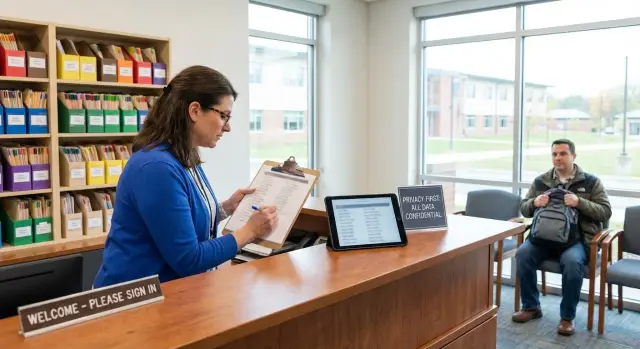
The problem this list solves at pickup time
Dismissal is loud, crowded, and time-sensitive. Phones ring, parents wave from the line, and staff are trying to move kids safely while answering quick questions. That’s when pickup confusion happens: two adults share a last name, a caregiver is new, or a parent sends a last-minute change that not everyone sees.
The biggest risk is when pickup details are scattered. If permission lives across emails, sticky notes, text messages, and a teacher’s memory, staff end up guessing. One person may be sure “Aunt Maya is allowed,” while another has never heard that name. Even when the right child goes with the right adult, the school may have no clear record of how the decision was made.
A school pickup authorization list fixes this by giving staff one trusted place to check. The goal is fast, consistent, documented student release. Instead of debating at the door, staff can verify the adult, confirm the child, note any instructions, and move on. It also reduces awkward moments with families because the rule is clear: “We release students based on the authorization list.”
This matters for everyone involved in dismissal, not just the front office. Any staff member who might hand off a child should be able to follow the same process, including front office staff, teachers on duty, aftercare and club leaders, car line monitors, and substitutes.
When the system is consistent, pickup stays calmer even on busy days, and families learn what to expect.
What an authorization list is (and is not)
A school pickup authorization list is the staff-facing record of who is allowed to take a specific child from school, plus the details staff need to confirm identity quickly.
Think of it as the “yes/no” source for student release. If a name isn’t on the list (or a restriction is unclear), the default is to pause and verify before releasing the child.
What it includes
Most lists include an authorized adult’s full name, relationship to the student, phone number(s), and notes that affect release (for example, “must show photo ID,” “grandparent uses a different last name,” or “custody paperwork on file”). Some schools also use a pickup code or password if their policy allows it.
What it is not
This list is often confused with other records that serve different purposes:
- Emergency contacts: who to call when you can’t reach the parent or guardian, not always who can pick up.
- Class rosters: who is enrolled and where they belong, not who can take them.
- Transportation lists: bus or aftercare plans, not legal permission to release.
Staff should check the authorization list whenever the adult isn’t personally known, something has changed from the usual routine, or a note flags extra steps. Using it only during disputes leads to inconsistent decisions.
What to store for each child (the exact fields)
A school pickup authorization list only works when every entry answers the same questions, fast. Keep fields consistent across students so staff aren’t guessing where to look.
Start with the student record so staff can match the right child to the right request without relying on memory:
- Student full legal name (plus preferred name, if used)
- Grade/class and homeroom teacher
- Usual dismissal method (bus number, walker, aftercare, car line)
- Primary guardian name(s) on record
- Key alerts your school is allowed to show at pickup (for example: “check ID every time”)
Next, store authorized pickup adults in a structured way. It’s better to list fewer people clearly than many people vaguely:
- Full name (as shown on ID) and relationship to student
- Phone number(s) with labels (mobile, work) and best time to call
- Verification notes (for example, “must match name exactly”)
- Legal or custody notes (only what is documented and actionable, such as “release to mother only”)
Then add instructions that prevent small confusion from turning into delays. Examples include pickup window (“Tuesdays only”), car line notes (“blue SUV, plate ends 217”), or “requires nurse sign-off.” If your school includes medical flags like allergies, keep them minimal and policy-approved.
Example: If an uncle arrives saying, “I’m picking up Maya,” staff can confirm the exact spelling, see he’s authorized, call the listed number if needed, and follow the note “ID required every pickup.”
How to collect and verify authorization info
The safest list starts with how you collect names and how you confirm them. Most pickup mix-ups begin as simple data mistakes: a missing digit in a phone number, a nickname recorded as a legal name, or a form that never made it to the right place.
Use a few clear intake paths so families always know where updates go. Common options include enrollment paperwork, a yearly update form, and a mid-year change form for adding or removing a caregiver.
Intake options that work in real life
Keep the choices simple and consistent:
- Enrollment packet (sets the baseline for the year)
- Annual update form (confirms nothing has changed)
- Mid-year change form (adds or removes authorized adults)
Verification steps before you file
A small routine helps staff catch errors early:
- Read back spellings of full names and confirm relationships
- Confirm phone numbers (by calling or texting while the caregiver is present, if allowed)
- Ask for photo ID requirements for each authorized adult (and record that the name must match)
- Check that custody or court orders on file match what the form claims
- Date-stamp the update and note who received it
Last-minute changes need a firm rule. Decide who can approve them, how the request must arrive, and how staff will record it (time, staff initials, and the exact instruction).
When caregivers disagree or provide conflicting info, don’t “split the difference” at the desk. Pause the change, follow the legal documents on file, and escalate to the authorized decision-maker.
Step-by-step: build and maintain the list
Pickup gets messy when information lives in three places and nobody knows which one is current. The goal is one clear record staff can trust every day.
1) Set up the system once
Choose a single source of truth. A paper binder can work if it stays in one place, never leaves the building, and has controlled access. A shared digital record works well if staff can open it quickly during dismissal and edits are limited to approved roles.
Create one standard template and simple naming rules. Use the child’s name exactly as it appears in the student system, then grade and homeroom. List adults by full legal name, and keep relationship labels plain (parent, grandparent, neighbor, after-school provider).
2) Enter and verify the data
Build the first version in one focused session so the format stays consistent. As you enter each child, double-check the fields that cause the most confusion: spelling of names, phone numbers, and any ID notes (“must show photo ID,” “grandparent uses maiden name”). If possible, have a second staff member spot-check a sample before the list goes live.
A practical build routine most offices can follow:
- Pick one official record location and label it clearly.
- Use one template for every student and keep the same field order.
- Verify names, phone numbers, and ID notes before marking a record complete.
- Set an update schedule (weekly quick check, monthly audit, and updates by request).
- Log every change with the date and approving staff member.
3) Maintain it without losing control
Make updates predictable. Require written approval (paper form or signed email) before adding a new authorized adult. When a parent calls with a same-day change, record it as temporary and confirm it later.
Keeping it accessible to staff but protected
The list has to be easy to use during a busy dismissal, but it also contains personal details. The goal is simple: the right adults can see it when they need it, and nobody else can casually glance at it.
Limit access to what’s necessary. Most schools only need a small group to have full access: front office staff who check IDs, administrators on duty, and the dismissal lead. Teachers often only need access to their own class information (or a “call the office” note), not the full school list.
A practical access approach looks like this:
- Full access: front office, principal/assistant principal, dismissal lead
- Limited access: classroom teachers for their roster only
- Temporary access: trained substitutes, time-boxed and supervised
- No access: general volunteers, visitors, non-duty staff
Where you store it matters as much as who can see it. If you use a binder, keep it in a known spot (not on an open counter) and return it to a locked drawer after dismissal. If you use a digital file, require logins and avoid shared devices left unattended.
Printing is where privacy often slips. If you print, print the minimum pages needed for that day and assign ownership. After dismissal, collect all copies and either return them to locked storage or shred them if they were meant to be single-use.
For retention, do an end-of-year closeout. Archive the final list with restricted access, keep it only as long as school policy requires, and then securely delete or shred old versions.
How staff use it during daily dismissal
Daily dismissal moves fast, so the goal is to confirm the right adult for the right child without turning it into a confrontation. A well-kept authorization list helps staff stay calm, consistent, and fair, even when the line is long.
Start with a short, standard set of questions. Ask for the student’s name first (to avoid fishing for details), then the adult’s name and relationship. If your policy requires it, ask for photo ID for anyone staff doesn’t personally know, or for any pickup that feels unusual.
Use the same quick match routine each time:
- Find the student, then confirm the authorized names (quietly)
- Match the adult’s name and relationship to the list (watch for similar names)
- Check notes (custody limits, restraining orders, “must show ID”)
- Confirm required ID and match it to the name on the list
- Release the student and note the time if your procedure requires it
When someone isn’t listed, keep your words steady and non-judgmental: “I can’t release a student to anyone not on the authorization list. Let’s contact the parent/guardian and confirm.” Then follow your escalation path.
If an exception is approved, record it the same way every time: who requested it, who approved it, how you verified the approval, the exact pickup person’s name, and any ID details.
Common mistakes that cause pickup mix-ups
Most pickup problems don’t happen because staff don’t care. They happen because the information is unclear, outdated, or scattered.
A frequent issue is contact details that quietly go stale. A parent changes numbers, a custody situation changes, or a caregiver moves, and the list still shows last year’s details. When staff can’t reach the right adult quickly, small delays turn into tense conversations.
Common problems include:
- Vague entries like “Aunt” or “Grandma” without a full legal name that matches ID.
- Phone numbers without labels (mobile vs work) or without a reliable backup.
- Informal approvals (texts, quick calls) that never get recorded on the official list.
- Relying on recognition (“I’ve seen them before”) instead of a consistent check.
- Multiple versions of the list (office binder, teacher clipboard, aftercare spreadsheet) that don’t match.
A simple example: a child’s profile says “Uncle Mike” can pick up. At 3:10, a man arrives and says he is “Mike, the uncle.” Staff can’t confirm his last name, and the phone number listed goes to voicemail. Even if he’s legitimate, the lack of detail forces a delay.
You can prevent most mix-ups with a few habits:
- Require full name, relationship, and ID-check notes for every authorized adult.
- Record changes the same day with who approved them and a timestamp.
- Keep one source-of-truth version and retire old copies immediately.
- Treat recognition as a helpful cue, not the verification step.
Quick checklist before you rely on the list
Before staff use the list in real time, do a quick “busy day” check. A list can look complete but still fail when a parent is late, a grandparent shows up, or the office phone is ringing nonstop.
- Coverage: each student has two or more approved pickup people when possible, plus who to call if nobody arrives.
- Phone numbers: every contact has current numbers, clearly labeled.
- Restrictions: custody limits, no-contact orders, and “do not release to” notes are written in plain language and easy to notice.
- Freshness: each student record shows a last-updated date.
- Same-day changes: there is a consistent rule for last-minute swaps, including how staff verify identity and who can approve.
If something fails the checklist, fix it before dismissal gets hectic.
A quick weekly spot-check keeps the list reliable:
- Pick 10 random students and run a 2-minute “mock pickup” using only the list.
- Confirm at least one number per family to catch disconnected or mislabeled phones.
- Decide where same-day updates go immediately, and who must copy them into the official record by end of day.
Example scenario: an unexpected pickup request
A parent usually picks up Maya in car line at 3:15. Today, the parent is running late and Maya’s grandparent walks into the office at 3:05 and says, “I’m here to pick her up. Her mom texted me.” The staff member stays calm and treats it like any other release request.
First, the staff member checks Maya’s record and sees the grandparent is listed, along with a note: “Photo ID required.” The staff member asks for photo ID, matches the name and photo, and releases Maya.
Now imagine the grandparent isn’t listed. The staff member doesn’t debate or rely on the text message. They explain, “I can’t release a student unless you’re authorized,” and move to verification:
- Call the primary caregiver on file (not a number provided at the desk)
- If no answer, call the next contact listed
- Confirm the adult’s full name and relationship
- Ask the caregiver to submit the required written authorization
- Document what happened right away
If the caregiver can’t provide the required authorization, the student stays with supervised staff until an authorized person arrives. The key is consistency: the same rule every day, for every family.
After the rush, staff update the record so tomorrow is easier: add the adult if approved, note any ID requirements, and log the date and verifier.
Next steps: choose a format and make it easy to follow
Pick a format your staff will actually use at 3:00 pm. The best list is fast to check, easy to update, and hard to lose.
Common options include a paper binder (tight version control, one master copy), a protected spreadsheet (clear edit process), or a simple internal app. Whatever you choose, keep it consistent: one page per student (or one row per student) with the same field order every time.
Train everyone on the same release routine, including substitutes. Keep training practical: where to find the record, what to do when info is missing, and who makes the final call.
Set a cleanup schedule so the list stays trustworthy:
- Weekly: remove temporary notes that are no longer valid.
- Monthly: spot-check phone numbers and any custody-related restrictions.
- Each term: re-collect updates and re-verify identities as required by your policy.
If you decide to build a small internal tool instead of managing binders and spreadsheets, Koder.ai (koder.ai) can help you create web or mobile apps through a chat interface, with options like source code export and deployment/hosting. The best system is the one your team can use quickly, every day, without debate at the door.
The goal stays the same: fewer surprises, faster lines, and consistent decisions no matter who is working the front office. "}
FAQ
What is a school pickup authorization list?
A pickup authorization list is the staff-facing record that says exactly who may take a specific student from school. It should include the details staff need to verify identity quickly so release decisions are consistent and documented.
How is a pickup authorization list different from emergency contacts?
Emergency contacts are mainly about who you call when you can’t reach a parent or guardian, and they may not have permission to pick up. The authorization list is the “yes/no” record for releasing a student, so staff shouldn’t assume an emergency contact can pick up unless they’re also authorized.
What details should we store for each authorized pickup adult?
Use the adult’s full legal name as it appears on their photo ID, plus relationship, phone numbers, and any verification notes like “ID required every time.” Avoid vague entries like “Grandma” or nicknames, because they slow down dismissal and make identity checks harder.
What should staff do if someone shows up who isn’t on the list?
A reliable default is to pause and verify before releasing the student. Check the authorization list, contact the primary guardian using the number already on file (not a number given at the desk), and document what you did and who approved any exception.
How should we handle last-minute pickup changes from parents?
Set a clear same-day change rule: who can request it, how it must be received, and who can approve it. Treat it as temporary unless it’s followed by the required written authorization, and record the time, the exact adult name, how identity was verified, and the approving staff member.
What’s the simplest process for checking ID during dismissal?
Ask for the student’s name first, then the adult’s name and relationship, and check the authorization list before releasing. If the adult isn’t personally known or the situation is unusual, request photo ID and make sure the name matches what’s on the list, including any notes about maiden names or different last names.
Is a binder okay, or should the list be digital?
A paper binder can work if there is one master copy, it stays in a controlled location, and access is limited. A digital record is often faster to search and easier to audit, as long as logins are required and edits are restricted to approved roles.
How do we keep the list accessible to staff but protect privacy?
Keep access limited to staff who actually need it during release, and avoid leaving it visible on open counters or unlocked screens. If you print anything for dismissal, print the minimum needed, assign ownership, and collect and secure or shred copies right after dismissal.
What causes most pickup mix-ups, and how do we prevent them?
The most common mistakes are incomplete names that don’t match ID, outdated phone numbers, and multiple versions of the list that conflict. Fixing those usually comes down to one source of truth, a consistent template, and a change log so staff know what’s current.
Can we build a simple internal tool for pickup authorization without a big development project?
If spreadsheets and binders are slowing you down, a small internal app can make lookup, updates, and audit trails easier. Koder.ai can help you build a simple web or mobile tool through a chat interface, with options like exporting source code and deploying/hosting, while keeping your pickup workflow consistent for staff.