

Secure file uploads: permissions, limits, signed URLs, scans
Secure file uploads in web apps need strict permissions, size limits, signed URLs, and simple malware scanning patterns to avoid incidents.
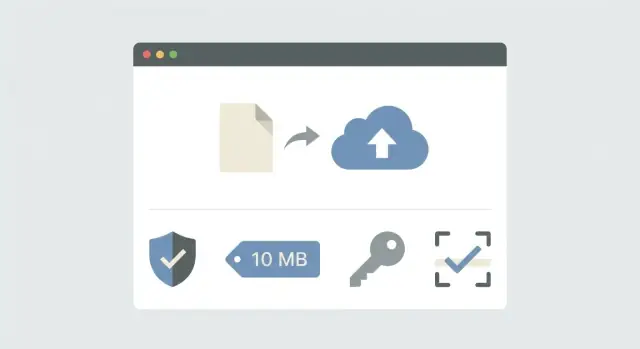
Why file uploads are risky (in plain language)
File uploads look harmless: a profile photo, a PDF, a spreadsheet. But they’re often the first security incident because they let strangers send your system a mystery box. If you accept it, store it, and show it back to other people, you’ve created a new way to attack your app.
The risk isn’t just “someone uploads a virus.” A bad upload can leak private files, blow up your storage bill, or trick users into handing over access. A file named “invoice.pdf” might not be a PDF at all. Even real PDFs and images can cause trouble if your app trusts metadata, previews content automatically, or serves it with the wrong rules.
Real failures tend to look like this:
- Someone guesses a file URL and downloads another user’s document.
- An uploaded HTML file is served like a web page and shows a login-stealing prompt.
- An attacker uploads huge files repeatedly until your app slows down or crashes.
- A “safe” file type is faked, then opened by staff on an internal machine.
One detail drives a lot of incidents: storing files isn’t the same as serving files. Storage is where you keep the bytes. Serving is how those bytes are delivered to browsers and apps. Things go sideways when an app serves user uploads with the same trust level and rules as the main website, so the browser treats the upload as “trusted.”
“Secure enough” for a small or growing app usually means you can answer four questions without hand-waving: who can upload, what you accept, how big and how often, and who can read it later. Even if you’re building quickly (with generated code or a chat-driven platform), those guardrails still matter.
A simple threat model for uploads
Treat every upload like untrusted input. The practical way to keep uploads safe is to picture who might abuse them and what “success” looks like for them.
Most attackers are either bots scanning for weak upload forms or real users pushing limits to get free storage, scrape data, or troll your service. Sometimes it’s also a competitor probing for leaks or outages.
What do they want? Usually one of these outcomes:
- Run code on your servers by uploading something that gets executed.
- Steal private files by guessing, reusing, or sharing download URLs.
- Hurt availability by flooding uploads or forcing expensive processing.
- Inflate your bill through storage growth or bandwidth-heavy downloads.
Then map the weak spots. The upload endpoint is the front door (oversized files, weird formats, high request rates). Storage is the back room (public buckets, wrong permissions, shared folders). Download URLs are the exit (predictable, long-lived, or not tied to a user).
Example: a “resume upload” feature. A bot uploads thousands of large PDFs to run up costs, while an abusive user uploads an HTML file and shares it as a “document” to trick others.
Before you add controls, decide what matters most for your app: privacy (who can read it), availability (can you keep serving), cost (storage and bandwidth), and compliance (where data is stored and how long you keep it). That priority list keeps decisions consistent.
Permissions and access control that actually hold up
Most upload incidents aren’t fancy hacks. They’re simple “I can see someone else’s file” bugs. Treat permissions as part of uploads, not a feature you bolt on later.
Start with one rule: default deny. Assume every uploaded object is private until you explicitly allow access. “Private by default” is a strong baseline for invoices, medical files, account documents, and anything tied to a user. Make files public only when the user clearly expects it (like a public avatar), and even then consider time-limited access.
Roles that match real work
Keep roles simple and separate. A common split is:
- Uploader: can create uploads for their own account
- Viewer: can download files they’re allowed to see
- Support: can access files only with an auditable, temporary grant
- Admin: can manage policy, but shouldn’t automatically read everything
Don’t rely on folder-level rules like “anything in /user-uploads/ is fine.” Check ownership or tenant access at read time, for every file. That protects you when someone changes teams, leaves an org, or a file is reassigned.
A good support pattern is narrow and temporary: grant access to one specific file, log it, and expire it automatically.
Validating file type without relying on trust
Most upload attacks start with a simple trick: a file that looks safe because of its name or a browser header, but is actually something else. Treat everything the client sends as untrusted.
Start with an allowlist: decide the exact formats you accept (for example, .jpg, .png, .pdf) and reject everything else. Avoid “any image” or “any document” unless you truly need it.
Don’t trust the filename extension or the Content-Type header from the client. Both are easy to fake. A file named invoice.pdf can be an executable, and Content-Type: image/png can be a lie.
A stronger approach is to inspect the first bytes of the file, often called “magic bytes” or a file signature. Many common formats have consistent headers (like PNG and JPEG). If the header doesn’t match what you allow, reject it.
A practical validation setup:
- Allowlist the extensions you accept (server-side list).
- Detect the MIME type on the server (not the client header).
- Sniff magic bytes for the formats you support.
- Generate a new random storage name and store the original name as metadata.
- Block risky formats unless you truly need them, especially HTML, SVG, and script-like content.
Renaming matters more than it sounds. If you store user-provided names directly, you invite path tricks, odd characters, and accidental overwrites. Use a generated ID for storage and keep the original filename only for display.
For profile photos, accept only JPEG and PNG, verify headers, and strip metadata if you can. For documents, consider limiting to PDF and rejecting anything with active content. If you later decide you need SVG or HTML, treat them as potentially executable and isolate them.
Size limits, rate limits, and DoS basics
Most upload outages aren’t “fancy hacker tricks.” They’re huge files, too many requests, or slow connections that tie up servers until the app feels down. Treat every byte as a cost.
Set size limits where they actually work
Pick a maximum size per feature, not one global number. An avatar doesn’t need the same limit as a tax document or a short video. Set the smallest limit that still feels normal, then add a separate “large upload” path only when you truly need it.
Enforce limits in more than one place, because clients can lie: in app logic, at the web server or reverse proxy, with upload timeouts, and with early rejection when the declared size is too large (before reading the full body).
Concrete example: avatars capped at 2 MB, PDFs capped at 20 MB, and anything larger requires a different flow (like direct-to-object-storage with a signed URL).
Rate limits and abuse controls
Even small files can become a DoS if someone uploads them in a loop. Add rate limits on upload endpoints per user and per IP. Consider stricter limits for anonymous traffic than for logged-in users.
Resumable uploads help real users on bad networks, but the session token must be tight: short expiry, tied to the user, and bound to a specific file size and destination. Otherwise “resume” endpoints become a free pipe into your storage.
When you block an upload, return clear user-facing errors (file too large, too many requests) but don’t leak internals (stack traces, bucket names, vendor details).
Safe storage and delivery choices
Secure uploads aren’t only about what you accept. They’re also about where the file goes and how you hand it back later.
Keep upload bytes out of your main database. Most apps only need metadata in the DB (owner user ID, original filename, detected type, size, checksum, storage key, created time). Store the bytes in object storage or a file service built for large blobs.
Separate public and private files at the storage level. Use different buckets or containers with different rules. Public files (like public avatars) can be readable without login. Private files (contracts, invoices, medical docs) should never be publicly readable, even if someone guesses the URL.
Avoid serving user files from the same domain as your app when you can. If a risky file slips through (HTML, SVG with scripts, or browser MIME sniffing oddities), hosting it on your main domain can turn it into an account takeover. A dedicated download domain (or storage domain) limits the blast radius.
On downloads, force safe headers. Set a predictable Content-Type based on what you allow, not what the user claims. For anything that could be interpreted by a browser, prefer sending it as a download.
A few defaults that prevent surprises:
- Use
Content-Disposition: attachmentfor documents. - Use a safe
Content-Type(orapplication/octet-stream). - Store and serve with opaque object keys (not user filenames).
- Log downloads of private files.
Retention is security, too. Delete abandoned uploads, remove old versions after replacement, and set time limits for temporary files. Less stored data means less to leak.
Signed URLs: when to use them and how to keep them tight
Signed URLs (often called pre-signed URLs) are a common way to let users upload or download files without making your storage bucket public, and without sending every byte through your API. The URL carries temporary permission, then expires.
Two common flows:
- Direct-to-storage upload: your app issues a short-lived signed URL and the browser uploads straight to object storage.
- Upload-through-server: the file hits your API first, then your server stores it.
Direct-to-storage reduces API load, but it makes storage rules and URL constraints more important.
How to keep signed URLs tight
Treat a signed URL like a one-time key. Make it specific and short-lived.
- Expire write URLs fast (often 1-5 minutes). Keep read URLs in minutes, not days.
- Bind the URL to the exact object key you expect (one object, not a folder).
- Add constraints where supported: expected content type, max size, checksum.
- Issue URLs only after permission checks.
- Log who requested the URL and why (user ID, object key, purpose, IP/user agent).
A practical pattern is to create an upload record first (status: pending), then issue the signed URL. After upload, confirm the object exists and matches expected size and type before marking it ready.
Step-by-step: a safe upload flow you can implement
A safe upload flow is mostly clear rules and clear state. Treat every upload as untrusted until checks are done.
Write down what each feature allows. A profile photo and a tax document shouldn’t share the same file types, size limits, or visibility.
A practical flow (with real statuses)
-
Define allowed types and a per-feature size limit (for example: photos up to 5 MB; PDFs up to 20 MB). Enforce the same rules in the backend.
-
Create an “upload record” before bytes arrive. Store: owner (user or org), purpose (avatar, invoice, attachment), original filename, expected max size, and a status like
pending. -
Upload into a private location. Don’t let the client choose the final path.
-
Validate again server-side: size, magic bytes/type, allowlist. If it passes, move status to
uploaded. -
Scan for malware and update status to
cleanorquarantined. If scanning is async, keep access locked while you wait. -
Allow download, preview, or processing only when status is
clean.
Small example: for a profile photo, create a record tied to the user and purpose avatar, store privately, confirm it’s really JPEG/PNG (not just named like one), scan it, then generate a preview URL.
Basic malware scanning patterns (without overpromising)
Malware scanning is a safety net, not a promise. It catches known bad files and obvious tricks, but it won’t detect everything. The goal is simple: reduce risk and make unknown files harmless by default.
A reliable pattern is quarantine first. Save every new upload into a private, non-public location and mark it as pending. Only after it passes checks do you move it to a “clean” location (or mark it available).
Synchronous scans work only for small files and low traffic because the user waits. Most apps scan asynchronously: accept the upload, return a “processing” state, scan in the background.
What “basic scanning” usually includes
Basic scanning is typically an antivirus engine (or service) plus a few guardrails: AV scan, file-type checks (magic bytes), archive limits (zip bombs, nested zips, huge uncompressed size), and blocking formats you don’t need.
If the scanner fails, times out, or returns “unknown,” treat the file as suspicious. Keep it quarantined and don’t provide a download link. This is where teams get burned: “scan failed” should not turn into “ship it anyway.”
When you block a file, keep the message neutral: “We couldn’t accept this file. Try a different file or contact support.” Don’t claim you detected malware unless you’re confident.
Example: profile photo and document upload in a typical app
Consider two features: a profile photo (shown publicly) and a PDF receipt (private, used for billing or support). Both are upload problems, but they shouldn’t share the same rules.
For the profile photo, keep it strict: allow only JPEG/PNG, cap size (for example 2-5 MB), and re-encode server-side so you’re not serving the user’s original bytes. Store it in public storage only after checks.
For the PDF receipt, accept a larger size (for example up to 20 MB), keep it private by default, and avoid rendering it inline from your main app domain.
A simple status model keeps users informed without exposing internals:
- pending: user picked a file, upload not started
- uploaded: storage received the bytes
- scanning: background job is checking it
- clean (or rejected): file is available (or blocked)
Signed URLs fit neatly here: use a short-lived signed URL for upload (write-only, one object key). Issue a separate short-lived signed URL for reading, and only when status is clean.
Log what you need for investigation, not the file itself: user ID, file ID, type guess, size, storage key, timestamps, scan result, request IDs. Avoid logging raw contents or sensitive data found inside documents.
Common mistakes and easy traps
Most upload bugs happen because a small “temporary” shortcut becomes permanent. Assume every file is untrusted, every URL will be shared, and every “we’ll fix it later” setting will be forgotten.
The traps that show up repeatedly:
- Relying on client-side checks alone. Browsers can be bypassed in seconds.
- Letting users influence paths, filenames, or object keys.
- Making uploads public “just for a moment.”
- Using signed URLs that live too long or work for multiple users.
- Serving files with the wrong
Content-Type, letting the browser interpret risky content.
Monitoring is the one teams skip until the storage bill spikes. Track upload volume, average size, top uploaders, and error rates. One compromised account can quietly upload thousands of large files overnight.
Example: a team stores avatars under user-provided filenames like “avatar.png” in a shared folder. One user overwrites other people’s images. The fix is boring but effective: generate object keys server-side, keep uploads private by default, and expose a resized image through a controlled response.
Quick checklist and next steps
Use this as a final pass before you ship. Treat each item as a release blocker, because most incidents come from one missing guardrail.
Quick checklist
- Validate on the server with an allowlist, real content checks (not just the filename), and a hard max size per file.
- Store uploads private by default, and check permissions every time a file is read, downloaded, or previewed.
- If you use signed URL uploads, keep them short-lived, scoped to one object key, and log issuance so you can trace abuse.
- Quarantine first, scan second: don’t generate previews or allow downloads until the file is clean.
- Force safe download behavior: predictable
Content-Type, safe filenames, andattachmentfor documents.
Next steps that pay off
Write down your rules in plain language: allowed types, max sizes, who can access what, how long signed URLs live, and what “scan passed” means. That becomes the shared contract between product, engineering, and support.
Add a few tests that catch common failures: oversized files, renamed executables, unauthorized reads, expired signed URLs, and “scan pending” downloads. These tests are cheap compared to an incident.
If you’re building and iterating quickly, it helps to use a workflow where you can plan changes and roll them back safely. Teams using Koder.ai (koder.ai) often lean on planning mode and snapshots/rollback while tightening upload rules over time, but the core requirement stays the same: the backend enforces the policy, not the UI.
FAQ
What’s the minimum I should do to make file uploads “safe enough”?“
Start with private by default and treat every upload as untrusted input. Enforce four basics server-side:
- Who can upload
- What file types you accept (allowlist)
- How big/how often (size + rate limits)
- Who can read it later (per-file permission checks)
If you can answer those clearly, you’re already ahead of most incidents.
Why are file uploads a common first security incident?
Because users can upload a “mystery box” that your app stores and might later serve back to other users. That can lead to:
- Unauthorized access to private documents
- Phishing or account takeover if a file is served as trusted web content
- Outages and high bills from upload floods or huge files
It’s rarely just “someone uploaded a virus.”
What’s the difference between storing files and serving files, and why does it matter?
Storing is keeping bytes somewhere. Serving is delivering those bytes to browsers and apps.
The danger is when your app serves user uploads with the same trust and rules as your main site. If a risky file is treated like a normal page, the browser may execute it (or users may trust it too much).
A safer default is: store privately, then serve through controlled download responses with safe headers.
How do I stop users from downloading someone else’s uploaded file?
Use default deny and check access every time a file is downloaded or previewed.
Practical rules:
- Every file record should have an owner (user/org) and purpose (avatar, invoice, etc.)
- On read/download, verify the requester is allowed for that specific file
- Avoid “folder-based” security like “anything under
/uploads/is fine” - Keep support access temporary and logged (grant access to one file, expire it automatically)
Most real bugs are simple “I can see another user’s file” mistakes.
How do I validate file type without trusting the filename or Content-Type?
Don’t trust the filename extension or the browser’s Content-Type. Validate on the server:
- Use an allowlist of formats per feature (e.g., JPEG/PNG for avatars, PDF for receipts)
- Detect type server-side and check magic bytes (file signatures)
- Rename files for storage using a random ID; keep the original name only as metadata
- Block risky formats you don’t need (especially HTML, SVG, script-like content)
If the bytes don’t match an allowed format, reject the upload.
What limits should I set to prevent upload-based DoS attacks?
Because outages often come from boring abuse: too many uploads, huge files, or slow connections tying up server resources.
Defaults that work well:
- Set per-feature max sizes (avatars small, documents bigger)
- Enforce limits at multiple layers (app + reverse proxy + timeouts)
- Add rate limits per user and per IP, with stricter limits for anonymous traffic
Treat every byte as cost and every request as potential abuse.
Should I use signed URLs for uploads, and what’s the safest default?
Yes, but do it carefully. Signed URLs let the browser upload/download directly from object storage without making the bucket public.
Good defaults:
- Keep write URLs short-lived (often 1–5 minutes)
- Scope each URL to one object key, not a folder
- Issue URLs only after permission checks
- Log who requested the URL and for what file
Direct-to-storage reduces API load, but it makes scoping and expiration non-negotiable.
What’s a safe step-by-step upload flow I can implement?
The safest pattern is:
- Create an upload record with status
pending - Upload bytes into a private location
- Validate size + type (magic bytes) server-side
- Scan (usually async) and move status to
cleanorquarantined - Only allow download/preview when status is
clean
This prevents “scan failed” or “still processing” files from being shared accidentally.
Do I really need malware scanning, and what does “basic scanning” look like?
Scanning helps, but it’s not a guarantee. Use it as a safety net, not your only control.
Practical approach:
- Quarantine first: don’t expose links until scanning completes
- Scan asynchronously for scale; show “processing” to the user
- If scanning fails or times out, treat the file as suspicious and keep it blocked
- Add guardrails for archives (zip bombs, huge uncompressed sizes) if you allow them
The key is policy: “not scanned” should never mean “available.”
How should I deliver uploaded files safely (headers, domains, downloads)?
Serve files in a way that prevents browsers from interpreting them as web pages.
Good defaults:
- Set
Content-Disposition: attachmentfor documents - Use a safe, server-chosen
Content-Type(orapplication/octet-stream) - Use opaque storage keys (not user filenames) in URLs
- Prefer a separate download domain for user content when possible
This reduces the risk that an uploaded file turns into a phishing page or script execution.