

Service area checker by ZIP code for fast quote requests
Add a service area checker by ZIP code so visitors instantly know if you serve them and can request a quote. UX tips, data options, and pitfalls.
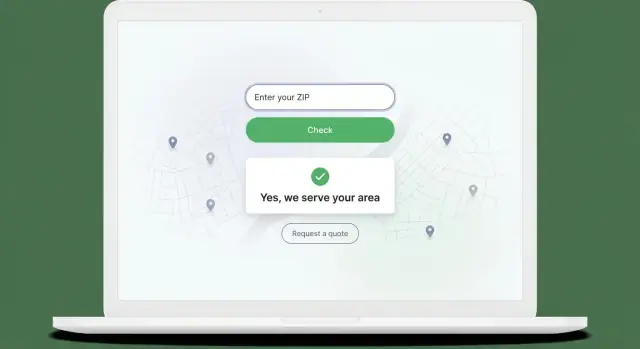
Why a simple service area check reduces confusion
Most visitors don’t leave because they dislike your service. They leave because they can’t answer one basic question fast: “Do you work where I live?” If they have to guess, they’ll bounce and try the next company.
Unclear coverage also creates busywork. People call or fill out forms “just to check,” and you end up spending time on leads you can’t serve. Worse, customers who are outside your area may feel misled when you tell them no, which hurts trust.
A service area checker by ZIP code fixes this with one promise: a clear answer right away.
“Instant answer” from a customer’s point of view means they type five digits, tap one button, and see a simple message immediately. No long explanation. It should be obvious what to do next, whether that’s requesting a quote or choosing another option.
This kind of widget matters most when distance changes the price, timing, or whether you can take the job at all. It’s especially useful for home services, on-site work, local delivery, and mobile services.
A quick example: a homeowner needs a water heater replaced today. They find you on their phone at lunch. If your site makes them hunt for a service map, they’ll likely move on. If they enter their ZIP and see “Yes, we serve your area - request a quote,” you remove the main reason to hesitate.
The goal isn’t to impress people. It’s to remove doubt, cut wasted contact, and help the right customers reach you faster.
What a ZIP-based service area checker does
A service area checker by ZIP code is a small widget that answers one question: “Do you serve my address?” The visitor types a ZIP code, taps a button, and gets a clear yes or no.
The flow stays short on purpose: enter ZIP, see the result, then take one obvious action. The best versions feel instant because people often use them while comparing providers. They don’t want to call just to be told you don’t cover their area.
When the ZIP is served, confirm coverage in plain language and move straight into a quote path. Ideally, the “Request a quote” action opens a short form already filled with the ZIP they entered, so they don’t repeat themselves.
When the ZIP isn’t served, the widget should still be polite and useful. Suggest nearby served ZIPs, offer a waitlist, or invite them to share their location so you can follow up if you expand.
At a minimum, these two outcomes should be clear:
- Served: a confirmation message and a single “Request a quote” button
- Not served: a clear message, one helpful alternative, and one contact option
Placement matters. This works well on the homepage (quick reassurance), on each service page (high intent), and on the contact page (to reduce low-quality inquiries). If you’re building it with a tool like Koder.ai, you can also add small touches like remembering the last ZIP checked so repeat visitors move faster.
User experience: the screen should answer in 2 seconds
A service area checker by ZIP code only works if it feels effortless. Keep it small and obvious: one ZIP field and one button. Label it in plain words, like “Enter ZIP code,” and keep the button simple, like “Check” or “See availability.”
After the click, show an answer fast and in plain language. Avoid terms like “coverage verification” or “serviceability.” People want a simple yes or no, plus the next step.
Message styles that work well:
- “Yes - we serve 78704. Request a quote.”
- “Not yet - we don’t serve 78704. Leave your email and we’ll update you.”
- “We serve this ZIP for some services. Choose what you need to confirm.”
If availability changes by service type (for example, repairs only in the city, installs in the whole county), say so right away in one short line under the result. Don’t hide it in fine print. A small “What do you need?” dropdown can appear only after the ZIP is valid, so the first step stays fast.
Don’t make users fight the form. Handle common input problems with friendly error text: “Please enter a 5-digit ZIP code.” Make the ZIP field numeric-friendly on mobile, and accept common formats like “12345” and “12345-6789.”
Accessibility basics matter because this is a high-traffic, high-intent step. Make sure the field and button work with a keyboard, the focus ring is visible, contrast is readable, and errors are announced near the field (not only by color). If you build this in Koder.ai, do one quick pass using only the keyboard before you publish.
Choosing the service area rules (ZIP list vs radius)
Your rules decide whether the widget feels trustworthy or frustrating. Pick the simplest rule that matches how you actually dispatch work, then add nuance only where it matters.
The most reliable option is an allowlist: a saved list of ZIP codes you serve. It takes a bit of setup, but the answer is clear and easy to explain. If someone types a ZIP and it says “Yes,” you can stand behind it. For a service area checker by ZIP code, this is usually the safest default.
A radius around a base location looks simple, but it can be wrong in everyday ways. A 20-mile circle might include areas across a river with no nearby bridge, or exclude a neighborhood you do serve because driving time is short but distance is slightly over the line. Radius rules work best when your geography is simple and your team truly serves “roughly within X miles.”
If you have multiple crews or hubs, treat each one as its own mini service area. You can still keep the user experience simple: match the ZIP to the best hub behind the scenes, then show one clear result.
Common rule patterns that stay clear for customers:
- Serve list: allowed ZIPs only
- Serve by hub: ZIPs mapped to crew or location
- Serve with conditions: ZIP is allowed, but some services cost more or aren’t available
Partial coverage is where many widgets break trust. If a ZIP is “Yes, but...,” say the “but” right away: “We serve this ZIP for repairs. New installs may include a travel fee.” Then keep the quote button visible and pre-fill the ZIP so the customer doesn’t repeat themselves.
How to organize your service area data
A service area checker by ZIP code is only as accurate as the data behind it. If your coverage rules live in emails, spreadsheets, and someone’s memory, the widget will give inconsistent answers, and customers will feel it.
Start with one source of truth: a table that treats each ZIP as a record you can turn on, turn off, and explain. Keep it boring and searchable. You can store this in your app database (for example, PostgreSQL) so updates are fast and trackable.
A practical table structure:
- ZIP code (store as text, not a number)
- City/region label (what humans recognize)
- Active flag (served vs not served)
- Notes (internal reason, like “seasonal” or “no high-rises”)
- Message to show (customer-facing text when you need a special note)
That “message to show” field solves real-life situations: “We serve this ZIP for repairs only,” or “Next available appointment is in 3 days.” It keeps your UI simple while letting you be honest.
Don’t overwrite rules, version them
When you change coverage, you’ll want to know what the rules were last month (for reporting, refunds, or complaint handling). Add a lightweight version concept: a rule set name, start date, and end date. New updates create a new version instead of editing the old one.
Plan for multiple locations early
Even if you only have one location today, add fields like brand_id or location_id now. Later, you can answer, “Yes, we serve you - from Location B,” without rebuilding your data model.
Step-by-step: build the ZIP checker feature
A good service area checker by ZIP code has one job: answer “Do you serve me?” clearly, then make the next action obvious.
1) Build the ZIP input + validation
Keep the input simple: one field, one button.
- Accept 5-digit ZIP codes (trim spaces).
- Show an error only after the user tries to check.
- Use a clear message like “Enter a 5-digit ZIP code.”
2) Create the check endpoint
You need a small backend endpoint that receives a ZIP and returns a decision based on your rules (a list of served ZIPs, a radius rule, or a mix). Keep the response tiny and consistent so the UI is easy to build.
3) Return a plain result
Your response should cover the outcome and what the user should do next.
{ "served": true, "message": "Yes - we serve 94107. Get a quick quote." }
4) Show the result card + reveal the quote button
After the check, show a result card directly under the input. If served, show a “Request a quote” button inside that card. If not served, say so plainly and offer a fallback like “Leave your details and we’ll confirm options” (optional).
5) Log every check
Save ZIP + timestamp (and optionally a coarse location like city/state if you have it). Over time, this tells you where demand is and which ZIPs cause confusion.
If you’re building this in Koder.ai, you can prototype the input, endpoint, and result card quickly in planning mode, then export the code when you’re happy with the flow.
Designing the quote request flow that feels easy
Once someone has used your service area checker by ZIP code, the next screen should feel like a natural next step, not a new task. The best flows keep momentum: one click, a short form, and a clear confirmation.
Keep the form small and practical. Ask only what you need to follow up with a real quote, and save the rest for the call or message thread. A good default is basic contact info, what they want done, and anything unusual about the job.
A simple set of fields that usually works:
- Name
- Phone or email (offer both if possible)
- ZIP code (pre-filled from the checker)
- Service needed (a short dropdown plus an “Other” option)
- Notes (optional)
Pre-filling the ZIP matters more than it sounds. If users have to retype it, some will quit. Treat the ZIP checker and the quote form as one flow: carry over the ZIP automatically, and if the user changes it, re-run the eligibility check quietly.
Set expectations before they hit submit. Tell them when they’ll hear back (for example, “We reply within 1 business day”) and what your business hours are. This cuts down on anxious follow-ups and sets a professional tone.
After submit, show a clear “we got it” message with a short summary (service + ZIP) and what happens next. Avoid dumping them back on the homepage with no confirmation.
If you’re building this with a chat-based builder like Koder.ai, treat the confirmation step as a real screen. It’s the moment that turns a visitor into a lead.
Edge cases you should handle from day one
A service area checker by ZIP code feels simple until real people start typing. Plan for a few common edge cases now, so the widget stays helpful instead of frustrating.
First, handle bad input with a clear, calm message. People paste extra spaces, type 4 digits, or enter letters. Don’t just say “Invalid ZIP.” Tell them what to do next: “Enter a 5-digit ZIP code (for example, 94107).” If you support ZIP+4, accept both and normalize it.
Next, separate “we serve your ZIP” from “we do that service there.” A customer might be in your area, but you may only offer some services in that ZIP (for example, installation yes, emergency repair no). After a positive match, ask one quick follow-up like “What do you need?” and show the right outcome based on their choice.
Border areas need careful wording. If your rules are based on radius or imperfect ZIP boundaries, avoid a hard yes/no when you’re not sure. Use friendly uncertainty:
- “Likely served - request a quote and we’ll confirm.”
- “Outside our core area, but ask anyway.”
- “Not currently served” (with one clear alternative, like joining a waitlist).
Finally, add spam protection without punishing real customers. A quote form attracts bots, but heavy captchas can crush conversions. Start with simple checks like rate limiting by IP, blocking repeated identical submissions, and a hidden field that humans won’t fill. If you build this in a tool like Koder.ai, you can implement these checks on the backend while keeping the front end fast and clean.
A quick example: someone enters 30318, gets “Yes, we serve your area,” chooses “Roof inspection,” and then sees “Available next week.” If they choose “Emergency tarp,” they see “Call to confirm availability in your ZIP.” That small branch prevents wasted leads and awkward follow-ups.
Example scenario: a home service business with mixed coverage
A local HVAC company has two service crews. Crew A handles routine maintenance and installations in the north side of town. Crew B focuses on urgent repairs and covers the south side plus a few nearby suburbs. Their coverage overlaps in some ZIP codes, but not all.
On their site, the service area checker by ZIP code sits above the quote button. A visitor types their ZIP and gets an instant, plain answer.
If the ZIP is covered, the result is specific: “Yes, we serve 12345. Next available appointment: as soon as tomorrow.” The page then shows a single clear button to request a quote. The form is short, but it quietly collects details that help dispatch pick the right crew.
In this mixed coverage setup, the quote request should capture:
- ZIP code (pre-filled from the check)
- Service type (repair, maintenance, install)
- Urgency (today, this week, flexible)
- Address and contact info
- Notes (symptoms, model, photos optional)
If the ZIP isn’t covered, the message stays helpful: “We do not serve 67890 yet.” Instead of a dead end, it offers options like joining a waitlist for that area or suggesting nearby covered ZIPs to re-check. If the business has a partner network, this is where a “Request help anyway” option can route the lead for follow-up without promising service they can’t deliver.
The key is that the visitor always knows what happens next, and the company gets the right info to send the right crew the first time.
Common mistakes that make the widget backfire
A service area checker should remove doubt. When it adds friction or gives the wrong answer, people leave or send you leads you can’t handle.
Here are the issues that most often cause trouble, and how to avoid them.
- A radius rule that misses real-world boundaries. A simple mile radius can exclude a nearby neighborhood across a river, or include a far suburb that is “technically close” but slow to reach. If you use radius, sanity-check it against actual drive times and known borders.
- Making people create an account before they see coverage. If the first thing they hit is a sign-up wall, many will bounce. Show the pass/fail result first, then invite them to request a quote.
- Saying “Yes” but losing the lead in the handoff. The screen may show you serve that ZIP, but the form route may go to the wrong team, wrong calendar, or a generic inbox. Test the full path: check -> submit -> confirmation -> internal notification.
- Forgetting to update ZIP coverage after you expand (or pull back). The widget is only as accurate as the data behind it. When you add a new crew or new city, update the ZIP list the same day.
- Asking for too much before confirming service. Don’t request full address, budget, and project details until you know they’re in-range. Keep the first step to ZIP and maybe service type.
If you’re building a service area checker by ZIP code, do a quick dry run with 10 ZIPs: five you serve and five you don’t. One wrong “yes” can waste hours, and one wrong “no” can cost you a good customer.
Quick checklist before you publish
Before you add a service area checker by ZIP code to your site, do a quick pass for the details that decide whether people trust it. Most problems aren’t about the logic. They’re about unclear states, missing feedback, and extra typing.
Run this checklist on desktop and mobile (real phones if you can). Aim for a result that feels instant, even if the check takes a moment.
- Test the ZIP input like a picky customer: allow only 5 digits, ignore spaces, and show a plain error message when it’s short, has letters, or is empty.
- Make the answer impossible to miss: the “Yes, we serve your area” or “Not in your area” message should appear near the field and stay visible without forcing a scroll.
- Reduce repeat typing: when a user taps “Request a quote,” carry their ZIP into the form.
- Plan for the “no” result: offer one clear next step, like leaving contact info for a callback, joining a waitlist, or requesting service anyway for special cases.
- Confirm you can update coverage fast: your ZIP list (or radius rules) should be editable without a full engineering release, so you can react to new crews, seasonal limits, or paused areas.
One quick reality check: ask someone who has never seen the widget to try it. If they hesitate or ask “What do I do next?”, adjust the copy and button labels until the flow is obvious.
Next steps: launch fast, then refine based on real checks
Pick a first version you can explain in one sentence. For many businesses, that’s either a ZIP allowlist (you serve these ZIPs, you don’t serve the rest) or a radius rule with a short set of exceptions for areas you avoid or always accept.
Start small with placement. Put the service area checker by ZIP code on one high-intent page first, like your main “Get a quote” page, and watch how people use it before adding it everywhere.
Track a few signals so you can improve based on facts:
- How many checks happen per day
- Percent of “not served” results
- Quote requests started after a “served” result
- Most common ZIPs entered (served and not served)
Treat service coverage like a living setting, not a one-time build. Review and update it monthly. Even if you don’t build a full admin panel yet, assign ownership (who updates it), keep a clear source of truth, and record what changed and why.
If speed matters, prototyping the checker and quote flow in Koder.ai can help you get a working version in front of customers quickly. Once real ZIP checks start coming in, you can adjust the wording, rules, and form fields, and use snapshots and rollback to undo changes that create confusion.
FAQ
Where should I place a ZIP code service area checker on my site?
Add it near the first decision point, usually above the main call-to-action on your homepage and on high-intent pages like “Get a quote” or individual service pages. The goal is to answer the ZIP question before someone scrolls, clicks, or fills a form.
Should I use a ZIP code list or a radius rule for coverage?
Default to an allowlist of ZIP codes you truly serve. It’s easier to explain, easier to maintain, and less likely to give “technically true but practically wrong” answers than a simple mile radius.
What’s the best way to handle invalid ZIP code input?
Show a plain error only after they try to check, and tell them exactly what to fix, like “Enter a 5-digit ZIP code.” Accept common formats such as ZIP+4 by normalizing it to the first five digits.
How do I handle partial coverage, like some services only in certain ZIPs?
Say “Yes” or “No” immediately, then add one short line if there’s a condition like “Repairs only” or “Travel fee may apply.” If the answer is uncertain near borders, be honest and guide them to request a quote so you can confirm.
What should the widget say when a ZIP code is not served?
Keep it helpful instead of ending the conversation. Offer one clear alternative such as a waitlist, a request-anyway option for special cases, or a prompt to enter a nearby ZIP they might be in.
How do I connect the ZIP checker to a quote request without losing leads?
Carry the ZIP into the quote form automatically and keep the form short. If the user changes the ZIP in the form, re-check eligibility quietly so you don’t accept requests for areas you can’t serve.
What data should I store behind a service area checker?
Store ZIP codes as text, add an active flag, and include a customer-facing message field for special notes like “Repairs only.” If you expect changes over time, keep versions of rule sets so you can audit what the checker said on a given date.
What should I track to know if the checker is working?
Log the ZIP checked, timestamp, and whether it was served, then compare that to quote starts and submissions. This shows where demand is coming from, which ZIPs cause confusion, and whether the checker is reducing low-quality inquiries.
How can I prevent spam on the quote form without hurting conversions?
Start with rate limiting and basic bot filters that don’t interrupt real users. A hidden “honeypot” field and blocking repeated identical submissions can cut spam without adding hard challenges that lower conversions.
Can I build a ZIP code service area checker quickly in Koder.ai?
Build the flow as a single, fast interaction: one field, one button, and a result card with the next step. In Koder.ai, you can prototype the UI and the check endpoint quickly, then use snapshots and rollback to safely adjust copy and rules based on real checks.