

Time zones in scheduling apps: rules that prevent angry users
Time zones in scheduling apps are a top cause of missed meetings. Learn safer data models, recurring event rules, DST pitfalls, and user-friendly copy.
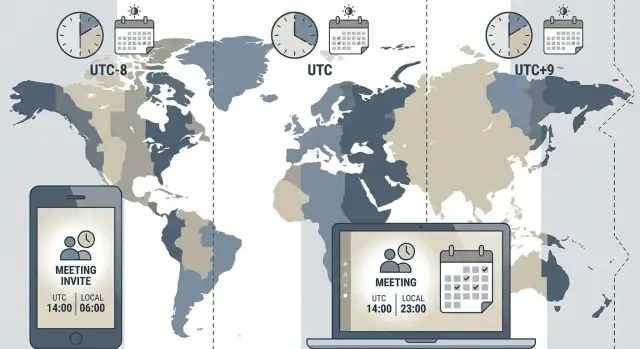
Why time zones make scheduling apps feel unreliable
Time zones turn small math errors into broken promises. A meeting that shifts by 1 hour is not "close enough". It changes who shows up, who looks unprepared, and who misses something important. After it happens twice, people stop trusting the calendar and start double-checking everything in chat.
The root problem is that time feels absolute to humans, but it isn't absolute in software. People think in local clock time ("9:00 AM my time"). Computers often think in offsets ("UTC+2") that can change during the year. When your app mixes those ideas, it can show the right time today and the wrong time next month.
The symptoms also look random, which makes them worse. Users report things like meetings "moving" even though nobody edited them, reminders firing early or late, series where only some instances shift by 1 hour, invites showing different times on different devices, or duplicate events appearing after travel.
The people hurt most are the ones who depend on scheduling the most: remote teams across many countries, customers who book across borders, and anyone who travels. A product manager flying from New York to London might expect a 2:00 PM meeting to stay anchored to the organizer's time zone, while the traveler expects it to follow their current local time. Both expectations are reasonable. Only one can be true, so you need clear rules.
This isn't just about what time you show on the event card. Time zone rules touch the whole scheduling surface: single events, recurring events, reminders, invite emails, and anything that triggers at a specific moment. If you don't define the rule for each of those, your data model will silently define it for you, and users will discover the rule the hard way.
A simple example: a weekly "Monday 9:00 AM" standup is created in March. In April, DST changes for one attendee's region. If your app stored it as "every 7 days at the same UTC instant," that attendee suddenly sees it at 10:00 AM. If your app stored it as "every Monday at 9:00 AM in the organizer's time zone," it stays at 9:00 AM and the UTC instant changes instead. Either choice can work, but the app must be consistent and honest about it.
Key terms: UTC, local time, offsets, and DST
Most time zone bugs come from mixing up a few basic ideas. Getting the words right also makes your UI copy clearer.
UTC and "absolute time"
UTC (Coordinated Universal Time) is the global reference clock. Think of it as the single timeline everyone shares.
An "absolute time" is a specific moment on that timeline, like 2026-01-16 15:00:00 UTC. If two people in different countries look at that moment, they should see the same instant, just displayed with different local clocks.
Local time, offsets, and time zone IDs
Local time is what a person sees on their wall clock, like "9:00 AM". By itself, that's not enough to identify a moment. You need a location rule.
An offset is the difference from UTC at a moment, like UTC+2 or UTC-5. Offsets change over the year in many places, so storing only "UTC+2" is risky.
A time zone ID is the real rule set, usually an IANA name like "America/New_York" or "Europe/Berlin". IDs capture the history and future changes of that zone, including DST.
Practical difference:
- Offset: "UTC-5" (no promise it stays that way)
- Time zone ID: "America/New_York" (knows when it becomes UTC-4)
DST (daylight saving time)
DST is when a region moves its clocks forward or back, usually by one hour. That means the UTC offset changes.
Two DST surprises:
- "Spring forward" creates a missing hour. Some local times simply don't exist.
- "Fall back" repeats an hour. The same local time happens twice.
Absolute time vs wall-clock time
Wall-clock time is what users type: "Every Monday at 9:00 AM". Absolute time is what your system must execute: "send reminder at this exact UTC moment". Recurring events often start as wall-clock rules, then get converted into a series of absolute times.
Users think they booked "9:00 AM in my time zone". Your database might store "2026-03-10 13:00 UTC". Both can be correct, but only if you also remember which time zone rules were intended.
Devices also change time zones. People travel, and laptops can auto-switch zones. If your app quietly reinterprets a saved "9:00 AM" using the device's new zone, users will feel the meeting time "moved" even though they did nothing.
Data model choices that avoid silent time shifts
Most "my meeting moved" bugs are data model bugs. The safest default for one-time events is: store a single instant in UTC, and convert it to a user's local time only when you display it.
A one-time event is something like "Oct 12, 2026 at 15:00 in Berlin." That moment happens once. If you store it as UTC (an instant on the timeline), it will always map back to the same moment, no matter where the viewer is.
Storing only a local time (like "15:00") breaks as soon as someone views it from another time zone, or the creator changes their device settings. Storing only an offset (like "+02:00") breaks later because offsets change with DST. "+02:00" is not a place, it's just a temporary rule.
When should you store a time zone ID along with UTC? Any time you care about what the creator meant, not just what instant you stored. A zone ID like "Europe/Berlin" helps with display, auditing, and support, and it becomes essential for recurring events. It lets you say: "This event was created as 15:00 Berlin time," even if Berlin's offset changes next month.
A practical record for a one-time event usually includes:
start_at_utc(andend_at_utc)created_at_utccreator_time_zone_id(IANA name)original_input(the text or fields the user entered)input_offset_minutes(optional, for debugging)
For support, these fields turn a vague complaint into a clear replay: what the user typed, what zone their device claimed, and what instant your system stored.
Be strict about where conversion happens. Treat the server as the source of truth for storage (UTC only), and treat the client as the source of intent (local time plus a time zone ID). Convert local time to UTC once, at creation or edit time, and don't "re-convert" stored UTC on later reads. Silent shifts often happen when both client and server apply conversions, or when one side guesses the time zone instead of using the one provided.
If you accept events from multiple clients, log the time zone ID and validate it. If it's missing, ask the user to choose it rather than guessing. That small prompt prevents a lot of angry tickets later.
Step-by-step: from user input to stored event to display
When users keep seeing times "move," it's usually because different parts of the system convert times in different ways.
Pick one place to be the source of truth for conversions. Many teams choose the server because it guarantees the same result for web, mobile, emails, and background jobs. The client can still preview, but the server should confirm the final stored values.
A safe flow you can follow
A repeatable pipeline avoids most surprises:
- User input: capture the wall time they typed (for example,
2026-03-10 09:00) and the event time zone as an IANA name (America/New_York), not an abbreviation like "EST". - Normalize: validate that wall time exists in that zone (DST can create missing times), then convert to an instant.
- Store: save the instant in UTC plus the IANA zone ID (and, if you need it later, the original wall time they chose).
- Render: when displaying, convert the stored UTC instant into the viewer's current zone, and label it clearly ("9:00 AM New York time").
- Notify: schedule reminders from the UTC instant, but format the message in the recipient's local time zone.
Example: a host in New York creates "Tue 9:00 AM (America/New_York)." A teammate in Berlin views it as "3:00 PM (Europe/Berlin)" because the same UTC instant is shown in their zone.
All-day events and date-only fields
All-day isn't "00:00 UTC to 00:00 UTC." It's usually a date range in a specific time zone. Store all-day as date-only values (start_date, end_date) plus the zone used to interpret that date. Otherwise, an all-day event can appear to start the day before for users west of UTC.
Before shipping, test the real-world case: create an event, change the device time zone, then re-open it. The event should still represent the same moment (for timed events) or the same local date (for all-day events), not silently shift.
Recurring events: pick the rule before you pick the schema
Most scheduling bugs show up when an event repeats. The common mistake is treating recurrence as "just copy the date forward." First decide what the event is anchored to:
- Anchored to an instant: the event repeats at the same moment in time (the same UTC instant), so local clock time may change when DST shifts.
- Anchored to local wall time: the event repeats at the same local clock time in a specific time zone, even if the UTC instant changes.
For most calendars (meetings, reminders, office hours), users expect wall time. "Every Monday at 9:00 AM" usually means 9:00 AM in the chosen city, not "the same UTC moment forever."
What to store (so you can explain it later)
Store recurrence as a rule plus the context needed to interpret it, not as a pre-generated list of timestamps:
- Start local date and time (what the user typed)
- Time zone ID (IANA)
- Recurrence rule (frequency, interval, days)
- Exceptions (skips, edits to single instances)
- Optional end condition (count or until date, in local terms)
This helps you handle DST without "silent shifts," and it makes edits predictable.
Generating occurrences without drift
When you need events for a date range, generate in local time in the event's zone, then convert each instance to UTC for storage or comparison. The key is to add "one week" or "next Monday" in local terms, not "+ 7 * 24 hours" in UTC.
A simple mental test: if the user chose 9:00 AM weekly in Berlin, every generated instance should be 9:00 AM Berlin time. The UTC value will change when Berlin switches DST, and that's correct.
When users travel, be explicit about behavior. A Berlin-anchored event should still happen at 9:00 AM Berlin time, and a traveler in New York will see it at their converted local time. If you support "floating" events that follow the viewer's current time zone, label that clearly. It's useful, but it surprises people when it isn't called out.
DST pitfalls that cause the most angry tickets
DST issues feel random to users because the app shows one time when they book it, then shows a different time later. The fix isn't just technical. You need clear rules and clear words.
When clocks spring forward, some local times simply don't exist. A classic example is 02:30 on the DST start day. If you let someone pick it, you have to decide what it means.
When clocks fall back, the opposite happens: the same local time happens twice. "01:30" can mean the first occurrence (before the shift) or the second (after the shift). If you don't ask, you're guessing, and people will notice when they join an hour early or late.
Practical rules that prevent surprises:
- If a chosen time doesn't exist (spring forward), block it and explain why, or auto-move it to the next valid time and show the change immediately.
- If a chosen time is duplicated (fall back), ask "Which 01:30?" and label choices like "earlier" and "later" with the offset.
- If an existing meeting becomes invalid due to a rule change (time zone updates happen), preserve the original intent when possible and notify if you must shift.
- For reminders, schedule based on the event's actual instant in time, not "N minutes before the wall clock time."
- Never phrase it as user error. Frame it as a clock change in that location.
A realistic support ticket starter: someone books "02:30" in New York for next month, then the day arrives and the app silently shows "03:30". Better copy at creation time is simple: "This time doesn't exist on Mar 10 due to the clock change. Choose 01:30 or 03:00." If you auto-adjust, say: "We moved it to 03:00 because 02:30 is skipped that day."
If you treat DST as a UI edge case, it shows up as a trust problem. If you treat it as a product rule, it becomes predictable.
Common mistakes and traps to avoid
Most angry tickets come from a few repeat mistakes. The app seems to "change" a time, but the real problem is that the rules were never made explicit in data, code, and copy.
Data and storage traps
A common failure is saving only an offset (like -05:00) instead of a real IANA time zone (like America/New_York). Offsets change when DST starts or ends, so an event that looked correct in March can be wrong in November.
Time zone abbreviations are another frequent source of bugs. "EST" can mean different things to different people and systems, and some platforms map abbreviations inconsistently. Store a full time zone ID and treat abbreviations as display-only text, if you show them at all.
All-day events are their own category. If you store an all-day event as "midnight UTC," users in negative offsets often see it start the previous day. Store all-day as dates plus the zone used to interpret those dates.
A short checklist for code review:
- Don't store offset-only times and expect DST to work.
- Don't accept "EST/PST/CET" as a reliable time zone.
- Don't store all-day events as instants (
00:00 UTC). - Don't schedule reminders in the server's time zone instead of the event's.
- Don't let web and mobile compute conversions differently.
Delivery, reminders, and cross-platform mismatches
Reminders and invites can go wrong even when event storage is right. Example: a user creates "9:00 AM Berlin time" and expects a reminder at 8:45 AM Berlin time. If your job scheduler runs in UTC and you accidentally treat "8:45" as local server time, reminders will fire early or late.
Cross-platform differences make this worse. One client might interpret an ambiguous time using the device zone, another uses the event zone, and a third applies a cached DST rule. If you want consistent behavior, keep conversions and recurrence expansion in one place (usually the server) so every client sees the same result.
A simple sanity test: create one event during the week DST changes, view it on two devices set to different zones, and confirm the start time, date, and reminder time all match the rule you promised users.
Quick checks before you ship scheduling features
Most time zone bugs don't look like bugs during development. They show up when someone travels, when DST flips, or when two people compare screenshots.
Data and storage checks
Make sure your data model matches the kind of time you're dealing with. A one-time event needs a single real moment in time. A recurring event needs a rule tied to a place.
- For one-time events, store an exact instant (UTC) plus the original user-facing context if you need to show "what they picked" later.
- For anything recurring or user-facing, store the IANA time zone ID (like "America/New_York"), not just an offset.
- Keep a clear distinction between "floating" times (like "every day at 9:00" in a specific zone) and instants (like "2026-01-16T14:00Z").
DST and edge-case checks
DST creates two dangerous moments: times that don't exist (spring forward) and times that exist twice (fall back). Your app must decide what to do, and it must do it consistently.
- When a user picks a non-existent local time, block it with a clear message or automatically shift to the next valid time (and tell them).
- When a user picks an ambiguous time (duplicated hour), make them choose which one, or pick a rule (earlier vs later) and document it.
- Verify recurring events across the DST boundary. Decide whether "9:00 local" stays at 9:00, or whether the UTC time stays fixed. Pick one and keep it.
Scenario to test: a weekly team sync set to "Mondays 09:00" in Berlin. Check the meeting time for someone in New York both before and after Europe changes DST, and again after the US changes DST (they switch on different dates).
UI and expectation checks
Many angry tickets come from UI that hides the time zone. People assume what they want to be true.
- Show the time zone anywhere a time appears: event details, confirmation screens, emails, reminders, and exports.
- If you schedule for someone else, show both zones: "09:00 Europe/Berlin (03:00 America/New_York)".
- Make time zone controls obvious, and reflect the chosen zone in the copy ("This event is scheduled in Europe/Berlin time").
Testing checks
Don't rely on your own laptop time zone and a single locale format.
- Add tests for travel: create an event in one zone, then view it in another.
- Add tests that straddle DST start and end, including the missing and duplicated hour.
- Test multiple locale formats (12-hour vs 24-hour, day-month vs month-day) to avoid "wrong day" reports.
A realistic example: one meeting, two countries, one DST change
A London-based founder schedules a weekly standup with a teammate in New York. They pick "Tuesdays at 10:00" and assume it will always feel like a morning meeting for London and an early meeting for New York.
A safer setup is to treat the meeting as "10:00 in Europe/London every Tuesday," compute each occurrence in London time, store the actual instant (UTC) for that occurrence, and display it in each viewer's local time.
Around the spring DST gap, the US changes clocks earlier than the UK:
- Before the US DST switch: 10:00 in London (GMT) shows as 05:00 in New York (EST).
- After the US switch but before the UK switch: 10:00 in London (still GMT) shows as 06:00 in New York (EDT).
- After the UK switch: 10:00 in London (BST) shows as 05:00 in New York (EDT) again.
Nothing "moved" for the organizer. The meeting stayed at 10:00 London time. The only thing that changed was New York's offset for a couple of weeks.
Reminders should follow what each person sees, not what they "used to see." If the New York teammate has a 15-minute reminder, it should fire at 05:45 before the US change, then at 06:45 during the gap weeks, without anyone editing the event.
Now add an edit: after two painful early mornings, the London organizer changes the standup to 10:30 London time starting next week. A good system preserves intent by applying the change in the organizer's time zone, generating new UTC instants for future occurrences, and leaving past occurrences as they were.
Good copy prevents support tickets: "Repeats every Tuesday at 10:00 (London time). Invitees see it in their local time. Times can shift by 1 hour when daylight saving starts or ends."
Next steps: clearer UX copy and a safer build plan
Most "time zone bugs" users report are really expectation bugs. Your data model can be correct, but if your UI copy is vague, people assume the app will read their mind. Treat time zones as a UX promise, not just a backend detail.
Start with copy that names the time zone anywhere a time appears outside the main UI, especially in notifications and emails. Don't rely on "10:00 AM" alone. Put the zone right next to it and keep the format consistent.
Copy patterns that reduce confusion:
- "Tue, Mar 12, 10:00 AM (America/New_York)"
- "That's 3:00 PM (Europe/London) for you"
- "This event is saved in: New York time"
- "If you travel, this meeting stays at New York time"
- "Times can shift by 1 hour when daylight saving starts or ends"
DST days also need friendly error messages. If a user picks a time that doesn't exist (like 2:30 AM on spring-forward night), avoid technical wording and give options: "2:30 AM isn't available on Mar 10 because clocks jump forward. Choose 1:30 AM or 3:30 AM." If a time occurs twice on fall-back night, ask plainly: "Do you mean the first 1:30 AM or the second?"
To build safer, prototype the full flow (create, invite, view in another zone, edit after DST) before polishing screens:
- Write the rules in one paragraph (what stays fixed, what converts).
- Draft the data model (store UTC plus the original IANA time zone).
- Draft email and notification copy alongside the UI.
- Test three scenarios: travel, spring-forward, fall-back.
- Lock the decisions, then implement.
If you're building a scheduling feature quickly, a chat-to-app platform like Koder.ai can help you iterate on the rules, schema, and UI together. The speed is great, but the same discipline still applies: store instants in UTC, keep the event's IANA time zone for intent, and always show users which time zone they're looking at.
FAQ
Should I store calendar events in UTC or local time?
Store one-time events as exact UTC instants, then convert them to each viewer's local time when you display them. Keep the event's IANA time zone ID too, so you can preserve what the creator intended.
Why isn't a UTC offset enough?
Use an IANA time zone ID such as America/New_York or Europe/Berlin. An offset like UTC-5 can change when daylight saving time starts or ends, while a zone ID includes those clock rules.
How should recurring meetings handle daylight saving time?
For most meetings, keep the event at the same local clock time in the organizer's chosen zone. Generate each occurrence in that zone, then convert each one to UTC. This keeps a weekly 9:00 AM meeting at 9:00 AM after DST changes.
What should my app do with a time that doesn't exist during DST?
Block the selection and explain it plainly, or move it to the next valid time and show the change before saving. For example, tell the user that 2:30 AM is skipped because clocks move forward.
What happens when the same local time occurs twice?
Ask the user whether they mean the earlier or later occurrence, and show the offset for each choice. The same local time can occur twice when clocks move back, so guessing can schedule the meeting an hour off.
Should a meeting follow someone when they travel?
The meeting should stay tied to the event's chosen time zone unless you clearly offer a floating-time option. A traveler sees the same instant converted into their current local time, rather than changing the meeting for everyone.
How should I store all-day events?
Store all-day events as start and end dates, plus the zone that gives those dates meaning. Do not turn them into midnight UTC timestamps, because people in other zones may see the event on the wrong day.
Where should I show the event time zone?
Show the time zone anywhere users need to act on a time: event details, confirmations, invite emails, reminders, and exports. When people schedule across zones, showing both the event zone and the viewer's local time avoids confusion.
Should the client or server convert local time to UTC?
Let the client send the wall time and IANA zone ID, then have the server validate and convert them to UTC. The server should produce the final stored value so web, mobile, emails, and reminder jobs follow the same rule.
What time zone cases should I test before launch?
Test travel, the missing DST hour, the repeated DST hour, recurring events across DST, all-day events, and views from at least two time zones. Also verify that reminders and emails show the same time rule as the calendar.