

Turn a PDF or Google Doc Into a Website (Fast Workflow)
Learn the fastest workflow to turn a PDF or Google Doc into a live website—clean layout, links, SEO basics, accessibility, hosting, and easy updates.
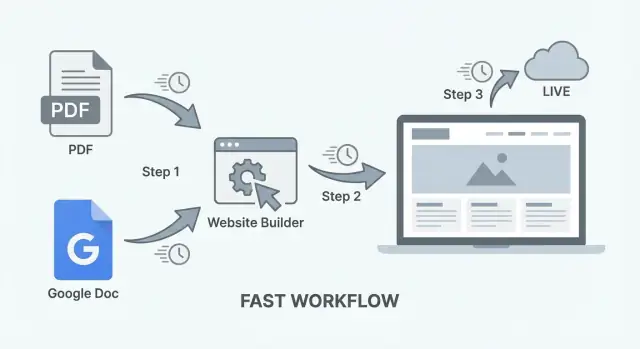
What you’ll build (and when this workflow makes sense)
This workflow turns a PDF or Google Doc into a simple, readable website—quickly. Think of it as “document to web page” publishing: you start with content you already have, and end with a public link you can share.
Who this workflow is for
It’s ideal when your goal is to publish a clear, single-message site without a big build:
- A portfolio one-pager (bio, selected work, contact)
- A brochure site for a service or event
- A one-page website from a PDF handout or flyer
- A public resource sheet, guide, or checklist
If you’re searching for “pdf to website” or “google doc to website,” this is the practical path when speed matters more than custom features.
What “fastest” really means
“Fast” doesn’t mean low quality—it means minimal setup:
- No designing dozens of templates
- No complex CMS configuration
- No weeks of back-and-forth before anything is live
In many cases you can go from document to a live, shareable URL in a few hours—especially if the content is already written and approved.
When a document-based site is a good fit (and when it’s not)
A document-based website is a good fit when:
- The content changes occasionally (not daily)
- You need something searchable and easy to link to
- You don’t need accounts, comments, or dynamic features
You’ll likely want a full CMS (or a more traditional build) if you need a blog with frequent posts, complex navigation, ecommerce, memberships, or lots of interactive components.
What you’ll end up with
By the end of this workflow, you’ll have:
- A clean web page (or a small set of pages) created by converting PDF to HTML or exporting from a Doc
- A shareable URL you can put on social profiles, emails, and QR codes
- Text that search engines can read—so your “publish PDF online” content isn’t trapped inside an image-like file
Choose your source: PDF or Google Doc
Before you convert anything, decide what your “source of truth” will be: a PDF you already have, or a Google Doc you’ll keep editing over time. This one choice affects speed, how painful updates feel, and the export tools you can rely on.
PDF vs Google Doc: pick based on what you’ll change
Choose a PDF when the content is already approved (a brochure, report, menu, one-pager) and you mainly need it to be readable on the web. PDFs are fast to start with, but slower to update—changes usually require editing in the original design tool, re-exporting, and re-uploading.
Choose a Google Doc when you expect frequent edits (pricing, schedules, policies, living docs). Google Docs is easier for teams, keeps history automatically, and exports cleanly to formats many website builders can ingest.
A simple rule: if you might edit wording weekly, start from a Google Doc. If the layout is part of the message (designed PDF) and edits are rare, start from the PDF.
Single page vs multi-page: decide in 60 seconds
Ask two questions:
- Is there one primary action (contact, download, book, donate)? If yes, a single page is usually enough.
- Do you have distinct audiences or topics (e.g., “Services,” “Pricing,” “FAQ,” “About”)? If yes, go multi-page so people can scan and search more easily.
If you’re unsure, start as a single page. You can split it later once you see what visitors actually use.
File hygiene: avoid update chaos later
Pick one home for the source file and stick to it (Google Drive folder, Dropbox, or a shared internal folder). Use a naming pattern that won’t break under pressure:
project-name__web-source__YYYY-MM-DD
Keep older versions, but don’t duplicate “final_FINAL_v7.pdf” across devices. If you’re working from a PDF, also store the editable original (Doc/Slides/Design file) next to it.
Pre-flight checklist before you start converting
Do a quick pass on the document itself:
- Links: confirm they work and are clearly labeled (avoid “click here”).
- Headings: make section titles obvious and consistent.
- Images: ensure they’re not blurry and have captions if needed.
- Page order: remove blank pages and anything you don’t want indexed or shared.
Once the source is chosen and cleaned, the conversion step becomes a predictable, repeatable workflow instead of a one-off scramble.
Prepare the document for the web (5-minute cleanup)
Before you convert anything, do a quick pass that makes the web version easier to scan, search, and maintain. This is the difference between “a document posted online” and “a page people actually read.”
1) Make your headings behave like headings
Use clear, consistent heading levels so your converter (and later, your website) can turn them into real H1/H2/H3 structure.
- One main title at the top (treat it like an H1)
- Major sections (H2-style)
- Subsections (H3-style)
Tip: If you’re in Google Docs, apply Heading 1 / Heading 2 / Heading 3 instead of just bolding text.
2) Add a simple table of contents (only if it’s long)
If your document is more than a few screens, add a small table of contents near the top. Keep it short: 5–10 items is enough. Readers use it to jump to what they need, and it makes your future web layout easier.
In Google Docs, you can insert a table of contents that automatically updates. In a PDF, you can add a manual list of section names that you’ll later convert into links.
3) Replace “see page X” with web-friendly references
Page numbers don’t mean much on the web (screens resize, layouts change). Replace:
- “See page 7” → “See Pricing and timelines”
- “On page 2 above” → “In Project scope”
If you already know the section will become a link, write it exactly as the section title so it’s easy to connect later.
4) Clean up images so they load fast and make sense
Quick image hygiene:
- Crop to remove extra margins or whitespace
- Compress (aim for small file sizes without obvious blur)
- Add a short, descriptive caption (what the image shows and why it matters)
This cleanup takes minutes and saves you from slow pages and confusing visuals after conversion.
Convert content into web-friendly format
The goal here isn’t to “preserve the document perfectly.” It’s to extract clean text and structure so the web page is easy to read, easy to style, and easy to update.
Export options (and what each is good for)
From Google Docs:
- File → Download → Web Page (.html, zipped) is the quickest starting point. You’ll get HTML plus a folder of assets. It won’t be pretty, but the text and headings are usually captured.
- Copy/paste into your website editor can work for short docs, but it often drags in messy inline styles and odd spacing.
From PDFs:
- If it’s a text-based PDF, try exporting to HTML or Text using a PDF tool (or even “Save As…” in some readers). You’ll usually need to fix line breaks and headings.
- If you can access the original source, prefer it. A Google Doc (or Word file) almost always converts more cleanly than a PDF.
Copy-paste pitfalls to watch for: random extra line breaks, double spaces, smart quotes turning weird, bullet lists breaking into plain lines, and headings turning into giant bold paragraphs.
Keep formatting the web way (headings, lists, tables)
Aim to recreate structure using web conventions:
- Headings: Make sure your main sections become real headings (H2/H3), not just bold text. This improves readability, navigation, and SEO.
- Lists: Rebuild bullets/numbered lists as actual lists. If a list pasted as separate lines, reformat it—it’s worth the minute.
- Tables: If the table is small and truly tabular (rows/columns), keep it as a table. If it’s being used for layout, convert it into simple sections with labels (tables are hard on mobile).
- Spacing: Prefer short paragraphs over manual line breaks. Delete “Enter, Enter, Enter” formatting and let CSS handle spacing.
Fonts and brand colors (without hurting readability)
Documents often rely on specific fonts and color blocks that don’t translate well to the web. Keep it simple:
- Use one clean body font and one heading style. If you must match brand fonts, use a web-safe alternative first, then swap later.
- For brand color, apply it to headings, links, and small accents (like dividers), not huge text blocks.
- Check contrast: light gray text or pastel colors may look “on brand” but fail readability on phones.
If your PDF is scanned: OCR basics and quick checks
If you can’t select text in the PDF, it’s likely scanned. You’ll need OCR (Optical Character Recognition) to turn images of text into editable text.
Do a quick quality check after OCR:
- Scan for common errors: “I” vs “l”, missing punctuation, messed-up hyphenation.
- Confirm headings didn’t get merged into body text.
- Spot-check names, numbers, prices, dates, and addresses (OCR often fails here).
Once you have clean text and real headings/lists, you’re ready to put it into a readable page layout—without the “document weirdness” that makes web pages feel off.
Turn the document into a page layout people can read
A document can be perfectly written and still feel hard to read on a phone. Your goal is to turn “pages” into a scrollable web page that feels intentional: clear hierarchy, predictable navigation, and obvious next steps.
Start with a simple structure
Use a basic page skeleton:
- Header: title, short one-line description, and one primary call to action
- Sections: the actual content, broken into scannable chunks
- Footer: contact details, social links (if needed), and a secondary CTA
If your PDF/Doc begins with a long introduction, consider adding a short “summary” paragraph at the top, then move the longer context into its own section.
Turn the outline into anchors (and navigation)
Take your document headings (H2/H3 equivalents) and make each one a section with an anchor ID. Then add a simple navigation that jumps to those sections.
Keep navigation short—think 5–8 items. If you have more, group smaller headings under a single section (for example, “FAQ”).
Tip: Use human-friendly labels in the nav (“Pricing”, “About”, “Contact”), even if the document headings are longer.
Add calls to action—without clutter
Decide what you want readers to do next. Pick one primary CTA and repeat it in a couple of logical places:
- Top of the page (above the fold)
- After a key section (e.g., after “Services” or “Offer”)
- In the footer
Examples: Contact, Book a call, Download, Request a quote. Keep buttons short and avoid stacking multiple buttons side-by-side.
Make it mobile-friendly by default
Web reading is faster than document reading. Tighten your layout:
- Keep paragraphs to 2–4 lines
- Add white space between sections
- Use bullet lists for steps, options, or requirements
- Break long “walls of text” with subheadings every few scrolls
A good rule: if you wouldn’t want to read it while standing in line, it’s too dense.
SEO essentials for a document-based website
A document-to-website workflow is fast, but SEO doesn’t happen automatically. The goal is simple: make the page clearly about one topic, easy to scan, and consistent with what people searched for.
Start with a strong page title + a clear intro
Your page title (the H1 on the page) should say exactly what the page is, using plain language people actually search.
Good examples:
- “Employee Handbook (2025) — Policies, PTO, and Benefits”
- “Pricing & Packages — Acme Cleaning Services”
- “Event Program — Spring Conference Schedule”
Then write a 2–4 sentence intro at the top that matches search intent and confirms the visitor is in the right place. Mention who it’s for, what’s inside, and any key details (city, date, product name, version).
Write a meta description that matches the content
Your meta description won’t “rank” the page by itself, but it strongly affects clicks. Keep it aligned with what’s on the page—no bait-and-switch.
A simple formula:
- What it is + who it’s for + what the reader will get (plus a detail like year/location)
Example:
“Read Acme’s 2025 employee handbook: PTO, benefits, remote work rules, and code of conduct. Updated March 2025.”
Use descriptive headings and meaningful link text
Document conversions often produce vague headings (“Section 1”, “Overview”) or heading levels that don’t reflect structure. Fix this by:
- Making headings describe the content (“Refund Policy”, “Shipping Times”, “Class Schedule”)
- Keeping a logical hierarchy (H2 for major sections, H3 for sub-sections)
For links, avoid “click here” or “download.” Use link text that explains what someone will get:
- Good: “Download the 2025 course catalog (PDF)”
- Better: “See tuition and payment options”
This helps both readers and search engines understand your page.
Image alt text: what it is (and quick examples)
If your page includes images (logos, charts, screenshots), add alt text so screen readers can describe them and search engines can interpret them.
Alt text should describe the image’s purpose, not stuff keywords into it.
Examples:
- Logo: “Acme Cleaning logo”
- Chart: “Bar chart showing 2024 revenue by quarter”
- Screenshot: “Screenshot of the booking form showing date and time fields”
If an image is purely decorative, it’s fine to leave alt text empty (so screen readers skip it).
Optional: add an FAQ section to capture common queries
A short FAQ can help match long-tail searches and reduce support questions. Add 3–6 questions you hear often, using the same words customers use.
Good FAQ prompts:
- “Can I download this as a PDF?”
- “How often is this document updated?”
- “Who do I contact with questions?”
Keep answers short and consistent with the main content—no new promises you can’t support.
Accessibility and mobile checks (quick wins)
A document can look “fine” on your laptop and still be frustrating (or impossible) to use on a phone or with assistive tech. The good news: a few fast checks catch most issues before you publish.
1) Confirm the text is real text (not an image)
If your PDF is actually a scanned image, users can’t search, select, zoom-read cleanly, or use screen readers properly.
Quick test: try to highlight a sentence and copy/paste it into a note. If you can’t, you’ll need to run OCR (optical character recognition) or go back to the Google Doc/source file and export again.
2) Readability: contrast and font size
Aim for comfortable reading without pinching and zooming:
- Keep body text large enough to read on a phone (generally 16px+ on the web).
- Check color contrast: light gray text on white is a common “looks stylish, reads poorly” problem.
- Don’t rely on color alone to communicate meaning (e.g., “items in red are required”). Add labels or icons plus text.
If your conversion tool lets you pick a theme, choose the simplest one with high-contrast defaults and clear typography.
3) Mobile tap targets: links should be easy to hit
Document-based pages often end up with lots of small, tightly packed links.
- Make sure links/buttons aren’t tiny.
- Add spacing between links (especially in footers, navigation lists, and tables).
- Prefer descriptive link text over “click here” so people know what they’re tapping.
4) Headings: keep a clean order (and skip ALL CAPS blocks)
Headings are how screen readers and mobile users scan:
- Use one clear page title (H1), then sections (H2), then subsections (H3).
- Don’t jump around (e.g., H2 straight to H4).
- Avoid long ALL-CAPS paragraphs—screen readers may read them awkwardly, and they’re harder to scan. If you need emphasis, use bold or a short callout instead.
5) Offer the PDF as an alternative format
Even if your main goal is a web page, providing the original PDF helps people who want to download, print, or read offline.
Add a simple link near the top or bottom: “Download as PDF.” (Keep it a normal link, not hidden behind an icon.)
If you want a quick extra check before publishing, open the page on your phone and try to do three tasks: find a key section, click two links, and read a full paragraph without zooming. If any of those feel annoying, fix that first.
Publish: the fastest hosting and domain path
Publishing is mostly a choice between “quick now” and “easy later.” The best option depends on whether your output is a single HTML page, a few pages, or something you’ll keep updating.
Fast hosting choices
Static site hosts (Netlify, Vercel, Cloudflare Pages) are fastest when you already have HTML/CSS (or an exported folder). You drag-and-drop a folder or connect a repo, and you get a live URL in minutes.
Website builders (Squarespace, Wix, Webflow) are fastest when you want layout tools, forms, and a styled template without touching files. They cost more, but reduce setup friction.
Doc-publishing tools (Notion publish, Google Docs–to–web tools, Readymag-style doc publishing) are fastest for frequent edits, because you update the doc and the site changes with it. The tradeoff is less control over SEO and page structure.
If you want to skip most of the glue work (conversion cleanup → layout → deployment), a vibe-coding platform like Koder.ai can help you turn your document content into a simple React-based site via chat, then deploy and host it with a custom domain. It’s especially useful when you still want real code output (with export) without rebuilding a full pipeline.
Custom domain basics (what you need vs what can wait)
What you need: buy a domain, then point DNS to your host (usually a CNAME or A record). Most hosts provide a guided checklist and free HTTPS.
What can wait: custom email, advanced redirects, analytics, and performance tuning. Get the site live first.
Privacy: avoid accidental publishing
Before you hit publish, scan for personal phone numbers, home addresses, signatures, hidden comments, and embedded metadata. If this came from a client doc or a contract-like PDF, assume something sensitive is inside.
Add a simple contact option
At minimum, add a short contact section (email + response time). If you can, create /contact with a form (builder) or a mailto link (static).
Where internal links should go
Put your key links in the header or footer: /pricing, /blog, and /contact. On one-page sites, repeat them once near the end so readers don’t have to scroll back up.
Keep it easy to update (so it doesn’t go stale)
A document-based site is only “fast” if it stays easy to maintain. The trick is to decide what your single source of truth is, then make publishing a repeatable routine.
If your source is a Google Doc (single source of truth)
Treat the Doc as the master file—your website is the output.
Make edits in the Doc, then re-export (or re-sync) using the same settings every time. Keep headings consistent (H1/H2/H3), and avoid manual styling that won’t translate well.
When you publish, keep the same page URL. That way you can update content without changing where it lives.
If your source is a PDF (edit, re-export, republish)
PDF updates are usually: edit the original file → export a new PDF → convert/publish again.
To make that less painful, keep the editable original (Google Doc, Word, InDesign, etc.) alongside the exported PDF in a clearly named folder. When you update:
- Edit the original
- Export a fresh PDF using the same filename if your workflow allows
- Re-run your PDF-to-web step
- Republish to the same URL
Version control that doesn’t require technical tools
Add a small “Last updated” line near the top, and a short changelog at the bottom (2–5 bullets is enough). Also keep backups:
- Save copies by date (e.g.,
policy-2025-12-23.pdf) - Keep a “current” copy with a stable name (e.g.,
policy.pdf)
This makes it easier to roll back if something breaks. (Some platforms—including Koder.ai—also support snapshots and rollback, which can be a safety net when you’re iterating quickly.)
Avoid broken links when you republish
Broken links usually happen when filenames or page slugs change:
- Keep the same page path every time you update
- Don’t rename downloadable assets unless you also update the links
- If you must change a URL, set up a redirect from the old path to the new one (check your host’s redirect settings)
A stable URL + visible update date builds trust and saves you from “which version is this?” confusion.
Common pitfalls and how to avoid them
Moving from a document to a real web page is mostly about removing “document assumptions.” Here are the issues that slow people down—and the quick fixes that keep the workflow fast.
What typically breaks (and the simple fixes)
Spacing and line breaks often get converted into weird gaps or walls of text. Instead of relying on manual line breaks, reapply structure with real headings and paragraphs after conversion.
Tables can collapse on mobile or turn into unreadable blocks. If a table is purely for layout, replace it with sections and bullet lists. If the table contains real data, keep it—but simplify: fewer columns, shorter labels, and consider stacking rows on small screens.
Special characters (smart quotes, en dashes, symbols) may turn into boxes or junk text. After conversion, do a quick search for “□”, “�”, and odd spacing around punctuation.
Hyphenation from PDFs can create broken words (“infor-\nmation”). Use find/replace for common patterns, or re-copy the affected paragraph from the source without hyphenation.
Image issues to watch
Documents often hide image problems until they hit the web:
- Huge file sizes: export/compress images (especially screenshots) so the page loads quickly.
- Blurry logos: use a clean SVG or a high-resolution PNG.
- Missing alt text: add short, descriptive alt text for key images (logos, charts, product photos).
Navigation problems on long pages
A single long page can work well—if people can jump around.
Add a small table of contents near the top, then use jump links to sections (e.g., “Pricing,” “FAQ,” “Contact”). Also consider repeating a simple CTA (“Book a call,” “Download,” “Email us”) every few sections.
What not to do
Don’t upload a PDF and call it a website. It’s hard to read on mobile, weak for SEO, and frustrating for accessibility. If you must provide the PDF, offer it as a download link and make the web page the primary experience.
Measure results and improve in small steps
Once your document is live as a web page, the fastest way to make it better is to watch what real visitors do—then adjust one small thing at a time.
Track the basics (without getting fancy)
Start with three numbers:
- Page views: Are people finding the page at all?
- Link clicks: Are they taking the next step (download, contact, buy, book)?
- Top traffic sources: Search, social, email, referrals.
If you’re using an analytics tool (GA4, Plausible, etc.), set it up and verify it’s recording visits. If you don’t want a complex setup yet, you can still learn a lot by adding UTM tags to links you share in newsletters or social posts.
For link clicks, the simplest approach is to:
- Make your main call-to-action a clear button/link (not an image).
- Use one primary CTA near the top and repeat it once near the end.
If you have multiple important links (pricing, booking, contact), consider tracking them as events later—after you’ve confirmed basic page view tracking works.
Add a simple feedback method
Give visitors an easy way to tell you what’s missing:
- A mailto link like “Questions? Email us”
- Or a short form (even 2–3 fields) embedded or linked
Place it near the bottom under a heading like “Questions?” so it’s easy to find.
Iterate: small, high-impact edits
Run quick experiments every week or two:
- Rewrite the headline to match what people searched for.
- Make the first screen clearer: who it’s for, what it does, what to do next.
- Reorder sections so the most-used info appears earlier.
Keep a tiny changelog in the doc (date + what you changed) so you can connect edits to results.
When to upgrade beyond a single page
Move to a multi-page site or CMS when you need:
- Separate pages for services, FAQs, case studies, pricing
- Regular updates by multiple people
- Stronger SEO structure and internal linking
At that point, keep this page as a focused landing page and link out to deeper pages (for example, /pricing or /contact).
FAQ
When does a “document to website” workflow make sense (and when doesn’t it)?
Use this workflow when you need a clear, mostly static page fast: a one-pager, brochure, resource sheet, event info, or a simple “here’s the info + here’s what to do next” landing page.
It’s not a great fit if you need frequent posts, accounts, ecommerce, complex navigation, or interactive features—those usually justify a full CMS or a more traditional build.
Should I start from a PDF or a Google Doc?
Pick Google Docs if you expect ongoing edits (weekly wording changes, pricing updates, schedules, policies). It’s collaborative, versioned, and re-exporting is simple.
Pick a PDF if the content is already approved and layout is part of the message (brochure/report/menu) and updates are rare. Just remember: updates typically mean editing the original design file, re-exporting, then republishing.
How do I decide between a single-page site and a multi-page site?
Ask:
- Do you have one primary action (contact/book/download/donate)? If yes, start with one page.
- Do you have distinct topics or audiences (Services, Pricing, FAQ, About)? If yes, go multi-page.
If you’re unsure, publish as a single page first and split it later based on what visitors actually use.
What’s the 5-minute cleanup I should do before converting?
Do a quick pre-flight pass:
- Make headings consistent (real Heading 1/2/3 in Google Docs, not just bold text).
- Remove blank pages and anything you don’t want public.
- Confirm links work and use descriptive text (avoid “click here”).
- Crop/compress images and add short captions where helpful.
This makes conversion cleaner and the final page easier to scan.
What’s the fastest way to export Google Docs content for the web?
From Google Docs, the fastest starting point is File → Download → Web Page (.html, zipped). You’ll get basic HTML plus an assets folder.
For short docs, copy/paste can work, but watch for messy inline styles, broken lists, and odd spacing. If paste looks “off,” it’s usually faster to rebuild structure (headings/lists) than to fight the formatting.
What’s the fastest way to turn a PDF into a readable web page?
If it’s a text-based PDF, try exporting to HTML or Text with a PDF tool, then clean up headings, line breaks, and lists.
If you have access to the original editable file (Doc/Word/InDesign), prefer that—PDF conversion is often slower because you’ll spend time fixing hyphenation, broken lines, and misidentified headings.
What if my PDF is scanned and not selectable text?
You likely need OCR (Optical Character Recognition) if you can’t highlight/copy text.
After OCR, spot-check the risky parts:
- Names, addresses, prices, dates
- “I” vs “l” mistakes, missing punctuation
- Headings merged into body text
Don’t publish OCR output without a quick scan—small errors can become credibility problems.
How do I make the converted content feel like a real website (not a dumped document)?
Focus on web structure over perfect “document look”:
- Use a clear H1, then H2/H3 sections.
- Rebuild bullets as real lists and keep paragraphs short.
- Add a simple header (title + one-line summary + primary CTA).
- For longer pages, add jump links (anchors) to key sections.
This improves readability on phones and makes the page feel intentional.
What SEO basics matter most for a document-based site?
Cover the essentials:
- A descriptive page title (H1) and a 2–4 sentence intro that matches search intent.
- A truthful meta description (what it is + who it’s for + what they’ll get).
- Clear headings like “Pricing,” “Schedule,” “Refund Policy” instead of “Overview.”
- Descriptive link text (avoid “download”/“click here”).
- Alt text for meaningful images; empty alt for decorative ones.
The goal is clarity: one topic, scan-friendly structure, and readable text (not trapped in a PDF).
How do I keep the site easy to update without breaking links?
To keep updates painless:
- Choose a single source of truth (Doc or the editable original behind a PDF).
- Republish to the same URL each time to avoid breaking links.
- Add a small “Last updated” line near the top.
- Keep stable filenames for downloads (or update links when you rename).
- If a URL must change, add a redirect in your host settings.
This prevents “which version is this?” confusion and keeps shared links working.