

How to Build a Web App for Data Imports, Exports & Validation
Learn how to design a web app that imports and exports CSV/Excel/JSON, validates data with clear errors, supports roles, audit logs, and reliable processing.
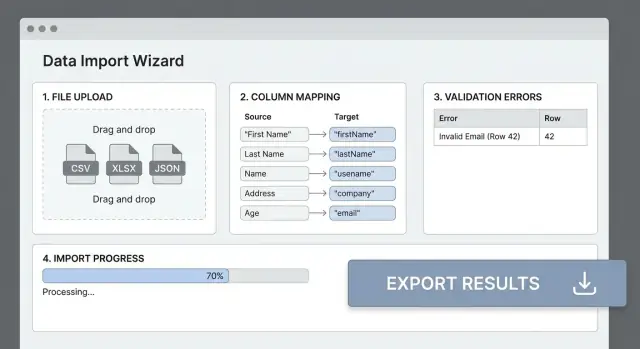
Define scope and user needs
Before you design screens or pick a file parser, get specific about who is moving data in and out of your product and why. A data import web app built for internal operators will look very different from a self-serve Excel import tool used by customers.
Who are the users?
Start by listing the roles that will touch imports/exports:
- Admins who configure mappings, rules, and permissions
- Operators who run imports regularly and handle exceptions
- Customers who upload their own CSV/Excel files and expect clear guidance
For each role, define the expected skill level and tolerance for complexity. Customers typically need fewer options and much better in-product explanations.
Core use cases (and what “done” means)
Write down your top scenarios and prioritize them. Common ones include:
- Initial bulk load during onboarding (high volume, messy data)
- Periodic sync (weekly/monthly updates, consistency matters)
- One-off exports for reporting, migration, or backup
Then define success metrics you can measure. Examples: fewer failed imports, faster time-to-resolution for errors, and fewer support tickets about “my file won’t upload.” These metrics help you make tradeoffs later (e.g., investing in clearer error reporting vs. more file formats).
Formats, limits, and compliance
Be explicit about what you will support on day one:
- File formats: CSV, Excel (XLSX), JSON
- Maximum file size and row limits (and what happens when exceeded)
- Encoding expectations (e.g., UTF-8) and timezone rules for dates
Finally, identify compliance needs early: whether files contain PII, retention requirements (how long you store uploads), and audit requirements (who imported what, when, and what changed). These decisions affect storage, logging, and permissions across the whole system.
Choose architecture and tech stack
Before you think about a fancy column mapping UI or CSV import validation rules, pick an architecture your team can ship and operate confidently. Imports and exports are “boring” infrastructure—speed of iteration and debuggability beat novelty.
Start with a stack your team already knows
Any mainstream web stack can power a data import web app. Choose based on existing skills and hiring realities:
- React + Node (TypeScript) if you want a single-language full-stack and a strong ecosystem for background jobs.
- Django if you want batteries-included admin, a mature ORM, and quick delivery.
- Rails if you value conventions, fast CRUD, and well-worn background job patterns.
The key is consistency: the stack should make it easy to add new import types, new data validation rules, and new export formats without rewrites.
If you want to accelerate scaffolding without committing to a one-off prototype, a vibe-coding platform like Koder.ai can be helpful here: you can describe your import flow (upload → preview → mapping → validation → background processing → history) in chat, generate a React UI with a Go + PostgreSQL backend, and iterate quickly using planning mode and snapshots/rollback.
Storage: separate “raw file” from “normalized records”
Use a relational database (Postgres/MySQL) for structured records, upserts, and audit logs for data changes.
Store original uploads (CSV/Excel) in object storage (S3/GCS/Azure Blob). Keeping raw files is invaluable for support: you can reproduce parsing issues, rerun jobs, and explain error handling decisions.
Decide how imports run
Small files can run synchronously (upload → validate → apply) for a snappy UX. For larger files, move work into background jobs:
- upload → enqueue job → show progress/history → notify on completion
This also sets you up for retries and rate-limited writes.
Multi-tenant vs single-tenant
If you’re building SaaS, decide early how you separate tenant data (row-level scoping, separate schemas, or separate databases). This choice affects your data export API, permissions, and performance.
Non-functional requirements to document now
Write down targets for uptime, max file size, expected rows per import, time-to-complete, and cost limits. These numbers drive job queue choice, batching strategy, and indexing—long before you polish UI.
Build the import intake flow
The intake flow sets the tone for every import. If it feels predictable and forgiving, users will try again when something goes wrong—and support tickets drop.
Entry points: UI upload and API
Offer a drag-and-drop zone plus a classic file picker for the web UI. Drag-and-drop is faster for power users, while the file picker is more accessible and familiar.
If your customers import from other systems, add an API endpoint too. It can accept multipart uploads (file + metadata) or a pre-signed URL flow for larger files.
Parse safely: headers, encodings, and sampling
On upload, do lightweight parsing to create a “preview” without committing data yet:
- Detect headers and show a sample of rows (e.g., first 20–100)
- Handle common encodings (UTF‑8, UTF‑16) and delimiters (comma, tab, semicolon)
- Normalize newlines and trim obvious formatting issues
This preview powers later steps like column mapping and validation.
Store the original file for replay
Always store the original file securely (object storage is typical). Keep it immutable so you can:
- Re-run the import when your validation rules change
- Investigate bugs with the exact input
- Provide a “download original” option from the import history
Capture metadata from day one
Treat each upload as a first-class record. Save metadata such as uploader, timestamp, source system, file name, and a checksum (to detect duplicates and ensure integrity). This becomes invaluable for auditability and debugging.
Pre-checks before users invest time
Run fast pre-checks immediately and fail early when needed:
- File type and size limits
- Basic readability (can we parse it?)
- Required columns present (based on your import type)
If a pre-check fails, return a clear message and show what to fix. The goal is to block truly bad files quickly—without blocking valid but imperfect data that can be mapped and cleaned in later steps.
Add column mapping and transformation
Most import failures happen because the file’s headers don’t match your app’s fields. A clear column mapping step turns “messy CSV” into predictable input and saves users from trial-and-error.
A mapping UI people can understand
Show a simple table: Source column → Destination field. Autodetect likely matches (case-insensitive header matching, synonyms like “E-mail” → email), but always let users override.
Include a few quality-of-life touches:
- Flag required destination fields and show whether they’re mapped
- Allow “Ignore this column” for irrelevant data
- Highlight unmapped columns so users don’t miss anything
Saved mapping templates (per customer or dataset)
If customers import the same format every week, make it one click. Let them save templates scoped to:
- a customer/account
- a dataset/type (e.g., Contacts vs. Invoices)
- optionally, a specific integration or source system
When a new file is uploaded, suggest a template based on column overlap. Also support versioning so users can update a template without breaking older runs.
Transformations: make data fit your schema
Add lightweight transforms users can apply per mapped field:
- trimming whitespace; converting empty strings to null
- date parsing (MM/DD/YYYY vs. DD.MM.YYYY) with timezone options
- currency normalization (e.g., “$1,200.00” → 1200.00 + currency)
- enums (e.g., “Active”, “enabled”, “1” → ACTIVE)
- splitting/combining fields (Full Name → First/Last, or vice versa)
Keep transforms explicit in the UI (“Applied: Trim → Parse Date”) so the output is explainable.
Preview before you commit
Before processing the full file, show a preview of mapped results for (say) 20 rows. Display the original value, the transformed value, and warnings (like “Could not parse date”). This is where users catch issues early.
Detect duplicates and key fields
Ask users to choose a key field (email, external_id, SKU) and explain what happens on duplicates. Even if you handle upserts later, this step sets expectations: you can warn about duplicate keys in the file and suggest which record “wins” (first, last, or error).
Design the validation system
Validation is the difference between a “file uploader” and an import feature people can trust. The goal isn’t to be strict for its own sake—it’s to prevent bad data from spreading while giving users clear, actionable feedback.
Separate validation into layers
Treat validation as three distinct checks, each with a different purpose:
- Schema validation (types & required fields): “Is
emaila string?”, “Isamounta number?”, “Iscustomer_idpresent?” This is fast and can run immediately after parsing. - Business rules: “Amount must be positive”, “Status must be one of Active/Paused”, “Start date can’t be in the past.” These reflect how your product works.
- Cross-field and relational rules: “If
country=US,stateis required”, “end_datemust be afterstart_date”, “Plan name must exist in this workspace.” These often require context (other columns or database lookups).
Keeping these layers separate makes the system easier to extend and easier to explain in the UI.
Strict vs lenient mode (and why it matters)
Decide early whether an import should:
- Fail the whole file (strict mode): best for financial data, permissions, or anything where partial updates create risk.
- Partially accept valid rows (lenient mode): best for large lists where users expect to fix only the problematic records.
You can also support both: strict as default, with an “Allow partial import” option for admins.
Human-friendly errors (with row/column references)
Every error should answer: what happened, where, and how to fix it.
Example: “Row 42, Column ‘Start Date’: must be a valid date in YYYY-MM-DD format.”
Differentiate:
- Errors: block processing for that row (or the whole file in strict mode)
- Warnings: allowed, but highlighted (e.g., “Unknown department; will be left blank”)
Enable “fix and re-upload” loops
Users rarely fix everything in one pass. Make re-uploads painless by keeping validation results tied to an import attempt and allowing the user to re-upload a corrected file. Pair this with downloadable error reports (covered later) so they can resolve issues in bulk.
Rules engine: configurable where needed, code-only where safer
A practical approach is a hybrid:
- Configurable rules for tenant-specific requirements (e.g., “Employee ID must be unique within this workspace”).
- Code-defined rules for core product invariants (e.g., permission boundaries, required relationships) to avoid misconfiguration.
This keeps validation flexible without turning it into a hard-to-debug “settings maze.”
Implement reliable processing and retries
Imports tend to fail for boring reasons: slow databases, file spikes at peak time, or a single “bad” row that blocks the whole batch. Reliability is mostly about moving heavy work off the request/response path and making every step safe to run again.
Use background jobs for large files
Run parsing, validation, and writes in background jobs (queues/workers) so uploads don’t hit web timeouts. This also lets you scale workers independently when customers start importing bigger spreadsheets.
A practical pattern is to split work into chunks (for example 1,000 rows per job). One “parent” import job schedules chunk jobs, aggregates results, and updates progress.
Track clear states and transitions
Model the import as a state machine so the UI and ops team always know what’s happening:
- queued → running → completed
- queued/running → failed (with a reason)
- queued/running → canceled (by user or system)
Store timestamps and attempt counts per state transition so you can answer “when did it start?” and “how many retries?” without digging through logs.
Progress that users can trust
Show measurable progress: rows processed, rows remaining, and errors found so far. If you can estimate throughput, add a rough ETA—but prefer “~3 min” over precise countdowns.
Make processing idempotent (retry-safe)
Retries should never create duplicates or double-apply updates. Common techniques:
- Use an import_id plus row_number (or a row hash) as a stable idempotency key.
- Upsert using a natural key (like external_id) rather than “insert always.”
- Write in transactions per chunk so partial failures don’t corrupt state.
Throttle to protect everyone
Rate-limit concurrent imports per workspace and throttle write-heavy steps (e.g., max N rows/sec) to avoid overwhelming the database and degrading the experience for other users.
Error reporting and import history
If people can’t understand what went wrong, they’ll retry the same file until they give up. Treat every import as a first-class “run” with a clear paper trail and actionable errors.
Create an import run record
Start by creating an import run entity the moment a file is submitted. This record should capture the essentials:
- Who initiated it (user + organization)
- What was imported (source file name, size, checksum, entity type)
- When it happened (started/finished timestamps)
- How it was interpreted (mapping configuration used, transformation version)
- Outcome (success/failed/partial, rows processed, rows rejected)
This becomes your import history screen: a simple list of runs with status, counts, and a “view details” page.
Store row-level errors (not just logs)
Application logs are great for engineers, but users need queryable errors. Store errors as structured records tied to the import run, ideally at both levels:
- Row-level: row number, primary identifier (if detected), raw values snapshot
- Field-level: column name, error code (e.g., REQUIRED, INVALID_DATE), human message, severity
With this structure you can power fast filtering and aggregate insights like “Top 3 error types this week.”
Make errors usable: UI + downloadable report
In the run details page, provide filters by type, column, and severity, plus a search box (e.g., “email”). Then offer a downloadable CSV error report that includes the original row plus extra columns like error_columns and error_message, with clear guidance such as “Fix date format to YYYY-MM-DD.”
Add a dry run mode
A “dry run” validates everything using the same mapping and rules, but doesn’t write data. It’s ideal for first-time imports and lets users iterate safely before they commit changes.
Data model, upserts, and auditability
Imports feel “done” once rows land in your database—but the long-term cost is usually in messy updates, duplicates, and unclear change history. This section is about designing your data model so imports are predictable, reversible, and explainable.
Decide: create, update, or both
Start by defining how an imported row maps to your domain model. For each entity, decide whether the import can:
- Create new records only
- Update existing records only
- Do both (the common SaaS case)
This decision should be explicit in the import setup UI and stored with the import job so the behavior is repeatable.
Pick upsert keys and collision rules
If you support “create or update,” you need stable upsert keys—fields that identify the same record every time. Common choices:
external_id(best when coming from another system)- Email (works for users/contacts, but can change)
- Composite keys (e.g.,
account_id + sku)
Define collision handling rules: what happens if two rows share the same key, or if a key matches multiple records? Good defaults are “fail the row with a clear error” or “last row wins,” but choose deliberately.
Transactions without locking the world
Use transactions where they protect consistency (e.g., creating a parent and its children). Avoid one giant transaction for a 200k-row file; it can lock tables and make retries painful. Prefer chunked writes (e.g., 500–2,000 rows per batch) with idempotent upserts.
Protect referential integrity
Imports should respect relationships: if a row references a parent record (like a Company), either require it to exist or create it in a controlled step. Failing early with “missing parent” errors prevents half-connected data.
Audit everything imports change
Add audit logs for import-driven changes: who triggered the import, when, source file, and a per-record summary of what changed (old vs new). This makes support easier, builds user trust, and simplifies rollbacks.
Build exports that scale
Exports look simple until customers try to download “everything” right before a deadline. A scalable export system should handle large datasets without slowing down your app or producing inconsistent files.
Offer the right export types
Start with three options:
- Full export: everything the user can access.
- Filtered export: respects the same filters/search they use in the UI (status, date range, owner, etc.).
- Incremental export: “changes since X” for sync jobs and reporting pipelines.
Incremental exports are especially helpful for integrations and reduce load compared to repeated full dumps.
Pick formats that match real usage
- CSV is the default for spreadsheets and bulk analysis.
- JSON is best for a data export API and automation.
- Excel only when needed (multiple sheets, rich formatting, or non-technical workflows).
Whatever you choose, keep consistent headers and stable column order so downstream processes don’t break.
Stream and paginate to avoid memory spikes
Large exports should not load all rows into memory. Use pagination/streaming to write rows as you fetch them. This prevents timeouts and keeps your web app responsive.
Generate big exports asynchronously
For large datasets, generate exports in a background job and notify the user when it’s ready. A common pattern is:
- User requests export.
- App queues a job.
- Job writes the file to object storage.
- UI shows a download link and keeps it in export history.
This pairs well with your background jobs for imports and with the same “run history + downloadable artifact” pattern you use for error reports.
Nail dates, time zones, and formatting
Exports often get audited. Always include:
- A clear time zone policy (e.g., store in UTC, export in user’s time zone).
- Consistent date formatting (ISO-8601 for JSON; explicit formats for CSV/Excel).
- A “generated at” timestamp and, for incremental exports, the cutoff time used.
These details reduce confusion and support reliable reconciliation.
Security, permissions, and data privacy
Imports and exports are powerful features because they can move a lot of data quickly. That also makes them a common place for security bugs: one overly-permissive role, one leaked file URL, or one log line that accidentally includes personal data.
Authentication: pick what matches how people use your product
Start with the same authentication you use across the app—don’t create a “special” auth path just for imports.
If your users work in a browser, session-based auth (plus optional SSO/SAML) usually fits best. If imports/exports are automated (nightly jobs, integration partners), consider API keys or OAuth tokens with clear scoping and rotation.
A practical rule: the import UI and the import API should both enforce the same permissions, even if they’re used by different audiences.
Role-based access: define who can do what
Treat import/export capabilities as explicit privileges. Common roles include:
- Can import (upload files, run imports)
- Can export (generate and download exports)
- Can view history (see import runs, errors, counts)
- Can download files (original uploads, error reports)
Make “download files” a separate permission. A lot of sensitive leaks happen when someone can view an import run and the system assumes they can also download the original spreadsheet.
Also consider row-level or tenant-level boundaries: a user should only import/export data for the account (or workspace) they belong to.
Protect sensitive data end-to-end
For stored files (uploads, generated error CSVs, export archives), use private object storage and short-lived download links. Encrypt at rest when required by your compliance needs, and be consistent: the original upload, the processed staging file, and any generated reports should all follow the same rules.
Be careful with logs. Redact sensitive fields (emails, phone numbers, IDs, addresses) and never log raw rows by default. When debugging is necessary, gate “verbose row logging” behind admin-only settings and ensure it expires.
Validate and scan uploads before processing
Treat every upload as untrusted input:
- Enforce file type checks (don’t rely only on the filename)
- Set size limits to prevent denial-of-service and accidental huge uploads
- Consider malware scanning if your risk profile or industry requires it
Also validate structure early: reject obviously malformed files before they reach background jobs, and provide a clear message to the user about what’s wrong.
Audit trails for security-relevant events
Record events you’d want during an investigation: who uploaded a file, who started an import, who downloaded an export, permission changes, and failed access attempts.
Audit entries should include actor, timestamp, workspace/tenant, and the object affected (import run ID, export ID), without storing sensitive row data. This pairs well with your import history UI and helps you answer “who changed what, and when?” quickly.
Testing, monitoring, and operability
If imports and exports touch customer data, you’ll eventually get edge cases: weird encodings, merged cells, half-filled rows, duplicates, and “it worked yesterday” mysteries. Operability is what keeps those issues from turning into support nightmares.
Tests that mirror real files
Start with focused tests around the most failure-prone parts: parsing, mapping, and validation.
- Parsing tests: Use a small set of representative CSV/XLSX fixtures (different delimiters, date formats, empty columns, large numbers, UTF‑8 vs. Windows-1252). Assert row counts and that key fields parse consistently.
- Mapping + transformation tests: Given an input column set, verify the app maps to the right internal fields and applies transformations (trim, case normalization, currency/percent conversion).
- Validation rule tests: For each rule (required, unique, range, foreign-key existence), include “good” and “bad” rows and assert the exact error codes/messages.
Then add at least one end-to-end test for the complete flow: upload → background processing → report generation. These tests catch contract mismatches between UI, API, and workers (for example, a job payload missing the mapping configuration).
Monitoring that answers “what broke?”
Track signals that reflect user impact:
- Job failures (count and rate)
- Processing time (p50/p95)
- Validation error rate (sudden spikes often mean a template change)
- Queue depth and worker throughput
Wire alerts to symptoms (increased failures, growing queue depth) rather than every exception.
Admin tooling and user help
Give internal teams a small admin surface to re-run jobs, cancel stuck imports, and inspect failures (input file metadata, mapping used, error summary, and a link to logs/traces).
For users, reduce preventable errors with inline tips, downloadable sample templates, and clear next steps in error screens. Keep a central help page and link it from the import UI (for example: /docs).
Deployment, rollout, and future improvements
Shipping an import/export system isn’t just “push to production.” Treat it like a product feature with safe defaults, clear recovery paths, and room to evolve.
Environments: dev, staging, prod
Set up separate dev/staging/prod environments with isolated databases and separate object storage buckets (or prefixes) for uploaded files and generated exports. Use different encryption keys and credentials per environment, and make sure background job workers point to the right queues.
Staging should mirror production: same job concurrency, timeouts, and file size limits. That’s where you can validate performance and permissions without risking real customer data.
Migrations and versioned templates
Imports tend to “live forever” because customers keep old spreadsheets around. Use database migrations as usual, but also version your import templates (and mapping presets) so a schema change doesn’t break last quarter’s CSV.
A practical approach is to store template_version with each import run and keep compatibility code for older versions until you can deprecate them.
Rollout strategy with feature flags
Use feature flags to ship changes safely:
- New validation rules (warn-only first, then error)
- New export formats (e.g., adding a JSON export alongside CSV)
- New mapping options (e.g., splitting a “Full name” column)
Flags let you test with internal users or a small customer cohort before turning features on broadly.
Support workflows and diagnosis
Document how support should investigate failures using your import history, job IDs, and logs. A simple checklist helps: confirm template version, review first failing row, check storage access, then inspect worker logs. Link this from your internal runbook and, where appropriate, your admin UI (e.g., /admin/imports).
Next steps: integrations
Once the core workflow is stable, extend it beyond uploads:
- API-based imports for automated pipelines
- Webhooks for “import finished” or “export ready” events
- Connectors for common tools (Google Sheets, S3, Snowflake)
These upgrades reduce manual work and make your data import web app feel native in customers’ existing processes.
If you’re building this as a product feature and want to shorten the “first usable version” timeline, consider using Koder.ai to prototype the import wizard, job status pages, and run history screens end-to-end, then export the source code for a conventional engineering workflow. That approach can be especially practical when the goal is reliability and iteration speed (not bespoke UI perfection on day one).”
FAQ
What should I define before building an import/export feature?
Start by clarifying who is importing/exporting (admins, operators, customers) and your top use cases (onboarding bulk load, periodic sync, one-off exports).
Write down day-one constraints:
- Supported formats (CSV/XLSX/JSON)
- File size + row limits
- Encoding/time zone rules
- Compliance needs (PII, retention, audit)
These decisions drive architecture, UI complexity, and support load.
When should imports run synchronously vs. in background jobs?
Use synchronous processing when files are small and validation + writes reliably finish within your web request timeouts.
Use background jobs when:
- Files can be large or spiky
- You need retries, throttling, or chunked writes
- You want progress tracking and notifications
A common pattern is: upload → enqueue → show run status/progress → notify on completion.
Why separate raw uploaded files from normalized database records?
Store both, for different reasons:
- Raw file in object storage (S3/GCS/Azure Blob): reproducibility, support debugging, reruns, “download original.”
- Normalized records in a relational DB (Postgres/MySQL): upserts, constraints, querying, audit logs.
Keep the raw upload immutable, and tie it to an import run record.
How do I design a safe and user-friendly import intake flow?
Build a preview step that detects headers and parses a small sample (e.g., 20–100 rows) before committing anything.
Handle common variability:
- Encodings (UTF-8/UTF-16)
- Delimiters (comma/tab/semicolon)
- Newlines and extra whitespace
Fail fast on true blockers (unreadable file, missing required columns), but don’t reject data that can be mapped or transformed later.
What makes a good column mapping UI for CSV/Excel imports?
Use a simple mapping table: Source column → Destination field.
Best practices:
- Auto-suggest matches (case-insensitive + synonyms), but allow overrides
- Mark required fields and highlight missing mappings
- Support “Ignore column”
- Provide mapping templates (per account/dataset) and version them
Always show a mapped preview so users can catch mistakes before processing the full file.
Which data transformations are worth supporting early?
Keep transformations lightweight and explicit so users can predict results:
- Trim/normalize whitespace and casing
- Empty string → null
- Date parsing with a clear format + time zone policy
- Enum normalization (e.g., “enabled/1/Active” →
ACTIVE) - Split/combine fields (Full Name ↔ First/Last)
Show “original → transformed” in the preview, and surface warnings when a transform can’t be applied.
How should validation be structured for imports?
Separate validation into layers:
- Schema: required fields, types
- Business rules: domain constraints (positive amount, allowed status)
- Relational/cross-field: dependencies, lookups, foreign keys
In the UI, provide actionable messages with row/column references (e.g., “Row 42, Start Date: must be YYYY-MM-DD”).
Decide whether imports are strict (fail whole file) or lenient (accept valid rows), and consider offering both for admins.
How do I make imports reliable, retryable, and idempotent?
Make processing retry-safe:
- Use a stable idempotency key (e.g.,
import_id + row_numberor row hash) - Prefer upserts by a natural key (like
external_id) over “insert always” - Process in chunks (e.g., 500–2,000 rows) with per-chunk transactions
- Track states (queued/running/completed/failed/canceled) and attempt counts
Also throttle concurrent imports per workspace to protect the database and other users.
What’s the best way to handle error reporting and import history?
Create an import run record as soon as a file is submitted, and store structured, queryable errors—not just logs.
Useful error-reporting features:
- Row-level + field-level errors (codes, messages, severity)
- Filters by column/type/severity and search (e.g., by email)
- Downloadable CSV error report that includes the original row plus error columns
- Optional dry run mode (validate without writing)
This reduces “retry until it works” behavior and support tickets.
What security and privacy controls do import/export systems need?
Treat import/export as privileged actions:
- Enforce the same permissions in UI and API
- Separate “view run” from “download files” permissions
- Use private object storage + short-lived download links
- Avoid logging raw rows; redact sensitive fields
- Record audit events (uploaded, started import, downloaded export, permission changes)
If you handle PII, decide retention and deletion rules early so you don’t accumulate sensitive files indefinitely.