

Web and mobile workflow for desktop and field teams
Learn how to design a web and mobile workflow that keeps admin work on desktop and gives field staff fast capture, approvals, and updates.
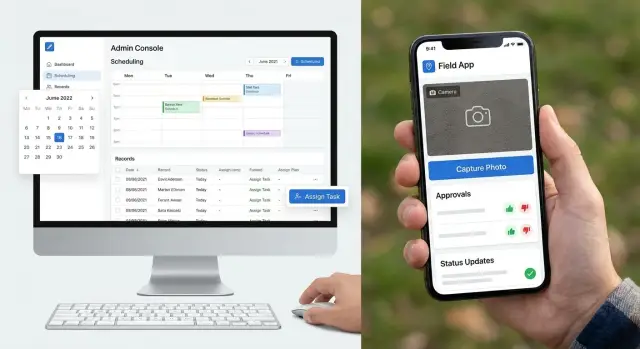
Why one shared workflow often fails
One workflow for web and mobile sounds tidy. In practice, it often creates friction.
Office staff and field staff usually do different kinds of work. People at a desk have a full screen, a keyboard, and time to review details. They may need to compare records, check history, edit long forms, and move across several tabs before making a decision. That work fits a desktop setup because it gives them space and context.
Field staff work in the middle of other things. They may be outside, talking to a customer, walking between jobs, or updating a record with one hand on a phone. In that moment, speed matters more than detail. They need to take a photo, confirm a status, approve a task, or add a short note in seconds.
When both groups get the same interface, both sides lose. A desktop-style screen on mobile feels crowded and slow. A mobile-first screen on desktop often hides too much context and makes office work awkward.
The usual problems are easy to spot. Mobile users get too many fields for tasks that only need a few quick actions. Office users get too little history and not enough detail to review work properly. Extra steps are added to satisfy one team, then slow the other team down.
The issue is not shared data. Teams should absolutely share the same data. The issue is forcing them to share the same screen, the same sequence, and the same level of detail. Good workflow design keeps one source of truth, but gives each group the steps that match how they actually work.
What belongs on desktop
If a task needs space, comparison, or careful review, keep it on desktop.
Scheduling is a good example. A manager often needs to see the full team, open jobs, timing, and conflicts at once. That is much easier on a large screen than on a phone.
Detailed edits also belong on desktop. When someone has to fill in many fields, check notes, fix mistakes, or update several records in one sitting, a keyboard and wider layout make the work faster and more accurate.
Desktop is usually the right home for:
- scheduling and workload planning
- long forms and detailed record edits
- document and report review
- roles, settings, permissions, and audit history
Document review is another strong desktop task. Reading a report, comparing versions, or checking whether something is complete takes focus. On mobile, people are more likely to skim and miss small details.
Settings and permission controls should also stay with office staff on desktop. Changes to roles, access levels, and approval rules affect everyone, so these actions need clearer screens, warnings, and a full record of who changed what.
Audit checks fit the same pattern. People often need to trace a chain of events, compare timestamps, review status changes, and confirm who approved a step. That is easier when the full record is visible.
A simple rule works well: if a task is detailed, risky, or done less often, start by keeping it on desktop. A field worker can update job status from a phone, but moving five appointments and reassigning the day should happen at a desk.
What belongs on mobile
Mobile should handle work that happens in the moment. It is best for quick actions, not long review sessions or data-heavy setup.
Think about what field staff need at a job site, in a warehouse, or during a customer visit. They need to capture proof, confirm progress, and move on quickly.
The most useful mobile actions are simple: take a photo, add a short note, collect a signature, and mark a job as started or finished. Each of those should take only a few taps.
If someone has to type long updates on a phone, the process is too heavy. Use checkboxes, short text fields, voice notes if they fit the job, and clear action buttons such as Approve, Reject, Arrived, Delayed, or Complete.
Mobile works best when actions stay small and clear:
- fast photo, note, and signature capture
- one-tap or two-tap status updates
- short approvals with obvious labels
- alerts only when someone actually needs to respond
Approvals on mobile should be limited to decisions that can be made quickly. A manager might approve a visit, confirm a delivery, or accept a time change from a notification. They should not need to open five screens to do it.
Alerts also need restraint. Send them for schedule changes, missing information, rejected work, or anything that blocks the next step. If every small update creates a push notification, people stop paying attention.
A good test is simple. Picture a technician finishing a visit in the rain, with poor signal and one hand free. Can they upload a photo, add a short note, get the customer signature, and mark the task complete in under a minute? If yes, the mobile flow is probably doing its job.
Map the flow from the finished result
A good workflow starts at the end. Before you map screens or assign tasks, decide what done actually means.
That end state might be a completed service job, an approved visit, or an invoice-ready record with no missing details. Once that is clear, work backward. If the final result requires customer notes, photos, a status change, and manager approval, each piece should have one owner and one clear moment when it gets added.
A practical way to map the flow is to define the final record first, then mark every handoff between office and field staff. After that, assign ownership for each data point, remove any place where the same information gets typed twice, and keep every update inside one shared job record.
That shared record matters more than most teams expect. Desktop and mobile can look very different, but they should still point to the same job, visit, or task. If the office edits one version while the field team updates another, errors appear quickly.
For example, if a field worker changes a job from "On site" to "Completed," the office team should see that same status in their view right away. The worker should not have to send a message and then enter the same update again later.
Once the flow looks right on paper, test one real example from start to finish. Do not use a perfect demo. Use a normal job and watch where people hesitate, ask questions, or re-enter information.
The common trouble spots are familiar: a handoff with no clear owner, a required field only one team can see, status labels people interpret differently, or notes copied into chat, email, and the app.
Make handoffs obvious
A workflow only works when handoffs are clear. If people are unsure who owns the next step, work stalls, dates slip, and the same task gets edited by multiple people.
Start with task creation. In most teams, the first record should come from the person with the most context, usually someone at a desk. They can enter customer details, job notes, files, and deadlines without rushing. Field staff should not be rebuilding that information on a phone while standing on site.
After that, decide who is allowed to change what. Dates, budget, scope, and customer promises usually belong to a manager, dispatcher, or office lead. Mobile users can add notes, confirm arrival, upload photos, and mark work done, but they should not be able to quietly change the job in ways that affect other teams.
Status names matter just as much. Avoid labels that are too broad to be useful. Each status should tell people what has happened and what should happen next.
A simple status flow might look like this:
- New request - office team reviews the job
- Scheduled - date is set and worker is assigned
- On site - field staff has arrived and started work
- Waiting approval - office team or customer must confirm the next step
- Complete - work is finished and ready for billing or closeout
The exact wording is less important than shared meaning. Everyone should read the same status the same way.
It also helps to show the next action after every update. If a field worker marks a job as "Waiting approval," the system should make it obvious that a manager now needs to review cost, timing, or extra work. If the office team changes the job date, the worker should see that update immediately instead of learning about it later by phone.
A simple field service example
Picture a small heating and cooling company. The office team handles scheduling, customer details, quotes, and billing on desktop. The technician in the van only needs the next job, the address, the contact name, and a simple way to report what happened.
The day starts in the office. A coordinator books a repair job on desktop because there is more to enter: customer history, service type, time window, parts notes, and internal comments. That kind of work is easier with a full keyboard, a larger view, and access to several records at once.
Once the booking is saved, the technician gets the job on mobile. The phone view stays short and clear. It shows the address, job time, customer phone number, and a small checklist for arrival, work started, and work completed. The technician does not need every back-office detail.
On site, the technician finds a damaged control panel. Instead of writing a long report, they use the mobile app to take a few photos, add a short note, and mark that extra work is needed. That takes less than a minute, which matters when they are standing in a hallway or working outside.
Back in the office, or from a manager dashboard, someone reviews the request on desktop. They compare the photos, check the original quote, confirm pricing, and approve the extra work. Desktop is better here because the decision needs more context.
After approval, the technician sees the update on mobile and finishes the job. When they mark it complete, everyone sees the same final status. The office team knows the visit is done, the manager can see approved work is complete, the customer record is ready for invoicing, and the technician can move to the next job without a phone call.
That is the value of splitting the flow by device. Desktop handles the heavy admin work. Mobile handles fast action in the field.
Common mistakes to avoid
Most workflow problems come from trying to make both devices do the same job.
One common mistake is turning the mobile app into a full desktop form. If a field worker has to scroll through dozens of inputs just to upload a photo and mark a visit complete, the process slows down and errors increase.
Another mistake is using different status names on desktop and mobile. If the office sees "Awaiting approval" while the app shows "Pending review," people start guessing. Shared labels matter because handoffs depend on them.
Duplicate data entry is another source of friction. A customer address, job number, or note from a previous step should carry over automatically. Retyping wastes time and creates mismatches.
Teams also hide important details behind too many screens. If a technician needs four taps to find site instructions or the current approval state, they may miss something important. The basics should be visible right away.
And many teams launch too widely, too early. A process that looks fine in a meeting can fail in a van, on a job site, or with weak signal. A short real-world pilot reveals where people actually get stuck.
A useful rule is this: do not copy the desktop process onto mobile. Trim it for the situation. Keep only what helps people finish the task where they are.
Quick checks before rollout
Before launch, test the workflow with real users, not just the people who designed it. A process can look clear on paper and still break the moment a busy office admin or field worker tries to use it in a rush.
Start with the main task each group does most often. If a new user cannot complete it without a long explanation, the workflow is not ready.
Check a few basics:
- Can a new user complete the main task from start to finish without help?
- Can office staff spot missing, late, or unassigned jobs in one view?
- Does every approval leave a clear record of who approved it, when, and what changed?
- Do mobile updates return to one shared place instead of being split across texts, emails, and app notes?
- Can someone fix a simple mistake, like a wrong status or a photo on the wrong job, without admin support?
These checks sound small, but they catch expensive problems. A field worker may be able to submit an update, but if the office team cannot see it right away, the handoff still fails. An approval may technically work, but if nobody can trace it later, disputes become harder to solve.
A simple test case helps. Create one fake job, send it to mobile, approve it, change the status, add a mistake, then correct it. Watch how long that takes on both desktop and phone. If one step feels slow or confusing in a test, it will feel worse during a busy day.
Pay close attention to error recovery. People tap the wrong button, choose the wrong customer, or upload the wrong note. Good workflow design does not assume perfect users. It makes small mistakes easy to undo.
Build, test, then expand
Start small. Pick one team, one workflow, and one clear goal. If you try to change every screen for every role at once, it becomes hard to see what is actually working.
A strong pilot might involve one office coordinator and one field crew using the same job process in different ways. The desktop side handles scheduling, edits, and exceptions. The mobile side handles quick capture, approvals, and status updates.
Do not rely on opinions alone. Track a few simple measures: time to finish a task, number of errors or missing details, tasks that get stuck, and the points where users leave the process and switch to calls or messages.
Then watch people use it. A manager may say the desktop screen is fine, but real use might show too many clicks. A field worker may say the mobile app is simple, but in bright sun or with weak signal, one extra step can become a problem.
Change the design based on real use, not guesswork. Small fixes often matter most: a shorter form, a bigger button, fewer required fields, or a clearer status label.
Keep each test round short. One or two weeks is usually enough to spot patterns. Then decide whether to keep the flow, revise it, or expand it to a second team.
If you want to prototype both sides quickly, a platform like Koder.ai can help. It lets teams create web, server, and mobile apps from chat, which can be useful when you want to test a desktop admin flow and a mobile field flow without waiting on a long traditional build.
The safest rollout plan is simple: test one process, measure it, fix the weak spots, and only then expand. That is how you end up with a workflow people will actually use.
FAQ
Should office and field teams use the same workflow?
Give both teams the same job record, but tailor the screens and steps to their work. Office staff need detail and context, while field staff need quick actions on a phone.
What tasks should stay on desktop?
Keep scheduling, long forms, report review, permissions, settings, and audit history on desktop. These tasks need more space, careful checking, and often several records open at once.
What should field staff do on mobile?
Use mobile for actions that happen during the job: photos, short notes, signatures, arrival updates, and completion status. Each action should take only a few taps.
How do we map a desktop and mobile workflow?
Start by defining what a finished job record must include. Then assign one owner to each update, mark every handoff, and remove places where people enter the same information twice.
How do we keep desktop and mobile data in sync?
Use one shared job, visit, or task record for every update. When a technician changes a status on mobile, the office should see the same change in its desktop view right away.
How should we name job statuses?
Use short, specific names that tell people what happened and who acts next. For example, "Waiting approval" tells the field worker that work paused and tells the office team to review it.
Who should be allowed to change job details?
Let mobile users update field information, such as notes, photos, arrival, and completion. Reserve changes to dates, budgets, scope, and customer promises for approved office roles.
How can we make a field app easier to use?
Keep the phone flow short, show site instructions and current status early, and avoid long forms. Test it in real conditions, including poor signal, bright light, and one-handed use.
What should we test before rollout?
Run one realistic job from creation through closeout. Include an approval, a status update, a deliberate mistake, and a correction, then watch where users hesitate or leave the app for calls and messages.
How should we roll out the new workflow?
Start with one team and one common process for one or two weeks. Track completion time, missing details, stuck tasks, and errors, then fix the weak spots before adding more teams.