

Apps for shift workers: shared device design tips
Learn how to design apps for shift workers who share devices, with short task flows, role access, reliable handovers, and clear status updates.
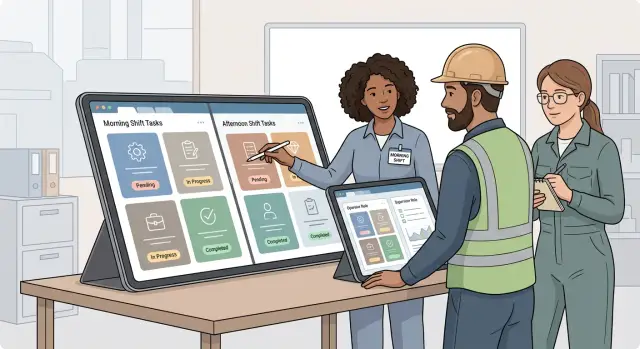
Why shared devices change app design
Most business apps assume one person has one account, one device, and enough time to finish a task. Shift work rarely works that way. A warehouse tablet can pass through several hands in an hour, and a staff member may use it only long enough to confirm a delivery or report a fault.
That changes how the app should work. It needs to help people start quickly, complete a small piece of work, and leave a clear record for the next person. It cannot depend on anyone remembering where they stopped.
Interruptions are normal. A supervisor calls someone away, a truck arrives early, or a customer needs help. The device may sit on a counter while its current user moves to another task. If an unfinished form stays open without saving, the next worker can overwrite it, close it, or assume the work is complete.
Physical conditions matter too. Workers may wear gloves, work in bright light, move through noisy areas, or have only a minute between jobs. Small buttons, long forms, and alerts that rely only on sound create avoidable errors. A shared tablet needs large tap areas, readable labels, and clear confirmation after each action.
A personal app can rely on subtle cues because the same person learns its habits over time. A shared-device app needs to explain itself in the moment. Each screen should make three things clear: who is acting, what task is underway, and what will happen after they tap the main button.
For example, a worker who scans a damaged box should not leave a vague note such as "check later." The app should save the item ID, time, damage type, current status, and next required action. When the next shift opens the tablet, they can see that the box needs supervisor review instead of starting the report again.
Shared devices also make identity less certain. Workers should identify themselves quickly, but the app should not expose another person's open work or give every user the same controls. A picker may record an issue, while a shift lead can assign follow-up work or close it.
Treat every interaction as a handover point. Save progress early, show ownership plainly, and assume a different person may hold the device before the task ends. That leads to simpler screens and fewer lost updates.
Build short task flows
A shared device must make sense to the person holding it now, even when someone else started the work. Long forms and multi-page processes cause confusion when a worker gets called away, the battery runs low, or a shift ends early.
Map one job from start to finish before designing screens. Include the moment a worker starts it, pauses it, hands it over, and marks it complete. A stock count, for example, might begin with scanning a location, pause when goods arrive at the bay, move to another worker with a visible count and note, then finish when someone confirms the total.
Keep each flow tied to one job. Do not combine receiving a delivery, reporting damage, and requesting a supervisor into one long path. Workers should complete the immediate task in a few clear steps, then start a separate task if needed. This makes apps for shift workers easier to learn and reduces mistakes on a busy floor.
Save progress after every meaningful action. A scan, quantity entry, photo, confirmation, or handover note should become a saved update. If the app closes or the device changes hands, the next worker should see the current state instead of asking what happened or repeating work.
A useful flow usually follows four steps:
- Show the task and its current status.
- Ask for the one action needed now.
- Save that action immediately.
- Show the next step or mark the task ready for handover.
Make the next action obvious on every screen. Use labels such as "Scan package," "Add quantity," "Save for next shift," and "Mark complete." Avoid vague buttons like "Continue" when the worker cannot tell what follows.
Workers also need a safe way to pause. A "Pause and hand over" action should save the task, record the time, and allow a short note for the next person. The task screen can then show who last updated it and what remains. That prevents half-finished work from looking abandoned.
If you build an internal tool with Koder.ai, describe the task in plain language first: "Create a receiving flow with scan, count, damage note, pause, and handover status." Then test it with the people who use the shared device during a real shift. They will spot steps that look simple on a desktop but take too long where the work happens.
Set up role-based access
A shared tablet should not give every worker the same controls. Start with the jobs people actually do during a shift, such as picker, shift lead, dispatcher, or manager. Each role needs a small set of actions, not a full view of the whole app.
A warehouse picker may scan an item, report damage, and mark a task complete. A shift lead may reassign work, approve an exception, or reopen a task. Payroll settings, staff records, and account controls should stay out of both screens unless a manager needs them.
Role-based access keeps apps for shift workers simpler when time is tight. It also reduces accidental changes when several people use the same device during a day.
Keep the right controls on each screen
Build permissions around actions, not job titles alone. Two people may both work on the floor, but only one may approve an inventory adjustment. Hide the approval button from everyone else instead of showing it and returning an error after they tap it.
Keep permissions simple at first. Workers can view assigned tasks, add notes, and report problems. Shift leads can assign tasks, confirm handovers, and approve routine exceptions. Managers can change schedules, edit user roles, and view wider reports. Administrators can manage billing, security settings, and account access.
Add exceptions only when a real work need appears. Too many permission levels make a shared device app harder to use and maintain.
Confirm identity before sensitive work
Workers do not need a long login process every time they pick up a device. A short PIN, badge scan, or quick role switch works well for routine tasks. Ask for confirmation again before actions that affect stock, payments, customer data, schedules, or safety records.
Record the person, time, device, and action when someone approves or changes an important item. If a lead approves a damaged-stock adjustment at 6:40 PM, the next shift can see who made that decision and why. This makes the shift handover workflow clearer and gives managers a record to review when something goes wrong.
Make handovers clear
A shared device needs to answer four questions at a glance: who last handled the task, when they updated it, what state it is in, and whether the next worker must act. Missing details lead to repeated work and wasted time.
Put the latest owner and update time near the task status. Use labels such as "Assigned to Sam, updated 6:40 PM" and "Waiting for supervisor review." Avoid vague states like "In progress" when the worker needs to know the next action.
Keep end-of-shift notes short
Before a worker signs out or ends a shift, ask for a handover note only if the task remains open. A small prompt works well: "What should the next shift know?" The note should take a few plain sentences, not a long report.
A warehouse worker might write: "Two cartons arrived damaged. Photos attached. Carrier has not replied." The incoming worker can act without searching old messages or calling the previous shift.
Pair the note with a few clear statuses:
- Finished: no further action is needed.
- Needs attention: the next shift must continue the task.
- Blocked: someone with another role must respond.
- Waiting: work pauses until a delivery, approval, or reply arrives.
Keep completed tasks separate from open issues. Workers should see unresolved work first when they open the shared device. Completed work can remain searchable, but it should not compete with tasks that need action now.
Handovers must also survive interruptions. A device may lose power, a worker may be called away, or a new shift may start early. Save task state and notes as soon as the worker adds them. Do not rely on an unsent end-of-shift form.
Make accountability useful, not punitive
Show who updated a task so the next worker can ask a focused question when needed. Do not turn the handover screen into a performance scorecard. The team needs a reliable record of what happened and what comes next.
Use timestamps that fit the workplace. A same-day update can show "6:40 PM." Older updates should include the date. When several people touch one issue, show a short history with the newest update first. That gives the incoming worker context without making them read every past action.
Keep status updates durable
A shift team needs status updates that survive a battery change, a closed browser, and a different person picking up the same device. If a worker has to ask, "What happened here?", the app did not keep the record clear enough.
Use plain names that everyone understands. "New," "in progress," "blocked," and "done" work because they describe the job's state without extra interpretation. Use terms such as "pending review" only if the team uses them every day and knows who must act.
Each active task should show when someone last changed it. Put a simple timestamp near the status, such as "In progress - updated 14:20." A task changed at 14:20 needs a different response from one untouched since 07:10.
Status must live with the task, not only in a temporary screen or device memory. When one person closes the app, another opens it on a different phone, or the connection drops and returns, the latest confirmed update should still appear. Apps for shift workers depend on this continuity because shifts rarely begin and end at the same desk.
Make blocked work actionable
A "blocked" status needs more detail than the other options. Ask the worker to select or enter a reason before saving it. Keep choices brief: missing stock or equipment, waiting for approval, a safety issue, a customer or supplier issue, or another reason with a short note.
That reason turns a vague warning into a useful handover item. A warehouse worker can mark a shipment as blocked and write, "Two cartons missing from pallet 18." The next shift can check the pallet first instead of repeating packing work or searching old messages.
Keep the note in the task history with the person or role that made the update and the time it happened. Do not hide older updates when someone changes the status. A short history helps supervisors see whether a task has moved forward, stopped repeatedly, or changed hands without a decision.
Koder.ai can build these status rules into a web or mobile app from a chat-based brief. Test the result by handing the device to someone who was not present earlier. They should understand the task state, its last update, and the next action within a few seconds.
Design screens for busy shifts
A shared device may sit on a counter, ride in a vehicle, or pass between gloved hands. Design for quick checks and actions, not long periods of careful reading. Workers often open the app while a customer waits, equipment runs, or the next task has already arrived.
Use readable type with strong contrast and give each primary action a large tap target. A worker should not need to zoom in or tap twice because two small buttons sit too close together. Put the most common action where a thumb can reach it, and use labels such as "Mark complete" or "Report issue" instead of unclear icons.
Keep each screen focused on one job. A receiving worker may need to record a shipment status, location, and short note. They should not have to fill in ten optional fields before the app accepts the update. Put less common details behind an "Add details" option, or let a supervisor complete them later.
Make active work fast
Short forms reduce errors under pressure. Use choices, toggles, and defaults when they match the actual task. An app can offer status buttons such as "Received," "Delayed," and "Damaged" rather than asking someone to type the same update every time.
A practical screen includes a clear task title and current status, the next action, only the fields needed for that action, a visible way to go back, and a timestamp with the worker role after an update.
Do not hide important information in menus. If a shift worker needs to know whether a task is assigned or overdue, show that on the main screen.
Confirm changes that are hard to undo
Workers need speed, but some actions change a record for everyone. Ask for confirmation before deleting an item, closing an incident, or marking inventory as discarded. State the result clearly: "Close incident? This removes it from the open shift queue." Reserve confirmation for meaningful changes, not every routine tap.
After a worker saves an update, show immediate feedback. Change the status on screen, show the save time, and use a brief message such as "Damage report saved." If the app supports offline updates, explain clearly whether it saved the change locally and when it will send it.
Clear feedback prevents duplicate work. The next person who picks up the shared device can see what happened, when it happened, and whether the app accepted the change.
Example: a damaged shipment across two shifts
At 2:40 PM, Maya unloads a pallet and sees that one carton has split open. Several items are wet, and she cannot decide whether the shipment is safe to receive. She opens the receiving app on the warehouse tablet and taps "Report damage."
The app asks only for the details the next person needs: shipment number, location, a photo, damage type, and whether work can continue. Maya scans the shipment label, takes two photos, selects "possible water damage," and marks the pallet "hold." After she signs in with a short PIN, the app records the time and her worker ID.
The shipment record now reads "Waiting for supervisor review." That status stays with the shipment instead of sitting in a message that could disappear during a busy shift.
The handover
Before Maya leaves, the damaged pallet appears in the open issues list with its bay number, photos, and current status. She adds a note: "Pallet moved to hold area beside bay 4."
At 3:10 PM, Luis, the supervisor, signs in on the same tablet. His role lets him assign a review task and approve a disposition, but it does not give him access to payroll or staff records. He assigns the issue to Priya in quality control and changes the status to "Inspection scheduled."
The evening shift sees the same record when it starts. The app shows who reported the issue, who owns it now, what action is pending, and when someone last updated it.
Closing the issue
Priya inspects the carton, separates the damaged units, and approves the remaining stock. She records the quantity removed, attaches a final photo, and changes the status to "Resolved." The app asks her to confirm before closing the task.
The next worker who scans that shipment sees the completed record and approved quantity. A manager can later review Maya's report, Luis's assignment, Priya's inspection, and the final result. Ownership stays clear even when many people use one device.
Common mistakes with shared-device apps
Shared devices change hands all day. Small design shortcuts can create disputes, repeated work, and missed urgent jobs.
Shared accounts blur responsibility
A single shared login looks convenient, but it hides who accepted a task, changed a quantity, or marked an issue resolved. When a shipment goes missing, the team can only see that "Warehouse tablet" made the update. That does not help a supervisor understand what happened.
Give each worker a quick way to identify themselves, such as a short PIN, badge scan, or sign-in at shift start. The app can remain fast while recording a named activity history. Role-based access should also limit sensitive actions, including stock adjustments and incident closures.
Chat is not a task record
Teams often use chat to report unfinished work: "Pallet 42 needs checking." The message soon disappears under replies, and the next shift may never see it. Chat can add detail, but it should not hold the only record of open work.
Put active work in the app with an owner, current status, due time, and location. Let workers attach a short note or photo where the task lives. The next person can see the task without searching messages.
Keep a visible history rather than removing previous notes when someone takes over. Do not replace a specific status such as "waiting for maintenance" with a vague "in progress." Require a reason or confirmation before users close work, and give urgent tasks a prominent place separate from routine items.
Quick checks before launch
Test the app where people will use it: beside a loading bay, at a nurses' station, or on a noisy shop floor. A smooth desk demo can hide problems that slow a shift down.
Ask workers from each role to complete their usual work on the shared phone or tablet. Give them a realistic scenario, then watch where they pause, tap the wrong control, or need help. Those moments tell you more than a long feature list.
Before release, confirm that a worker can finish a common task in a few screens without typing a long note. Each role should see actions that match its job, while supervisors retain approvals and correction tools. A new shift should find unfinished work, the latest update, and the person or team responsible immediately.
Also test what happens when the device locks, loses signal, restarts, or changes hands. Workers should be able to sign out quickly, and the next person should not see or act under the previous user's account.
Test the failure cases
Shared devices have predictable failures. Someone closes the app before saving. A tablet restarts after an update. Two people open the same task. Wi-Fi drops in one part of the building. Decide how the app should behave in each case, then run the test.
If a warehouse worker marks a damaged shipment "waiting for inspection" and the tablet restarts, the incoming shift should see that status after signing in. The app should also show when the update happened and who made it. A vague "in progress" label leaves too much room for guessing.
Run a small live trial
Start with one team and one repeated workflow, such as stock checks or incident reports. Run it through several shift changes and collect specific comments: which screen took too long, which label confused people, and which update failed to persist.
Fix repeated problems before adding more workflows. A shared-device app works when workers can pick it up mid-shift, complete their task, and leave a clear record for the next person.
Start with one shift workflow
Choose a routine that happens every day and causes real confusion at handover. A stock count, room cleaning check, delivery intake, or equipment inspection is a better starting point than trying to digitize every task at once.
Spend a shift watching how the work moves. Note who starts each task, what they need to know, where they pause, and who takes over. Pay attention to paper notes, spoken updates, group-chat photos, and whiteboards. They often reveal information the app needs to keep.
Turn those observations into a short flow on the shared device. A warehouse worker might open "Receive delivery," scan or enter an item, add a damage photo if needed, choose a status, and save. The next shift should see the item, its status, the time of the last update, and the next action without asking around.
Test the flow where people work, using the actual shared phone or tablet. Check whether workers can use it with gloves, poor signal, noise, and a queue of people waiting. Six taps in a quiet demo can feel slow during a busy handover.
Ask workers to rename confusing tasks and statuses in their own words. "Waiting" may mean waiting for a driver, manager, or replacement part. Separate those states so the next person knows what to do, but keep the overall list short enough to use consistently.
Koder.ai lets teams create web, server, and mobile applications through chat, with source code export, deployment, and hosting available when needed. Describe one workflow, its roles, and the information each handover requires, then put the first version in front of the people on shift. Their feedback should guide the next change.
FAQ
Why must shared-device apps save progress so often?
Save each meaningful update right away, such as a scan, quantity, photo, or status change. The next worker should open the task and see its current state without repeating work.
How long should a task flow be?
Use short, task-focused flows. Show the current status, ask for one action, save it, and show the next step or handover state.
How should workers identify themselves on a shared tablet?
Use a quick PIN, badge scan, or role switch for routine work. Ask again before someone approves stock changes, payments, schedules, or other sensitive actions.
What does role-based access look like for shift teams?
Show only the actions each person needs. For example, a picker can report damage, while a shift lead can approve an exception or assign follow-up work.
What information should a handover include?
Show who last updated the task, when they did it, the current status, and the next required action. Put this information near the top of the task screen.
What should happen when a worker gets interrupted?
Use a pause-and-handover action that saves the task, records the time, and lets the worker add a short note. The next person can then continue from the saved state.
How should a blocked task work?
Ask for a reason, such as missing stock, waiting for approval, a safety issue, or a supplier problem. Add a short note so the next shift knows what to check first.
How do you design screens for gloves and busy work areas?
Use large tap areas, readable labels, strong contrast, and clear text buttons. Keep optional details out of the main path so workers can finish common updates quickly.
Can a team use chat instead of a task record?
Keep chat for discussion, but store open work in the app with an owner, status, location, and history. Messages can disappear under replies, while task records stay visible across shifts.
What should you test before launching a shared-device app?
Test one repeated workflow with real workers on the actual shared phone or tablet. Include interruptions, device locks, restarts, weak signal, and handovers between shifts.