

Employee offboarding app: close access gaps safely
Plan an employee offboarding app that assigns return tasks, records equipment condition, and collects HR, manager, and IT signoffs.
Why offboarding tasks fall through the gaps
An employee's last day can leave behind more than an empty desk. If a former employee still has access to email, payroll, a customer database, or a shared drive, private company and customer information may remain exposed. Missed removals also make it harder to confirm who changed a record after the employee left.
Poor offboarding rarely comes from bad intent. HR, IT, managers, and finance often handle different parts of the process. Their handoffs happen through email, chat messages, and spreadsheets that no one reviews together.
A manager may tell IT that Friday is the employee's final day but forget to mention a specialist tool. HR may complete the exit interview while IT waits for a laptop serial number. The task then sits in an inbox with no visible owner or deadline.
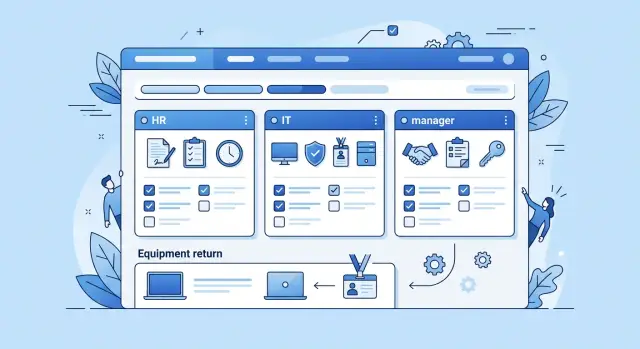
An employee offboarding app puts the work in one shared record. It should show the final day, accounts that need attention, issued equipment, task owners, and the status of every step. HR confirms employment details, the manager identifies tools and handover work, and IT removes access and records the result.
A shared view should quickly answer a few practical questions:
- Which tasks must finish before the final day?
- Who owns the remaining access removal?
- Has the employee returned their laptop, badge, and phone?
- Which approvals are still missing?
Clear ownership matters more than a long checklist. Assigning "remove CRM access" to IT is vague. Assigning it to a named administrator, with a due date and a required completion note, creates a record that someone can verify.
Keep completed tasks visible too. If a manager asks whether access ended at 5 p.m. on Friday, HR and IT should find the answer in the same place instead of searching old email threads. A shared record cuts down on last-minute chasing and gives the company an audit trail when questions arise.
Decide who needs to use the app
An employee offboarding app works best when people see the work they own. HR starts the record and confirms the final day. The manager handles team handover tasks. IT removes accounts and records device collection. A small group can approve the completed case.
Give every task one named owner. "IT" is too broad. If nobody knows who must disable a payroll account, it can remain open after the employee leaves. Assign the task to a person, or to a role with a clear backup.
A practical setup includes HR staff who create offboarding records and maintain employment details, managers who assign handover work, IT staff who remove system access and update asset status, and finance or operations staff who check cards, expenses, or company property. HR and IT approvers can then sign off on work in their areas.
Keep HR records separate from IT records. HR may need a private reason for departure, personal contact details, or benefit information. IT usually needs the final date, manager, assigned equipment, and a list of accounts. An IT worker should not need sensitive HR notes to close a laptop return task.
Set permissions around real decisions, not job titles alone. HR can edit employee details and view private notes. Managers can view tasks for their direct reports, add handover notes, and mark their tasks complete. IT can see equipment and access-removal tasks but cannot open HR-only fields. Approvers can view progress and signoffs without changing completed records.
For example, a manager may confirm that a departing sales representative transferred active accounts, while an IT technician records a returned MacBook and its condition. Both updates appear in one offboarding checklist, but neither person sees information outside their role.
Koder.ai can turn a role plan into screens and permissions through chat. Write the permission rules first, though. Clear boundaries reduce accidental data exposure and make overdue work easier to find.
Map the process before building
Build the app around the work people already need to complete. Start with one record for each departing employee. Include their full name, role, department, manager, work location, final working day, and a personal email for non-sensitive follow-up.
The final day should drive deadlines. A laptop return may need to happen on the employee's last day, while payroll may need banking or leave details checked several days earlier. Set due dates early enough for each owner to act.
Give every task one owner
Do not assign a task to a department without naming a person. "IT" does not tell anyone who will remove an account. Each item needs a named owner, a due date, and a clear outcome. The manager can confirm handover work, IT can remove access, HR can complete employment records, and finance can check final pay.
Keep the first workflow focused on work that prevents actual problems:
- Remove access to email, shared drives, business apps, and company accounts.
- Collect laptops, phones, badges, keys, and other issued equipment.
- Confirm final payroll actions, benefits changes, and required HR documents.
- Transfer files, customer notes, and active work to the right colleague.
- Record manager, IT, and HR approvals before closing the case.
Define proof for sensitive work
A completed checkbox is enough for some tasks, but sensitive work needs context. IT might record "Google Workspace account suspended at 3:15 PM" and add a ticket number.
Require an attachment when the task needs evidence. A signed equipment receipt, a photo of a damaged laptop, or a completed exit form gives HR a record they can find later. For equipment return tracking, capture the item name, asset tag, condition, return date, and the person who accepted it.
Set rules for exceptions. If an employee keeps a phone temporarily, the owner should select an exception status, explain why, and enter a revised return date. Keep the task open until someone resolves it. Otherwise, a friendly agreement can turn into an untracked access or equipment gap.
Build the workflow step by step
Start each departure with one offboarding case. A short employee form can capture the person's name, department, manager, final working day, location, and role. It should also ask whether they hold company equipment or use shared accounts. The app can use that information to create relevant tasks instead of asking HR to add every item by hand.
Use the final working day as the deadline for each task, with earlier reminder dates. An employee leaving on Friday might trigger a first reminder on Monday and a second on Wednesday. Owners can then see what is due without searching email threads.
Create tasks by responsibility
Assign access removal to named IT staff, not a general inbox. Each task should name the system, such as payroll, email, the customer database, or a shared drive. IT can mark the task complete and add a note if access must stay active until a handover ends.
Equipment tasks need a different owner. The employee or manager can confirm the return of a laptop, phone, badge, or security token. For remote staff, assign the manager to arrange shipping and confirm receipt. This keeps equipment return tracking in the same case as employee access removal.
The app can create tasks automatically for each account tied to the role, every issued item, manager handover work, HR paperwork, and reminders for the case owner when work remains open.
Keep approvals visible
Give HR and the manager separate approval tasks. A completed item should show who approved it and when, rather than a vague status such as "done." If someone rejects the case, they should explain why and return the task to its owner.
Avoid one large "offboarding complete" button. Allow closure only after required tasks and HR IT signoffs are complete. A clear progress view makes remaining work easy to see on the final morning.
Record returned equipment clearly
A short equipment record prevents disputes later. Add every company item the employee holds: laptop, phone, monitor, badge, charger, security token, and specialist hardware. The employee, manager, and IT teammate should see the same list instead of relying on a spreadsheet that only one person can edit.
Give each item its own return entry. Record the asset name, serial number or asset tag, the person returning it, the date, and the person who received it. A laptop entry might read: "MacBook Pro, asset tag KDR-1842, returned 14 June, received by IT." This makes it easier to match the item with company inventory.
Use a simple condition choice: good, damaged, or missing. Ask the receiver to add a brief note for damaged or missing items. "Cracked screen near lower corner" is more useful than "needs repair." Attach photos when the app supports them, so IT has a record before inspecting or repairing the device.
Keep the form quick enough to complete at a desk or reception area. Too many fields encourage delays, and details disappear after the final day. A practical entry includes the item type and asset tag, return date, receiving team member, condition, a brief note, photos for damage, and a status such as returned, missing, or awaiting return.
Do not close the offboarding checklist because most equipment came back. Keep missing items and damage reviews open after the employee leaves. Assign each one to a named owner, usually someone in IT or workplace operations, and show the next action and due date.
For remote staff, record the shipping-label date, tracking number, and expected arrival date. Mark a laptop as returned only after the receiving team confirms delivery and checks the asset. A parcel sent is not the same as equipment safely received.
Close system access with clear ownership
Access removal fails when a task says "disable accounts" but does not identify the accounts, owner, or deadline. An employee offboarding app should turn that broad request into separate assigned records.
Group access by where it lives. IT usually manages email and identity accounts. Finance, sales operations, or a department administrator may manage business apps. Devices need separate tasks, while building badges, keys, and parking access often belong to facilities or HR.
For each item, name the account or access type, assign one person to remove or disable it, set a completion date before the final working day, record the completion time and confirmation method, and keep the item open until the assigned person confirms the action.
Confirmation should describe what happened. "Removed from Salesforce at 14:15, checked user list" is useful. "Done" is not. For a company phone, the owner can record that they removed the work profile, revoked mobile access, and confirmed the device no longer connects.
Flag work that remains open as the final day approaches. A task due tomorrow needs attention from the manager and HR, not a quiet place at the bottom of a checklist. Use clear labels such as due today, overdue, and waiting on another team.
Some access removals need a sequence. IT might disable email and single sign-on immediately, while payroll keeps limited access until final pay is complete. Record the exception, its approver, and the planned removal time. HR and IT then share a clear record rather than uncertain email replies.
Do not assign an entire access group to "IT." Assign it to Priya in IT, with a date and proof. If Priya is away, the team can reassign the task before a former employee keeps access by accident.
Collect signoffs without chasing emails
Email threads make a poor record of an employee's exit. One person replies "done," another misses the message, and HR still cannot tell whether IT removed every account. Put approvals inside the employee offboarding app.
Give every task a simple status. Use "In progress" while the owner works on it. Use "Blocked" when they need information or action from someone else, such as a manager confirming which shared folders the employee used. A blocked task should include a brief note and the name of the person who needs to respond.
Assign signoffs to the right people
A signoff should match a real responsibility. The manager confirms handover work and team property. IT confirms account closure and device handling. HR confirms employment records, final documents, and required policy steps.
Keep requests specific. "Manager signoff" is vague. "Confirm customer accounts have a new owner" tells the manager what they approve. The app should show the owner of each signoff, its due date, and its status.
For completed work, save the approver's full name and role, the completion date and time, any note or exception, attached records, and the status before and after approval. This history helps when a former employee reports they still have access or HR needs to review an exit later.
Review the case before closure
Before HR closes the case, show a final summary on one screen. Include completed tasks, blocked tasks, overdue work, returned equipment, and access items confirmed by IT. If a required signoff is missing, keep the case open and name the person responsible.
A manager may approve a handover on Tuesday while IT marks a laptop return as blocked because the charger is missing. HR can close the employment record, but the offboarding case should remain visible until IT resolves the equipment task. This keeps the record accurate without delaying unrelated work.
A simple final-day example
Maya's final day is Friday. Her manager starts the employee offboarding app on Monday and assigns tasks with clear owners and due dates. Maya works until 3:00 p.m., so the team sets noon as the deadline for work that could block a safe departure.
At 11:15 a.m., the manager collects Maya's laptop, charger, security badge, and company phone. In the app, the manager records each item, adds the laptop serial number, and notes a scratched phone screen. The note explains that the device needs inspection before the company reissues it. Maya and the manager both confirm the handover.
IT receives its assigned tasks at the same time. One team member removes Maya from email, company chat, the customer database, and the project workspace. Another confirms that Maya no longer has administrator access to the payroll account. Each person records the completion time and adds a signoff.
HR checks the resignation record, final pay details, benefits notice, and contact address for future tax forms. HR marks the documents complete after a brief review.
At 12:20 p.m., the app still shows one open item: Maya has access to a social media scheduling account. IT did not know about it because the marketing manager owned that account. The manager assigns the task to the marketing lead, who removes Maya before her final meeting.
By 2:30 p.m., the checklist shows every task as complete. The team has a dated record of returned equipment, account removals, and HR IT signoffs. It shows who confirmed each action and when.
Mistakes that leave access gaps
An employee offboarding app works only when every task has one named owner. "IT" or "HR" is too vague. If Maya owns email removal and Leon owns laptop collection, the app shows who must act and when. Shared labels invite people to assume somebody else handled the work.
Do not mark access removal complete after disabling a main company account. Former employees may still reach payroll, support tools, cloud dashboards, shared passwords, chat workspaces, or a personal account connected to company software. Give each account its own item, owner, and completion record. The manager can then check that the list fits the employee's actual role.
Equipment records need more than a note such as "laptop returned." Free-text comments vary too much to support a fair handover or later review. Record the asset tag, return date, receiving person, and condition. Add photos if the device has visible damage. Notes should explain an issue, not carry the entire record.
Keep blocked work visible. A departing employee may have a company phone with a courier, or IT may need approval before removing access to a client system. If someone closes the case anyway, the unfinished item disappears from daily attention.
Set the case status to "blocked" or "needs review" until the owner resolves the issue. Show why the task stopped, who can unblock it, and the next review date.
Common errors include assigning a department instead of a person, treating one account as every account, recording device condition only in a comment, and closing an offboarding checklist with unfinished tasks.
A manager's final signoff should confirm completed work, not replace it. Keep blocked tasks open and show them before HR closes the employee record.
Quick checks before the final day
Run a final review one or two business days before the employee leaves. This gives the manager, IT team, and HR contact time to fix a missing laptop, active payroll account, or absent approval.
Start with ownership. Every item needs one named person and a due date. If the manager must collect building keys, put the manager's name beside that task rather than assigning it to a department.
Use a short review list:
- Confirm each task has an owner, due date, and clear status.
- Review IT's record for every access action, including the system name, action taken, and completion time.
- Match returned equipment against serial numbers and add condition notes for damaged or missing items.
- Confirm that manager, HR, and IT approvals include a timestamp.
- Keep the case open when an issue still needs action, even after the final day.
IT records need more than a checked box. "Access removed" does not tell HR whether IT disabled the account, changed a shared password, transferred files, or removed admin rights. A note such as "Google Workspace account suspended at 3:14 p.m.; project folder ownership transferred to Priya Shah" gives the next reviewer something they can verify.
For equipment return tracking, compare the listed asset with the physical item. Record the serial number, charger, accessories, and condition. If an employee returns a laptop with a cracked screen, state it plainly and attach any internal handoff record the company uses. Do not complete the task simply because the laptop reached the office.
Treat unresolved items as open issues, not footnotes. If a contractor's vendor portal account remains active because IT lacks admin access, assign a follow-up owner and deadline. Close the case after that person records the result. A clear open issue is safer than a falsely complete checklist.
Start with a practical first version
Start with the departure type your team sees most often, such as a full-time office employee leaving voluntarily. Build one template covering the actions HR, the manager, and IT must complete before the final day. A small working employee offboarding app is more useful than a large library of untested templates.
Keep the first template focused on ownership. HR confirms the final date and exit paperwork. The manager records knowledge-transfer work and checks company property. IT removes accounts, collects devices, and records exceptions that need follow-up.
Include only the information people need to act:
- Employee name, department, manager, and final working day.
- A task owner and due date for every item.
- Equipment list, condition, serial number, and return status.
- Access removal tasks for systems the employee actually uses.
- A signoff field with a date and brief note.
Test the template on one or two real departures before asking every department to use it. Ask HR whether the form captures the right records, IT whether access tasks arrive early enough, and a manager whether the task list fits their daily work. Watch for tasks that people skip, duplicate, or misunderstand.
Then adjust owners and reminders. If managers often wait until the final day to confirm laptop returns, send a reminder two business days earlier. If IT needs a manager's confirmation before removing a specialist account, make that dependency visible instead of relying on an inbox message.
Koder.ai can help teams create a tailored web or mobile offboarding app through its chat-based build process. Describe the fields, roles, approval steps, and reminder rules you need, then refine the app after early cases. Teams can also export the source code and continue development outside the platform.
A first version does not need every policy exception. It needs to show each open task, name the person responsible, and keep a dated record when that person finishes it. That gives the team a practical base for contractors, remote returns, special access reviews, and other cases later.
FAQ
What should an employee offboarding app include?
Start one case for each departing employee. Record the final working day, manager, department, equipment, and systems they use. The app should create assigned tasks with due dates, reminders, and a visible status for every item.
Who should own offboarding tasks?
Give each task to one named person, not a department. For example, assign email removal to a specific IT administrator and laptop collection to the manager. Add a due date and require a completion note so HR can verify the work.
How do we make sure all system access is removed?
Create a separate task for every system, such as email, payroll, CRM, shared drives, chat, and company accounts. The owner should record the action taken, the completion time, and any exception that keeps access active temporarily.
How should permissions work in an offboarding app?
Keep HR-only information in private fields and show IT only the details needed for access and equipment tasks. Managers should see handover work for their direct reports, while approvers can review progress without editing completed records.
What details should we record for returned equipment?
Record the asset name, serial number or asset tag, return date, receiver, and condition. Use clear statuses such as returned, damaged, missing, or awaiting return. Add a short note and photo when damage needs review.
How do we handle equipment returns from remote employees?
Keep the equipment task open until the receiving team confirms delivery and inspects the item. Record the shipping-label date, tracking number, expected arrival date, and the person who accepts the package.
Which signoffs should an offboarding case require?
Use specific signoffs that match each person's work. Managers confirm handover tasks, IT confirms account closure and devices, and HR confirms employment records and required documents. Save each approver's name, time, and note in the case.
What happens when an offboarding task cannot finish on time?
Mark the task as blocked or needs review, explain what stopped it, and name the person who can resolve it. Keep the case visible until the owner records the result, even if the employee has already left.
When should we review an offboarding checklist?
Review every case one or two business days before the final day. Check that each task has an owner, due date, and status. Confirm IT recorded each access action and compare returned assets with their serial numbers or tags.
What is the best way to build a first version of an offboarding app?
Begin with one common departure type, such as a full-time employee leaving voluntarily. Include only the fields and tasks people need to act: employee details, access removal, equipment returns, handover work, and signoffs. Test it on a few cases, then adjust owners and reminders.