

Realistic test data for business apps before staff use
Learn how to create realistic test data for business apps, model staff permissions, test edge cases, and catch bad inputs before launch.
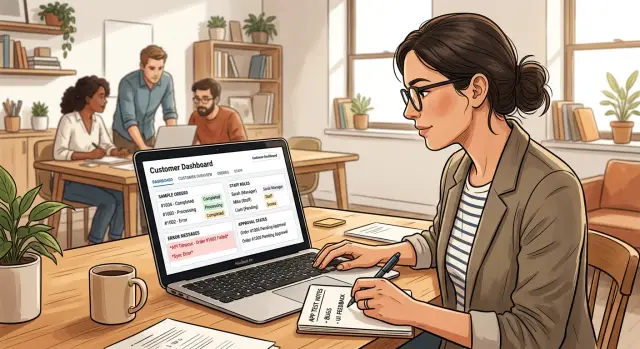
Why polished demos fail when staff start using the app
A polished demo usually uses empty screens or a handful of perfect records. Every customer has a complete name, every order has a clear status, and everyone follows the intended path. That proves the app can display a workflow. It does not prove staff can use it on a busy Tuesday.
Real work is messier. A sales assistant may save a contact without a phone number, then return later with a corrected email address. An operations manager may search for "Acme" and find six similar records. Someone may need to reopen a closed request because a customer changed their mind. Realistic test data exposes these situations before they create confusion in production.
Empty screens hide practical questions too. Does a staff member know what to enter first? Can they tell the difference between a draft and a submitted request? Does the app explain what is missing when a required field is blank? A presenter can move past these gaps because they already know every step.
Shared records change the workflow
Many problems appear only when several people use the same app. One staff member updates a customer record while another views an older version. A supervisor expects to see every request, while an employee should see only their own. Someone changes a record's status but leaves no note for the next person.
Test shared work with believable activity. Create records with similar names, incomplete details, old dates, duplicates, and information that needs correction. Then ask two or three testers to work on the same records at once. Watch for overwritten changes, unclear ownership, confusing status labels, and search results that are hard to sort.
Koder.ai lets teams create web, server, and mobile applications through chat, but fast development does not remove the need to test ordinary human behavior. Test the first version against real working habits before the whole team relies on it.
Keep test data separate from real information
Use invented names, email addresses, phone numbers, and company details during testing. Label records clearly, such as "TEST - Northside Supplies," so nobody mistakes them for a real customer. Do not copy customer lists, employee records, financial details, or private notes into a test environment.
A small, varied test set beats a large set of cloned records. Include normal examples, partly completed records, duplicates, and a few obvious mistakes. Staff can then try things, make errors, and report what feels unclear without putting real information at risk.
Start with the work staff actually do
A business app should face the work people handle on an ordinary Tuesday. Write down actual jobs using the words staff use. A sales assistant enters an order. A manager approves a refund. An account owner updates a client's phone number. These are better starting points than broad labels such as "test the order screen."
Turn each job into a short scenario with a clear starting point, an action, and an expected result. Keep it plain enough that a colleague can read it without technical help.
For example: "A customer calls to change the delivery address on an order that has not shipped. The sales assistant finds the order, edits the address, saves it, and sees the new address on the order confirmation." This tells you which records to prepare and what the app must show after the change.
Routine tasks deserve most of the attention because staff repeat them all day. Capture the small variations that change the outcome: a new client or an existing one, one item or five, an invoice paid in full or partly paid. A polished demo often uses one perfect record. Real work rarely does.
Also test less common tasks. Staff may forget the steps, and the original builder may never have tried them. Include work such as:
- Closing out a month and checking overdue invoices
- Correcting an order entered under the wrong client
- Processing a refund after manager approval
- Reassigning a departed employee's open work
- Exporting a report for finance or an auditor
If you built the app in Koder.ai, write these scenarios as direct chat requests during development. Repeat them with prepared records before inviting staff, and keep expected results beside each scenario.
A useful scenario has a finish line. "Update client details" is too loose. "Change a client's billing email, save the record, and confirm the next invoice uses that email" gives the tester something specific to verify.
Build records that resemble everyday business data
A blank app can look clean in a demo and still fail on a normal Tuesday. Staff need to find a customer with a common name, check an overdue invoice, spot a supplier note, and understand a record that has changed hands twice.
Make sample records resemble the information your business handles. Use fictional names and contact details, never copied customer or employee data. Include a sensible mix: a new customer, a long-term customer, a supplier with incomplete details, an employee who changed departments, and a record with several notes.
Dates, amounts, and statuses need variation. If every invoice has the same total and every request says "Open," staff cannot tell whether sorting, filtering, and reports make sense. Create records across several months with different amounts and states such as draft, sent, paid, delayed, cancelled, or archived where they fit your app.
A small set of realistic patterns often reveals more than hundreds of identical entries:
- One customer has two orders on the same day.
- One supplier has an old phone number and a recent note explaining the change.
- A former employee appears on historical records but cannot receive new work.
- Several customers share a surname or company name.
- One large amount appears beside many small routine transactions.
Add older records on purpose. A search result with only five fresh entries tells you little about whether staff can find last year's request or whether a monthly report groups information correctly. Older data also exposes awkward date formats, archived statuses, and records without an active owner.
Keep notes plain but believable. "Customer asked to split delivery into two visits" is more useful than "Test note 14." Do not add real addresses, account numbers, phone numbers, or private comments to a test app, even for an internal trial.
Model users and permissions before inviting the team
An app causes trouble when everyone sees the same screens and buttons. Realistic testing includes realistic people: the staff member who enters records, the manager who approves them, and the person who only checks progress.
Define roles by daily tasks, not job titles alone. Two people called "manager" may need different access. A sales manager might approve discounts but should not see payroll details. An accounts clerk might create invoices but should not change the customer credit limit.
Write down what each role can do, then test every action with an account for that role. Check whether users can view, create, and edit the records they need, while restricted fields and actions remain unavailable. Also test reports, files, settings, exports, and notifications, since private data often appears there rather than on the main record page.
Do not test only the intended path. Log in as a staff member with limited access, open a record through search, and try to reach it through a saved browser address. The app should block the action. Hiding a menu item does not protect a page that remains accessible to the wrong person.
Include an administrator account and test it carefully. Administrators can often change permissions, view every record, and remove data. Confirm that this account can restore access when a staff account has the wrong settings.
Also add a temporary account, such as a contractor helping for two weeks. Give it only the records and actions that job needs. When the temporary period ends, the person should lose access without deleting work they already entered.
In Koder.ai planning mode, describe roles before inviting staff. Create separate test accounts and repeat the same short tasks under each account. Permission problems are easier to fix while the app is still changing quickly.
Test awkward cases around normal workflows
Most app problems appear in the middle of ordinary work, not during a clean demo. Include records at every stage of a workflow, with dates, names, notes, and amounts that resemble daily work.
For an order app, create a new order nobody has touched, one a staff member is preparing, one a manager approved, and one the team closed last month. Check which fields staff can change at each stage. A closed order should not quietly return to "in progress" because someone edited its delivery address.
Test exceptions that happen in real work:
- Cancel an order after a staff member has started work.
- Mark a payment as returned after the app records it as complete.
- Open a request after its expiry date.
- Submit a record without an attachment the workflow expects.
- Try to approve an item that still has missing details.
Two people changing the same item needs its own test. Ask one staff member to update a customer's phone number while another changes the order status. The app should make the result clear. It might save both edits, warn the second person that the record changed, or require a refresh. It should never hide one person's work without notice.
Status history matters when questions arise later. Test a simple sequence: Sam creates a request at 9:10, Priya approves it at 9:25, and Sam cancels it at 10:00 after the customer calls. Staff with access to the request should see who made each change, when they made it, and any reason the app collected. They should also see the current status without reading a long trail of notes.
For a Koder.ai app, describe these situations in plain language before building the test version. Then run them as tasks instead of checking whether the screen looks finished.
Feed the app incorrect inputs on purpose
Staff make ordinary mistakes: they miss a field, paste a phone number with extra spaces, or enter an amount with the wrong sign. Include those mistakes before real records reach the app. A form that works only with clean demo data will fail on a busy workday.
Use the same form several times, changing one detail each time. This makes it easier to see which check failed and whether the message helps the person fix it.
- Leave required fields blank, including conditional fields.
- Paste a long customer note and text with symbols, accents, line breaks, or emoji.
- Enter a past date for a future appointment, a negative invoice amount, or too many decimal places.
- Submit an email address already used by another record.
- Paste a number with spaces, commas, or a currency symbol.
The app should explain what needs attention in plain language. "Enter a phone number with at least 10 digits" gives staff a next step. "Validation error" does not. Put the message near the field when possible, and keep it visible after the user tries to submit.
Check what happens to the rest of the form too. If Maria spends five minutes entering a new client and mistypes the postal code, the app should keep her valid notes, contact details, and selected options. She should correct one field and submit again rather than start over.
A blocked submission needs an obvious route forward: correct the marked field, cancel safely, or save a draft when the work is incomplete. Avoid error popups that disappear before staff can read them or buttons that stop responding after a failed attempt.
When building with Koder.ai, include these cases in the request for each form. Ask for clear field rules, duplicate checks, readable error messages, and preserved entries after failed submissions. Then test the app with the exact bad values you listed.
Walk through one realistic staff scenario
Imagine a heating and plumbing company with 12 staff members. It tracks clients, service jobs, invoices, and payments in one app.
Maya, the office manager, takes a call from Jordan Lee about a leaking radiator. She searches for Jordan and finds two client records: "Jordan Lee" and "J. Lee" at the same address. Maya picks one record, creates a job for Wednesday morning, adds the reported problem, and assigns technician Sam.
The job starts as "Booked." Sam opens the app on his phone at the property. He adds a photo, changes the status to "Work complete," and enters parts and labour. The label sounds final, but Maya still needs to check the charge before the app creates an invoice. Staff may read "Work complete" as "ready to bill," while Sam may mean only that he has left the site.
Use a clearer status such as "Awaiting office review." Maya then has a clear next step, and the app does not send an invoice before someone checks the price.
Maya notices that Jordan has an older invoice that is 45 days overdue. She decides the new job needs supervisor approval before billing. Her supervisor, Priya, reviews Sam's notes and approves a discount because the earlier repair failed.
This scenario checks whether the app handles real decisions:
- Maya should see the possible duplicate client and either merge it or mark it for review.
- Sam should update his assigned job but should not edit invoice amounts or approve discounts.
- Priya should approve the job without access to unrelated payroll or company settings.
- The overdue invoice should appear before Maya sends a new bill without blocking urgent repair work.
- Each status should tell staff who acts next and which actions remain available.
Run the scenario with records that feel real: street addresses, varied job notes, a part costing $18.75, and invoices with different payment dates. Ask testers to work separately, then compare what they think each status means.
If Sam can approve a discount from his phone, fix the permission rules. If Maya cannot tell whether "Work complete" means billed or only finished on site, rename the status before staff depend on it.
Run a simple test session and record what happens
A short, focused test session often finds problems that a polished demo misses. Give each tester one normal task, such as adding a customer, approving an expense, or finding an overdue invoice. Ask them to work alone and avoid coaching them through every click.
If they pause, choose the wrong menu, or ask what a label means, write it down. Those moments show where the app needs clearer wording or a simpler path.
Keep a basic issue log. A shared table works well for a small team. Record the page where the problem appeared, the action and sample record used, the expected result, what actually happened, and the user role. The person fixing the problem should be able to repeat it without guessing.
Sort issues before the session ends. Put blockers first, followed by permission failures that expose private data or let someone change records they should only view. Confusing labels and extra clicks still matter, but they usually do not need the same urgent response.
After a fix, repeat the exact test with the same role, sample record, and steps. Also check related pages such as search results and exports. A fix on one customer page may leave the same problem elsewhere.
Koder.ai supports snapshots and rollback, which can help teams keep a known working version before larger changes. Keep the issue log with the project so it remains useful when new roles and workflows arrive.
Use this check before the first staff rollout
Review a copy of the app using realistic sample records. A polished screen can still fail when a receptionist, manager, and finance user all work in it on the same busy morning.
Ask each person to sign in with their role and complete an ordinary task from start to finish. A sales employee might add a customer, update a deal, search for a past conversation, and create a follow-up. A manager might review the same deal and approve a discount without editing account settings.
Check that each role can complete its daily work, restricted actions remain unavailable, and sensitive fields stay hidden from the wrong people. Test searches, filters, exports, reports, and mobile screens with enough records to make the app slightly messy.
Permission tests need more than a missing menu button. If a standard employee should not delete invoices, sign in as that employee and try to delete one from every screen where an invoice appears. The app should block the action and explain why.
Add duplicate customer names, old closed records, blank optional fields, dates across several months, and long notes. Search for "Smith," filter by status, sort a report, and open the same results on a phone. Small sample sets often hide slow pages, confusing labels, and filters that fail when records pile up.
Create separate test accounts for each permission level rather than sharing one login. This makes access problems easier to reproduce and fix.
Before importing real business data, remove every test account and sample record. Confirm that test email addresses, phone numbers, attachments, and exports are gone too. Then create a clean snapshot so the team has a known starting point for the rollout.
Set up the next round of testing
Treat testing as a repeatable cycle, not a one-time task before launch. Pick one workflow staff use often, such as creating a customer record, assigning an owner, and updating its status. Test that path after each meaningful change instead of filling every screen with random sample data.
Keep a reusable pack of fictional records. Give each record a clear purpose: a normal customer, a customer with two contacts, an overdue invoice, a duplicate-looking name, or a record with missing optional details. Using the same data makes changes in expected behavior easier to spot.
Store the pack in one shared place and note the expected result for each test. An account manager should edit a customer phone number but not see payroll fields. A finance user should view invoices but not delete customer records. Short expectations prevent arguments over whether a result is a bug.
Use Koder.ai planning mode before building the next version. Describe the staff role, exact task, editable fields, and validation rules. For example: "A support agent can create a ticket, select a customer, add a note, and set priority. The agent cannot close tickets assigned to another team. Require a subject and reject dates in the past for follow-up calls."
Build the change after the plan reflects the real work. Then repeat the workflow with fictional records, including incorrect inputs. Before a major change, create a snapshot and let a small group test the new version. If the change causes trouble, roll back while you fix it.
A simple test log should include the date and version, workflow and records used, expected and actual results, tester, and decision to fix now, revise later, or keep. When you add a permission, field, or workflow, rerun the relevant cases before staff depend on it.
FAQ
What makes test data realistic for a business app?
Use fictional records that look like daily work: complete and incomplete contacts, similar names, old dates, duplicate-looking customers, varied amounts, and different statuses. A small set with realistic differences exposes more problems than hundreds of identical entries.
Can we use real customer data for testing?
No. Keep real customer lists, employee details, financial information, private notes, and attachments out of testing. Use invented names and clearly label records such as "TEST - Northside Supplies" so staff do not mistake them for live data.
How should we choose what to test first?
Create scenarios from jobs staff actually perform, such as changing a delivery address, approving a refund, or finding an overdue invoice. Give each scenario a starting record, an action, and a specific result to check.
How do we test user permissions properly?
Create separate test accounts for each role and repeat the same task under each account. Test viewing, editing, exports, reports, settings, and saved page addresses, because hiding a menu option alone does not stop unauthorized access.
Which edge cases should staff test?
Include records at each stage, then try normal exceptions. Cancel work after it starts, reopen a closed request, change a payment after it shows as complete, or edit the same record from two accounts at once. The app should make the outcome clear and keep people from losing work silently.
What incorrect inputs should we try?
Try blank required fields, duplicate emails, dates that do not fit the task, negative amounts, long notes, symbols, and pasted phone numbers with spaces or punctuation. Error messages should tell the person what to fix and keep the valid information they already entered.
Why should multiple staff test the same record?
Ask two or three people to work on the same records at the same time. Check whether the app saves both compatible edits, warns someone about a newer change, or asks them to refresh. Staff need a clear result whenever records change concurrently.
How do we run a useful staff test session?
Give each tester one ordinary task and let them work without step-by-step coaching. Record pauses, wrong turns, unclear labels, and failed results. Those moments reveal where the app needs clearer wording, simpler actions, or a permission fix.
What should an app testing issue log include?
Record the user role, page, sample record, steps, expected result, actual result, and priority. Put blockers and privacy or permission failures first. After a fix, repeat the exact test and check related areas such as search results, reports, and exports.
What should we do before the first staff rollout?
Create a clean copy before importing business data. Remove test accounts, sample records, test attachments, and any exports containing test details, then confirm they no longer appear in searches or reports. Save a snapshot only after the app is clean and the roles work as intended.